
Dyson 360 Vis Nav Robot Vacuum Cleaner User Manual
Content
Dyson 360 Vis Nav Robot Vacuum Cleaner: Complete Product Manual and Buyer Guide
Introduction
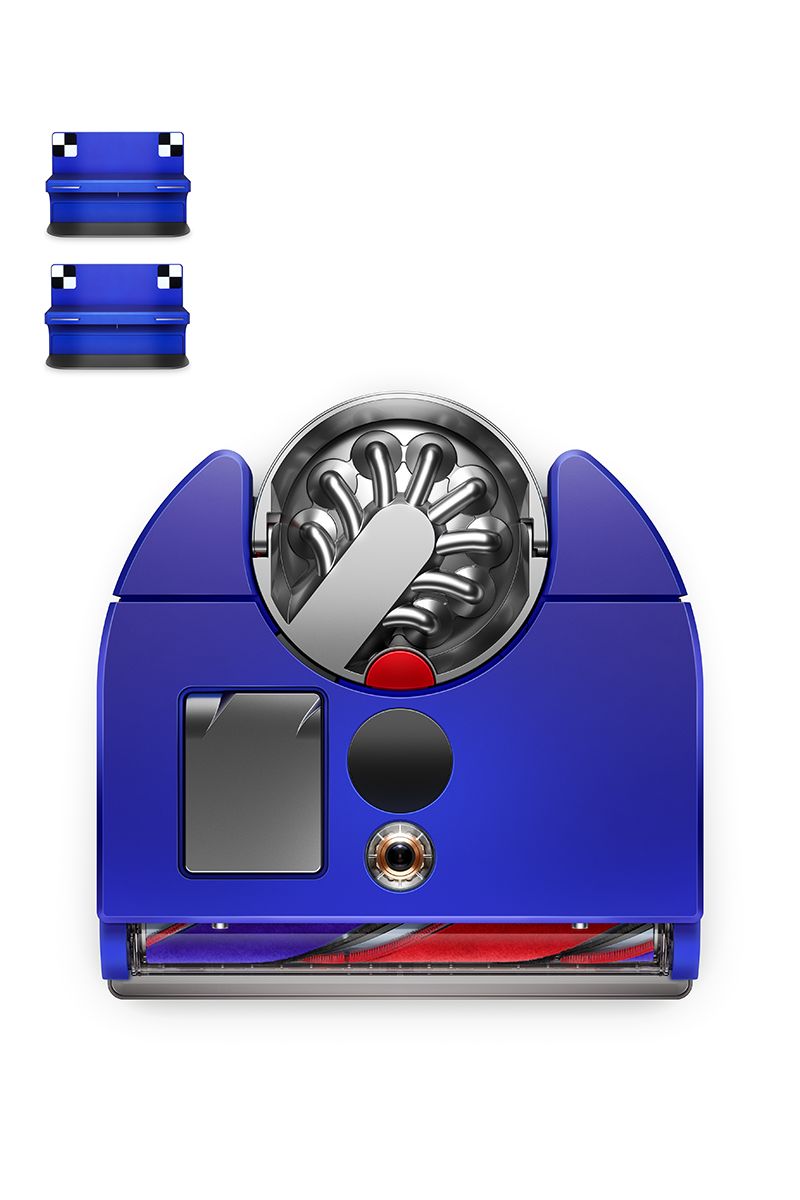
The Dyson 360 Vis Nav Robot Vacuum Cleaner is a premium robot vacuum designed for households that want strong suction, intelligent navigation, and low-maintenance automatic cleaning. Built around Dyson’s 360-degree vision system, it maps rooms with precision, identifies obstacles, and navigates in a structured path rather than random movement. This makes it especially appealing for homes with mixed floor types, pets, and high-traffic areas where dust and debris build up quickly.
One of the biggest advantages of the Dyson 360 Vis Nav Robot Vacuum Cleaner is its powerful cleaning performance. It combines a triple-action brush bar, whole-machine HEPA filtration, and strong suction to capture fine dust, pet hair, and larger debris on hard floors and carpets. The app-based controls also allow scheduling, room targeting, and cleaning mode customization, making it a practical choice for busy families, professionals, and pet owners.
This model is best suited for users who want a smart robot vacuum cleaner with advanced mapping and premium build quality rather than a budget-focused device. It is available through Dyson and select major retailers, with pricing typically in the premium range around $999 to $1,199 depending on region, promotions, and included dock configuration. For buyers comparing robot vacuums, the Dyson 360 Vis Nav stands out for suction power, dust capture, and precise navigation.
Specifications
- Product type: Robot vacuum cleaner with smart mapping and app control
- Navigation: 360-degree vision system with multi-sensor obstacle detection
- Cleaning modes: Auto, Quick, Quiet, and Boost
- Suction power: 65 air watts for deep cleaning performance
- Brush system: Triple-action brush bar for all floor types
- Filtration: Whole-machine HEPA filtration for fine particle capture
- Battery runtime: Up to 65 minutes depending on mode and surface
- Charge time: Approximately 1.55 hours
- Dustbin capacity: 0.15 gallon / about 0.57 liter
- Dimensions: 3.9 inches high, 13 inches long, 12.6 inches wide
- Weight: 9.9 lb
- Smart features: MyDyson app control, scheduling, zones, and voice assistant compatibility
Compared with many mainstream robot vacuum cleaners, the Dyson 360 Vis Nav emphasizes suction and navigation precision over self-emptying convenience. It is a stronger fit for users who want deep-cleaning performance and HEPA-level filtration rather than an entry-level automation package.
Setup Guide
Setting up the Dyson 360 Vis Nav Robot Vacuum Cleaner begins with placing the dock against a wall on a flat surface with open space around it. Allow enough clearance in front and on both sides so the robot can leave and return without obstruction. Plug in the dock and place the vacuum on the charging contacts until it powers on.
Next, download the MyDyson app and create an account. The app is required for initial setup, Wi-Fi pairing, mapping, and access to intelligent features. Follow the on-screen instructions to connect the vacuum to your home network, then let it complete its first mapping run. During this process, keep doors open in the areas you want cleaned and remove loose cords, small objects, and fragile items from the floor.
Once mapping is complete, you can assign rooms, create no-go zones, and choose cleaning modes for specific areas. If pairing fails, restart the vacuum, confirm the phone is on a 2.4 GHz Wi-Fi network if required by your router, and move closer to the dock. Keep the brush bar clear and avoid using the machine near liquids or wet floors.
Troubleshooting
If the robot does not start, check whether it is seated correctly on the dock and whether the battery has charged sufficiently. If cleaning performance drops, inspect the brush bar, wheels, and dustbin for tangled hair, dust buildup, or blockages. Empty the bin regularly because a full bin can reduce suction and navigation efficiency.
Common app issues usually involve Wi-Fi pairing, account sign-in, or map synchronization. Restarting the vacuum, rebooting the router, and reinstalling the app often resolves these problems. If the robot gets stuck frequently, reduce clutter, secure loose cables, and refine cleaning zones in the app.
For preventive care, clean sensors, wipe the exterior, and check the filter on a routine basis. Warranty coverage is typically offered through Dyson and authorized retailers, and many buyers receive two years of limited coverage depending on region. For support, use Dyson’s official customer service channels, the app help section, or the retailer’s service desk if the unit was purchased through a store partner.
Pros & Cons
Pros
- Very strong suction for a robot vacuum, especially on dust, crumbs, and pet hair
- 360-degree vision navigation helps with methodical room coverage and obstacle avoidance
- Whole-machine HEPA filtration is a major benefit for allergy-conscious households
- Triple-action brush bar performs well across hard floors and carpets
- App control, scheduling, and cleaning zones add useful smart-home flexibility
Cons
- Premium price makes it less accessible than many competitors
- No built-in self-emptying dustbin in the standard design, so manual emptying is needed
- Runtime is good but not class-leading for very large homes
- Bulkier than some ultra-slim robot vacuums, which may affect low-clearance furniture access
For value for money, this model makes the most sense if suction power, filtration, and navigation accuracy matter more than bargain pricing. Compared with alternatives from iRobot, Roborock, and Ecovacs, the Dyson 360 Vis Nav is more focused on raw cleaning strength and premium engineering than on maximizing automation features like self-emptying and mopping.
Customer Reviews
Customer feedback for the Dyson 360 Vis Nav Robot Vacuum Cleaner is generally strong, with many users praising the powerful suction, excellent dust pickup, and precise navigation. A common star rating pattern is around 4.2 out of 5, with reviewers describing it as a high-performance cleaner for homes with pets and mixed flooring.
Typical testimonials include comments such as, “It picks up more debris than my previous robot vacuum,” and “The mapping is accurate and the app is easy to use.” Common complaints focus on the high price, the need to empty the bin manually, and the fact that it can be overkill for small apartments with light dust levels.
Purchase is best recommended for users who want a premium robot vacuum cleaner with serious suction and advanced navigation rather than a low-cost convenience device. If the goal is strong daily cleaning with smart control, this model is a solid choice. If self-emptying convenience or budget pricing matters more, a competing model may be a better fit.
Final Verdict
The Dyson 360 Vis Nav Robot Vacuum Cleaner is a premium robot vacuum built for users who value power, precision, and intelligent navigation. Its strongest advantages are suction performance, HEPA filtration, and reliable room mapping, making it a compelling option for modern homes that need consistent automated cleaning.
Faqs
How do I set up the Dyson 360 Vis Nav Robot Vacuum Cleaner for the first time?
Why won't my Dyson 360 Vis Nav Robot Vacuum Cleaner connect to Wi-Fi or the MyDyson app?
What cleaning modes does the Dyson 360 Vis Nav Robot Vacuum Cleaner offer, and when should I use each one?
How does the Dyson 360 Vis Nav Robot Vacuum Cleaner clean edges and corners better than a round robot vacuum?
Is the Dyson 360 Vis Nav Robot Vacuum Cleaner good for pet hair and allergens?
What should I do if the Dyson 360 Vis Nav Robot Vacuum Cleaner is missing spots or cleaning unevenly?
How often should I maintain the Dyson 360 Vis Nav Robot Vacuum Cleaner to keep suction strong?
What home setup does the Dyson 360 Vis Nav Robot Vacuum Cleaner need for reliable performance?
More dyson manuals
Leave a Comment