
How to Pair: Dyson Zone Headphone User Guide
Content
Dyson Zone Headphones
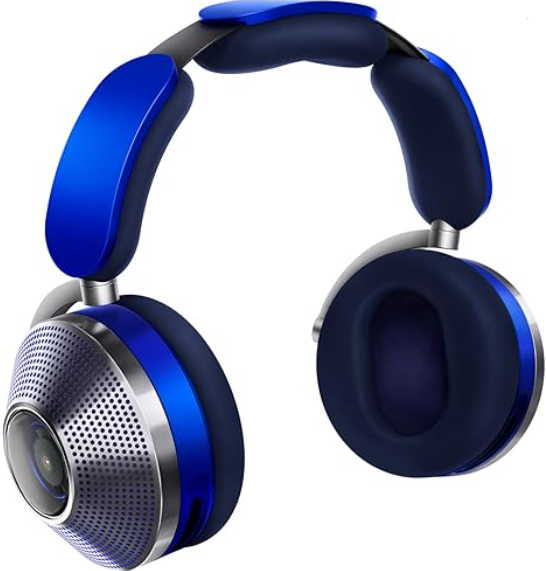
Introduction
The Dyson Zone Headphones are a revolutionary innovation in personal audio technology, combining high-quality sound with a unique air purification feature. These over-ear headphones are designed to provide a balanced sound experience, effective noise cancellation, and a futuristic design that sets them apart. Targeted at urban dwellers and those seeking enhanced audio quality with health benefits, the Dyson Zone offers an unparalleled listening experience. Priced around €650, they are available in various markets, offering a blend of style, functionality, and health-conscious features.
Whether you're commuting through polluted city streets or enjoying music in a quiet room, the Dyson Zone Headphones cater to a wide range of users seeking both sound quality and air purification. With their advanced active noise cancellation and app-controlled features, these headphones are perfect for those who value both sound and health.
Specifications
Here are the key specifications of the Dyson Zone Headphones:
- Type: Over-ear, closed-back
- Transducer Principle: Dynamic
- Frequency Response: 6 Hz to 21,000 Hz
- Driver Size: 40mm neodymium magnet
- Weight: Approximately 670g with visor, 695g without
- Bluetooth Version: Bluetooth 5.0
- Audio Codecs: SBC, AAC, LHDC
- Battery Life: Up to 50 hours for audio only, up to 4 hours with air purification
- Special Features: Active noise cancellation, air purification, app control, and detachable visor
Compared to other ANC headphones, the Dyson Zone offers a unique blend of sound quality and air purification, making it a standout choice for those seeking both features.
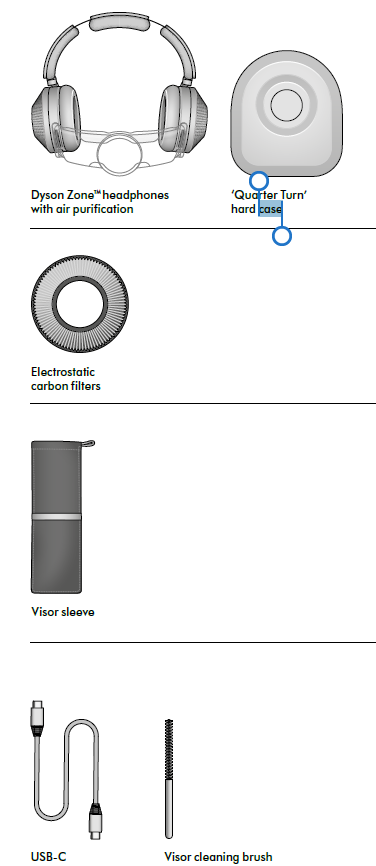
In the box
Getting started
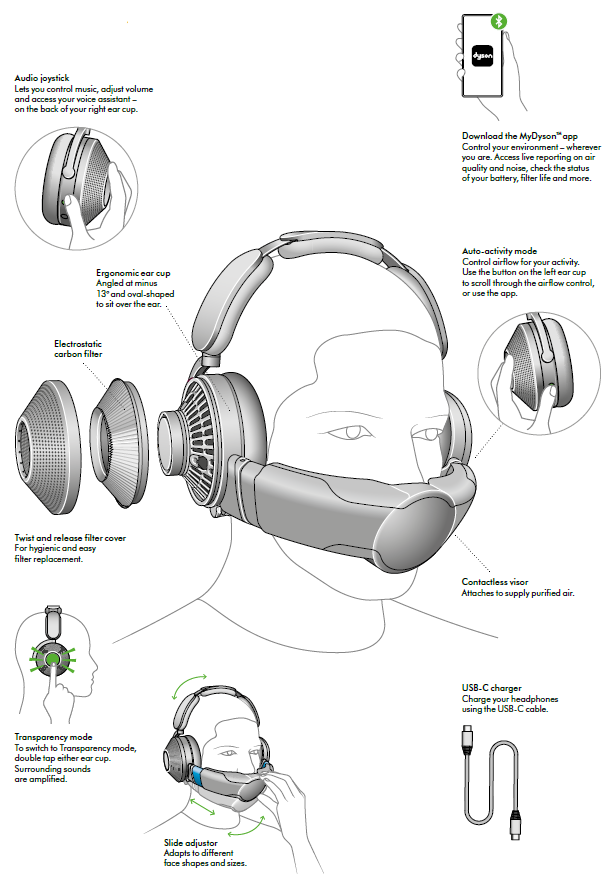
Assembling your headphones
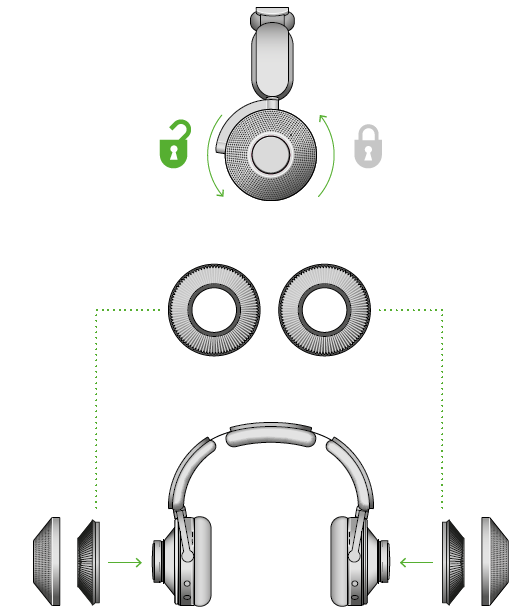
Insert your filters
- Twist off both ear cup covers, anti-clockwise.
- Hold the filters on the plastic edges and secure them in the ear cups.
- Replace the covers and twist them clockwise to secure them in position.
Adjust your headphones
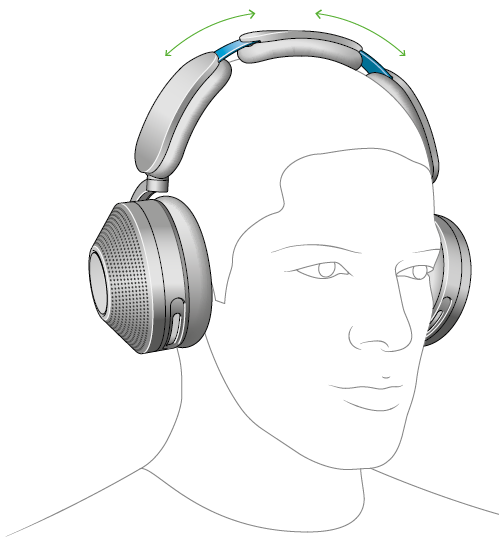
Put your headphones on.
Adjust the headband, sliding both sides until you have a comfortable fit.
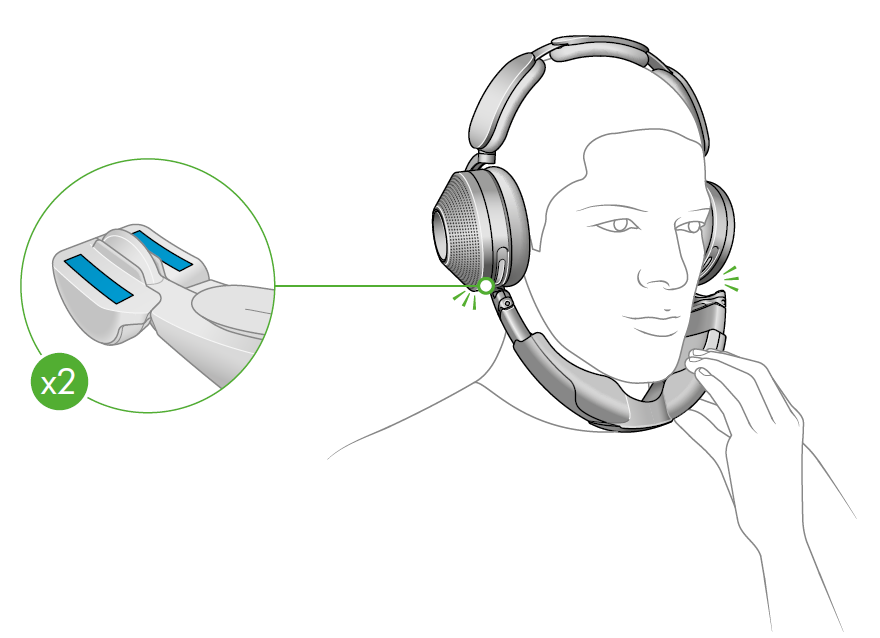
Attach visor
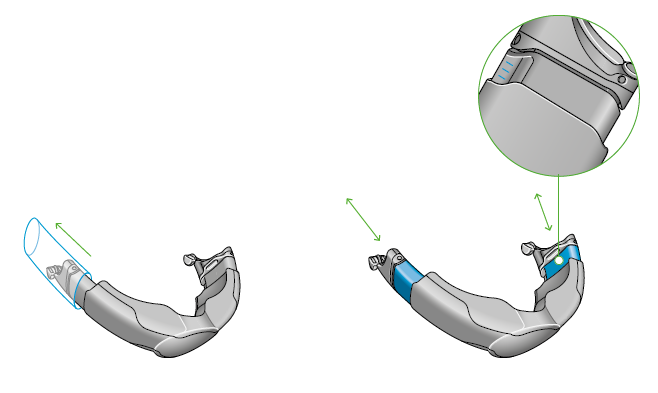
Remove any packaging from the visor and fully extend the visor arms.
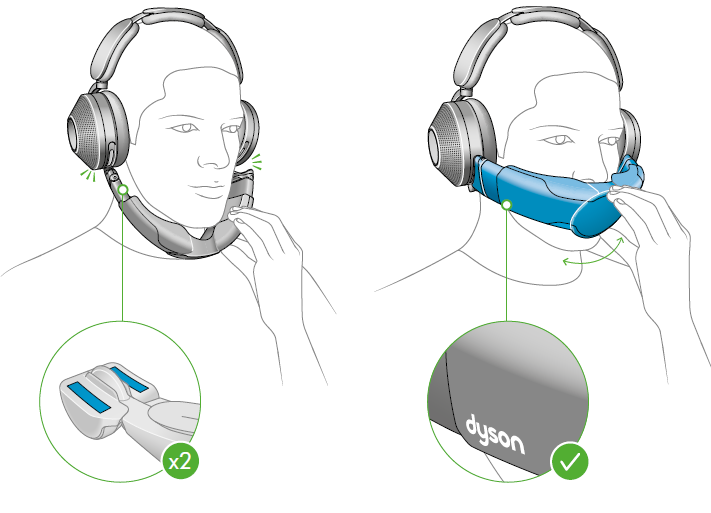
With the visor positioned below your mouth, attach it to each ear cup with the magnetic connectors.
Push the visor up to cover your nose and mouth.
Adjust visor
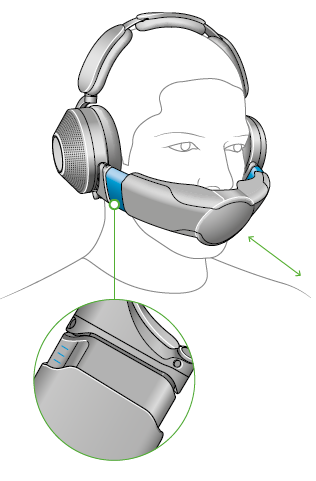
Adjust the visor until it’s in a comfortable position, close to – but not touching – your face. The airflow will start automatically.
Charging your headphones
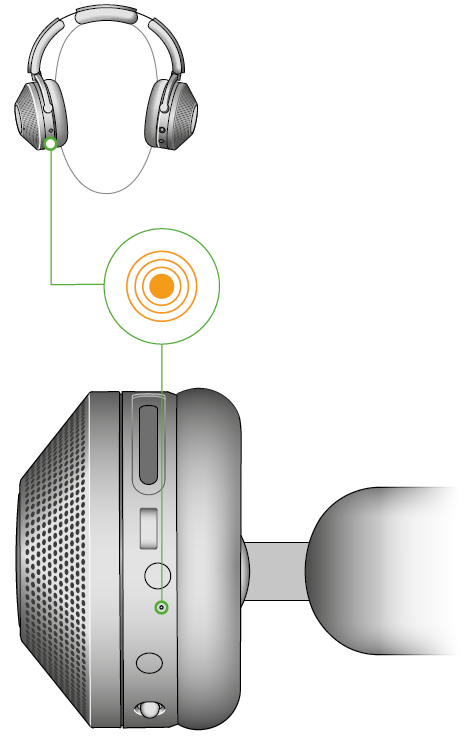
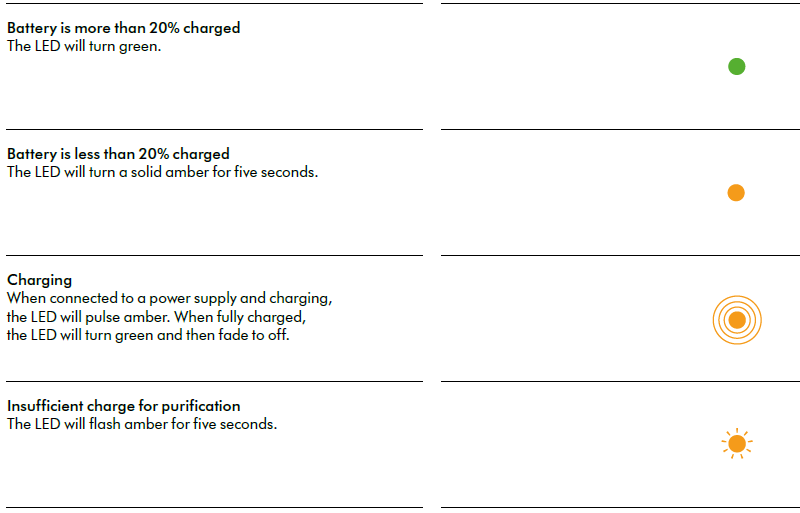
- Your headphones will need to have more than 20% charge to run purification.
- You can check the charge level by pressing the airflow button.
Battery life
The battery life of your headphones with air purification will improve with use. Allow at least 5 hours of initial use to achieve the best runtime performance.
Action and LED behaviour
Airflow control
Your Dyson Zone™ headphones with air purification will detect your level of activity and adjust the airflow automatically. You can also choose to adjust the levels manually.
Use your MyDyson™ app to select Auto, or adjust the modes manually. Alternatively, use the button on the back of the left ear cup to select modes.
Battery life
You can extend battery life by using low airflow settings.
Reassembling your headphones
Reassemble visor
Make sure all parts of your visor are completely dry before reassembling.
Slide in side extensions until they click into position.
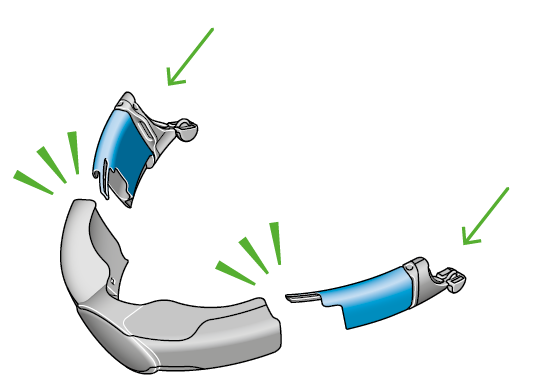
Clip in the inner mesh.
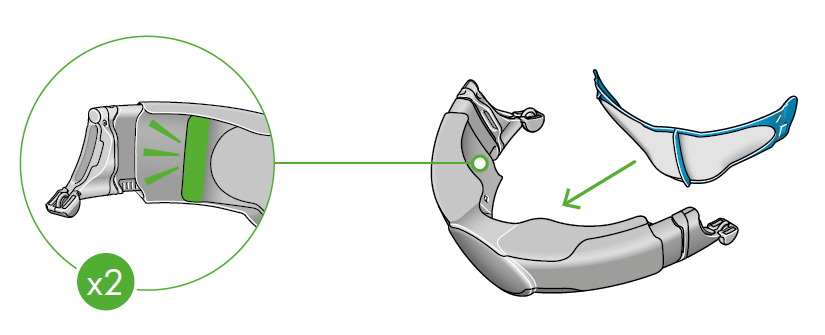
Reattach the visor to your headphones.
Troubleshooting
Common issues and solutions for the Dyson Zone Headphones include:
- Connection Issues: Ensure Bluetooth is enabled and the headphones are properly paired.
- Sound Quality Issues: Check EQ settings in the app or ensure ANC is enabled.
- Air Purifier Malfunction: Ensure the visor is properly attached and filters are clean.
For further assistance, refer to the Dyson support website or contact their customer service.
Pros & Cons
Pros
- Unique Air Purification Feature: Provides clean air while listening.
- Effective Noise Cancellation: Excellent at reducing background noise.
- Good Sound Quality: Balanced sound with clear vocals and bass.
- Long Battery Life: Up to 50 hours for audio-only use.
Cons
- High Price Point: May be out of budget for many users.
- Heavy and Bulky: Less portable than other headphones.
- Limited EQ Presets: Only three preset options available.
Customer Reviews
Users praise the Dyson Zone for its innovative design and effective noise cancellation. However, some find them heavy and expensive. The air purification feature is a unique selling point, making them ideal for those prioritizing both sound and health.
With an average rating of around 4 stars, these headphones are recommended for those seeking a premium audio experience with additional health benefits.
Faqs
How do I set up my dyson Zone Headphone for the first time?
What should I do if my dyson Zone Headphone is not pairing with my device?
How do I use and switch between noise cancellation modes on my dyson Zone Headphone?
Can I use dyson Zone Headphone with any smartphone or device?
How can I optimize battery life and purification performance on my dyson Zone Headphone?
How do I properly clean and maintain my dyson Zone Headphone filters?
What are the steps to control audio playback and activate voice assistants on dyson Zone Headphone?
Why is my dyson Zone Headphone air purification airflow paused and how do I resume it?
Tags
More dyson manuals
Leave a Comment