
How to Connect: Fitbit One Wireless Activity Sleep Tracker User Manual
Content
Fitbit One Wireless Activity Sleep Tracker
Product Overview
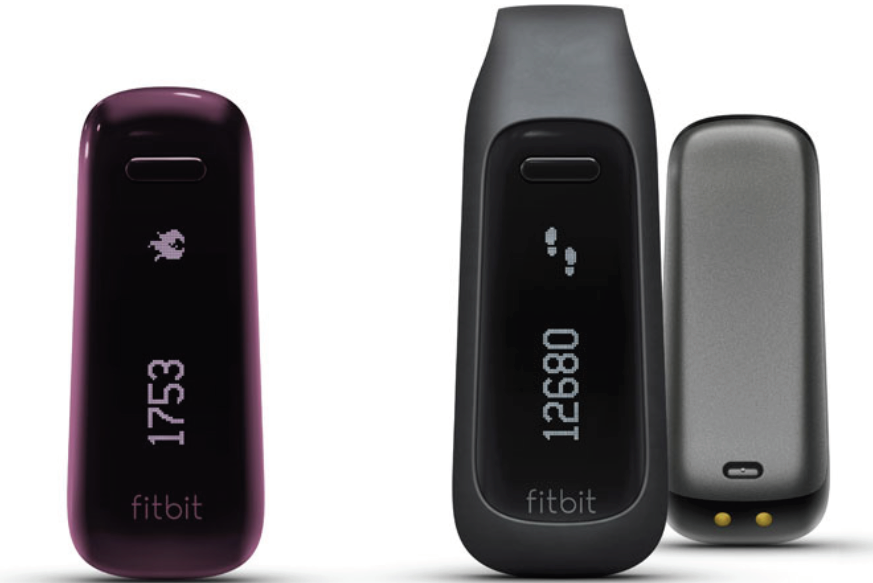
The Fitbit One Wireless Activity + Sleep Tracker is a compact, feature-rich wearable designed for active individuals who want to monitor their daily movement, sleep quality, and overall fitness progress. Unlike wrist-based trackers, the Fitbit One is designed to be clipped onto clothing, worn in a pocket, or placed in a wristband for sleep tracking—providing flexibility for different lifestyles and preferences.
This device excels at tracking steps, floors climbed, distance traveled, calories burned, and active minutes throughout the day, offering a comprehensive snapshot of your physical activity. It also features a built-in clock, stopwatch, and silent alarm, making it both a fitness companion and a practical daily tool. For sleep tracking, simply slip the tracker into the included wristband before bed, and it will monitor your sleep duration and quality, helping you understand your rest patterns and wake up refreshed with a gentle vibration.
The Fitbit One syncs wirelessly with smartphones, tablets, and computers, allowing you to view your stats in real time and set personalized goals via the Fitbit dashboard. Its 1-inch OLED display is easy to read, and the device is compatible with both iOS and Android platforms. The tracker is discreet, durable, and boasts a battery life of up to a week, depending on usage.
The Fitbit One is ideal for professionals, students, and fitness enthusiasts seeking a reliable, unobtrusive way to stay on top of their health. Its estimated price range is typically between $80 and $120, making it a competitive option in the mid-range activity tracker market. It is widely available online and at major electronics retailers.
What you’ll find in the box
Your Fitbit One box includes:
- Fitbit One Wireless Activity + Sleep Tracker
- Clip
- Wireless sync dongle
- Sleep wristband
- Charging cable

What’s in this document
We get you started quickly by creating a Fitbit® account and making sure the tracker can synchronize the data it collects with your Fitbit dashboard. The dashboard is where you can analyze your data, see historical trends, set goals, log food and water, keep up with friends, and much more. As soon as you’re done setting up your tracker, you’re ready to start moving.
Next, we explain how to find and use the features that interest you and adjust your preferences. To find more information, tips, and troubleshooting, please browse our comprehensive articles at http://help.fitbit.com.
Setting up your Fitbit One
To make the most of your One, use the free Fitbit app available for iOS®, Android™, and Windows® 10 mobile devices. If you don’t have a compatible mobile device, you can use a computer and fitbit.com instead.
Setting up your tracker on your mobile device
The Fitbit app is compatible with more than 200 mobile devices that support iOS, Android, and Windows 10 operating systems.
To get started:
- Make sure the Fitbit app is compatible with your mobile device by checking http://www.fitbit.com/devices.
- Find the Fitbit app in one of these locations, depending on your device:
- The Apple® App Store® for iOS devices such as an iPhone® or iPad®.
- The Google Play™ Store for Android devices such as the Samsung® Galaxy® S5 and Motorola Droid Turbo.
- The Microsoft® Windows Store for Windows 10 mobile such as the Lumia™ phone or Surface™ tablet.
- Install the app. Note that you’ll need an account with the applicable store before you can download even a free app such as Fitbit.
- When the app is installed, open it and tap Join Fitbit to get started. You’ll be guided through the process of creating a Fitbit account and connecting (pairing) your One to your mobile device. Pairing makes sure the tracker and mobile device can communicate with one another (sync their data).
Note that the personal information you’re asked during setup is used to calculate your basal metabolic rate (BMR), which helps determine your estimated calorie expenditure. This information is private unless you go into your Privacy settings and opt to share age, height, or weight with Fitbit friends.
After setup you’re ready to get moving.
Setting up your tracker on your PC (Windows 10 only)
- If you don’t have a mobile device, you can set up and sync your tracker on your Windows 10 PC using the same Fitbit app available for Windows mobile devices.
- To get the app, click the Start button and open the Windows Store (called Store). Search for “Fitbit app.” Note that if you’ve never downloaded an app from the store to your computer, you’ll be prompted to create an account.
- Open the app and follow the instructions to create a Fitbit account and set up your One. You can set up and sync wirelessly if your computer has Bluetooth®, otherwise you’ll need to use the wireless sync dongle that came in the box with your Fitbit One.
Setting up your tracker on your PC (Windows 8.1 and below)
If you don’t have a compatible mobile device, you can set up your tracker with a computer and see your Fitbit stats on fitbit.com. To use this setup method you’ll first install a free software application called Fitbit Connect that lets One sync its data with your fitbit.com dashboard.
To install Fitbit Connect and set up your tracker:
- Go to http://www.fitbit.com/setup.
- Scroll down and click the option to download.
- When prompted, save the file that appears.
- Double-click the file (FitbitConnect_Win.exe). The Fitbit Connect installer opens.
- Click Continue to move through the installer.
- When prompted, choose Set up a New Fitbit Device.
- Follow the onscreen instructions to create a Fitbit account and connect your One. If your computer has Bluetooth, setup can take place wirelessly. If not you’ll be prompted to plug in the wireless sync dongle that came in the box with your Fitbit One.
Note that the personal information you’re asked during setup is used to calculate your basal metabolic rate (BMR), which helps determine your estimated calorie expenditure. This information is private unless you go into your Privacy settings and opt to share age, height, or weight with Fitbit friends.
Setting up your tracker on your Mac
If you don’t have a compatible mobile device, you can set up your tracker with a computer and see your Fitbit stats on fitbit.com. To use this setup method you’ll first install a free software application called Fitbit Connect that lets One sync its data with your fitbit.com dashboard.
To install Fitbit Connect and set up your tracker:
- Go to http://www.fitbit.com/setup.
- Scroll down and click the option to download.
- When prompted, save the file that appears.
- Double-click the file (Install Fitbit Connect.pkg). The Fitbit Connect installer opens.
- Click Continue to move through the installer.
- When prompted, choose Set up a New Fitbit Device.
- Follow the onscreen instructions to create a Fitbit account and connect your One.
Note that the personal information you’re asked during setup is used to calculate your basal metabolic rate (BMR), which helps determine your estimated calorie expenditure. This information is private unless you go into your Privacy settings and opt to share age, height, or weight with Fitbit friends.
Syncing your tracker data to your Fitbit account
Once you've set up and started using One, you'll need to make sure it regularly transfers (syncs) its data to Fitbit so you can track your progress, see your exercise history, earn badges, analyze your sleep logs, and more on your Fitbit dashboard. A daily sync is recommended but not required.
The Fitbit apps use Bluetooth Low Energy (BLE) technology to sync with your Fitbit tracker. Each time you open the app it will sync if the tracker is nearby, and the app will also sync periodically throughout the day if you have the all-day sync setting enabled. If you’re running the Fitbit app on a Windows 10 PC that doesn’t have Bluetooth, you’ll need to make sure the tracker is connected to the computer.
Fitbit Connect on a Mac® also uses Bluetooth for syncing (if available), otherwise you’ll need to make sure your wireless sync dongle is plugged into the computer. Fitbit Connect on a PC requires that you plug in your wireless sync dongle. You can forceFitbit Connect to sync at any time or it will happen automatically every 15 minutes if:
- Your tracker is within 20 feet of your computer and has new data to upload (meaning that if you haven’t moved, an automatic sync won’t occur).\
- The computer is powered on, awake, and connected to the Internet.
Using the fitbit.com dashboard
Fitbit provides a free online tool — the fitbit.com dashboard — to help you track, manage, and evaluate your fitness progress. Use the dashboard to see your daily totals, analyze details about specific activities, view historical graphs, and log food.
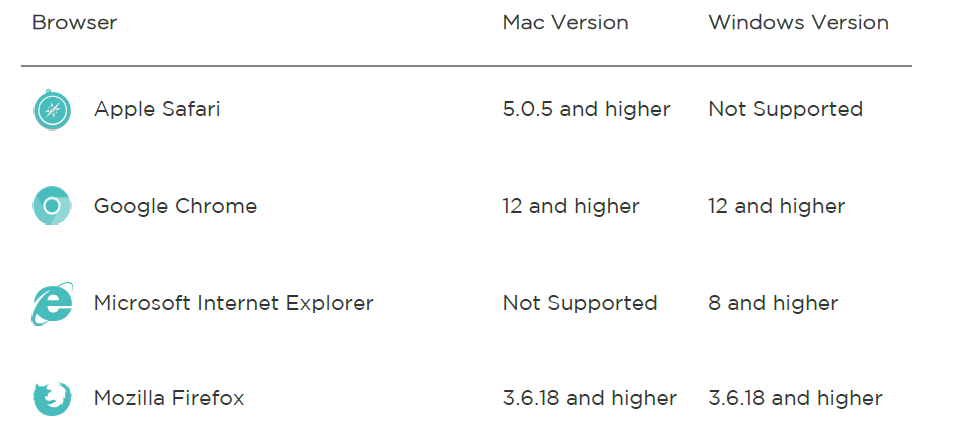
Browser requirements
Adding and removing tiles
Information on the dashboard appears in tiles. Add or remove tiles to customize the dashboard. If you remove a tile, you can add it back at any time.
To add a tile:
- Click the grid icon on the upper left side of the dashboard.
- Check the tile(s) you want to add, then click Done.
To delete a tile:
- Hover over a tile until you see the gear icon at the lower left.
- Click the gear icon, then click Remove Tile.
- When prompted, confirm that you want to remove the tile.
Managing your One from fitbit.com
To manage various settings for your account, click the gear icon in the top right corner of your fitbit.com dashboard and select Settings. From here you can edit your personal information, your notification preferences, your privacy settings, and much more.
The Devices page allows you to monitor or edit:
- The date and time of your last sync.
- Your tracker’s battery level.
- The firmware version running on your tracker.
- Your time zone.
- Your sleep tracking sensitivity option.
- Your handedness preference: left-handed or right-handed.
- Your tracker’s greeting.
Troubleshooting your Fitbit One
If your tracker is not working properly, review our troubleshooting information below. For other problems or more details, visit http://help.fitbit.com.
If your One is experiencing one of the following problems, it may be fixed by restarting your tracker:
- Not syncing
- Not tracking your steps
- Not responding to battery charge
- Not responding to button presses
Note: Restarting your tracker as described below reboots the device. Note that restarting your tracker does not delete any data.
To restart your tracker:
- Plug your charging cable into your computer.
- Plug your One tracker into the charging cable, making sure that the gold contacts on your tracker align with the gold contacts in the inside of the charger.
- Hold down your tracker's button for 10-12 seconds.
- Remove your tracker from the charging cable and press its button until the screen turns on.
Your tracker should now work normally.
For additional troubleshooting or to contact Customer Support, see http://help.fitbit.com.
Return Policy and Warranty
Warranty information and the fitbit.com Store Return Policy can be found online at http://www.fitbit.com/returns.
Fitbit One Wireless Activity Sleep Tracker: Pros and Cons
Advantages
- Comprehensive Tracking: Accurately monitors steps, floors, distance, calories, and sleep—delivering a complete fitness overview.
- Flexible Wearability: Can be clipped to clothing or worn in a pocket, unlike wrist-only devices.
- Long Battery Life: Lasts up to a week on a single charge, reducing frequent recharging hassles.
- Silent Alarm: Vibrates to wake you gently without disturbing others—ideal for light sleepers.
- Wireless Syncing: Seamlessly uploads data to your smartphone or computer for easy goal tracking.
- Value for Money: Competitive pricing for the range of features offered, especially compared to basic pedometers.
Drawbacks
- No Built-in GPS: Distance is estimated based on stride length, which may not be as precise as GPS-enabled devices.
- Separate Wristband for Sleep: Sleep tracking requires using an additional wristband, which can be less convenient than always-on wrist trackers.
- Small Display: The monochrome OLED screen is clear, but some users may find it small for detailed data at a glance.
- Manual Food Logging: Unlike newer models, food and water intake must be logged manually via the Fitbit app or website.
- Limited Smart Features: Lacks advanced smartwatch functions like notifications, caller ID, or music control.
Comparison with Alternatives: The Fitbit One Wireless Activity Sleep Tracker stands out for its accuracy, battery life, and flexibility, but users seeking advanced smart features or built-in GPS may prefer newer Fitbit models or competitors like Garmin or Apple Watch. However, for basic activity and sleep tracking at a reasonable price, the Fitbit One remains a strong choice.
Fitbit One Wireless Activity Sleep Tracker: Customer Reviews and Common Feedback
User reviews for the Fitbit One Wireless Activity Sleep Tracker are generally positive, with an average rating of 4 to 4.5 stars across major retailers. Many praise its accuracy, long battery life, and the convenience of discreet wear—especially for those who dislike wristbands during the day. The silent alarm and detailed sleep tracking are frequently highlighted as standout features.
Common complaints include the need to switch to a wristband for sleep tracking, occasional syncing issues, and the lack of advanced smart features found in newer devices. Some users mention that the display can be hard to read in bright sunlight and that the companion app could be more intuitive for food logging.
Testimonials: “The Fitbit One has been my go-to fitness tracker for years—reliable, accurate, and unobtrusive,” says one long-term user. Another notes, “The sleep data really helped me improve my rest, but I wish it had more smart features.”
Purchase Recommendation: The Fitbit One Wireless Activity Sleep Tracker is recommended for users who prioritize accurate activity and sleep tracking in a compact, flexible form factor. It’s especially suitable for those who prefer not to wear a wristband all day and want a device that’s easy to use and maintain. If you need advanced notifications or GPS, consider newer models, but for core fitness metrics, the Fitbit One delivers excellent value.
Addressing Common Issues: Most syncing problems can be resolved by ensuring your device firmware and app are up to date. For display visibility, avoid direct sunlight when checking stats. If sleep tracking is a priority, remember to use the included wristband at night for best results.
Faqs
How do I set up my Fitbit One Wireless Activity Sleep Tracker with a computer for the first time?
What should I do if my Fitbit One Wireless Activity Sleep Tracker is not syncing with my computer or mobile app?
How do I track my sleep accurately with the Fitbit One Wireless Activity Sleep Tracker?
Can I use the Fitbit One Wireless Activity Sleep Tracker with my smartphone, and which operating systems are supported?
How do I maintain and clean my Fitbit One Wireless Activity Sleep Tracker to ensure longevity?
What should I do if the battery on my Fitbit One Wireless Activity Sleep Tracker drains quickly?
How do I track a specific workout or exercise session with my Fitbit One Wireless Activity Sleep Tracker?
Can I view my Fitbit One Wireless Activity Sleep Tracker data offline, or do I need an internet connection?
More fitbit manuals
- Setup & Usage: Fitbit Sense Wrist Watch User Guide
- How to Use: Fitbit Luxe Wrist Watch User Manual
- How to Use: Fitbit Sense 2 Wrist Watch User Guide
- How to Use: Fitbit Inspire 2 Fitness Tracker User Manual
- How to Use: Fitbit Versa 4 Wrist Watch Owner Guide
- How to Use: Fitbit Inspire HR Wristband User Manual
Leave a Comment