
How to Use: Garmin Dash Cam™ Mini User Manual
Content
Garmin Dash Cam Mini Manual: Compact 1080p Protection for Everyday Driving
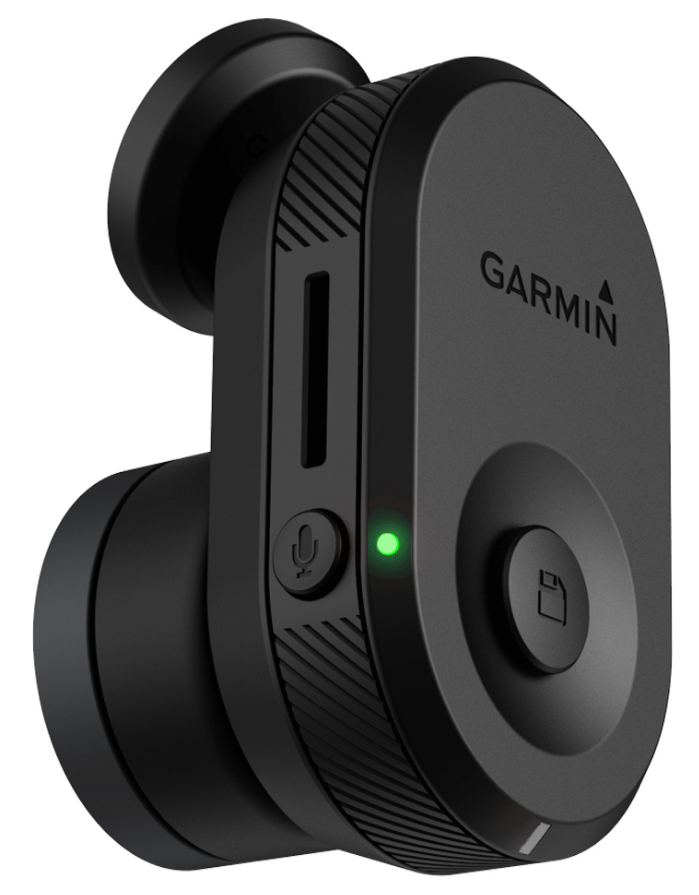
The Garmin Dash Cam Mini is a compact windshield-mounted dash camera designed to record driving footage discreetly without blocking your view. It is best known for its tiny size, 1080p HD recording, 140-degree field of view, and simple app-based setup through the Garmin Drive app. For drivers who want reliable incident recording, parking monitoring support, and a low-profile design, this dash cam is a strong choice for daily commuting, rideshare driving, and fleet use.
The main appeal of the Garmin Dash Cam Mini is convenience. It is small enough to stay nearly hidden behind the rearview mirror, yet it still captures wide-angle footage with automatic incident detection and loop recording. Voice control and smartphone connectivity make it easy to save clips, review footage, and manage settings without touching the camera. This makes it especially useful for new drivers, frequent travelers, parents, and anyone who wants a simple “set it and forget it” dash cam.
In 2026, the Garmin Dash Cam Mini line is generally positioned in the mid-range compact dash cam category, with pricing typically around $100 to $150 depending on the retailer, bundle, and model generation. It is widely available through major electronics stores, online marketplaces, and Garmin retailers. If you want a discreet car dashboard camera with solid video quality and dependable everyday performance, the Garmin Dash Cam Mini remains a practical and popular option.
Specifications for Garmin Dash Cam Mini: Key Features, Performance, and Comparison
- Video resolution: 1080p Full HD recording, with 30 fps performance for smooth everyday driving footage.
- Field of view: 140-degree wide-angle lens for broad road coverage and lane visibility.
- Camera design: Ultra-compact body for discreet windshield mounting.
- Connectivity: Bluetooth and Wi-Fi support through the Garmin Drive app for pairing, clip access, and settings management.
- Recording features: Loop recording, automatic incident detection, and G-sensor support for emergency clip saving.
- Mounting: Windshield adhesive mount with vehicle power connection.
- Memory support: microSD card compatibility, with high-capacity card support depending on the model generation.
- Voice control: Hands-free voice commands for saving video and taking still images on supported versions.
- Parking mode: Available when paired with the proper constant-power accessory.
- Comparison: Compared with larger screen-based dash cams, the Garmin Dash Cam Mini prioritizes stealth, simplicity, and app control over on-device viewing and advanced driver-assist displays.
For buyers comparing compact dash cams, the Garmin Dash Cam Mini stands out for its tiny form factor and polished software experience. Competing models may offer higher resolutions, built-in screens, or GPS, but the Mini focuses on practical protection and easy installation.
Garmin Dash Cam Mini Setup Guide: Step-by-Step Installation and Pairing
Start by choosing a clean section of the windshield near the rearview mirror where the camera has a clear forward view. Clean the glass thoroughly before attaching the mount so the adhesive bonds securely. Next, insert a compatible microSD card, then connect the camera to vehicle power using the included cable and adapter.
Power on the camera and install the Garmin Drive app on your smartphone. Open the app, enable Bluetooth and Wi-Fi permissions, and follow the on-screen pairing instructions. Keep the camera and phone within about 10 feet during setup for the most reliable connection. After pairing, configure options such as video resolution, voice control, incident detection sensitivity, and parking mode behavior if supported by your power setup.
Before finalizing installation, make sure the camera does not obstruct the driver’s view or interfere with airbags. If the camera does not connect, restart both devices, confirm that Bluetooth is enabled, and check that the microSD card is properly formatted. For best results, use a high-endurance memory card and avoid installing the unit in extreme heat until the adhesive has fully set.
Troubleshooting Garmin Dash Cam Mini Problems, Error Fixes, and Support
Common issues usually involve power, memory cards, pairing, or recording interruptions. If the camera does not turn on, check the vehicle outlet, cable connection, and adapter. If recordings stop unexpectedly, reformat or replace the microSD card with a compatible high-endurance card. If the device keeps disconnecting from the app, remove it from Bluetooth settings and pair it again inside Garmin Drive.
- Camera will not power on: Verify the car outlet works and the USB cable is fully seated.
- “Card error” or storage warning: Use a supported microSD card and reformat it in the camera menu or app.
- Pairing failure: Reset Bluetooth, restart the phone, and place the device close to the camera during setup.
- Blurry video: Clean the lens and windshield, then confirm the camera angle is level and unobstructed.
- Parking mode not working: Confirm constant power is available and the accessory cable is installed correctly.
To reduce problems, update firmware regularly through the app, keep the lens clean, and avoid removing power while files are still saving. Garmin support typically provides warranty assistance, troubleshooting articles, and product registration help through its official support channels. If in-device help is unavailable, contact Garmin customer support directly through the support section of the Garmin website or the app.
Garmin Dash Cam Mini Pros and Cons: Is It Worth the Money?
Pros
- Very small design that stays discreet behind the mirror.
- 1080p video with a 140-degree lens captures useful road detail.
- Easy setup with the Garmin Drive app and simple controls.
- Automatic incident recording adds peace of mind during collisions or sudden braking.
- Good value for drivers who want a reliable compact dash cam without a large display.
Cons
- No built-in screen for instant playback.
- No GPS on many versions, so location data may be limited.
- Parking mode may require an additional power accessory.
- Best for front-facing recording only, not dual-channel coverage.
- Not as feature-rich as higher-end alternatives with 2K or 4K video.
For value, the Garmin Dash Cam Mini is strongest for drivers who want a compact, dependable front camera rather than a feature-heavy system. Compared with larger alternatives, it trades premium extras for discreet installation and ease of use.
Customer Reviews of Garmin Dash Cam Mini: What Users Like and Dislike
Customer feedback often highlights the camera’s tiny size, clean installation, and dependable everyday recording. Many users rate it around 4 out of 5 stars for ease of use and discreet design. One common positive comment is that it “disappears behind the mirror but still records clearly.”
Frequent complaints usually focus on the lack of a screen, the need for a separate app to review footage, and occasional memory card sensitivity. Some buyers also wish for higher resolution or stronger night performance. A typical review summary might be: “Great little dash cam for daily driving, but don’t expect advanced features.”
Overall, the Garmin Dash Cam Mini is recommended for drivers who value simplicity, small size, and reliable front-camera recording over advanced extras. It is a strong purchase for commuters and everyday drivers who want a discreet dash cam solution.
Faqs
How do I set up Garmin Dash Cam Mini for the first time with the Garmin Drive app?
What memory card does Garmin Dash Cam Mini need, and why won’t it record without one?
Why is my Garmin Dash Cam Mini not pairing with my phone?
What should I do if Garmin Dash Cam Mini video is blurry or choppy?
Can Garmin Dash Cam Mini record audio, and how do I turn it on or off?
How do I format the memory card on Garmin Dash Cam Mini without losing everything by mistake?
What does the Garmin Dash Cam Mini status light mean when it flashes different colors?
How should I maintain Garmin Dash Cam Mini for reliable everyday use?
More garmin manuals
- Garmin Vivoactive-3 Smart Watch User Manual
- How to Use: Garmin Vívofit 3 Wireless Fitness Band User Manual
- Garmin LILY-2 Series Smartwatch User Manual
- How to Use: Garmin Vívoactive 5 Health and Fitness GPS Smartwatch User Manual
- Garmin RV-785 Camper User Manual
- How to Use: Garmin Dash Cam Mini 2 User Manual
Leave a Comment