
How to Use: Iflytek Smart Translator User Manual
Content
iFlytek Smart Translator
Introduction
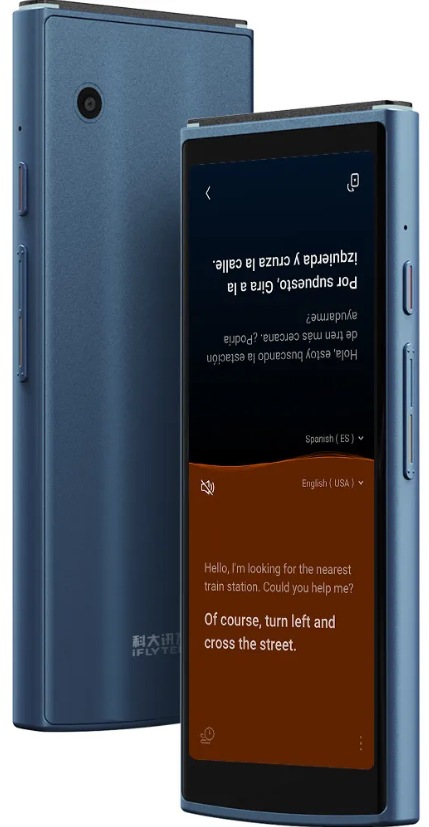
The iFlytek Smart Translator is a revolutionary device designed to bridge language gaps effortlessly. With its ability to translate 60 languages in real-time, it is perfect for travelers, business professionals, and anyone seeking to communicate across linguistic boundaries. This device boasts a sleek design, featuring a 5.05-inch HD screen, an octa-core CPU, and a long-lasting battery. Key benefits include offline translation capabilities, photo translation using OCR technology, and seamless face-to-face conversation modes. The iFlytek Smart Translator is available for purchase in the $400 price range and comes with a complimentary two-year global data package, making it accessible in over 100 countries.
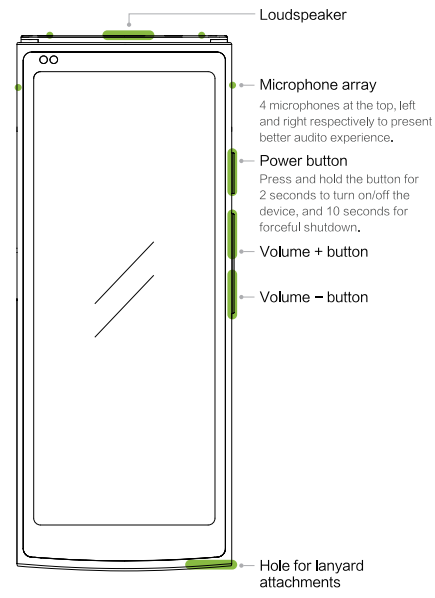
Introduction of Exterior Functions (Front)
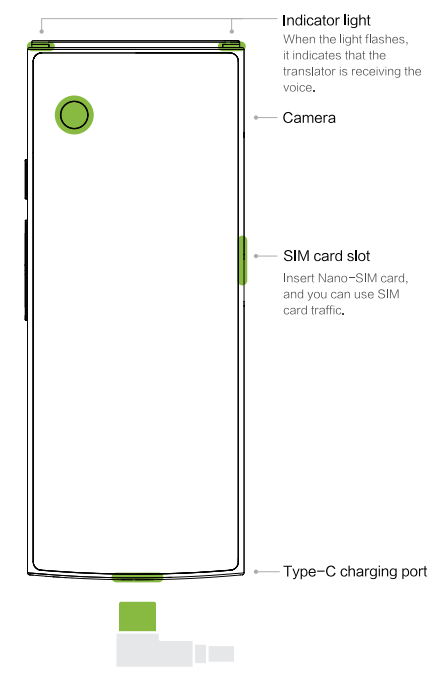
Introduction of Exterior Functions (Back)
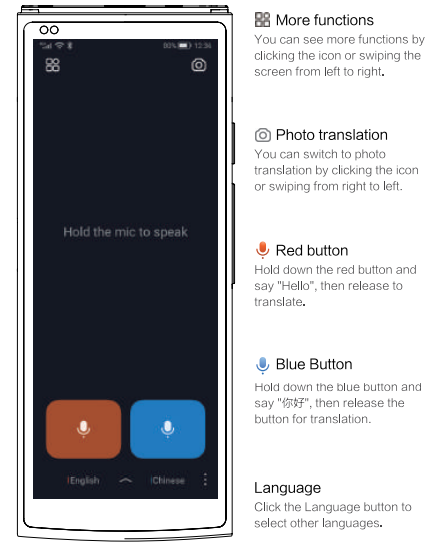
Home page function
Voice Translation-button free
Pick up to talk and put down to trantalPick up the translator with the top front close to the mouth, about 10cm away. When you hear the “beep” sound, start to talk; then move the translator away from your mouth beyond 10cm to trigger the translation. When using this function, please click" :" in the lower-right corner of the voice translation interface to ensure that the "button-free translation" function is turned on.
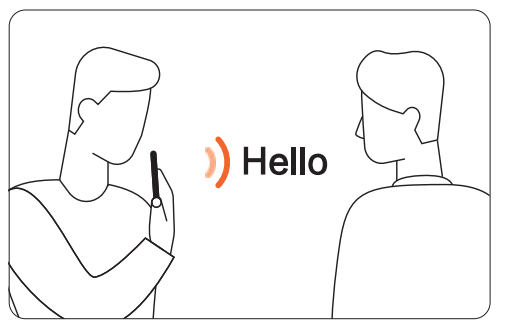
Voice Translation-button free
- Play the translation and receive the voice automatically. After finishing talking, you can play the translation to others in full screen. At the end of the play, the translator will automatically record and recognize others' voices and translate.
- Photo Translation Full-screen framing, shooting, and instant|translation.
- Full screen mode: select the language to translate , and after pressing the shutter, it can directly translatethee text into the target language.
- Smear mode: select the language you need to translate and press the shutter to smear the teof thethe area you need to translate into the target language.
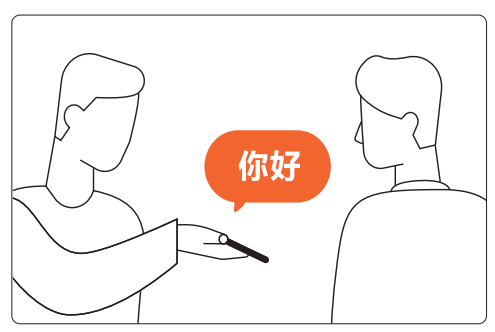
Face-to-face Translation
Split-screen communication with real-time display.Great for extended conversations. Each party can take up half of the screen and tap the area on the screen to start talking.
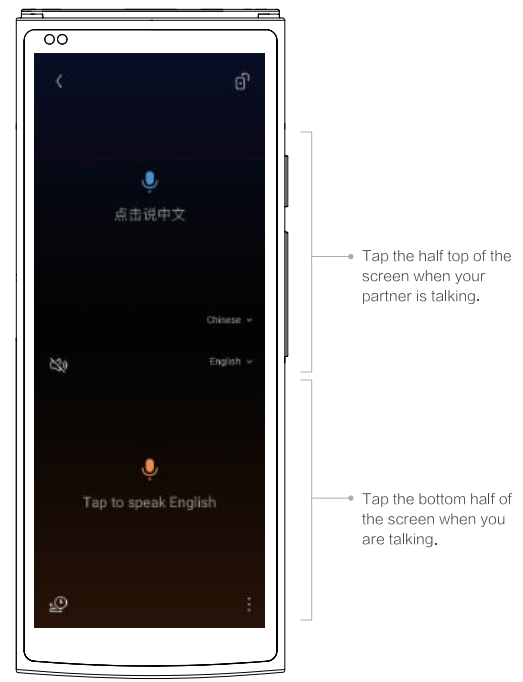
Photo Translation
- Full-screen framing, shooting, and instant translation.
- Full screen mode: select the language to translate, and after pressing the shutter, it can directly translate the text into the target language.
- Smear mode: select the language you need to translate and press the shutter to smear the text of the area you need to translate into the target language.
More applications
Click the icon in the upper left corner of the home page, or slide the page from left to right to see more applications and settings.
Technical Specifications and Features
The iFlytek Smart Translator is powered by an MTK 6762 octa-core processor, ensuring fast and efficient processing. Here are its key specifications:
- Display: 5.05-inch HD screen
- Processor: MTK 6762 Octa-core
- Memory: 2GB RAM + 16GB Storage
- Camera: 5 MP for photo translation
- Battery: 2000mAh, with long-lasting battery life
- Connectivity: WiFi, Global 4G LTE, Bluetooth 5.0, Nano SIM card + SoftSIM
- Translation Modes: Real-time voice, offline, photo, and face-to-face translation
- Language Support: 60 voice languages, 50 photo languages, and 18 offline language pairs
Compared to similar products, the iFlytek Smart Translator offers more comprehensive language support and offline capabilities, making it a standout choice for global communication.
Troubleshooting and Support
Common issues and solutions:
- Internet Connectivity Issues: Ensure WiFi or mobile data is enabled.
- Translation Accuracy: Adjust microphone settings for clearer input.
- Device Not Turning On: Check battery level and charging status.
For additional support, contact iFlytek's customer service or refer to the user manual for detailed troubleshooting guides. The device comes with a warranty and dedicated support options.
Pros and Cons of the iFlytek Smart Translator
Pros
- Comprehensive Language Support: Offers translations in 60 languages, including offline capabilities.
- Portability: Lightweight and compact for easy travel.
- Advanced Features: Photo translation and face-to-face conversation modes enhance user experience.
Cons
- Cost: The device is priced at nearly $400, which may be a barrier for some users.
- Limited Offline Languages: Only 18 language pairs are available offline.
Customer Reviews and Feedback
Users praise the iFlytek Smart Translator for its accuracy and ease of use. Common praises include its ability to facilitate smooth conversations and its portability. However, some users have noted the high cost and limited offline language support as drawbacks. Overall, it receives high ratings for its performance and features.
Recommended for those needing reliable, real-time translation across multiple languages, especially for business and travel purposes.
Faqs
How do I set up the iflytek Smart Translator for the first time?
What should I do if my iflytek Smart Translator is not working properly?
Can I use the iflytek Smart Translator with my smartphone?
How often should I maintain my iflytek Smart Translator?
What are the key features that make the iflytek Smart Translator different?
Can I use the iflytek Smart Translator offline?
How do I optimize the performance of my iflytek Smart Translator?
Is the iflytek Smart Translator compatible with both Android and iOS devices for data transfer?
Tags
More iflytek manuals
Leave a Comment