
Setup & Features: Mackie MainStream Complete Live Streaming & Video Capture Interface Featuring Programmable Control Keys User Manual
Content
Mackie MainStream Complete Live Streaming & Video Capture Interface Featuring Programmable Control Keys
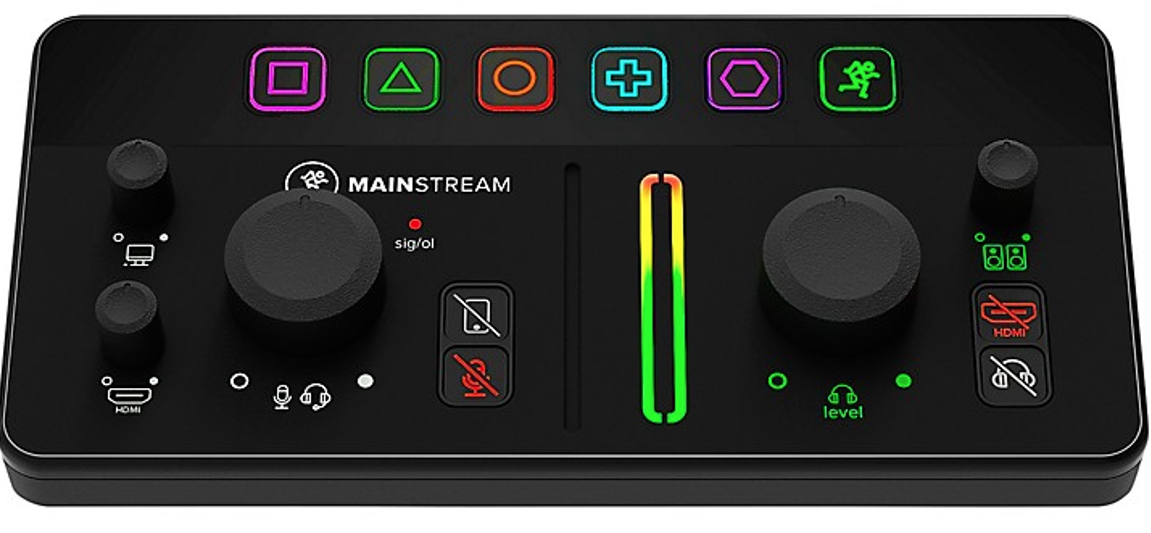
Introduction: A complete streaming interface for creators, gamers, and hybrid studios
The Mackie MainStream Complete Live Streaming & Video Capture Interface Featuring Programmable Control Keys is designed to bring audio, video, and hands-on control into one compact desktop unit. It combines a professional microphone preamp, HDMI video capture, HDMI passthrough, a USB-C hub, and customizable control buttons, making it a practical all-in-one solution for streamers, podcasters, gamers, educators, and content creators who want a cleaner and faster workflow. For users who regularly switch between live streaming, screen recording, virtual meetings, and gameplay capture, the MainStream reduces cable clutter and removes the need for several separate devices.
Its biggest advantages are convenience and versatility. The interface supports an XLR/TRS combo mic input with phantom power, a 1080p60 capture path, and 4K60 HDMI passthrough for monitor use without interrupting the live signal. The programmable control keys help users trigger common actions quickly, which is especially useful during live productions. It also includes USB-C ports for peripherals and direct connection to a Mac or Windows PC. The MainStream typically sits in the midrange price bracket, with market prices commonly around $250 to $300 depending on retailer and region. Availability is generally broad through pro audio dealers, online music stores, and major electronics retailers.
For creators searching for a compact live streaming interface with video capture, audio routing, and hardware shortcut control, the Mackie MainStream Complete Live Streaming & Video Capture Interface Featuring Programmable Control Keys is a strong fit for modern desktop setups.
Specifications: Mackie MainStream technical details and feature overview
- XLR/TRS combo microphone input with 48V phantom power and up to 60 dB gain
- HDMI input with 1080p60 video capture
- HDMI passthrough supporting 4K60 for low-latency monitoring
- Dual USB-C hub ports for peripherals and connected gear
- Single USB-C host connection to computer, bus powered
- 1/4-inch headphone output for monitoring
- 1/4-inch monitor outputs for speakers or external listening
- Aux input for flexible routing of additional audio sources
- Programmable control keys for workflow shortcuts and live actions
- 24-bit / 48 kHz audio operation for streaming and recording
- Typical dimensions: 214 x 95 x 62 mm
- Weight: about 0.6 kg
Compared with simpler capture devices, the MainStream adds more audio routing and desktop control functionality. Compared with larger streaming mixers, it is more compact and easier to place beside a keyboard or gaming monitor. Its main competition includes other hybrid audio-video interfaces that offer capture and passthrough, but the programmable controls and USB-C hub help it stand out as a creator-focused desktop command center.
Setup Guide: How to install and configure the Mackie MainStream
Start by placing the interface on a stable, well-ventilated surface near your computer and display. Connect the USB-C cable from the MainStream to your Windows or Mac computer, then attach your HDMI source, such as a camera, console, or PC output, to the HDMI input. If you want to keep playing or monitoring on a 4K display without lag, connect the HDMI passthrough to your monitor or TV. Next, plug in your microphone using the XLR/TRS combo input and enable phantom power only if your condenser mic requires it.
After the hardware is connected, install or open your streaming software and select the MainStream as the audio and video source. Configure microphone level, monitor volume, and capture settings before going live. Use the programmable control keys to assign helpful functions such as mute, scene switching, or stream actions. If audio is distorted, reduce gain and check that your mic cable is fully seated. If video does not appear, confirm the HDMI source is outputting a supported signal and that the capture software is set to the correct input.
Safety note: do not connect or disconnect HDMI and audio cables while phantom power is active unless needed, and avoid placing the unit near heat sources or liquids. Always use the proper cable lengths and secure all connections before streaming.
Troubleshooting: Common Mackie MainStream problems and fixes
- No video signal: Confirm the HDMI source is powered on, the output format is compatible, and the cable supports the required bandwidth.
- No audio from microphone: Check input gain, verify phantom power if needed, and ensure the mic is connected to the correct port.
- Audio delay or sync issues: Match the capture settings in your software and test with lower latency presets.
- USB device not recognized: Try a different USB port, reconnect the host cable, and restart the computer.
- Distorted sound: Lower gain, reduce source volume, and inspect cables for damage.
- Control keys not responding: Recheck software assignment and confirm the interface is detected by the control app.
Preventive care includes keeping firmware and software updated, using high-quality HDMI and USB-C cables, and avoiding overloaded USB hubs. If issues continue, check the product warranty through the retailer or Mackie support channel. For help, contact Mackie customer support through the official support portal or the retailer where the unit was purchased.
Pros & Cons: Is the Mackie MainStream worth it?
Pros
- All-in-one design reduces the need for separate capture, audio, and control devices
- 1080p60 capture and 4K60 passthrough suit modern streaming and gaming workflows
- Mic preamp with phantom power supports both dynamic and condenser microphones
- Programmable control keys improve speed during live production
- USB-C hub adds flexibility for cameras, drives, or accessories
- Compact size makes it easy to integrate into desktop setups
Cons
- Capture resolution is limited to 1080p60, which may not suit users seeking 4K recording
- Best suited to users who value hands-on control; simpler creators may not use all features
- Price is higher than basic capture dongles and simple USB audio interfaces
- Setup is more involved than plug-and-play single-purpose gear
For value, the Mackie MainStream Complete Live Streaming & Video Capture Interface Featuring Programmable Control Keys makes the most sense for creators who need audio routing, capture, and control in one box. Compared with basic alternatives, it offers more workflow efficiency. Compared with premium studio-grade switchers, it is more affordable and easier to manage, though less advanced in video resolution.
Customer Reviews: What users say about the MainStream interface
Average user sentiment is generally positive, with many buyers rating it around 4.4 out of 5 stars. Reviewers often praise the clean desktop layout, reliable HDMI passthrough, and the convenience of having audio, video, and shortcut controls in one device. One streamer noted, “It cut my setup time in half and made switching scenes much easier during live sessions.” Another user wrote, “The mic input sounds great and the capture quality is exactly what I need for streaming.”
Common complaints usually focus on the learning curve, the fact that capture tops out at 1080p60, and occasional setup confusion when configuring software shortcuts. Despite that, many users recommend it for streamers, podcasters, and gamers who want a more professional and organized workflow. Buyers who want simple recording may prefer a basic capture card, while users who want a full desktop streaming hub are more likely to appreciate the Mackie MainStream.
Faqs
How do I set up Mackie MainStream Complete Live Streaming & Video Capture Interface Featuring Programmable Control Keys for the first time?
What should I do if Mackie MainStream Complete Live Streaming & Video Capture Interface Featuring Programmable Control Keys is not showing audio in my streaming software?
How do the programmable control keys on Mackie MainStream Complete Live Streaming & Video Capture Interface Featuring Programmable Control Keys work with OBS?
Is Mackie MainStream Complete Live Streaming & Video Capture Interface Featuring Programmable Control Keys compatible with Mac and Windows computers?
Can Mackie MainStream Complete Live Streaming & Video Capture Interface Featuring Programmable Control Keys capture HDMI video while passing through 4K to a monitor?
How can I reduce audio latency when using Mackie MainStream Complete Live Streaming & Video Capture Interface Featuring Programmable Control Keys?
What are the best ways to optimize Mackie MainStream Complete Live Streaming & Video Capture Interface Featuring Programmable Control Keys for smoother live streaming?
How should I clean and maintain Mackie MainStream Complete Live Streaming & Video Capture Interface Featuring Programmable Control Keys?
More mackie manuals
Leave a Comment