
Philips 221E LCD Monitor User Manual
Content
Philips 221E LCD Monitor Manual: Overview, Features, and Setup Guide
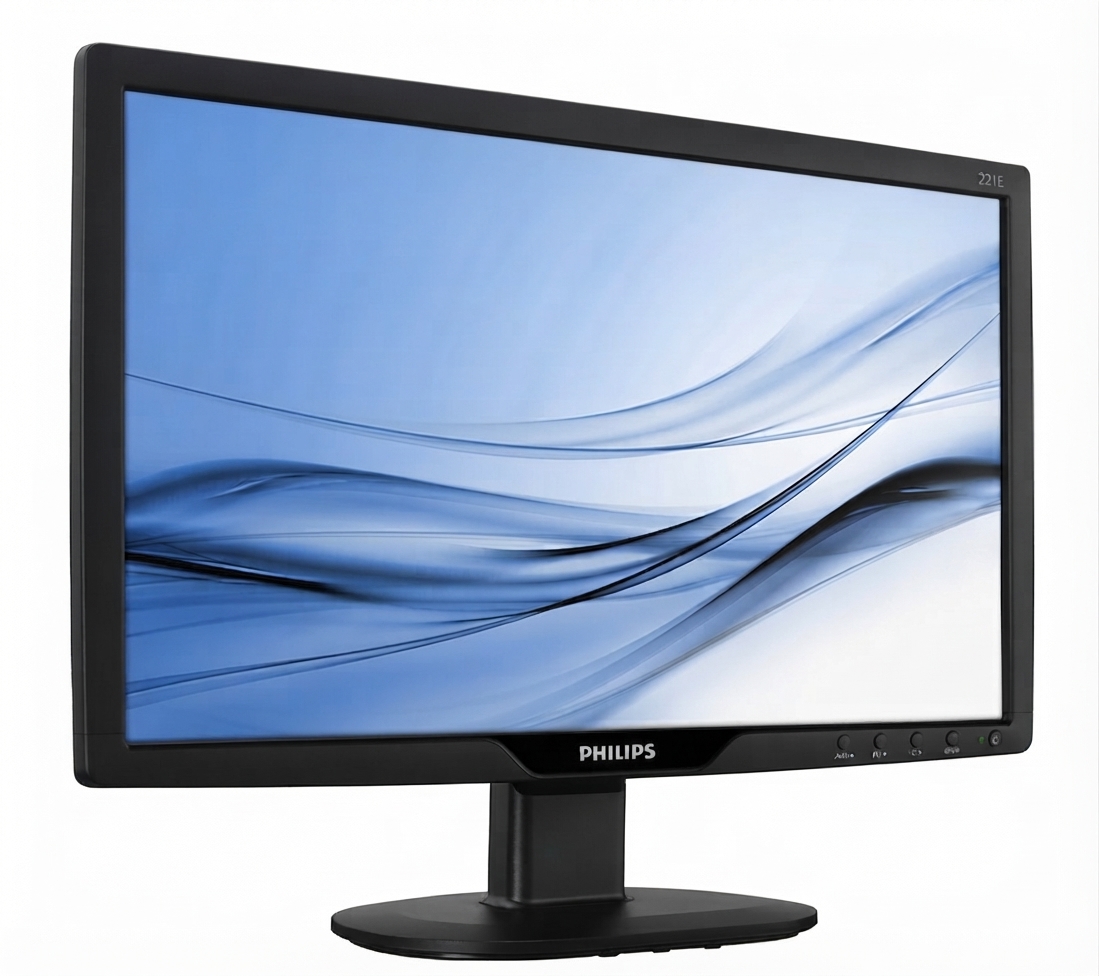
The Philips 221E LCD Monitor is a compact Full HD display designed for everyday computing, office productivity, and general home use. With a 21.5-inch TFT LCD panel, a 1920 x 1080 resolution, a 16:9 aspect ratio, and a 5 ms response time, it delivers sharp text, clear visuals, and smooth enough performance for web browsing, document work, video playback, and casual multimedia tasks. Its anti-glare screen helps reduce reflections in bright rooms, while the 250 cd/m² brightness level supports comfortable viewing in typical indoor environments.
This monitor is well suited for students, remote workers, small offices, and budget-conscious buyers who want reliable everyday performance without unnecessary complexity. The Philips 221E LCD Monitor also appeals to users upgrading from older 4:3 displays because its widescreen format offers better multitasking and media viewing. Depending on the exact model variant and market, the estimated price range for used or refurbished units is typically around $30 to $90, while new old stock or region-specific listings may vary more widely. Availability is usually strongest through refurbished electronics sellers, online marketplaces, and local computer resellers rather than major retail chains, since this is an older Philips display line.
Key selling points include Full HD clarity, low power consumption, stable everyday performance, and a simple design that is easy to set up and maintain. For anyone searching for a dependable entry-level LCD display, the Philips 221E LCD Monitor remains a practical choice for basic productivity and home office use.
Troubleshooting Philips 221E LCD Monitor Common Problems and Fixes
If the screen stays black, first confirm that the power cable is fully connected and the power button is on. If the monitor shows No Signal, check the VGA or HDMI connection, reseat the cable, and verify that the computer is set to the correct display output. If the image appears blurry, make sure the display is running at its native 1920 x 1080 resolution and that scaling settings are correct.
There are no widely documented Philips 221E LCD Monitor error codes, but common on-screen messages usually include No Signal, Input not supported, or sleep/standby indicators. For Input not supported, lower the computer’s refresh rate to a compatible value, typically 60 Hz, and confirm the resolution matches the panel’s native format. If flickering appears, replace the cable, test another port, and move the monitor away from strong electromagnetic sources.
Preventive care includes keeping the vents clear, using a surge protector, avoiding excessive brightness settings, and cleaning the panel with a soft microfiber cloth. If the monitor fails after basic checks, review the warranty terms from the seller or regional Philips support channel. For assistance, use the Philips customer support website, the product manual library, or the support contact details provided by the retailer or local Philips service center.
Philips 221E LCD Monitor Pros and Cons
Pros
- Full HD 1920 x 1080 resolution delivers crisp text and clear everyday visuals.
- 21.5-inch screen size is compact, efficient, and ideal for small desks.
- Anti-glare LCD panel helps reduce reflections in office and home environments.
- 5 ms response time is suitable for standard productivity and light media use.
- Low power usage makes it cost-effective for daily operation.
- Good value for money on the used and refurbished market, especially for basic office setups.
Cons
- Older display technology may not match the color performance of modern IPS alternatives.
- Limited features compared with newer monitors that include USB-C, speakers, or ergonomic stands.
- Availability is inconsistent because many units are no longer sold as current retail models.
- Viewing angles and contrast can feel modest compared with premium alternatives.
- Best suited for simple productivity rather than color-sensitive creative work or gaming.
Compared with newer budget monitors from Dell, ASUS, or AOC, the Philips 221E LCD Monitor is less feature-rich but often cheaper when purchased used. It remains a sensible option for users who need a dependable second screen or a basic office monitor rather than a high-end display.
Philips 221E LCD Monitor Customer Reviews and User Feedback
User feedback for the Philips 221E LCD Monitor is generally positive, especially among buyers looking for a straightforward daily-use display. Typical ratings fall around 4 out of 5 stars for refurbished units, with praise focused on its sharp 1080p image, compact footprint, and easy setup. A common comment is that it “works well for office tasks and browsing without taking up too much desk space.”
Frequent complaints include limited modern connectivity on older variants, average speakers or no speakers at all, and modest brightness compared with newer monitors. Some users also mention that the panel is best for productivity rather than photo editing or gaming. Even so, many buyers recommend it as a practical budget monitor for students, remote work, and secondary workstation use.
Overall, the Philips 221E LCD Monitor is often recommended when price, reliability, and basic Full HD performance matter more than premium extras. It is a solid purchase for users who want a simple monitor that gets the job done.
Faqs
How do I set up the philips 221E LCD Monitor for the first time?
What is the best resolution and refresh rate for the philips 221E LCD Monitor?
Why is my philips 221E LCD Monitor showing a blank screen even though the power is on?
Can I connect the philips 221E LCD Monitor to a laptop, desktop, or game console?
How do I adjust brightness, contrast, and color on the philips 221E LCD Monitor?
What should I do if the philips 221E LCD Monitor looks blurry or stretched?
How can I clean and maintain the philips 221E LCD Monitor safely?
Is the philips 221E LCD Monitor good for long work sessions, and how can I reduce eye strain?
More philips manuals
- Philips Sonicare 2100 Series Electric Toothbrush User Manual
- Philips 5000 Series TAT5506 Headphones User Manual
- Philips Travel CPAP Machine HH1471/00 User Manual
- Philips HX6321 Sonic Electric Toothbrush User Manual
- Philips Sonicare 5500 Electric Toothbrush User Manual
- Philips 4000 Series Electric Toothbrush User Manual
Leave a Comment