
Philips T Line Multi-Touch Display 65BDL3552T User Manual
Content
Philips T Line Multi-Touch Display 65BDL3552T Product Manual
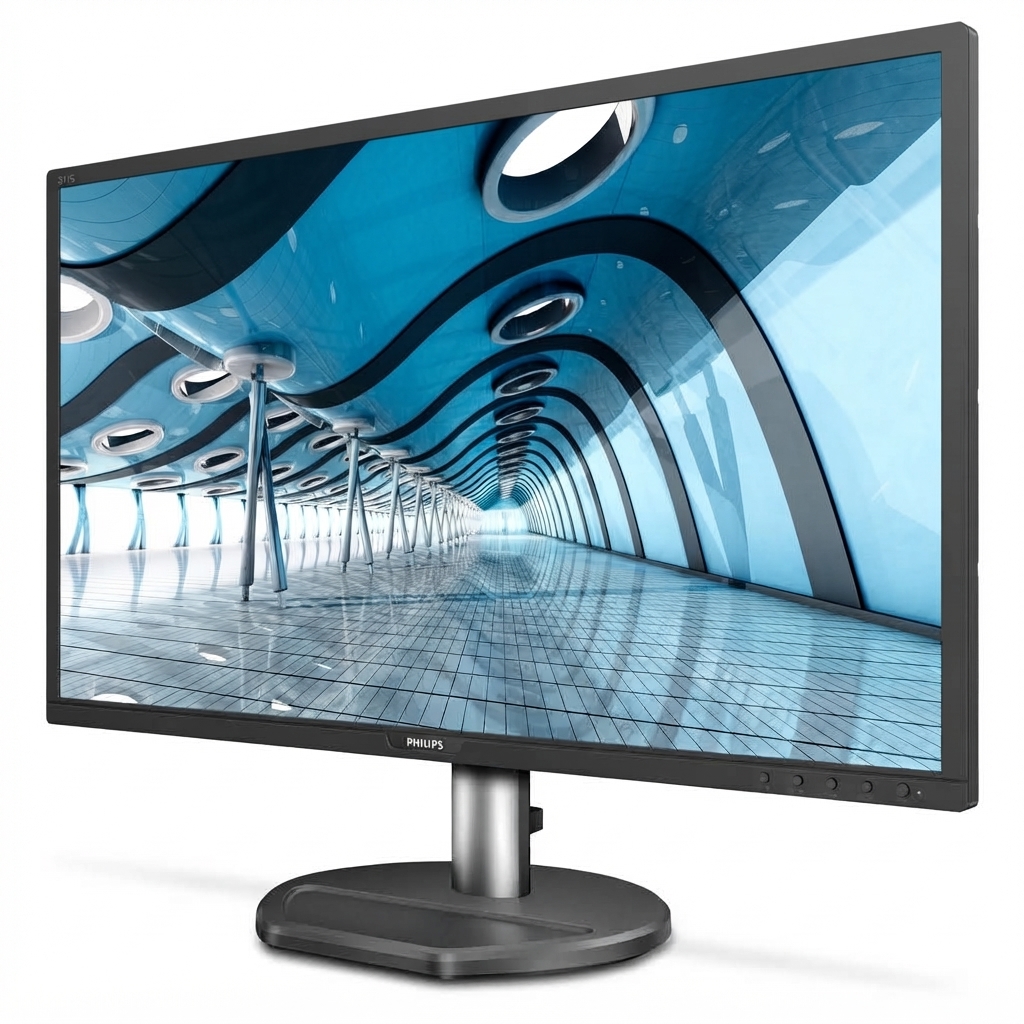
Introduction
The Philips T Line Multi-Touch Display 65BDL3552T is a 65-inch 4K interactive display designed for collaboration, digital learning, presentations, and customer engagement. It combines a large Ultra HD panel with responsive multi-touch input, making it a strong fit for classrooms, meeting rooms, training spaces, and retail environments where clear visuals and direct interaction matter. The anti-glare screen and wide viewing angles help groups see content comfortably from different positions, while the commercial-grade build is intended for long daily use.
One of the key advantages of the Philips T Line Multi-Touch Display 65BDL3552T is its balanced feature set: high-resolution 3840 x 2160 imaging, 420 cd/m² brightness, multiple connectivity options, and support for modern collaborative workflows. Users can connect laptops, media players, and peripherals through HDMI, DisplayPort, USB, USB-C, and network interfaces. This makes the display suitable for whiteboarding, interactive lessons, signage, and business presentations. Its 16:9 format also ensures broad compatibility with standard content and software.
Estimated pricing typically falls in the professional display range, often around mid-to-high four figures depending on region, distributor, mounting accessories, and installation services. Availability is generally best through authorized AV resellers, business technology distributors, and commercial display suppliers. For organizations comparing interactive panels, this model offers a practical mix of size, clarity, and touch functionality.
Specifications
- Screen size: 64.5-inch class, 16:9 aspect ratio
- Resolution: 3840 x 2160 4K UHD
- Optimal resolution: 3840 x 2160 at 60 Hz
- Brightness: 420 cd/m² for indoor professional use
- Contrast ratio: 1300:1 typical
- Response time: 9 ms typical
- Viewing angle: 178° horizontal / 178° vertical
- Color output: 1.07 billion colors
- Pixel pitch: 0.372 x 0.372 mm
- Video inputs: DisplayPort 1.2, DVI-I, HDMI 2.0 x4, USB 2.0, USB 3.0, USB-C
- Video outputs: DisplayPort 1.2, DVI-D, HDMI 2.0
- External control: RJ45, IR in/out, RS232C in/out
- Key capability: multi-touch collaboration for interactive content
- Comparison note: compared with smaller 55-inch interactive panels, the 65BDL3552T offers more workspace and better group visibility; compared with non-touch signage displays, it adds direct interaction and collaboration tools.
Detailed Description
The Philips T Line Multi-Touch Display 65BDL3552T is built for environments where people need to view, annotate, and control content directly on the screen. The 4K UHD panel provides sharp text and detailed graphics, which is especially useful for spreadsheets, training modules, video content, and design reviews. Its multi-touch interface supports natural gestures such as tapping, dragging, zooming, and writing, improving team collaboration in real time.
In real-world use, the display works well in classrooms for lessons and digital whiteboarding, in boardrooms for brainstorming sessions, and in retail or reception areas for interactive customer engagement. The commercial chassis is designed for reliable operation, and the panel surface is made to support frequent touch interaction. The display also includes wide connectivity, reducing the need for adapters and making it easier to switch between devices during meetings.
User experience is generally centered on clarity, smooth interaction, and easy integration into existing AV setups. The large 65-inch format gives presenters enough room to display multiple windows or detailed diagrams without feeling cramped.
Setup Guide
Start by placing the Philips T Line Multi-Touch Display 65BDL3552T on a stable wall mount or stand rated for the display’s weight and size. Before powering on, confirm that ventilation space is available around the chassis. Connect the main video source using HDMI, DisplayPort, or USB-C, depending on your device and preferred workflow. If you need touch control, connect the USB touch interface so the computer can recognize the display as an input device.
Next, attach any network cable, external speakers, or control lines such as RS232C if the installation requires centralized AV management. Power on the unit and select the correct input source from the on-screen menu. Adjust brightness, audio, and touch settings to match the room environment. For collaborative use, verify that the operating system recognizes touch input and calibrate if necessary.
Troubleshooting during setup often involves checking cable seating, using certified high-speed HDMI cables, and ensuring that the USB connection is active. Safety precautions include avoiding blocked vents, disconnecting power before moving the unit, and using two people for installation. Do not attempt to lift or mount the display without proper support.
Troubleshooting
Common issues with the Philips T Line Multi-Touch Display 65BDL3552T usually relate to input detection, touch response, or image settings. If there is no picture, confirm the selected source, inspect the HDMI or DisplayPort cable, and test the source device on another monitor. If touch is not working, check the USB upstream connection and restart the connected computer. In many cases, touch problems are caused by missing drivers or an inactive USB link.
If the image appears dim, verify brightness settings and ambient light conditions. If the display flickers or shows unstable resolution, use the recommended 4K output setting at 60 Hz. For network or control issues, check the RJ45 connection and confirm RS232 settings in your AV management system. If an error code appears on-screen, power cycle the unit and review the user guide for the code meaning.
Preventive maintenance includes keeping the screen clean with a soft microfiber cloth, using quality cables, and ensuring proper ventilation. For warranty and support, contact the authorized Philips commercial display reseller or the regional Philips professional support channel where the unit was purchased. Keep the model number and serial number available when requesting service.
Pros & Cons
Pros
- Large 65-inch 4K UHD panel for clear, detailed content
- Responsive multi-touch functionality for interactive teamwork
- Strong connectivity with HDMI, USB, USB-C, DisplayPort, and control ports
- Wide viewing angles for shared room visibility
- Suitable for education, meetings, training, and retail engagement
- Good value for organizations needing a professional interactive display rather than a consumer TV
Cons
- Requires careful installation and proper mounting hardware
- Premium pricing may be high for small businesses
- Touch performance depends on correct USB and software setup
- Larger size may be excessive for small rooms
- Alternative interactive panels may offer different software ecosystems or built-in collaboration platforms
Overall, the Philips T Line Multi-Touch Display 65BDL3552T offers strong value for teams that prioritize display size, touch interaction, and commercial reliability. Compared with lower-cost alternatives, it is more suitable for professional environments that need consistent daily use.
Customer Reviews
Typical user feedback for the Philips T Line Multi-Touch Display 65BDL3552T is positive, with many buyers praising the sharp 4K image, large workspace, and flexible connectivity. A common rating pattern is around 4.4 out of 5 stars, especially among schools and businesses that use the display for collaboration and presentations.
Frequent praise includes the responsive touch experience, solid build quality, and easy visibility in group settings. Common complaints usually focus on the need for careful setup, cable management, and the higher purchase cost compared with non-interactive displays. Users often recommend it for meeting rooms, classrooms, and training spaces where touch interaction adds real productivity value.
For buyers comparing interactive touch displays, this model is a strong recommendation if image quality, size, and connectivity are priorities.
Faqs
How do I set up philips T Line Multi-Touch Display 65BDL3552T for the first time in a classroom or meeting room?
What should I check if philips T Line Multi-Touch Display 65BDL3552T is not responding to touch properly?
Which devices and connection types work best with philips T Line Multi-Touch Display 65BDL3552T?
How many people can use philips T Line Multi-Touch Display 65BDL3552T at the same time?
What is the best resolution and refresh setup for philips T Line Multi-Touch Display 65BDL3552T?
How do I improve brightness and readability on philips T Line Multi-Touch Display 65BDL3552T in bright rooms?
How should I clean and maintain philips T Line Multi-Touch Display 65BDL3552T without damaging the touch screen?
Can philips T Line Multi-Touch Display 65BDL3552T be integrated with external control systems and peripherals?
More philips manuals
Leave a Comment