
Setup: Popglory Smart Watch P22 User Manual
Content
popglory Smart Watch P22
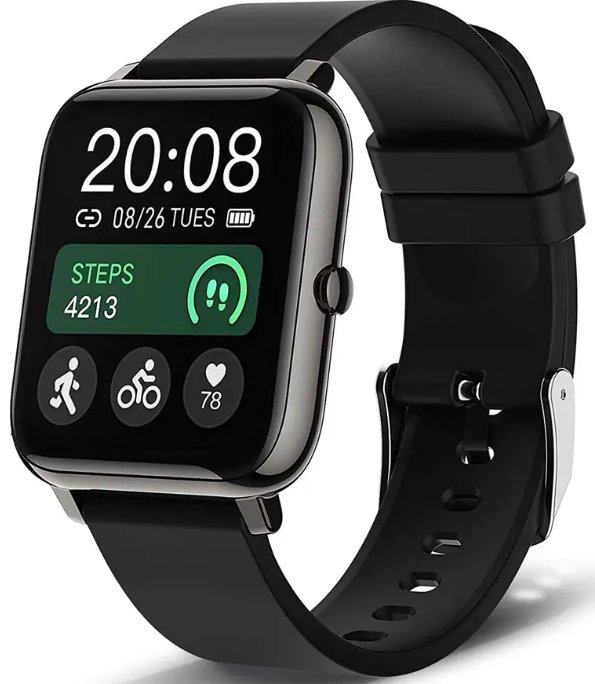
Introduction
The Popglory Smart Watch P22 is a versatile wearable device designed to seamlessly integrate health tracking, communication, and daily convenience into one sleek gadget. Ideal for fitness enthusiasts, busy professionals, and tech-savvy users, this smartwatch combines style with powerful functionality. Whether you’re monitoring your heart rate during workouts, receiving notifications on the go, or managing your daily schedule, the P22 delivers a user-friendly experience.
Key benefits of the Popglory Smart Watch P22 include comprehensive health monitoring features such as continuous heart rate tracking, sleep analysis, and multi-sport modes, alongside smart notifications for calls, messages, and app alerts. Its customizable watch faces and durable build make it suitable for everyday wear and active lifestyles. The watch’s compatibility with both Android and iOS platforms ensures broad usability.
Priced competitively in the mid-budget segment, typically ranging from $40 to $60, the Popglory Smart Watch P22 is widely available through major online retailers and select tech stores. Its affordability, combined with robust features,s makes it a compelling choice for users seeking performance without overspending.
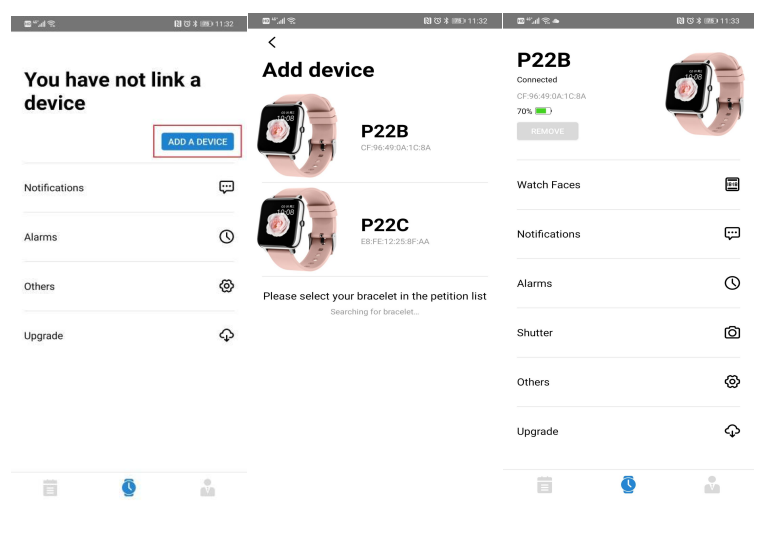
Q1: How to connect the smart watch with the app?
- Download the HeroBandIII (you can scan the QR code or search for HeroBandIII in the app store to download)
- Turn on the Bluetooth of your mobile phone, and then put the watch close to the phone.
- Open the App and click ‘Bind Device’, select ‘P22’ in the list.
- Then it's done, you can set personal information in the App.
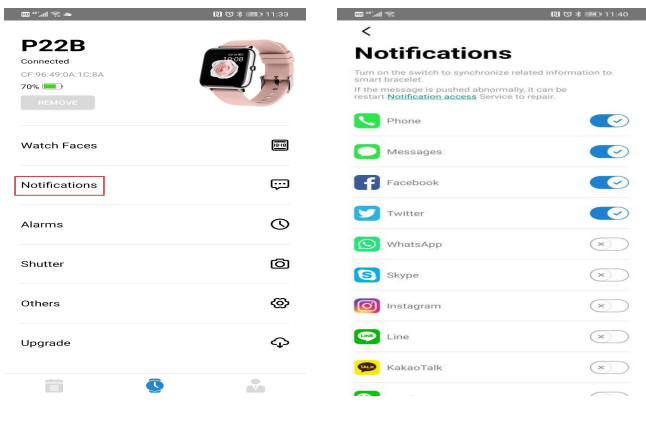
Q2: How to get message notifications on the watch?
- Connect the watch with HeroBandIII App and turn to 'Watch'→'Notification'
- Choose the App you want to receive messages. For example, if you want to receive Facebook notifications, turn on the 'Facebook' option and allow notifications. Then go to 'Homepage' and pull down the screen to sync.
- Please confirm whether the message can be displayed in the notification bar of the phone. The watch receives messages by reading the notification bar of the phone. If the message notification on the phone is not working, the watch cannot receive the message.
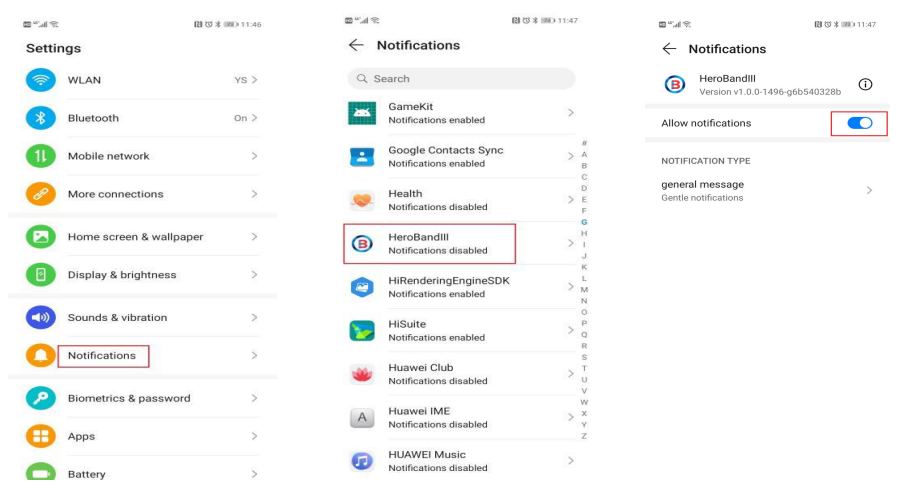
Note: If you do not allow the App to receive mobile notifications when installing HeroBandⅢ, you can set it in the following ways.
For iPhone &Android: Open 'Phone Settings'→Click 'Notification'→Select 'HeroBandⅢ'→Turn on 'Allow Notification'
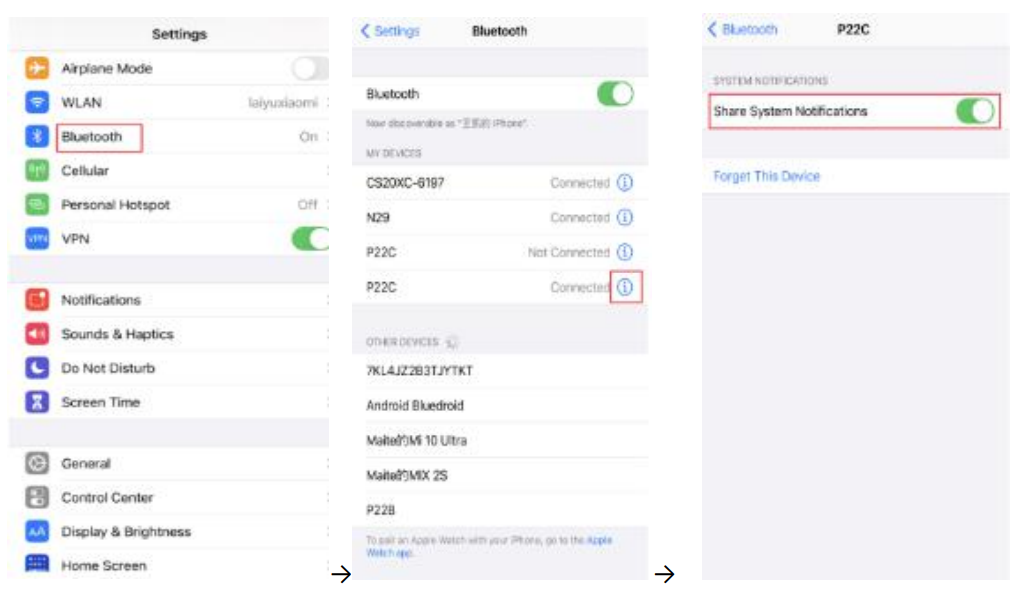
For iPhone: Open 'Phone Settings'→Click 'Bluetooth'→Select 'P22'→Turn on 'Share Systems Notification'
Q3: How to get the weather conditions?
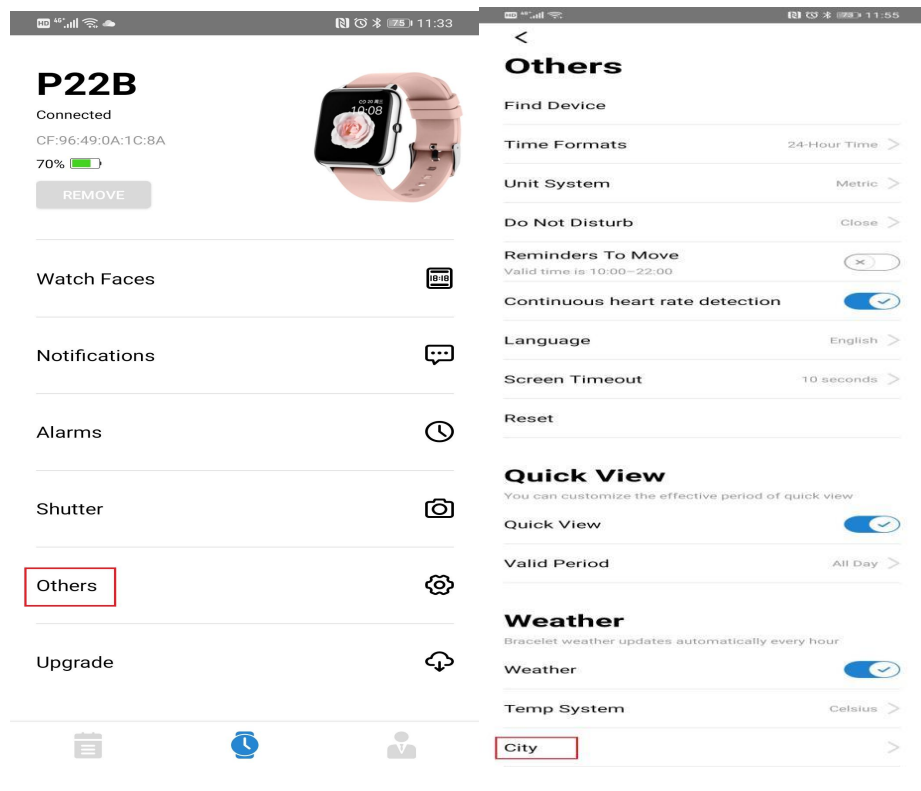
First, connect the watch to the phone, open the App, click ‘My Watch’→’Others’, and select your location in the weather information. Then you can check the weather information on the watch.
Q4: How to reconnect the smart watch with smartphones?
For iPhone:
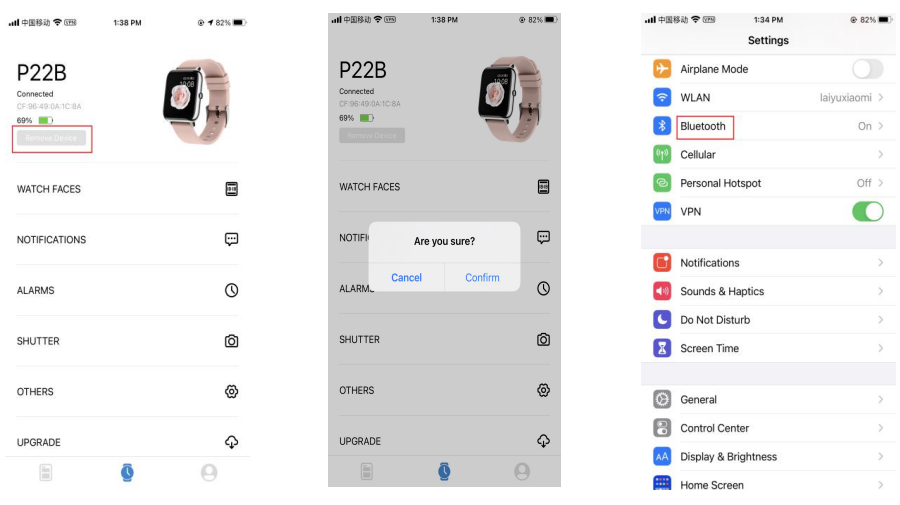
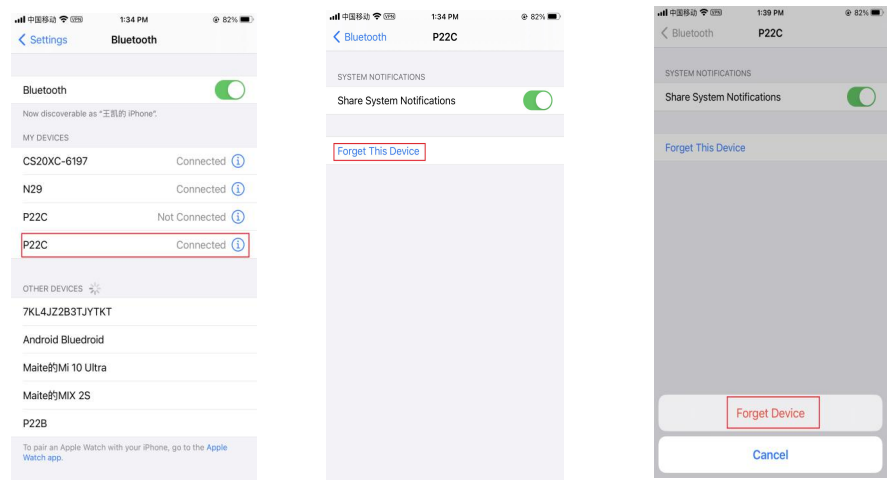
Click ‘remove device’ in HeroBandIII→Open ‘phone settings’ → Click ‘Bluetooth’→Select ‘P22’ →Click ’(i)’ →Click ‘Forget Device’, then reconnect it in App.
For Android:
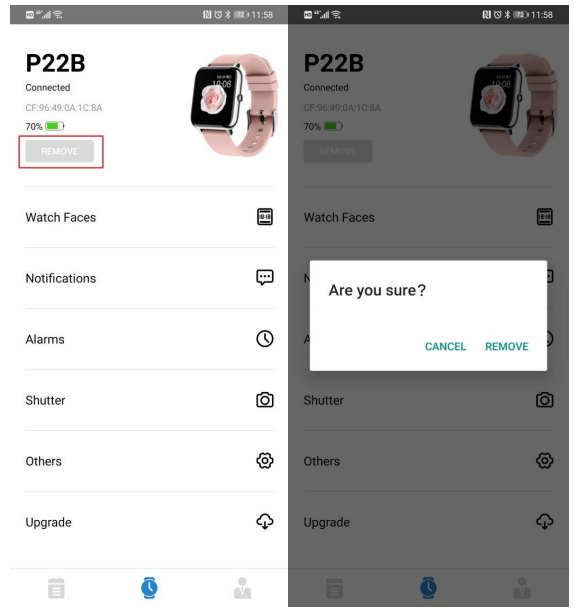
Remove 'P22' in the HeroBandIII App→Reconnect the smart watch in the App.
Q5: How to change the time?
The watch time will follow the phone time, so first set the correct time on the phone.
For iPhones:
- Step1: HeroBandIII > Remove Device
- Step 2: Open iPhone Settings > Bluetooth > Select P22 > Forget This Device > Reconnect the device with the phone.
- You get the right time
- For Android phones:
- Step1: HeroBandIII > Remove Device
- Step 2: Reconnect the watch.
- You get the right time
popglory Smart Watch P22 Detailed Specifications and Features
- Display: 1.3-inch IPS color touchscreen with 240x240 pixel resolution
- Sensors: Heart rate monitor, accelerometer, blood oxygen sensor, sleep tracker
- Connectivity: Bluetooth 5.0 compatible with Android 6.0+/iOS 10.0+
- Battery Life: Up to 7 days on a single charge, magnetic charging dock included
- Water Resistance: IP68 rated for sweat and rain protection
- Health & Fitness Tracking: Multi-sport modes including running, cycling, walking; real-time heart rate monitoring; sleep quality analysis; sedentary reminders; breathing exercises
- Smart Features: Call and message notifications, music control, alarm, stopwatch, timer, and find my phone function
- Customization: Multiple watch faces, adjustable vibration intensity, screen timeout settings from 5 to 30 seconds
Compared to similar smartwatches in the budget category, the Popglory Smart Watch P22 offers a more extensive sensor suite and longer battery life, positioning it favorably against competitors like the Xiaomi Mi Band series and Amazfit Bip models.
Setting Up Your Popglory Smart Watch P22: Step-by-Step Guide
- Charge the watch fully using the included magnetic charger before initial setup.
- Turn on the device by pressing and holding the side button until the display lights up.
- Download the compatible app (often "Da Fit" or the specified app in the user manual) on your Android or iOS smartphone.
- Enable Bluetooth on your phone and open the app to begin pairing. Select "Add Device" and choose "popglory Smart Watch P22" from the list.
- Follow on-screen prompts to complete pairing and allow necessary permissions for notifications and health data access.
- Customize your watch face and configure settings such as vibration intensity, screen timeout, and health monitoring preferences through the app or watch menu.
Troubleshooting tips: If pairing fails, ensure Bluetooth is active and the watch is not connected to another device. Restart both devices and try again. Keep the devices close during setup. Avoid water exposure during charging.
Safety Precautions: Do not charge the watch in wet conditions. Avoid wearing it too tightly to ensure accurate heart rate monitoring. Keep away from extreme temperatures and magnetic fields.
Troubleshooting Common Issues with the Popglory Smart Watch P22
- Watch not pairing with phone: Restart devices, confirm Bluetooth is enabled, forget previous Bluetooth connections in phone settings, reset watch to factory defaults if needed.
- No notifications received: Verify notification permissions in the phone app, confirm app is running in the background, check Bluetooth connection stability.
- Battery drains quickly: Lower screen brightness, reduce vibration intensity, disable unnecessary notifications, and close background apps.
- Error codes or freezing: Perform a soft reset by restarting the watch; if problems persist, factory reset via watch settings.
Preventive measures include regular firmware updates via the app, keeping the watch clean, and following the user manual guidelines.
The Popglory Smart Watch P22 typically comes with a 12-month warranty. For further support, users can contact Popglory customer service through their official website or authorized retailer support channels.
Pros and Cons of the Popglory Smart Watch P22
- Pros:
- Affordable price with rich features for health and fitness tracking
- Long battery life up to 7 days on moderate use
- Compatible with both Android and iOS devices
- Water-resistant design suitable for everyday use
- Customizable watch faces and vibration settings
- Cons:
- Screen resolution is modest compared to premium models
- Limited app ecosystem compared to high-end smartwatches
- Some users report occasional Bluetooth connectivity issues
- Basic GPS functionality requires a phone connection
Overall, the Popglory Smart Watch P22 offers excellent value for money, especially for users prioritizing health tracking and notification management over advanced smartwatch capabilities. Alternatives like the Amazfit Bip U Pro or Fitbit Inspire 3 may provide more advanced features but at higher price points.
Customer Reviews and Feedback on Popglory Smart Watch P22
Users frequently praise the Popglory Smart Watch P22 for its reliable heart rate monitoring and user-friendly interface. Many appreciate the clear display and battery longevity, rating the watch around 4 out of 5 stars. Common praises include effective sleep tracking and the convenience of receiving call/message notifications without pulling out the phone.
Some customers report issues such as occasional Bluetooth disconnections and limited app customization options. A few reviews mention minor delays in syncing data or imprecise GPS tracking when not connected to the phone. Despite these, the general consensus highlights the watch’s strong performance in its price range, recommending it for budget-conscious buyers seeking robust fitness features.
Faqs
How do I set up notifications for WhatsApp and other apps on my popglory Smart Watch P22?
Why isn’t the sleep tracking feature working on my popglory Smart Watch P22?
Can I use the popglory Smart Watch P22 for GPS tracking during outdoor runs?
How do I customize watch faces and adjust brightness on the popglory Smart Watch P22?
What should I do if my popglory Smart Watch P22 is not syncing data with the FitCloudPro app?
Is the heart rate and blood pressure monitoring on the popglory Smart Watch P22 accurate for medical use?
How do I add emergency contacts and use the calling feature on the popglory Smart Watch P22?
How long does the battery last on the popglory Smart Watch P22, and how can I extend its life?
Tags
More popglory manuals
Leave a Comment