
Pairing & Setup: Razer Hammerhead Hyperspeed Earbuds User Manual
Content
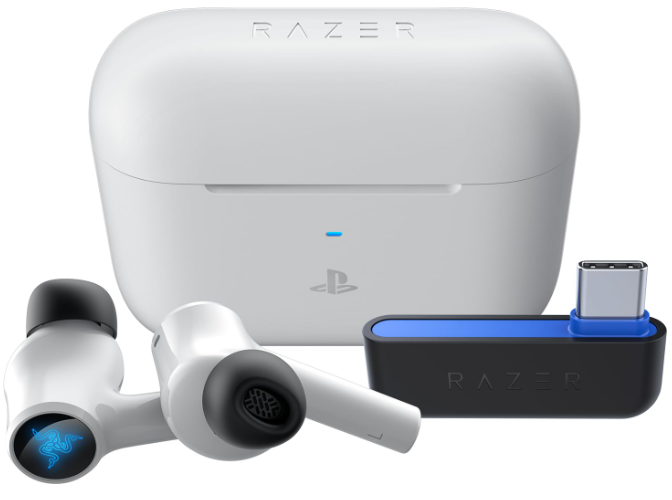
Razer Hammerhead Hyperspeed Earbuds
Introduction
Embark on a truly immersive audio journey with the Razer Hammerhead Hyperspeed Earbuds, designed for gamers and audiophiles who demand both performance and portability. These wireless gaming earbuds set a new standard with their ultra-fast 2.4GHz HyperSpeed Wireless connection, delivering near-zero latency audio—perfect for competitive gaming, streaming, and everyday listening alike. With Bluetooth 5.2, you can easily switch between platforms, from PlayStation and Xbox consoles to PCs, Macs, and mobile devices, making these earbuds a versatile companion for anyone on the go.
One of the standout features of the Razer Hammerhead Hyperspeed Earbuds is their Active Noise Cancellation (ANC) technology, which erases distractions by intelligently detecting and neutralizing ambient noise. Dual Environmental Noise Cancelling (ENC) microphones ensure crystal-clear voice chat, even in noisy environments. The earbuds also boast customizable Razer Chroma™ RGB lighting, adding a personalized touch to your setup, and an impressive battery life of up to 30 hours with the charging case, so you can game, listen, and create for hours without interruption.
The Razer Hammerhead Hyperspeed Earbuds are ideal for gamers seeking a wireless audio solution without compromising on latency or sound quality, as well as for commuters and fitness enthusiasts who value portability and durability. Priced in the $150–$200 range, these earbuds are widely available online and in electronics retailers, offering premium features at a competitive price point compared to alternatives like the Logitech G Fits or HyperX Cloud Mix Buds.
Detailed Specifications for Razer Hammerhead Hyperspeed Earbuds
EARBUDS
- Frequency response: 20 Hz – 20 kHz
- Impedance: 16 Ω
- Sensitivity: 91 dB @ 1 mW / 1 kHz
- Input power: 5 mW (max input)
- Drivers: 10 mm
- Connection type: USB Type C wireless dongle / Bluetooth 5.2
MICROPHONE
- Pick-up pattern: Omnidirectional
- Signal-to-noise ratio: 64 dB
- Sensitivity: -26 dBFS
SYSTEM REQUIREMENTS
- Devices with Bluetooth audio capability or USB Type C / USB Type A port
- Smartphone app available for Android and iOS
- Supported codecs: SBC, AAC
Compared to similar products, the Razer Hammerhead Hyperspeed Earbuds offer lower latency through HyperSpeed Wireless, making them a better choice for gaming than standard Bluetooth earbuds. However, dedicated gaming headsets may still outperform in microphone quality and soundstage, though the Hammerhead Hyperspeed excels in portability and flexibility.
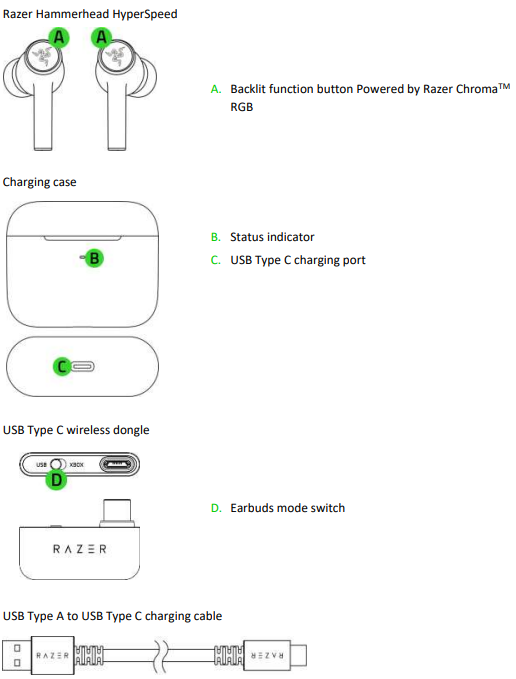
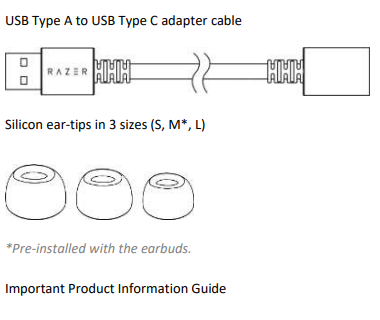
WHAT'S INSIDE
WHAT'S NEEDED
- Xbox Series X|S and Xbox One
- PS5™, PS4™
- PC, Mac
- Nintendo Switch™
- Devices with Bluetooth audio capability / USB Type C or USB Type A port
SETTING UP YOUR RAZER HAMMERHEAD HYPERSPEED
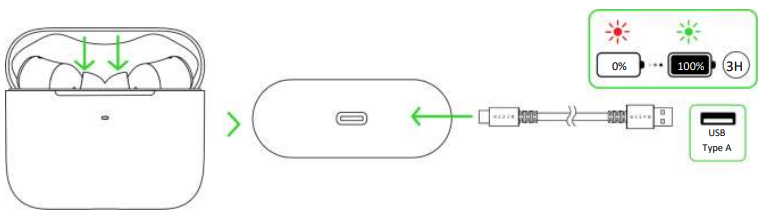
CHARGING YOUR EARBUDS
For first-time use, connect the charging case to a USB port using the charging cable without removing the earbuds. For subsequent use, the charging case and the earbuds can be charged independently.
USING YOUR EARBUDS
SWITCHING BETWEEN AUDIO SOURCES
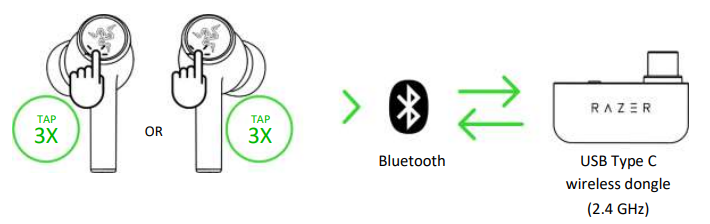
When connected to any audio source, tap the function button thrice to switch between the USB Type C wireless dongle and Bluetooth audio source or vice versa.
POWER ON/OFF
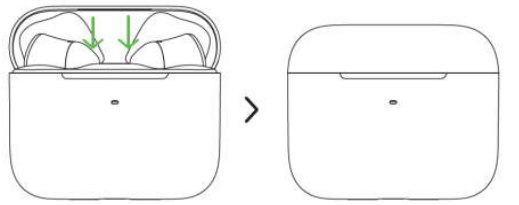
Place the earbuds inside the charging case and close the lid to power off the device. Opening the lid if they are in the charging case will power them on.
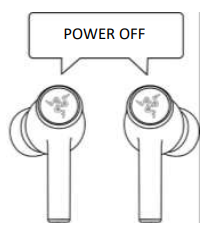
If the earbuds are left idle outside the charging case for a few minutes, you will hear an audio prompt, and then the earbuds will power off.
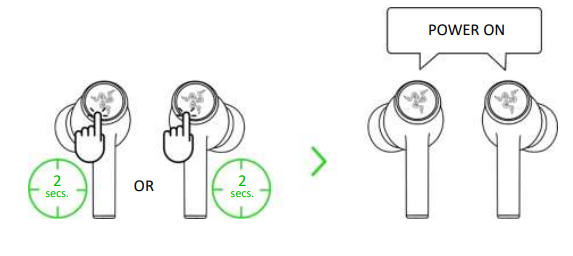
Tap and hold the function button on each earbud for at least 2 seconds to power them on again. You will hear an audio prompt from each earbud once powered on.
BATTERY LEVEL
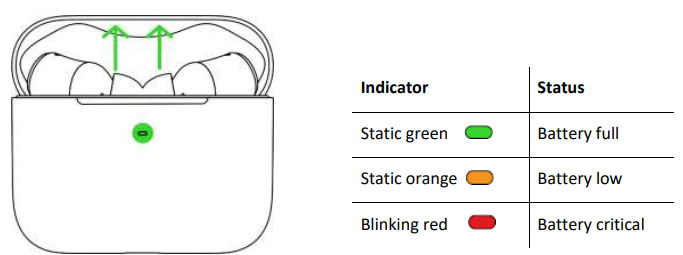
When unplugged and opened, the charging case will show the battery status of the charging case.
UNDERSTANDING RAZER SMARTSWITCH
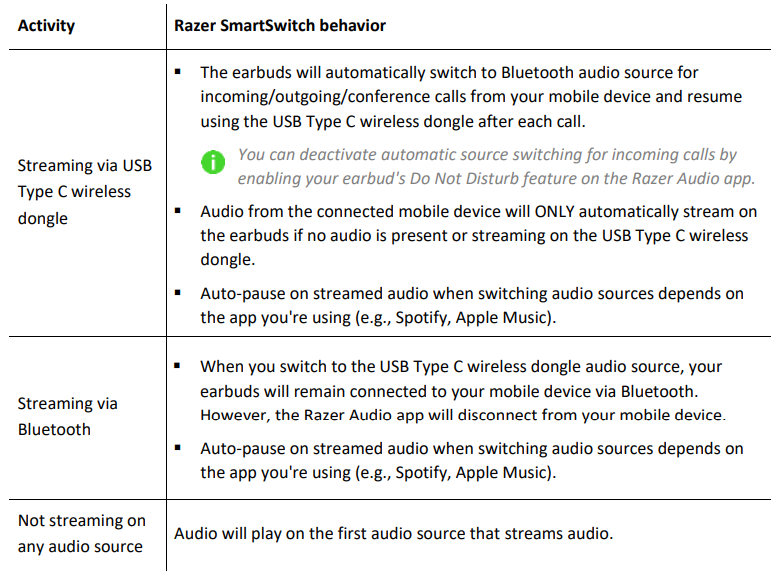
With the Razer Hammerhead HyperSpeed simultaneously connected to a PC or gaming console (via USB Type-C wireless dongle) and a mobile device (via Bluetooth), you'll be able to use the earbuds for incoming/outgoing/conference calls from a connected Bluetooth device and switch back to the game audio without removing the earbuds.
The following behaviors below will help you understand how your earbuds respond to audio source switching and incoming/outgoing/conference calls when your earbuds are connected to a Bluetooth device and the USB Type-C wireless dongle:
GAMING MODE
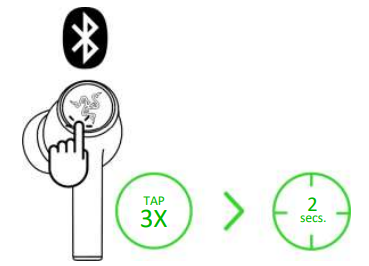
When using Bluetooth as the audio source, triple-tap, then hold the last tap for at least 2 seconds on any earbud to activate gaming mode. Once enabled, your earbuds will function at a lower latency, giving you real-time audio feedback while gaming. Repeat the same gesture to deactivate this feature.
For best performance, keeping your earbuds within a very close distance of the audio source is recommended.
ACTIVE NOISE CANCELLATION (ANC) / QUICK ATTENTION MODE
Active Noise Cancellation (ANC) helps eliminate background noise for enhanced immersion, while Quick Attention Mode improves your awareness by feed-forwarding the sound of your surroundings into the earbuds. While connected to any audio source, tap and hold on any earbud for at least 2 seconds to activate ANC and repeat to activate Quick Attention Mode.
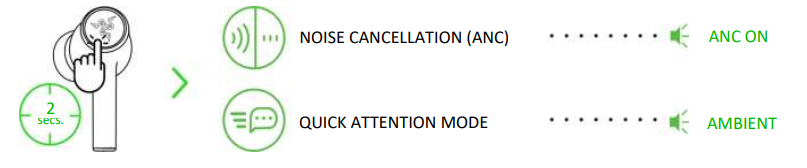
An audio prompt will notify you when ANC and Quick Attention Mode have been enabled. Complete customization of these functions can be made using the Razer Audio app.
SAFETY AND MAINTENANCE
SAFETY GUIDELINES
- To achieve maximum safety while using your Razer Hammerhead HyperSpeed, we suggest that you adopt the following guidelines:
- Should you have trouble operating the device properly and troubleshooting does not work, unplug the device and contact the Razer hotline
- Do not take apart the device, and do not attempt to operate it under abnormal current loads. Doing so will void your warranty.
- Operate the device only within the specific temperature range of 0°C (32°F) to 40°C (104°F). Should the temperature exceed this range, unplug and/or switch off the device to let the temperature stabilize to an optimal level.
- Your earbuds isolate external ambient sounds even at low volumes, resulting in lowered awareness of your external surroundings. Please remove the earbuds when engaging in activities that require active awareness of your surroundings.
- Listening to excessively loud volumes over extended periods can damage your hearing. Furthermore, legislation of certain countries permits a maximum sound level of 86db to affect your hearing for 8 hours a day. We, therefore, recommend that you reduce the volume to a comfortable level when listening for prolonged periods. Please, take good care of your hearing.
MAINTENANCE AND USE
The Razer Hammerhead HyperSpeed requires minimal maintenance to keep it in optimum condition. Once a month, we recommend you clean it using a soft cloth or cotton swab to prevent dirt buildup. Do not use soap or harsh cleaning agents.
Troubleshooting Guide for Razer Hammerhead Hyperspeed Earbuds
Encountering issues with your Razer Hammerhead Hyperspeed Earbuds? This troubleshooting section covers common problems, solutions, and preventive steps to keep your earbuds performing at their best.
Common Issues and Solutions
- Connection Drops: Ensure the USB-C dongle is properly inserted. If using Bluetooth, keep the earbuds within range and free from obstructions. Restart both the earbuds and the connected device if issues persist.
- Audio Lag or Latency: Use the 2.4GHz dongle for gaming to minimize latency. For Bluetooth, enable Gaming Mode in the Razer Audio App to reduce lag.
- Charging Problems: Check the charging contacts on the earbuds and case for debris. Use the included USB-C cable and ensure the case is charged. For wireless charging models, use a compatible Qi charger.
- Microphone Not Working: Ensure the microphone is enabled in your device settings. Test the mic in a quiet environment. If the issue continues, reset the earbuds via the app.
- Touch Controls Unresponsive: Clean the touch-sensitive area. Update the firmware via the Razer Audio App. If problems persist, contact support.
Preventive Measures
- Regularly update the earbuds’ firmware through the Razer Audio App for optimal performance and new features.
- Clean the earbuds and case regularly to prevent the buildup of dirt and sweat.
- Avoid exposing the earbuds to excessive moisture beyond their IPX4 rating.
Warranty and Support
Razer offers a limited warranty on the Hammerhead Hyperspeed Earbuds. For assistance, visit the Razer support website or contact customer service via email or live chat. Keep your receipt and product information handy for warranty claims.
Pros and Cons of Razer Hammerhead Hyperspeed Earbuds
Pros
- Ultra-Low Latency: HyperSpeed Wireless delivers near-zero lag, ideal for competitive gaming.
- Multi-Platform Compatibility: Works with PlayStation, Xbox, PC, Mac, Switch, and mobile devices.
- Active Noise Cancellation: ANC and dual ENC mics for immersive audio and clear communication.
- Long Battery Life: Up to 30 hours with the charging case, minimizing downtime.
- Portable Design: Lightweight, ergonomic fit, and compact case for on-the-go use.
- Customizable RGB: Razer Chroma™ lighting adds a personal touch.
Cons
- So-So Noise Canceling: ANC performance is decent but not class-leading
- Touch Controls: Some users find the touch controls finicky or unresponsive.
- Microphone Quality: Built-in mics are adequate for casual use but may not satisfy streamers or professionals.
- No Simultaneous Connections: Cannot play audio from both Bluetooth and the dongle at the same time.
- Price: Slightly higher than some competitors, but justified by gaming-focused features.
Overall, the Razer Hammerhead Hyperspeed Earbuds offer excellent value for gamers needing wireless, low-latency audio, though those prioritizing ANC or microphone quality may want to consider alternatives.
Customer Reviews and Feedback for Razer Hammerhead Hyperspeed Earbuds
User feedback highlights the Razer Hammerhead Hyperspeed Earbuds as a solid choice for wireless gaming audio, with particular praise for their low latency, comfort, and battery life. Many users appreciate the seamless switching between devices and the convenience of the USB-C dongle for gaming.
Common praises include the earbuds’ lightweight design, secure fit, and effective noise cancellation for casual use. However, some customers note that the ANC isn’t as strong as premium consumer earbuds, and the touch controls can be inconsistent. Microphone quality is generally seen as sufficient for gaming chat but not for professional recordings.
Star ratings typically fall between 4 and 4.5 out of 5, with most users recommending the earbuds for gamers and commuters who value portability and wireless performance. If you prioritize seamless gaming audio and multi-device compatibility, the Razer Hammerhead Hyperspeed Earbuds are a strong purchase—just be mindful of the ANC and mic limitations if those are critical for your use case.
Faqs
How do I set up my razer Hammerhead Hyperspeed Earbuds for the first time?
What should I do if my razer Hammerhead Hyperspeed Earbuds are not connecting to my PC?
Can I use razer Hammerhead Hyperspeed Earbuds with Xbox Series X and other gaming consoles?
How can I optimize the audio performance of my razer Hammerhead Hyperspeed Earbuds for gaming?
What are the key features of razer Hammerhead Hyperspeed Earbuds that enhance the gaming experience?
How do I clean and maintain my razer Hammerhead Hyperspeed Earbuds to ensure longevity?
Why is my razer Hammerhead Hyperspeed Earbuds microphone not working during calls, and how can I fix it?
What devices require the USB Type-C dongle for razer Hammerhead Hyperspeed Earbuds to work properly?
Tags
More razer manuals
- How to Use: Razer Hammerhead V3 X HyperSpeed Earbuds User Manual
- Razer Goliathus Extended Chroma Mouse User Manual
- Setup: Razer Blade 18 User Manual
- Razer Goliathus Chroma MouseMat RZ02-025001 User Guide
- Usage: Razer Pro Type Ergo Mechanical Keyboard User Manual
- Razer Naga Epic Chroma Gaming Mouse User Manual | Specs
Leave a Comment