
Setup: Sony Smartphone Xperia 5 User Manual
Content
Sony Smartphone Xperia 5
Introduction
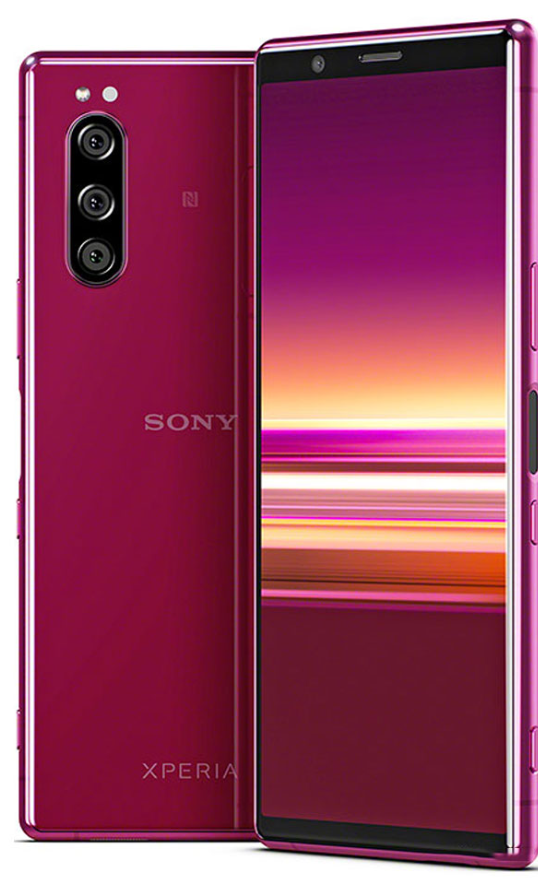
The Sony Smartphone Xperia 5 is a sleek, high-performance flagship device designed for users seeking a compact yet powerful Android smartphone. Launched in 2019, the Xperia 5 blends Sony’s signature quality in display and camera technology with a slim and lightweight form factor, making it ideal for professionals, multimedia enthusiasts, and gamers who value both portability and premium features.
Key benefits include its stunning 6.1-inch OLED display with a cinematic 21:9 aspect ratio, delivering vibrant HDR10 visuals and excellent color accuracy. The triple 12MP camera system excels in low-light photography with bright F1.6 aperture lenses, offering versatile shooting options. Powered by the Qualcomm Snapdragon 855 processor and 6GB RAM, the Xperia 5 handles multitasking and gaming smoothly. Additional highlights include Dolby Atmos audio, dual SIM support, and expandable storage via microSD, making it versatile for various user needs.
Targeted at tech-savvy consumers, content creators, and gamers, the Xperia 5’s compact design suits users who prefer one-handed use without compromising on flagship performance. It is also a solid choice for those invested in the PlayStation ecosystem, thanks to its native DualShock 4 controller support. The phone is available globally in colors like Black, Blue, Red, and Grey, with an estimated price range around €500 to $600, depending on region and retailer.
Detailed Specifications of the Sony Smartphone Xperia 5
- Display: 6.1-inch OLED, 1080 × 2520 pixels, 21:9 aspect ratio, 449 ppi, HDR10, Gorilla Glass 6 protection
- Processor: Qualcomm Snapdragon 855 octa-core (1x 2.84 GHz + 3x 2.42 GHz + 4x 1.8 GHz)
- Memory & Storage: 6GB RAM, 128GB internal storage (UFS 2.1), expandable up to 512GB via microSD
- Cameras: Triple rear cameras (12MP f/1.6 wide, 12MP f/2.4 telephoto, 12MP f/2.4 ultra-wide), 8MP front camera
- Battery: 3140 mAh Li-Ion, fast charging via USB Type-C (18W), non-removable
- Operating System: Android 9 Pie at launch, upgradeable to Android 11
- Connectivity: Bluetooth 5.0, NFC, GPS, Dual SIM (nano), USB 3.1 Type-C
- Audio: Dolby Atmos, high-resolution audio support, stereo speakers
- Build and Durability: Aluminum frame, Gorilla Glass 6 front and back, IP65/68 dust and water resistance
Compared to similar flagship smartphones like the Xperia 1, the Xperia 5 offers a smaller, lighter body while maintaining top-tier specs and multimedia features. Its unique 21:9 display ratio provides a cinematic experience uncommon in competitors.
Overview
Note
Screen covers and protectors may help you protect your device against damage. We recommend you use only those screen covers intended for your Xperia device. The use of third-party screen protection accessories may prevent your device from working correctly by covering sensors, lenses, speakers, or microphones and can invalidate the warranty.
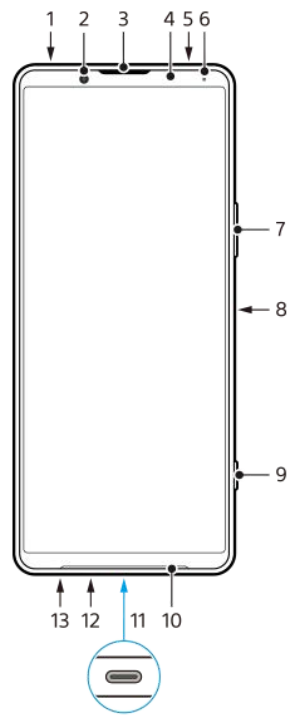
- .3.5 mm audio jack
- front camera
- Ear speaker/Second loudspeaker
- Proximity/Light sensor
- Second microphone
- Charging/Notification light
- Volume/Zoom button
- Power button/Fingerprint sensor
- Shutter button
- Main loudspeaker
- USB port/Charger
You can view the screen of your device on a TV or other large display device using a USB Type-C® cable. You can also access the internet via a LAN cable by using a commercially available USB-LAN adapter.
Note- When you connect your device to a TV or other large display using a USB Type-C cable, the cable must be compatible with the DisplayPort standard. Note that some functions or content on your Xperia device may not be displayable on the TV or display device.
- Some USB-LAN adapters may not work properly.
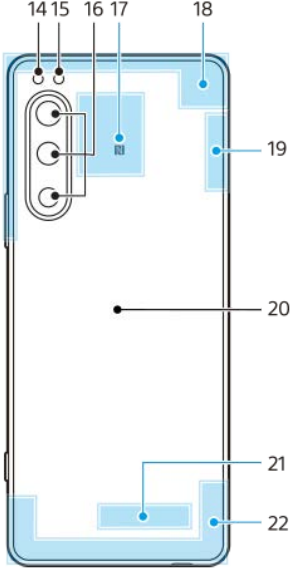
- Main microphone
- Nano SIM/Memory card slot
- Flash LED
- RGB-IR sensor
- Main camera
- NFC detection area
- Cellular antenna
- Cellular/Wi-Fi/Bluetooth/GPS antenna
- Wireless charging coil
- Wi-Fi/Bluetooth antenna
Charging your device
You can charge your device from a wall socket or computer. You can still use your device while charging.
If the battery is depleted, it may take up to 10 minutes for your device to respond to the charging. During this time, the screen may remain completely dark, not showing the charging icon. It can take a couple of hours for a completely drained battery to be fully charged. Charging speed may be affected by ambient temperature.
Always use the Sony-branded charger and USB cable, since other types of chargers and USB cables may pose increased safety risks.
Note
Your device has an embedded, rechargeable battery that can only be replaced by an authorized Sony service partner. Never try to open or take apart the device yourself. Doing so can cause damage and void your warranty.
Hint
A wall socket charger will charge your device faster than charging via a computer. You can still use your device while charging.
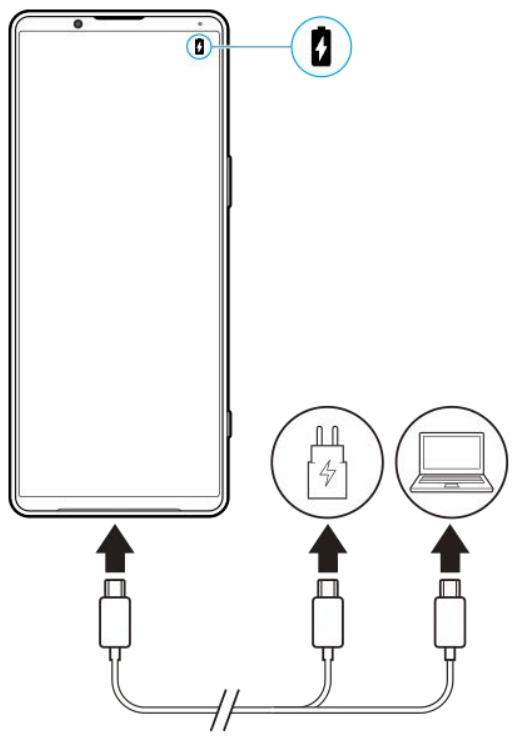
- Connect one end of the USB cable to the charger (or to the USB port of a computer).
- Connect the other end of the cable to the USB port on your device.
The notification light illuminates when charging begins. - When the device is fully charged, disconnect the cable from your device by pulling it straight outwards. Make sure not to bend the connector.
Battery notification light status
- Green: Battery is charging, charge level is greater than 90%Orange:
- Battery is charging, charge level is 15%. 90%Red:
- Battery is charging, charge level is less than 15%
Note
If the message below appears on your device, a charging malfunction has occurred. Please stop using your device and contact an authorized Sony service partner for repair.
Charging your device with a wireless charger
- You can purchase a Qi-certified wireless charger to charge your device wirelessly.
- If you use your device while charging, the charging speed may slow down or even stop to protect the battery. The use of some applications while charging may disable charging or affect the charging function. For example, using the camera during wireless charging may cause static noise in the image.
- Be sure to remove any screen or phone covers when using the wireless charging function.
- Note the following:
- Do not put any metal parts between the device and the charger, due to the risk of heat injury.
- Do not put any credit cards on the charger, since they may get demagnetized or broken.
Note
If your device is incorrectly placed on the wireless charger, the charging time will increase significantly.
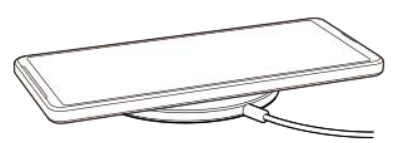
- Place your device on the wireless charger according to the charger’s instructions.
The wireless charging coil on the backside of your device must be in contact with the charger for charging to work. - When charging begins, the notification light illuminates and the charging icon appears on the screen.
- Once your device is fully charged, remove it from the wireless charger.
To wirelessly charge another device from the battery of your device (Battery share function)
- Find and tap [Settings] > [Battery] > [Battery share function].
- Tap the switch to enable the function.
- A symbol that indicates where to place the other device on the back of your device appears.
- To stop sharing the battery according to the remaining battery level or battery sharing time, tap [Remaining battery limit] or [Charge time limit], and then select an option.
- Place the other device on the back of your device and align it with the symbol.
- When charging a mobile phone, place your device and the mobile phone in a cross shape.
Note
- The Battery share function cannot be used while charging your device wirelessly.
- The battery charge can be transferred to a device that supports Qi. However, the ability to transfer the battery charge to all devices that support Qi is not guaranteed.
Hint
- The Battery share function can be used while charging your device using a USB cable.
Smart call handling
You can handle incoming calls without touching the screen by turning on the Smart call handling function. Once activated, you can handle calls in the following way:
- Answer: Bring the device to your ear.
- Reject: shake the device.
- Ringer off: place the device face down.
- Find and tap [Settings] > [System] > [Gestures] > [Smart call handling].
- Tap the switch to enable or disable the function.
Before updating your device
You should update the software on your device to get the latest functionality, enhancements, and bug fixes in order to ensure optimal performance. When a software update is available, (System update icon) appears in the status bar. You can also check for new updates manually.
- The easiest way to install a software update is to do it wirelessly from your device.
- Before updating your device, consider the following:
- Ensure you have sufficient storage capacity.
- System and application updates can present the features on your device in a way other than described in this Help Guide.
- The Android version might not be affected after an update.
To check for new software
- Find and tap [Settings] > [System] > [Software update].
Updating your device wirelessly
Use the Software update application to update your device software wirelessly. The updates you can download over a mobile network depend on your operator. It is recommended to use a Wi-Fi network instead of a mobile network to download new software so that you can avoid data traffic costs.
- Find and tap [Settings] > [System] > [Software update].
- Follow the on-screen instructions.
To set up automatic download of system updates
- Find and tap [Settings] > [System] > [Software update].
- Tap (More icon) > [Settings] > [Auto update system].
- Select the preferred option.
To enable or disable automatic updates for applications
- Find and tap [Settings] > [System] > [Software update].
- Tap (More icon) > [Settings] > [Auto update apps].
- Select the preferred option.
Application updates
If the automatic update feature is enabled, your applications get updated without you being asked, so you may not realize that large volumes of data are being downloaded. In order to avoid potentially high data transfer costs, you can disable automatic updates or enable automatic updates only over a Wi-Fi connection. To prevent automatic updates of applications, you must disable the automatic update feature in the Google Play Store app to avoid the automatic updates.
- Find and tap the Play Store.
- Tap the account icon, and then find and tap the auto update apps menu in the settings menu.
- Select the preferred option.
Restarting and resetting your device
- You can force your device to restart or shut down if it stops responding or will not restart normally. No settings or personal data get deleted.
- You can also reset your device to its original factory settings. This procedure is sometimes necessary if your device stops functioning properly, but note that you should first back up your data, as resetting your device will erase all your data from your device.
- If your device fails to turn on or you want to reset your device’s software, you can use Xperia Companion to repair your device. For more information on downloading and using Xperia Companion, search for Xperia Companion on the Sony customer support website.
Restarting your device
Note
- Your device may fail to restart if the battery level is low. Connect your device to a charger and try restarting again.
- Press the volume up button and the power button at the same time.
- In the menu that opens, tap [Restart]. The device restarts automatically.
Forcing the device to restart or shut down
- Long-press the power button and the volume up button at the same time until your device vibrates.
- Depending on whether you wish to force the device to restart or shut down, follow these steps.
- If you wish to force restart the device, release the buttons at this point. The device restarts.
- If you wish to force shut down the device, continue pressing the buttons. After a few more seconds, the device vibrates three times and turns off.
Hint
If your device does not turn on, forcing the device to restart may resolve the issue.
Performing a factory data reset
Note
- To avoid permanent damage to your device, do not interrupt a factory data reset procedure.
- Back up any data saved to the internal memory of your device. Resetting will erase all your data from your device.
- Find and tap [Settings] > [System] > [Reset options].
- Tap [Erase all data (factory reset)] > [Erase all data].
- If required, draw your screen unlock pattern or enter your screen unlock password or PIN to continue.
- To confirm, tap [Erase all data].
Hint
Your device does not revert to an earlier software version of Android when you perform a factory data reset.
Repairing the device software using Xperia Companion
- You can use Xperia Companion to repair your device’s software. If you forget your screen unlock password, PIN, or pattern, you can use the device repair feature in Xperia Companion to erase the security layer. You need to provide your Google account login details to perform this operation. By running the repair feature, you reinstall software for your device, and you may lose some personal data in the process.
- If your device seems to have frozen, restarts repeatedly, or does not start at all after you update the Xperia software, after you perform a software repair, or after a factory data reset, try forcing the device to shut down and then turning it back on. If the problem persists, force the device to shut down and then perform a software repair.
Note
- Before performing a software repair, make sure you know your Google account username and password. Depending on your security settings, you may need to enter them to restart the device after a software repair.
- If Xperia Companion is not installed on your computer, visit the Sony customer support website and search for Xperia Companion to download it.
- Open the Xperia Companion software on the computer and click [Software repair] on the main screen.
- Follow the instructions that appear on the screen to reinstall the software and complete the repair.
Resetting your applications
You can reset an application or clear application data if your application stops responding or causes issues with your device. Resetting application preferences does not delete any application data from your device.
- Find and tap [Settings] > [Apps].
- Tap the number of apps to see all apps.
- Tap (More icon) > [Reset app preferences] > [Reset apps].
To clear application data
- Find and tap [Settings] > [Apps].
- Select an application or service, and then tap [Storage & cache] > [Clear storage] > [OK].
To clear the application cache
- Find and tap [Settings] > [Apps].
- Select an application or service, and then tap [Storage & cache] > [Clear cache].
To clear the application default setting
- Find and tap [Settings] > [Apps].
- Select an application or service, and then tap [Open by default] > [Clear default preferences].
Note
The option to clear the application data, cache, or default settings is not available for every application or service.
Viewing the memory status
The internal storage stores downloaded or transferred content along with personal settings and data, and it tends to fill up as a result of normal usage. If the device starts to slow down, or applications suddenly shut down, you should consider the following:
- Close running applications that you are not using.
- Uninstall downloaded applications that you do not use.
- Transfer photos, videos, and music from the internal memory to the removable memory card or Google service.
Note
- You can purchase a memory card separately.
- If your device cannot read content on the memory card, you may need to format the card. Note that when you format the card, all content is erased.
Common Troubleshooting Tips for the Sony Smartphone Xperia 5
- Battery Draining Quickly: Disable background apps, reduce screen brightness, and check for software updates.
- Wi-Fi or Connectivity Issues: Restart the device, toggle airplane mode, or reset network settings.
- Camera Malfunction or Blurry Images: Clean the lens, restart the camera app, or clear the app cache.
- Fingerprint Sensor Not Responding: Re-register fingerprints and ensure the finger and the sensor are clean and dry.
- Error Codes: For system errors, perform a factory reset after backing up data; see Sony support for specific error code diagnostics.
Preventive measures include regularly updating the software, avoiding exposure to extreme temperatures, and using official accessories. The Xperia 5 comes with a standard Sony warranty, typically covering one year for hardware defects. For further support, users can contact Sony Customer Care via their official website or authorized service centers worldwide.
Pros and Cons of the Sony Smartphone Xperia 5
- Pros:
- Compact 6.1-inch OLED display with excellent color accuracy and cinematic 21:9 ratio
- Powerful Snapdragon 855 processor with smooth multitasking and gaming performance
- Triple 12MP cameras with bright lenses offer versatile photography options, especially in low light
- IP65/68 water and dust resistance enhances durability
- Dolby Atmos and high-res audio deliver immersive sound quality
- Expandable storage via microSD up to 512GB
- Cons:
- Battery capacity is modest at 3140 mAh, which may require daily charging under heavy use
- 60 Hz refresh rate is lower than newer flagship smartphones with 90 or 120 Hz displays
- Price point (~€500) is high relative to newer competitors with updated processors
- No wireless charging support
Compared to alternatives like Samsung Galaxy S10 or Google Pixel 4, the Xperia 5 provides a more compact form factor and superior audio-visual features,s but falls behind on battery size and refresh rate technology.
Customer Reviews and Feedback on the Sony Smartphone Xperia 5
The Sony Smartphone Xperia 5 has earned positive reviews for its excellent display quality and camera capabilities, often praised for crisp, vibrant visuals and versatile triple-lens photography. Users appreciate the compact design that fits comfortably in one hand, along with the immersive Dolby Atmos sound system for media consumption.
Common complaints focus on battery life, with several users noting the need for frequent charging during intensive use. Some reviewers mention that the 60 Hz screen refresh rate feels outdated compared to newer models. The device’s pricing is considered fair for its premium build and features, es but less competitive against newer mid-range phones.
Overall, the Xperia 5 receives an average user rating of around 4 out of 5 stars, with recommendations primarily aimed at users valuing a compact flagship experience backed by Sony’s display and audio technology expertise.
Faqs
How do I set up my sony Smartphone Xperia 5 for the first time?
What should I do if my sony Smartphone Xperia 5 screen shows a pink line?
How can I troubleshoot if my sony Smartphone Xperia 5 is frozen or unresponsive?
Is the sony Smartphone Xperia 5 compatible with the latest Android updates?
How do I improve the performance of my sony Smartphone Xperia 5 if it runs slow?
What precautions should I take to maintain the battery health of my sony Smartphone Xperia 5?
How can I recover my data if my sony Smartphone Xperia 5 is stuck in EDL mode and unresponsive?
What are the key features of the sony Smartphone Xperia 5 that enhance multimedia experience?
More sony manuals
- How to Use: Sony Ultra HD Blu-ray™ / DVD Player User Manual
- How to Pair: Sony Wireless Stereo Headphone System User Manual
- How to Use: Sony Wireless Speaker Ult Field 1 User Manual
- How to Setup: Sony Motorcycle Helmet Cam DB5 User Manual
- How to Use: Sony Multi Channel AV Receiver STR-AZ7000ES/STR-AZ5000ES/STR-AZ3000ES User Manual
- Sony Wireless Noise Cancelling Headset WF-1000XM5 User Guide
Leave a Comment