
Pairing: Tp-Link Kasa Smart Wi-Fi Plug HS100 User Manual
Content
TP-Link Kasa Smart Wi-Fi Plug HS100
Introduction
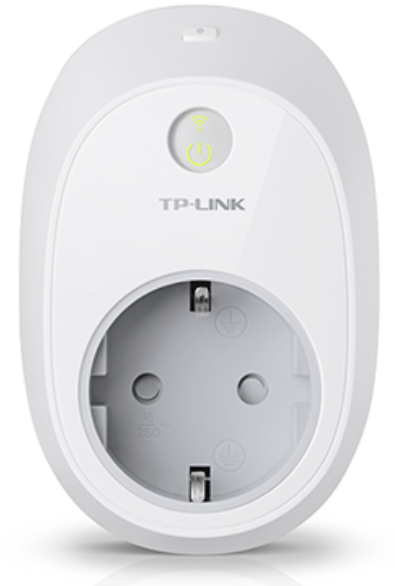
The TP-Link Kasa Smart Wi-Fi Plug HS100 is a versatile and innovative smart plug designed to make your home appliances smarter and more convenient to manage. Launched in 2016, this device has been a staple in the smart home ecosystem, offering users the ability to control and monitor their appliances remotely using the Kasa app. With an estimated price range of $20 to $30, it is an affordable solution for those looking to upgrade their home automation setup.
The HS100 is compatible with Amazon Alexa and Google Assistant, allowing for voice control and seamless integration into existing smart home systems. It supports 2.4GHz Wi-Fi networks and does not require a hub, making it easy to set up and use. Whether you want to turn on your coffee maker from bed or ensure that your lights are off when you're not home, the Kasa Smart Wi-Fi Plug HS100 is a reliable and user-friendly option.
Specifications
- Compatibility: Works with Amazon Alexa, Google Assistant, and Microsoft Cortana
- Wi-Fi Connectivity: Supports 2.4GHz Wi-Fi networks
- No Hub Required: Directly connects to your router
- Remote Access: Control appliances from anywhere using the Kasa app
- Scheduling: Set schedules for your appliances to turn on/off automatically
- Energy Monitoring: Track the energy consumption of connected appliances
- Compact Design: Small and unobtrusive, won't block other outlets
- Compatibility with IFTTT: Customizable automation scenarios
Main Device Controls
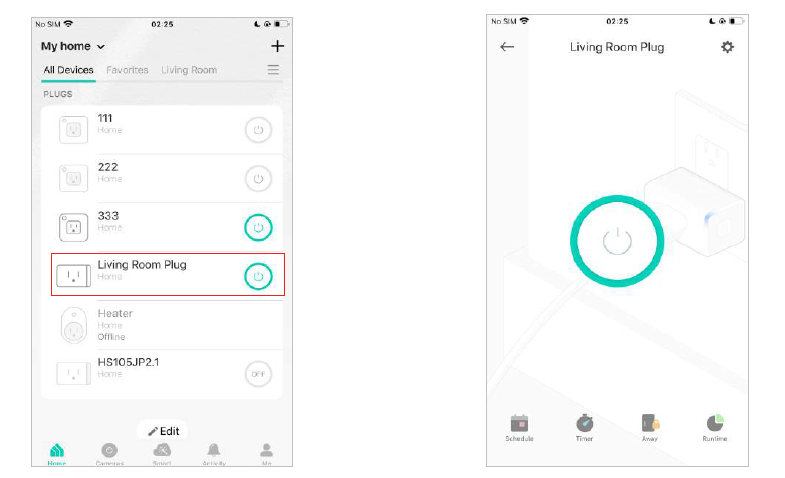
After you successfully set up your smart plug, you will see the home page of the Kasa Smart app. Here you can view and manage all devices that you've added to Kasa. Tap your smart plug to control and manage it.
Home Page
All your Kasa smart devices are listed on the Home page.
Device Status
Check your device status, or turn on/off your device in the Status page.
Favorite Devices
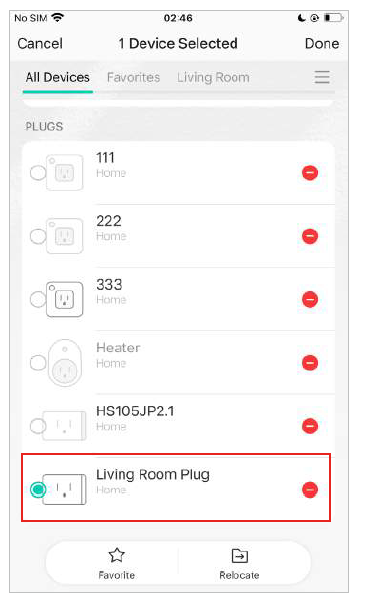
Gather the devices you use most often in Favorites so you can easily find them.
Home Page
Go to the Home page and long-press your device. Then tap Favorite.
Set Schedules
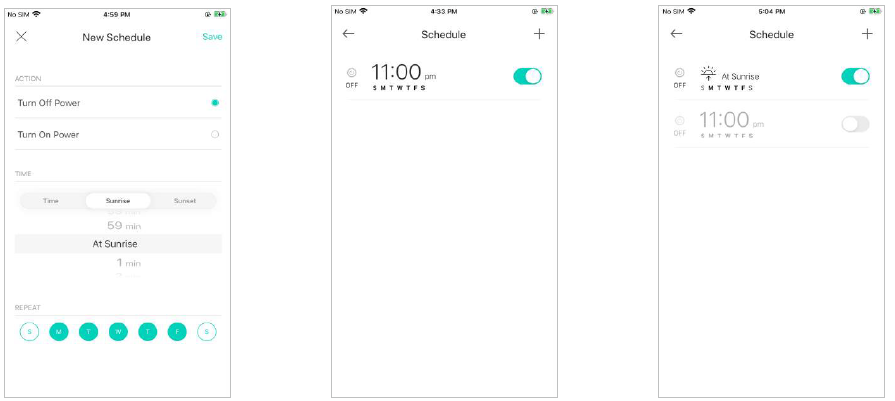
Schedule: Set schedules to automatically turn on/off the plug at set times according to your daily routine.
- Tap your smart plug in the Home page, and then tap .
- Tap + on the top right corner.
Set a schedule to turn the light plugged into your smart plug on or off at set times. e.g., I want to turn off the light at 11:00 PM every day.
- You can also choose to turn on/off the light at Sunrise or Sunset. Please note that the Sunrise and Sunset times are based on your location.
- Tap Save,e and you'll see your schedule listed in the Schedule Page. You can add more schedules following the same steps
- You can turn off your schedule e at any time on the Schedule page.
Set Timer
Timer: Set the countdown timer,, and your smart plug will be automatically turned on/off after the time ends.
Manage Device Settings
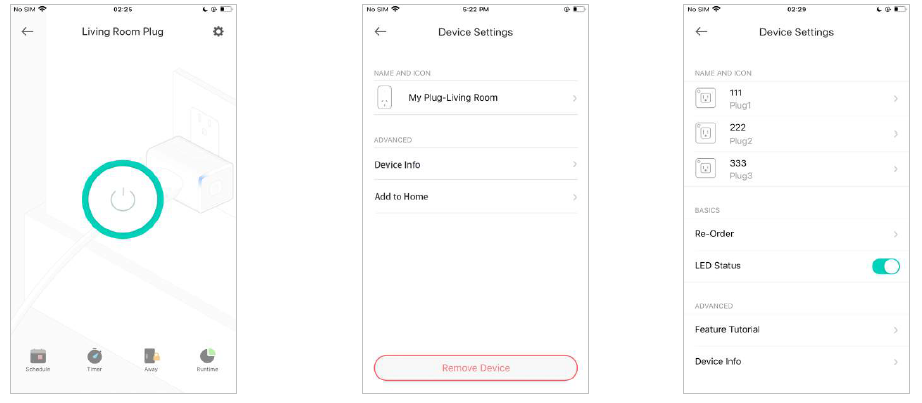
You can change the device settings.
- Tap
 in the Device Status page.
 - You can view Device Info and change the name and icon of your smart plug.
If your plug supports HomeKit, you can see Add to Home and add your plug to the Home app. If your plug has multiple outlets, you can also re-order them.
Reset Your SmartPlug
T Here are three ways to reset your smart plug.
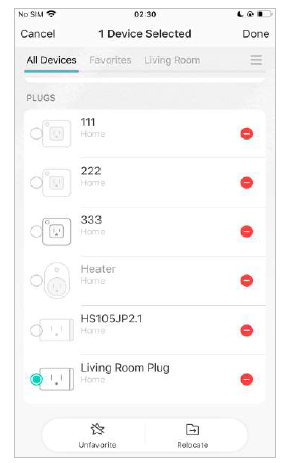
Method 1
Go to the Home page. Long-press your smart plug and then tap .
Method 2
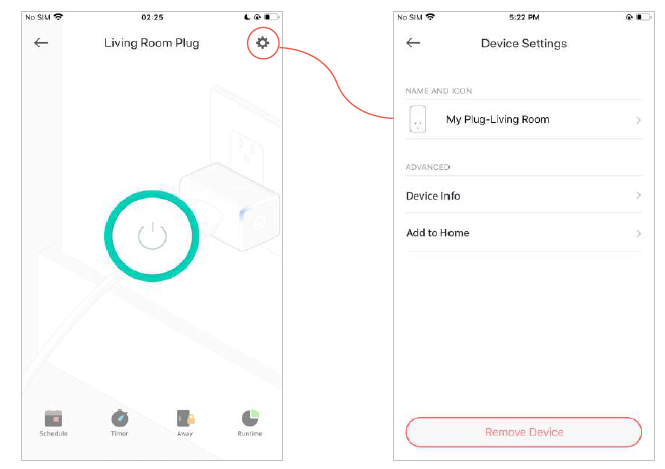
- Tap in the Status page.
Tap Remove Device at the bottom.
Method 3
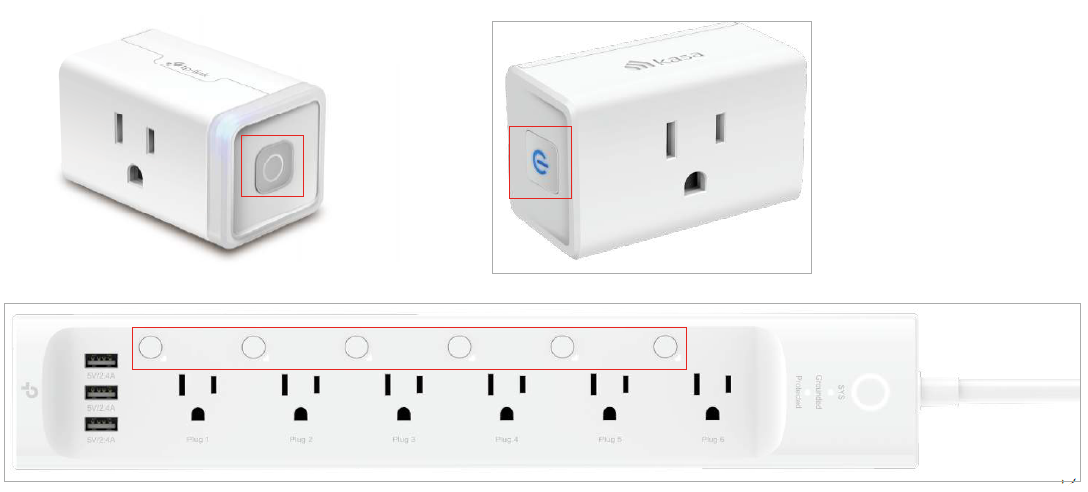
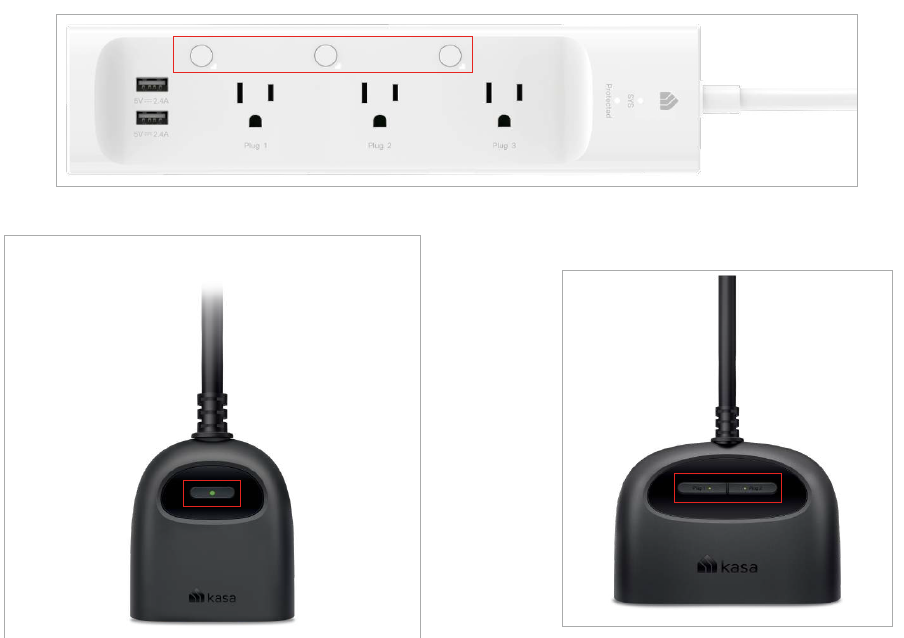
- Press and hold the power button for about 10 seconds to factory reset the plug.
- Press and hold the power button for about 5 seconds to reset Wi-Fi while keeping previous settings..
Troubleshooting
If you encounter issues with your TP-Link Kasa Smart Wi-Fi Plug HS100, here are some common solutions:
- Connection Issues: Ensure your device is connected to the same 2.4GHz Wi-Fi network as your router. Restart both the plug and your router if necessary.
- App Not Responding: Check for updates to the Kasa app and ensure that your device is properly registered in the app.
- Power Issues: Make sure the plug is securely inserted into the outlet and that there are no issues with the electrical supply.
Always refer to the user manual for specific troubleshooting steps and follow any safety instructions provided.
Pros & Cons
Pros:
- Easy Setup: Simple installation process.
- Remote Access: Control appliances from anywhere using the Kasa app.
- Voice Control: Compatible with Amazon Alexa, Google Assistant, and Microsoft Cortana.
- Energy Monitoring: Track energy consumption of connected appliances.
- Affordable: Priced competitively compared to other smart plugs on the market.
Cons:
- Limited Compatibility: Only supports 2.4GHz Wi-Fi networks.
- No 5GHz Support: May not be ideal for homes with only 5GHz networks available.
- Single Outlet: Only controls one appliance per plug.
Customer Reviews
Customers generally praise the TP-Link Kasa Smart Wi-Fi Plug HS100 for its ease of use, reliable performance, and affordability. Many appreciate the energy monitoring feature, which helps them stay aware of their appliance usage. However, some users have reported occasional connectivity issues and the lack of 5GHz Wi-Fi support as minor drawbacks.
Faqs
How do I set up the TP-Link Kasa Smart Wi-Fi Plug HS100?
Is the TP-Link Kasa Smart Wi-Fi Plug HS100 compatible with Amazon Alexa?
Can I use the TP-Link Kasa Smart Wi-Fi Plug HS100 with Google Assistant?
Does the TP-Link Kasa Smart Wi-Fi Plug HS100 support energy monitoring?
Why is my TP-Link Kasa Smart Wi-Fi Plug HS100 not connecting to Wi-Fi?
Can I control multiple appliances with one TP-Link Kasa Smart Wi-Fi Plug HS100?
Is the TP-Link Kasa Smart Wi-Fi Plug HS100 compatible with IFTTT?
How do I reset the TP-Link Kasa Smart Wi-Fi Plug HS100?
Can I use the TP-Link Kasa Smart Wi-Fi Plug HS100 outdoors?
What is the maximum power rating of the TP-Link Kasa Smart Wi-Fi Plug HS100?
More tp-link manuals
- How to Use: Tp-Link Better Energy Wi-Fi Range Extender User Manual
- Setup: Tp-Link Wi-Fi Range Extender TL-WA860RE User Guide
- Setup: Tp-Link TL-WN725N 150Mbps Wireless N Nano USB Adapter User Manual
- Tp-Link Kasa Smart Wi-Fi Dimmer Switch KS220M User Guide
- Tp-Link 4G LTE Router TL-MR105 User Guide
- & Features: Tp-Link Kasa Smart Wi-Fi Power Strip KP303 User Manual
Leave a Comment