
Alienware AW3821DW Monitor User Manual
Content
Alienware AW3821DW Monitor: Complete Product Manual and Buyer Guide
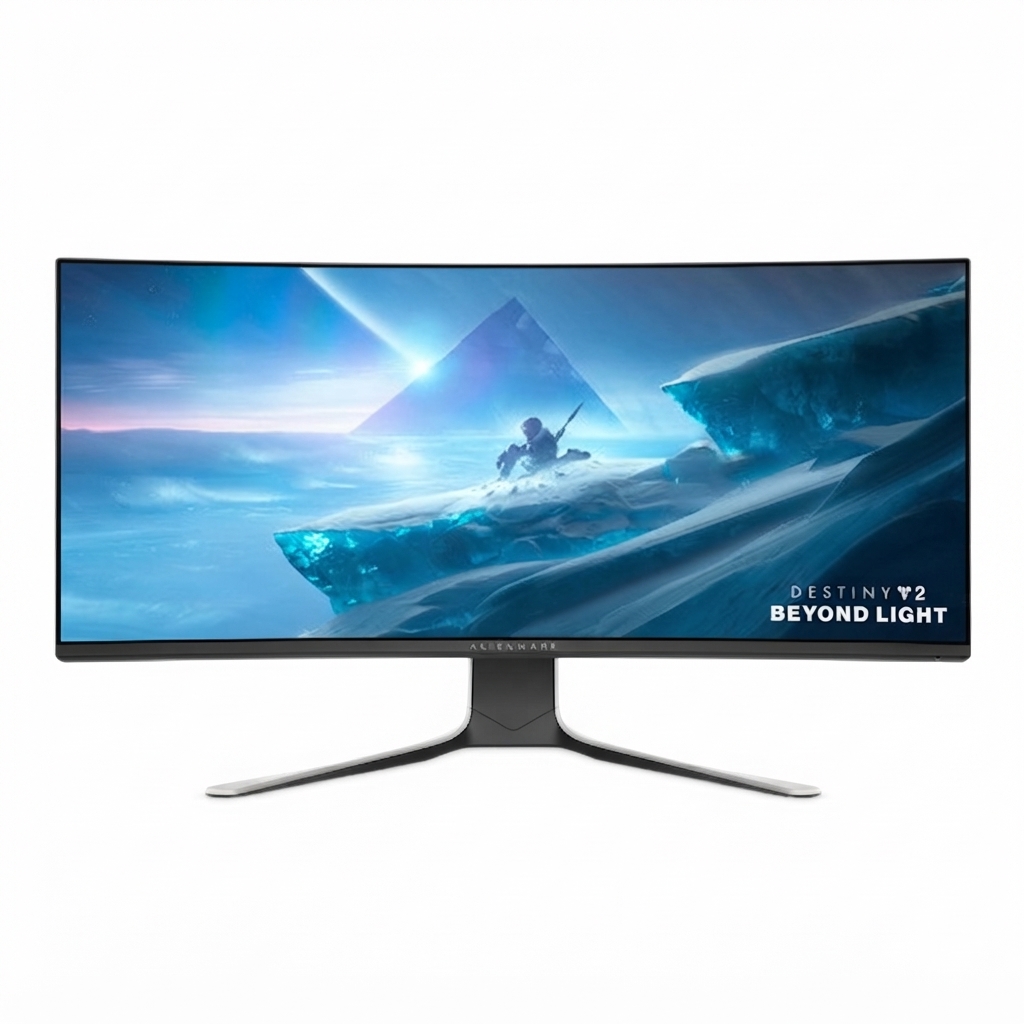
The Alienware AW3821DW Monitor is a premium 38-inch curved ultrawide display designed for users who want immersive gaming, high-end productivity, and wide-screen multitasking in one panel. With a 3840 x 1600 resolution, 144Hz refresh rate, and Nano IPS technology, it delivers sharp detail, fluid motion, and strong color performance for competitive gaming and creative work. Its 2300R curvature wraps the image naturally around your field of view, making it especially effective for racing games, open-world titles, video editing timelines, and multi-window workflows.
This monitor stands out for its NVIDIA G-SYNC Ultimate support, DisplayHDR 600 certification, 1ms response time, and wide DCI-P3 color coverage, giving it a strong edge among premium ultrawide gaming monitors. The Alienware AW3821DW Monitor is aimed at PC gamers, content creators, streamers, and professionals who want a large-format display with excellent motion handling and a cinematic aspect ratio. It also includes a versatile USB hub, multiple video inputs, and a sturdy height-adjustable stand for daily use.
As of current retail trends, the estimated price range typically sits around the upper-premium segment, often between $900 and $1,300 depending on condition, region, and seller availability. New stock may be limited in some markets, so shoppers often find it through major electronics retailers, online marketplaces, or refurbished listings.
Specifications for Alienware AW3821DW Monitor
- Screen size: 37.5-inch to 38-inch class ultrawide curved display
- Panel type: Nano IPS
- Resolution: 3840 x 1600
- Aspect ratio: 21:9
- Curvature: 2300R
- Refresh rate: Up to 144Hz
- Response time: 1ms GTG
- Brightness: Up to 600 nits peak in HDR mode
- HDR support: VESA DisplayHDR 600
- Color support: 10-bit color with wide DCI-P3 coverage
- Adaptive sync: NVIDIA G-SYNC Ultimate
- Video inputs: 1 DisplayPort 1.4, 2 HDMI 2.0
- USB hub: 4 downstream USB ports and 1 upstream USB connection
- Audio: 3.5mm audio output
- Stand adjustments: Height, tilt, swivel, and pivot-style ergonomic tuning
In performance terms, this display is often compared with 34-inch ultrawide monitors and 38-inch rivals from LG and Lenovo. Compared with 3440 x 1440 ultrawides, the Alienware AW3821DW Monitor offers more vertical space and a noticeably broader workspace, making it a stronger choice for productivity and cinematic gaming.
Detailed Description of the Alienware AW3821DW Monitor
The Alienware AW3821DW Monitor uses a Nano IPS panel to balance fast response times with strong image quality. In practice, this means smoother motion in fast games, rich color reproduction for photo and video work, and better readability when handling spreadsheets, timelines, or browser-heavy workflows. The 3840 x 1600 resolution provides a useful middle ground between standard ultrawide and full 4K, giving users extra horizontal space without overwhelming GPU demands as much as a full 4K gaming setup.
Its curved shape improves immersion by keeping more of the screen in the user’s natural viewing range. The chassis reflects Alienware’s gaming-focused design language, with a premium build, slim bezels, and a stable stand that feels durable on a desk. Real-world use cases include sim racing, flight simulators, competitive shooters, streaming setups, and content creation. The Alienware AW3821DW Monitor also works well as a premium office display for professionals who need multiple windows open side by side.
Users generally appreciate the clean visuals, strong HDR presentation for an edge-lit display, and excellent motion clarity. The main trade-offs are its large footprint, premium price, and the fact that HDMI performance is more limited than DisplayPort at this class.
Setup Guide: How to Install and Configure the Alienware AW3821DW Monitor
- Unbox the monitor carefully and place all parts on a soft, clean surface to avoid scratching the panel.
- Attach the stand base to the upright arm, then secure the monitor panel into the stand until it clicks into place.
- Position the monitor on a stable desk with enough depth to accommodate the curved panel and stand footprint.
- Connect DisplayPort 1.4 for the best experience at 3840 x 1600 and 144Hz.
- Use HDMI 2.0 if connecting a secondary system, console, or laptop, but expect lower performance limitations depending on device support.
- Plug in the USB upstream cable if you want the built-in USB hub to function.
- Enter your graphics settings and confirm the refresh rate is set to 144Hz in the operating system and GPU control panel.
- Adjust brightness, contrast, and color mode through the on-screen display to match gaming, HDR, or productivity use.
For safety, avoid lifting the panel by the screen edge, keep liquids away from the ports, and never block ventilation openings. If the image does not appear, check the input source, reseat the cable, and confirm your GPU supports the correct resolution and refresh rate. If the display looks unstable, use a certified DisplayPort cable and reduce overclocking or custom settings.
Troubleshooting Alienware AW3821DW Monitor Problems
- No signal: Verify the active input, test a different cable, and confirm the PC is outputting to the correct display port.
- 144Hz not available: Update GPU drivers, switch to DisplayPort, and enable the refresh rate in display settings.
- Flickering or dropouts: Replace low-quality cables and disable conflicting GPU scaling settings.
- HDR looks dull: Turn on HDR in the operating system and use content that supports HDR properly.
- USB ports not working: Confirm the upstream USB cable is connected between the monitor and the computer.
- Black screen after sleep: Restart the monitor, reconnect the video cable, and test a different power outlet.
If problems continue, perform a factory reset through the monitor menu and check for firmware or driver updates from the manufacturer’s support resources. Most units include standard warranty coverage, and support is typically available through the Dell/Alienware support portal, live chat, phone assistance, and authorized service channels. Keep your serial number and proof of purchase ready when requesting help.
Pros and Cons of the Alienware AW3821DW Monitor
Pros
- Large 38-inch ultrawide screen creates an immersive experience for gaming and productivity.
- 3840 x 1600 resolution offers more workspace than common 34-inch ultrawides.
- 144Hz refresh rate and 1ms response time deliver smooth motion for fast-paced games.
- G-SYNC Ultimate support helps reduce tearing and stutter on compatible systems.
- Strong color performance makes it useful for creative work as well as entertainment.
- Premium stand and build quality feel solid and durable.
Cons
- Premium price makes it less accessible than mainstream ultrawide monitors.
- Large footprint requires a deep desk and careful placement.
- HDMI performance is less flexible than DisplayPort for top-end use.
- HDR quality is good for the class, but not equal to OLED-level contrast.
- Not ideal for users who prefer a smaller or more space-efficient display.
For value for money, the Alienware AW3821DW Monitor is best suited to buyers who want a premium hybrid display rather than the cheapest ultrawide option. Alternatives may offer lower prices, but few match its balance of size, smooth gaming performance, and desktop versatility.
Customer Reviews: What Users Say About the Alienware AW3821DW Monitor
Customer feedback is generally positive, with many users rating it around 4.5 out of 5 stars for gaming immersion, build quality, and productivity space. One common praise is the dramatic upgrade over smaller ultrawides, especially for racing sims and multitasking. Another frequent highlight is the clean, sharp image quality and the smoothness of 144Hz gameplay.
Common complaints include the high purchase price, limited HDR impact compared with newer premium display technologies, and the need for a powerful graphics card to fully enjoy the native resolution. Many buyers still recommend it for professionals and gamers who want one monitor that can handle both work and play. If you want a large curved ultrawide with premium features and excellent all-around usability, the Alienware AW3821DW Monitor remains a strong buy.
Faqs
How do I set up the alienware AW3821DW Monitor for the first time?
What is the best way to connect the alienware AW3821DW Monitor to a gaming PC?
Why is my alienware AW3821DW Monitor not reaching the expected refresh rate?
Does the alienware AW3821DW Monitor support ultrawide gaming on consoles and PCs?
How can I fix black bars or stretched images on the alienware AW3821DW Monitor?
What picture settings are best for the alienware AW3821DW Monitor for work and gaming?
Is the alienware AW3821DW Monitor compatible with HDR and adaptive sync?
How should I clean and maintain the alienware AW3821DW Monitor safely?
More alienware manuals
Leave a Comment