
Setup & Pairing: Amazfit Band 7 Fitness Tracker User Manual
Content
Amazfit Band 7 Fitness Tracker
Introduction
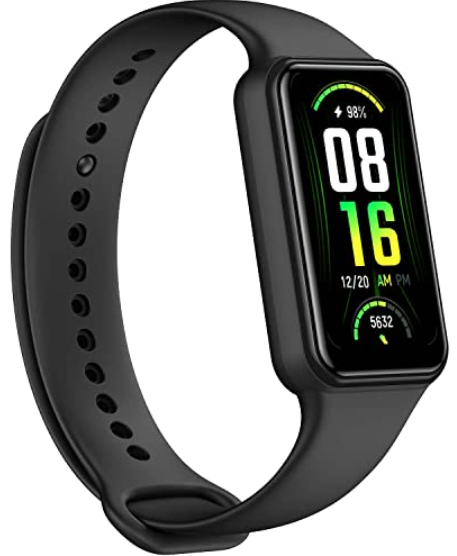
The Amazfit Band 7 Fitness Tracker is a versatile, feature-packed wearable designed to enhance your health and fitness journey with style and efficiency. Boasting a large 1.47-inch HD AMOLED display with vibrant visuals and a crisp resolution of 198×368 pixels, this fitness band offers an immersive view of your activity metrics and notifications. Its slim and lightweight design ensures comfort for all-day wear, making it suitable for fitness enthusiasts, casual exercisers, and health-conscious individuals alike.
Key benefits include 24-hour health monitoring with advanced BioTracker™ 3.0 PPG sensors for heart rate, blood oxygen, and stress tracking, alongside sleep quality and nap analysis. The device supports over 120 sports modes with smart recognition for four popular activities, making it a comprehensive companion for workouts ranging from running and cycling to yoga and strength training. With 5 ATM water resistance, the Band 7 is swim-ready and durable in wet conditions.
One of its standout features is an ultra-long battery life of up to 18 days on a single charge, extended further to 28 days in battery saver mode. Integration of Amazon Alexa offers intelligent voice control right from your wrist. The watch runs on the powerful Zepp OS, providing a smooth interface and access to a rich ecosystem of mini apps for added functionality.
Available at an estimated price range of about $50-$60, the Amazfit Band 7 is widely accessible through major retailers and online platforms, offering excellent value for those seeking a budget-friendly yet advanced fitness tracker to boost their active lifestyle.
Product Overview
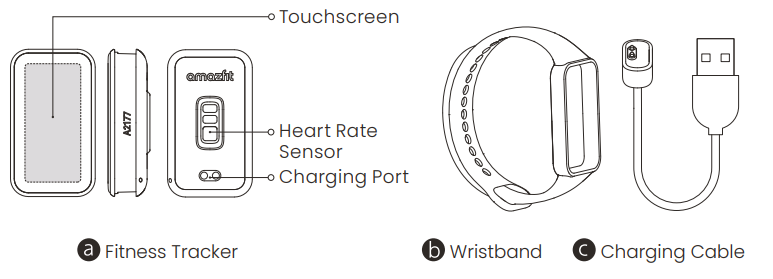
Note: Illustrations of product, accessories, and user interface in the user manual are for reference purposes only. Actual product and functions may vary due to product enhancements.
Installation
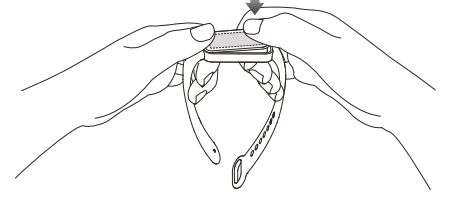
- Insert one end of the fitness tracker into the slot on the front of the wristband.
- Press down on the other end with your thumb to push the fitness tracker completely into the slot.
Wearing
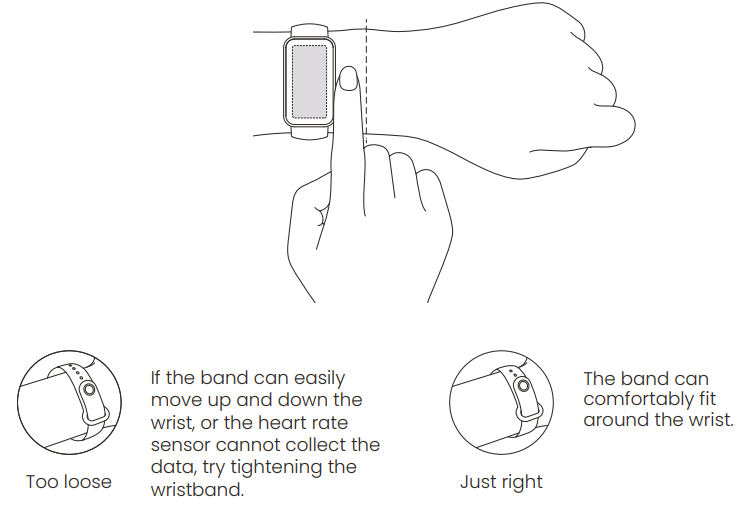
Comfortably tighten the band around your wrist about one finger's width away from your wrist bone.
To achieve the optimal performance of the heart rate sensor, make sure the back of the band contacts with your skin. When wearing your wristband, keep it neither too tight nor too loose but leaving some space for the skin to be able to breathe. Tighten the wristband before you start to exercise and properly loosen it afterward.
How to Use
- Once the band is paired, it begins recording and analyzing your exercise, nightly sleep, and other information.
- Touch the screen to light it up.
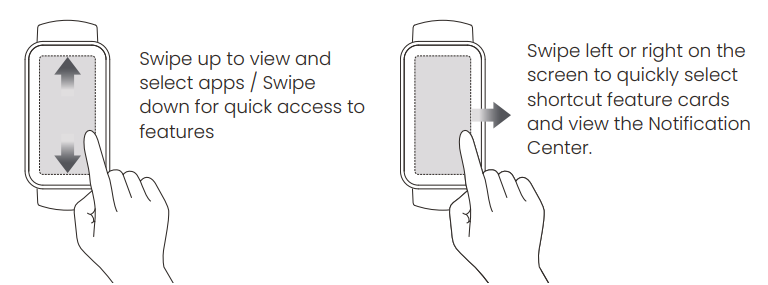
- Swipe up to view and select apps or swipe down for quick access to features. Swipe left or right on the screen to quickly select shortcut feature cards and view the Notification Center.
Disassembling
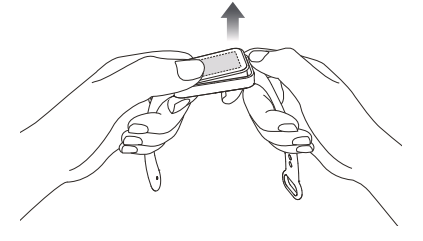
Remove the band from your wrist, hold on to each end, and pull on the wristband until you see a small gap between the fitness tracker and the wristband. Use your finger to pop the fitness tracker out of its slot from the front side of the wristband.
Charging
- When using the band for the first time, connect it to the charging cable to turn it on.
- Recharge your band immediately when the battery level is low.
Specifications
- Product name: Amazfit Band 7
- Working Temperature: 0 °C-45 °C Bluetooth frequency: 2402 MHz - 2480 MHz Maximum output: < 2.5 mW
- Input current: 300 mA MAX
- Model: A2177
- Battery: 232 mAh
- Battery type: Li-polymer battery, Input voltage: 5.0 VDC
- Wireless Connectivity: Bluetooth® Low Energy 5.2
- System requirements: Android 7.0 or iOS 12.0 or later.r To view specific supervision information, certifications, and compliance marks of the band, go to Settings > System > Regulatory.
Repair and Maintenance
- Avoid using detergents such as soap, hand sanitizer, bath foam, or lotion for cleaning to prevent chemical residues from irritating the skin, corroding the device, or degrading the water resistance of the device.
- Keep the product and your skin clean and dry to maximize comfort and prevent damage to the product over time. This is especially important after exercise or after contact with liquids such as sweat, soap, sunscreen, and lotions that may irritate the skin.
- After wearing the device while bathing (for devices that support bathing), swimming (for devices that support swimming), or sweating, please promptly clean and dry the device.
- When using light-colored watch straps, avoid contact with dark clothing to prevent staining.
- Do not place the device in direct sunlight for long periods. Excessively high or low ambient temperature may cause device failure.
- Handle with care during transportation. Keep the device dry and away from humidity.
Warranty and Return Policy
- The Amazfit Limited Warranty covers Amazfit products against manufacturing defects beginning on the original purchase date. The warranty period is 12 months or another specified period as the applicable consumer laws in the consumer’s country of purchase require. Our warranty is in addition to the rights provided by applicable consumer laws.
Troubleshooting the Amazfit Band 7 Fitness Tracker
Users may encounter common issues such as connectivity drops, inaccurate sensor readings, or syncing delays. To resolve Bluetooth connection problems, ensure your smartphone’s Bluetooth is enabled and the Zepp app is updated. Restarting both devices often restores stable connections. If heart rate or SpO2 measurements appear inconsistent, make sure the band is worn snugly and clean the sensor area regularly.
Error codes are rare, but if the device freezes or becomes unresponsive, perform a soft reset by holding down the button for 10 seconds. Preventive measures include avoiding exposure to extreme temperatures and water beyond the 5 ATM rating, and not disassembling the device to protect the lithium-polymer battery.
The Amazfit Band 7 comes with a standard warranty covering manufacturing defects, with customer support accessible through official Amazfit channels and the Zepp app. For further assistance, users can contact Amazfit support via their website or authorized retailers.
Pros & Cons of the Amazfit Band 7 Fitness Tracker
Pros
- Large HD AMOLED Display: Offers clear, vibrant visuals that are 112% larger than its predecessor, improving data visibility during workouts.
- Comprehensive Health Monitoring: Includes heart rate, SpO2, stress, and sleep tracking with 24/7 monitoring capabilities.
- Long Battery Life: Up to 18 days of typical use, minimizing charging frequency.
- Wide Sports Mode Selection: Supports 120+ activities,s including automatic recognition of four sports.
- Affordable Price: Competitive cost around $50, delivering excellent value compared to higher-priced fitness trackers.
Cons
- PAI Score Sensitivity: Some users find the physical activity intelligence (PAI) scoring difficult to accumulate despite intense workouts.
- Limited Training Mode Flexibility: Once a workout starts, exiting the mode can be cumbersome.
- Accuracy Concerns: Heart rate and distance tracking may be less precise compared to premium trackers.
- Wearability: Some users report the band to feel less comfortable than alternatives over long durations.
Customer Reviews of the Amazfit Band 7 Fitness Tracker
Customers generally praise the Amazfit Band 7 Fitness Tracker for its vibrant display, extensive sports modes, and impressive battery life. Many highlight its affordability as a primary advantage, making advanced fitness tracking accessible to a wider audience. Users appreciate the seamless integration with the Zepp app, which offers detailed insights into workouts and health metrics.
On the downside, some reviews mention occasional inaccuracies in distance and heart rate measurements, as well as challenges with the PAI scoring system, which can feel discouraging. Several users also note difficulties with the workout mode interface and wish for smoother transitions.
Overall, the band receives star ratings around 4 out of 5, with recommendations for beginners or budget-conscious buyers seeking a reliable, feature-rich fitness tracker that balances price and performance.
Faqs
How do I set up the amazfit Band 7 Fitness Tracker for the first time?
What can I do if my amazfit Band 7 Fitness Tracker is not syncing with my phone?
How do I customize quick access apps on the amazfit Band 7 Fitness Tracker?
Is the amazfit Band 7 Fitness Tracker compatible with both Android and iOS devices?
How can I optimize the battery life of my amazfit Band 7 Fitness Tracker?
What should I do if the heart rate sensor on my amazfit Band 7 Fitness Tracker is not accurate?
How do I start and track a workout using the amazfit Band 7 Fitness Tracker?
How should I clean and maintain my amazfit Band 7 Fitness Tracker for longevity?
More amazfit manuals
- Setup & Usage: Amazfit X Curved SmartWatch User Manual
- Setup & Pairing: Amazfit GTR Mini A2174 Smart Watch User Manual
- Usage & Pairing: Amazfit Active A2211 Smart Watch User Manual
- Usage & Setup: Amazfit GTS 3 Smart Watch User Manual
- Setup & Usage: Amazfit Stratos 3 SmartWatch User Manual
- Setup & Pairing: Amazfit Balance 2 Smart Watch User Manual
Leave a Comment