
Pairing & Setup: Amazfit Bip S Lite Smart Watch Fitness User Manual
Content
Amazfit Bip S Lite Smart Watch Fitness
Introduction
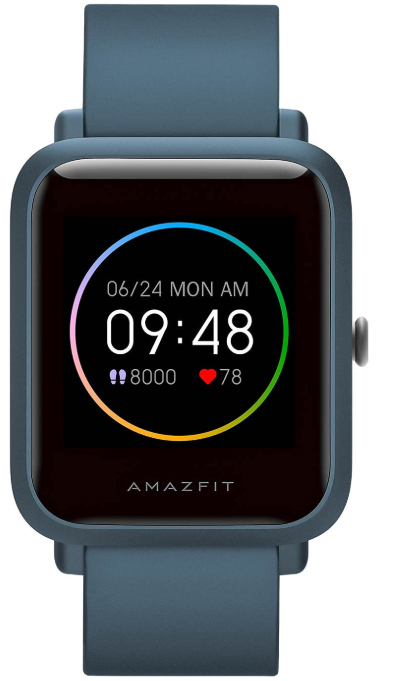
The Amazfit Bip S Lite Smart Watch Fitness is a versatile and affordable wearable designed for fitness enthusiasts. This lightweight smartwatch offers a range of features, including real-time heart rate monitoring, sleep tracking, and 8 sports modes to track various exercises like running, cycling, and yoga. It boasts a 1.28-inch always-on display with a color transflective screen and supports both Bluetooth 5.0 and BLE connectivity. The watch is water-resistant up to 5 ATM, making it suitable for swimming and other water activities. Targeted at both men and women seeking a budget-friendly fitness companion, the Amazfit Bip S Lite is available in a price range of approximately $50-$100, depending on the retailer and any ongoing promotions.
Specifications
General
- Model Name: Amazfit Bip S Lite
- Brand: Amazfit (by Huami / Zepp Health)
- Launch Year: 2020
- Category: Smartwatch / Fitness Watch
Design & Build
- Body Material: Polycarbonate
- Strap Material: Silicone / TPU
- Strap Width: 20 mm (removable, replaceable)
- Display Shape: Rectangular
- Weight: Approx. 30 grams (with strap)
- Water Resistance: 5 ATM (up to 50 meters)
- Colors Available: Charcoal Black, Oxford Blue, Sakura Pink (varies by region)
Display
- Type: Always-on Transflective Color TFT
- Size: 1.28 inches
- Resolution: 176 × 176 pixels
- Protection: 2.5D Corning Gorilla Glass 3 + Anti-fingerprint coating
- Visibility: Excellent sunlight readability (transflective tech)
Sensors
- Optical Heart Rate Sensor: BioTracker™ PPG
- Accelerometer: 3-axis
- Geomagnetic Sensor: No
- SpO₂ Sensor: No (not available on this model)
Fitness & Activity Tracking
- Sports Modes: 8
(Includes Outdoor Running, Treadmill, Walking, Cycling, Indoor Cycling, Yoga, Elliptical Trainer, Freestyle) - Step Counter
- Calories Burned
- Distance Tracking
- Sleep Monitoring
- Sedentary Reminder
- Heart Rate Monitoring (Continuous / Manual)
- Activity History and Goal Tracking
Connectivity
- Bluetooth Version: Bluetooth 5.0 BLE
- GPS: No (connected GPS via smartphone)
- Wi-Fi: No
- NFC: No
Compatibility
- Supported OS: Android 5.0 and above, iOS 10.0 and above
- App: Zepp App (formerly Amazfit App)
Battery
- Battery Capacity: 200 mAh (Li-Polymer)
- Charging Method: Magnetic 2-pin Pogo Charging Dock
- Charging Time: ~2 hours
- Battery Life:
- Typical Use: Up to 30 days
- Heavy Use: Up to 15 days
- Basic Watch Mode: Up to 90 days
Smart Features
- Notifications: Call, Message, Email, App Alerts (from smartphone)
- Music Control: Yes (control phone music)
- Weather Forecast: Yes
- Alarm Clock / Timer / Stopwatch: Yes
- Idle Alert / Goal Notifications: Yes
- Watch Faces: Multiple (customizable via app)
Dimensions
- Watch Body: 42 x 35.3 x 11.4 mm
In the Box
- Amazfit Bip S Lite Smartwatch
- Charging Dock
- User Manual
Watch Face Functions,, Navigation, and Button Instructions
Amazfit Bip S features a touch screen with a reflective display and one physical button.
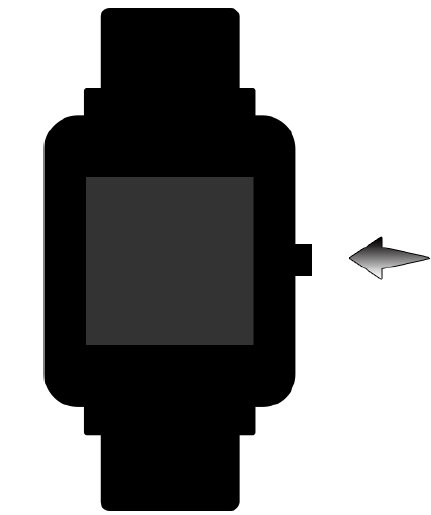
Functions Navigation
The screen can be navigated by swiping left/right or up/down.
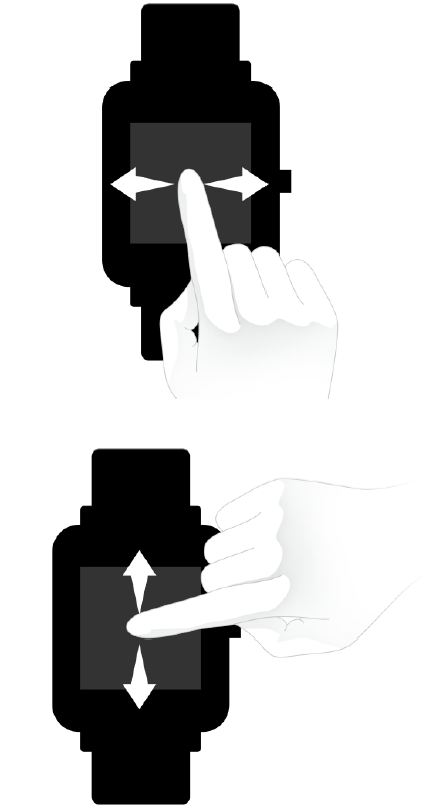
The watch face page is displayed by default, and you may:
- Swipe up on the watch face page to view historical message notifications.
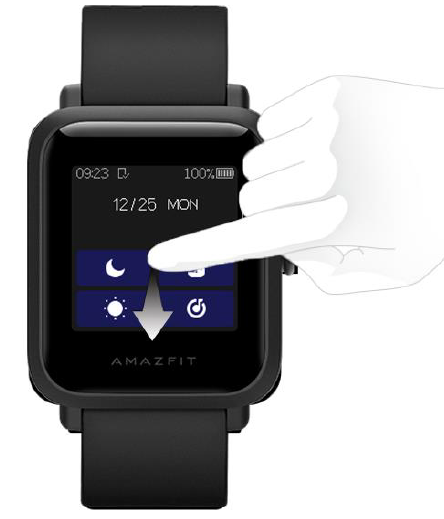
- Swipe down on the watch face page, or swipe down on the edge of any other page (except the settings page) to enter the control center, where you can set up Do Not Disturb, screen lock, brightness, and music playback on your mobile phone. You can also check the watch's battery level and connection status.
- Swipe left on the watch face page to view the function list, where you can tap the corresponding function to enter its details page.
- Swipe right on the watch face page to quickly access Music control, Status, PAI, Heart rate, and Weather.
Physical Button Operations
Short-press the physical button once to:
- Unlock the screen.
- Turn off the screen if the watch face page is currently displayed.
- Return to the previous menu level if any other page is currently displayed.
- Scroll up and down on the page during the workout.
- Unlock the page when swimming.
Long-press the watch button to:
- Turn on the watch.
- Quickly start a specific workout.(Users can set the quick start item in "Settings" - "Long press button settings")
- Pause the workout if you are on the workout page.
- Long-press for 10s to reboot the watch.
Use of Functions
Download the Amazfit app via the mobile phone before using the Amazfit Bip S. You need to pair the watch using the Amazfit app to enjoy its full functionality. In addition, a paired watch allows the saving of data generated on the watch to your personal account in the cloud.
Device Pairing and Unpairing
- Please download the Amazfit app through the app stores, and register or log in to your account.
- Open the app, go to "Profile – Add device – Watch – Amazfit Bip S" and scan the QR code on the watch. This will quickly pair the device.
- Once paired, it is usually necessary to perform a system upgrade on the watch. Please wait while this is happening and keep the phone connected to both the Internet and the watch via Bluetooth, so as to ensure a successful upgrade. Before updating your device, please fully charge your device or make sure it has a 10% battery left, and make ensure your phone screen is on, and do not perform other operations on your phone during the upgrade.
- After the watch is paired and upgraded, its functions are available. The Amazfit app can also be used to operate or configure watch functions.
- If you need to unpair your watch, open the Amazfit app and choose "Unpair" on the device page.
Watch Face
- To replace the watch face, either long-press the watch face or go to "Settings → Watch face settings", swipe left and right to browse through the available watch faces, and tap the new watch face to complete the replacement.
- Go to the Watch face settings page. If you see a custom button under the thumbnail, it means the watch face is editable. Use tapping or swiping to switch the functions displayed in the currently selected box, which is highlighted. Tapping in a gray area to make that the currently selected area.
- To replace the watch face from the app: Tap "Profile – Amazfit Bip S – Watch face settings" to download more watch faces on the Watch Face Store.
Control Center
Swipe down on the watch face page, or swipe down from the edge of any other non-watch face page (except the settings page) to enter the control center.
Watch App Settings
Watch app refers to various functions that can be used independently on the watch, such as Status and Workout.
By default, the apps are displayed in the order shown in the following figure. You can customize the app displayed on the screen based on your personal preferences. To do this, open the Amazfit app and tap "Profile" -> "Amazfit Bip S" -> "Watch app settings" and select the app that you wish to display.
Status
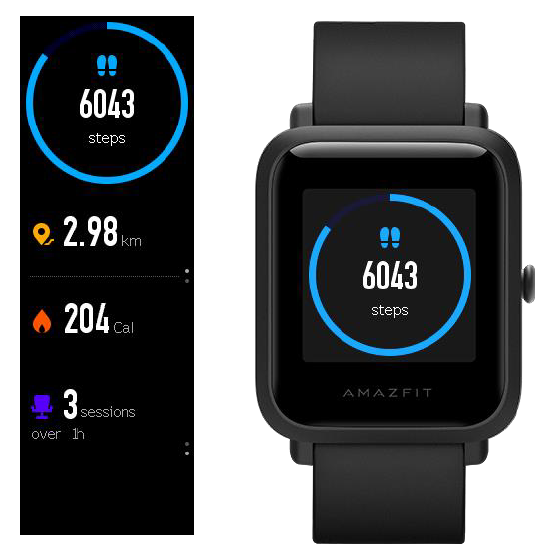
In the status details page, you can view today's number of steps updated in real-time, heart rate measured in the last minute, distance traveled, calories burned, and idle alerts.
Workout Settings
Tap Workout and swipe up to see the workout settings entry. You can set whether auto pause, heart rate alert, pace alert, and lap alert should be enabled during workouts, as well as the swimming lane length. When these alerts are enabled, the watch will vibrate to remind you when the set value is reached (see the "Alerts during Workouts" section for details).
GPS and AGPS
When you enter the workout preparation page for an outdoor exercise such as outdoor running, the watch will automatically start GPS positioning and alert you as soon as your location is confirmed. The GPS positioning will be disabled automatically once you finish your workout.
GPS positioning should be performed in an open area outdoors. Please wait for the positioning process to complete before starting your workout. If you are in a crowd, raising your watch to your chest level may speed up the positioning process.
Assisted Global Positioning System (AGPS) uses the orbital information of the GPS satellites to help the watch to perform GPS positioning faster. When the watch is connected with your mobile phone via Bluetooth, the watch will actively synchronize and update AGPS data with the Amazfit app. The watch needs to synchronize this data with the app regularly, as otherwise the AGPS data will expire and the positioning speed may be affected. In this case, the watch will remind you to connect to the app to update AGPS data before you start your workout, so it can speed up the positioning process.
Introduction to Workout Heart Rate Zones
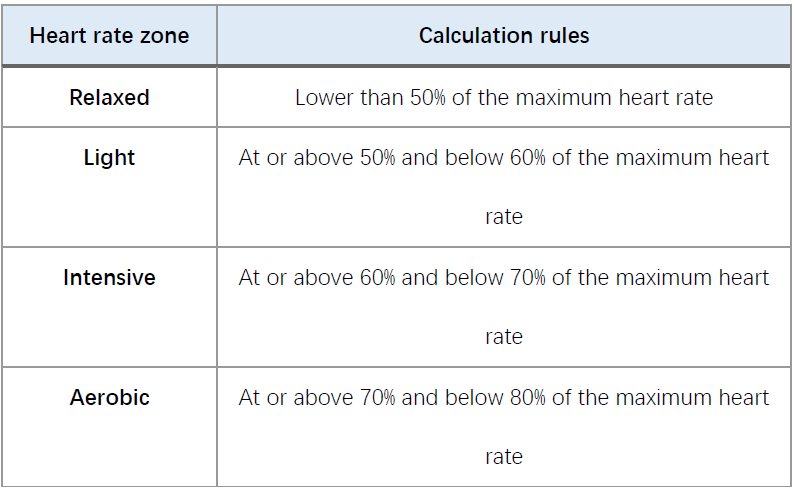
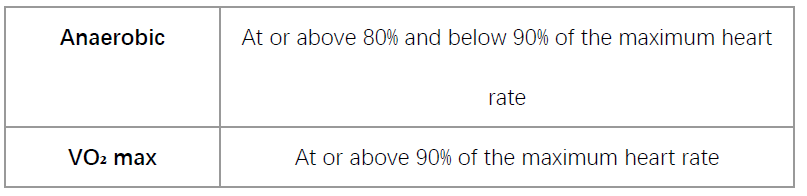
During workouts, the watch will calculate which zones your heart rate belongs to based on your personal information. These zones can help you understand the effectiveness and intensity of your workout. The watch will display your current heart rate zones in the heart rate data column. When the workout ends, you can use the app to view the workout duration of each heart rate zone in the "Details" page for this workout record.
The watch provides six zones by default:
The default heart rate zones are calculated based on the estimated maximum heart rate. The watch calculates the maximum heart rate by deducting your age from 220.
Daily Maintenance of the Watch
- The watch is water-resistant. It is recommended to clean the watch and watch strap regularly with clean water and dry them with a soft cloth before wearing.
- Don't use detergents such as soap, hand sanitizer, or bath foam when cleaning to avoid chemical residues from irritating the skin or corroding the device.
- When you wear the watch in a bath (for models that allow this), when swimming (for models that allow this), or when you are sweating, please clean and dry the watch as soon as you can.
Precautions
- The watch can withstand a pressure equivalent to 50 meters underwater. Therefore, it can be used when swimming in pools and shallow beaches. However, it can't be used when diving or in a sauna.
- Do not operate the watch underwater. After contacting water, do not operate the touch screen or charge the watch until the watch is wiped dry with a soft cloth.
- The watch is not resistant to corrosive liquids such as acidic and alkaline solutions and chemical reagents. Damage or defects caused by abuse or improper use are not covered under our warranty.
Pairing the Amazfit Smart Scale with your phone
Installing the Zepp app
Search for "Zepp" in the app store, and then download and install the Zepp app (hereinafter referred to as the app).
Note:
- For a better experience, upgrade the app to the latest version as prompted.
- The operating system of your mobile phone must be Android 5.0 or iOS 10.0, or higher.
Pairing the Amazfit Smart Scale with your phone
Launch the app, register an account, log in to the account, and select Profile > My devices > Add > Body Composition Scale to pair the Amazfit Smart Scale with your phone. After pairing, configure the user information so that you can view your weight records and body composition information.
Note:
User information is used for body composition analysis. You need to enter the correct information to ensure correct analysis results.
Configuring a Wi-Fi network for the scale
After initial pairing, configure a Wi-Fi network for the scale as prompted by the app. After successful configuration, the scale can automatically update firmware at night, and the app can receive body data from the scale at any time without being connected to the scale in real-time. Note:
- The scale can only connect to a 2.4 GHz Wi-Fi network, but not to a 5 GHz Wi-Fi network.
- If the dual-band Wi-Fi function is enabled on your router, the scale may be connected to the 5G Wi-Fi network, and will be unable to establish a Wi-Fi connection. Therefore, ensure that the dual-band Wi-Fi function is disabled on your router.
- If you have changed the Wi-Fi password, name, or network provider, you must launch the app, select Profile > My devices > Amazfit Smart Scale, and configure Wi-Fi again.
Cleaning and maintenance
Cleaning the Amazfit Smart Scale
To clean the scale, wipe its surface with a damp cloth and mild detergent. Do not use any organic solvents or other chemicals. Do not put the scale directly into water or wash it using a shower head.
Replacing batteries
The Amazfit Smart Scale is powered by four batteries, and no power cord connection is needed. If the following icon is displayed on the scale, the battery is almost exhausted. When this happens, remove the batteries promptly to prevent the scale from being corroded by battery leakage.

Note:
After replacing the batteries, keep the face of the scale upward. Start weighing only after the startup animation is displayed and the scale is properly calibrated.
Precautions
- People implanted with pacemakers or other medical equipment are prohibited from using the Amazfit Smart Scale.
- It is recommended that women who are pregnant not use the Amazfit Smart Scale. If women who are pregnant need to use the Amazfit Smart Scale, disable the body composition measurement before weighing.
- To prevent slipping, do not place the scale on a damp floor, and do not use it when your feet or the surface of the scale are wet.
- During weighing, always stand in the center of the scale and keep your weight evenly distributed on your feet to prevent it from accidentally flipping over.
- When your soles are too dry, data such as body fat cannot be measured.
- Do not take measurements when you are unwell (fever, diarrhea, drunk, etc.) or have extreme dehydration, and do not measure after taking a sauna, hot spring , or strenuous exercise.
- For people with metal devices in their bodies, hard soles and thicker skins, and those who are taking medicines that can cause changes in body moisture, or in other special situations, the body measurement data may be biased.
Troubleshooting
If you encounter issues with your Amazfit Bip S Lite, here are some common problems and solutions:
- Heart Rate Monitoring Issues: Ensure the watch is snugly fitted and restart the device if necessary.
- Bluetooth Connectivity Problems: Check if your phone's Bluetooth is enabled and try restarting both devices.
- Charging Issues: Use the provided 2-pin POGO charging dock and ensure it is properly connected.
For more severe issues, contact Amazfit support via their official website. The watch typically comes with a warranty that covers manufacturing defects.
Pros & Cons
Pros
- Affordable Price Point: Offers excellent value for money compared to other smartwatches in its class.
- Long Battery Life: Up to 30 days on a single charge, making it a great choice for those who want minimal maintenance.
- Water Resistance: Suitable for swimming and other water activities.
- PAI Health Assessment: Provides a comprehensive health score based on your activity levels.
Cons
- No Built-in GPS: Requires connection to a smartphone for location tracking during workouts.
- Limited Customization Options: Compared to more premium smartwatches.
- No Advanced Health Features: Lacks features like blood oxygen monitoring.
Customer Reviews
Users praise the Amazfit Bip S Lite for its accurate heart rate monitoring, long battery life, and affordable price. However, some users find the lack of built-in GPS and limited customization options to be drawbacks. Overall, it receives a high rating for being a reliable entry-level fitness tracker. With an average rating of 4.5 out of 5 stars, it is recommended for those seeking basic fitness tracking features at a budget-friendly price.
Conclusion
The Amazfit Bip S Lite Smart Watch Fitness is a solid choice for anyone looking for a lightweight, feature-rich fitness tracker without breaking the bank. Its always-on display, PAI health assessment, and water resistance make it a compelling option for fitness enthusiasts. While it may lack advanced features like GPS, it offers excellent value for its price.
Faqs
How do I set up the amazfit Bip S Lite Smart Watch Fitness for the first time?
What should I do if my amazfit Bip S Lite Smart Watch Fitness is not syncing workout data?
Can the amazfit Bip S Lite Smart Watch Fitness track my outdoor running with GPS?
Is the amazfit Bip S Lite Smart Watch Fitness compatible with both Android and iOS devices?
How can I optimize battery life on my amazfit Bip S Lite Smart Watch Fitness?
What are the key health monitoring features available on the amazfit Bip S Lite Smart Watch Fitness?
How do I start and pause workouts quickly on the amazfit Bip S Lite Smart Watch Fitness?
What maintenance tips help prolong the life of my amazfit Bip S Lite Smart Watch Fitness?
More amazfit manuals
- Setup & Pairing: Amazfit Balance Smart Watch A2286/A2287 User Manual
- All functions Explained: Amazfit Bip Lite Setup Guide | Specs & Price
- Setup & Pairing: Amazfit Balance 2 Smart Watch User Manual
- Usage & Setup: Amazfit GTS 3 Smart Watch User Manual
- Setup & Pairing: Amazfit GTR Mini A2174 Smart Watch User Manual
- Setup & Pairing: Amazfit Band 7 Fitness Tracker User Manual
Leave a Comment