
Pairing & Setup: Bose QuietComfort Ultra Earbuds 2ND GEN User Manual
Content
Bose QuietComfort Ultra Earbuds 2ND GEN
Introduction
The Bose QuietComfort Ultra Earbuds 2ND GEN represent the pinnacle of in-ear audio technology, delivering an immersive listening experience combined with industry-leading noise cancellation. These earbuds are designed for audiophiles, commuters, and professionals who demand crystal-clear sound and superior comfort in any environment. With Bose’s advanced CustomTune sound calibration technology, the earbuds adapt audio and noise cancellation to the unique shape of your ears, providing personalized performance that adjusts dynamically as your surroundings change.
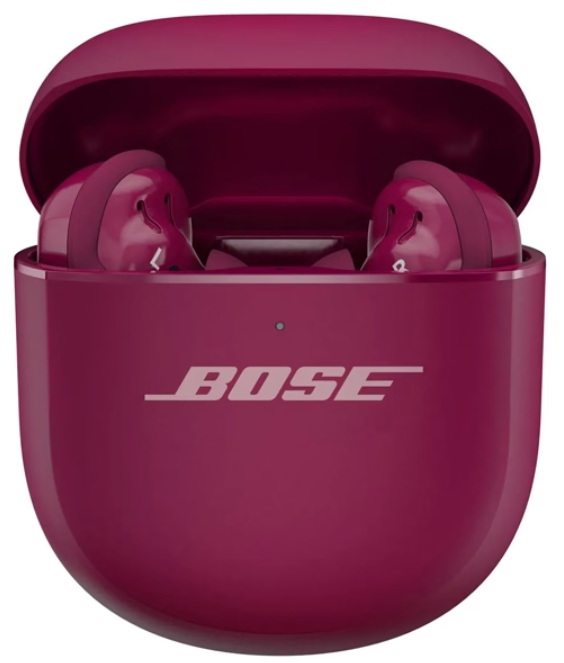
Key benefits include world-class active noise cancellation that smoothly filters out sudden loud noises, an AI-powered noise suppression system for clearer calls, and a comfortable, stable fit enhanced by new ear tip guards to prevent wax buildup. Available in sleek Black, White Smoke, and limited-edition Deep Plum, the QuietComfort Ultra Earbuds 2nd Gen cater to style-conscious users as well. They are ideal for daily commutes, focused work sessions, or enjoying music in noisy environments.
These earbuds are priced at approximately $299 and are available for purchase directly from Bose and authorized retailers worldwide. Their blend of premium sound quality, adaptive noise control, and ergonomic design makes them a top choice for anyone seeking a next-level wireless earbud experience.
Technical Specifications and Features of Bose QuietComfort Ultra Earbuds 2ND GEN
- Bluetooth Version: 5.3 for stable, low-latency wireless connectivity
- Noise Cancellation: Adaptive Active Noise Cancelling with CustomTune calibration and enhanced AI-powered noise suppression
- Microphones: 8 microphones with dynamic mixing and adaptive filters for crystal-clear calls
- Battery Life: Approximately 6 hours of playback without ANC, 4 hours with ANC; wireless charging case included
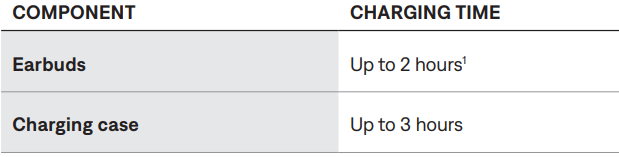
- Charging Time: Full charge in about 2 hours via USB-C wireless charging case
- Comfort & Fit: Multiple sizes of foam ear tips and stability bands with earwax guards for hygiene and secure fit
- Water Resistance: IPX4 rating for sweat and splash resistance
- Audio Modes: Quiet, Aware, Immersion, and Cinema modes are customizable via the Bose app
- Dimensions: Earbuds measuring approximately 1.18" H x 0.49" W x 0.98" D
Compared to its predecessor, the 2nd Gen model fixes previous static sound issues and features smoother noise cancellation adjustments. While battery life is slightly lower than some competitors, the sound clarity and noise control improvements set it apart from similar wireless earbuds like the Technics A100 or OnePlus Buds 4.
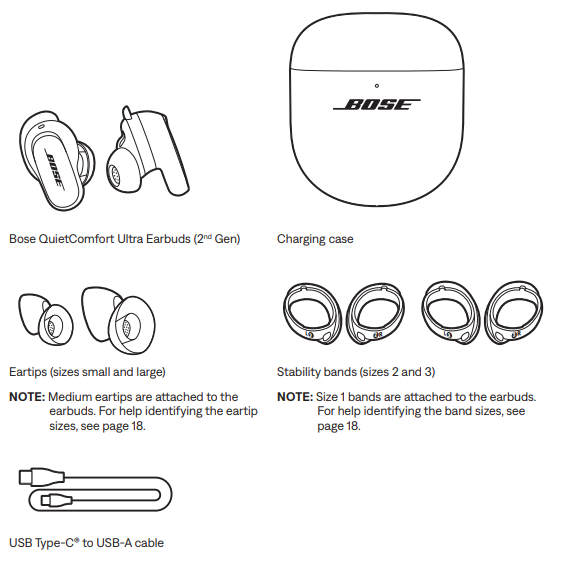
CONTENTS
Confirm that the following parts are included:
DOWNLOAD THE BOSE APP
On your device, download the Bose app.
- Follow the app instructions to add the earbuds.
CHECK YOUR FIT
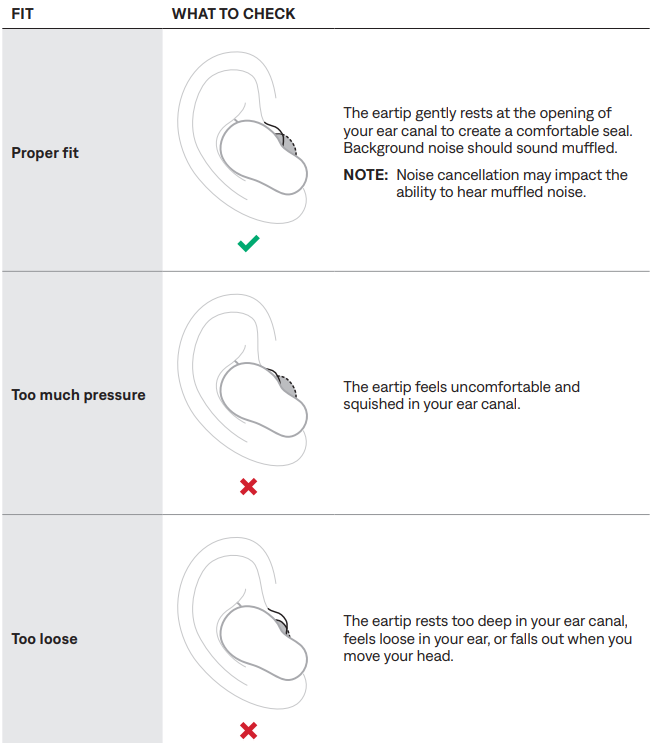
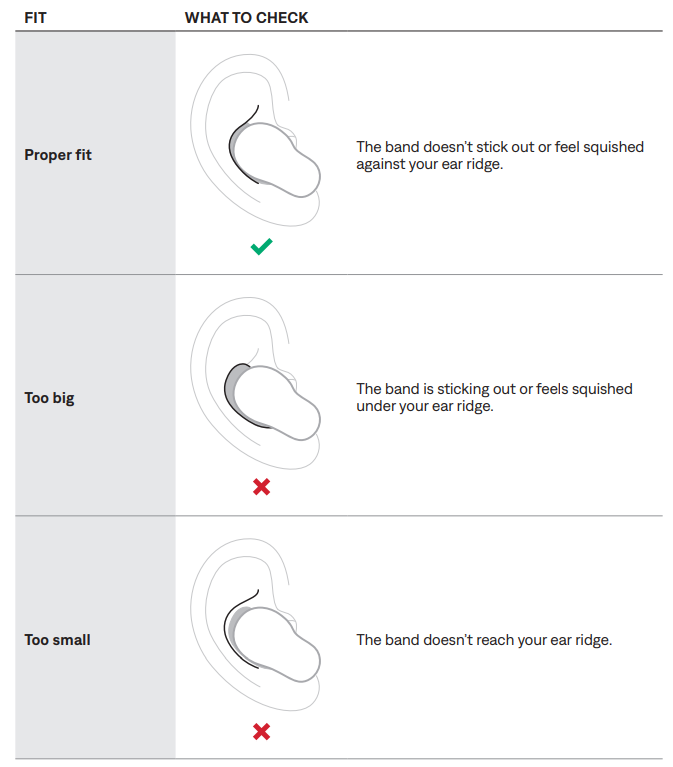
For the best fit, audio performance, and noise cancellation, use a mirror to make sure you’re using the correct size eartips and stability bands. You may need to try a different size eartip or stability band for each ear.
TIP: You can also check your fit using the Earbud Seal Test in the Bose app. You can access this option from the Settings menu.
Eartips
Stability bands
CHANGE THE EARTIPS
Holding the earbud, gently squeeze the eartip and peel it away from the earbud.
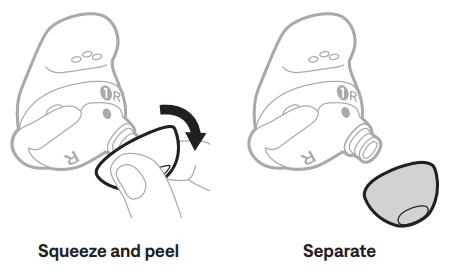
CAUTION: To prevent tearing, do NOT pull on the edge of the eartip.
- Choose a new eartip size (see page 18).
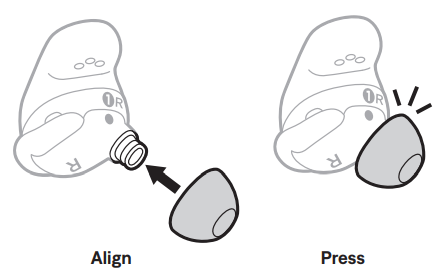
Align the eartip with the earbud nozzle and press the eartip onto the nozzle until you feel it snap securely into place and hear it click.
- Repeat steps 1 – 3 for the other earbud, as needed.
NOTE: You may need to use a different size eartip for each ear. - Insert the earbuds (see page 15).
- Check the fit (see page 16).
NOTES:
- If you change the eartip, you may need to change the stability band so the band rests comfortably against your ear ridge (see page 20).
- To see how-to videos about changing the eartips, visit: support.Bsupport.Bose.ose.com/com/qcueqcue2
- If you need additional eartip sizes, contact Bose customer service or visit: support.Bsupport.Bose.ose.com/com/qcueqcue2
CHANGE THE STABILITY BANDS
Holding the earbud, gently grab the stability band scoop and peel the band toward you, over the eartip, and away from the earbud.
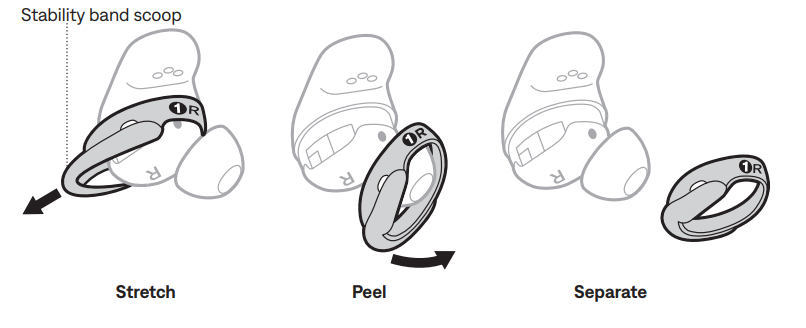
CAUTION: To prevent tearing, do NOT pull on the thin part of the band.
- Choose a new band size (see page 18). Select the band marked with either an R (right) or L (left), depending on the earbud.
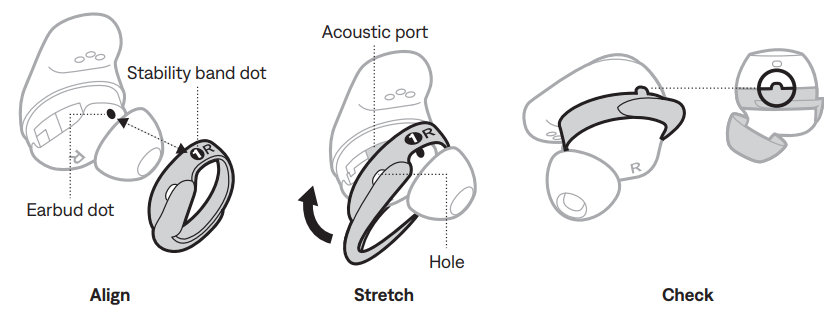
- With the band markings facing you and the band scoop facing away from you, align the dot on the band with the gray dot on the bottom of the earbud.
- Gently stretch the band over the eartip, making sure the dots align and the tab on the band fits in the notch on the top of the earbud.
NOTE: Aligning the band correctly makes sure that the hole on the side of the band is over the acoustic port on the earbud so the port isn’t blocked. Press down until the band fits securely into place, then check for alignment.
- Repeat steps 1 – 5 for the other earbud, as needed.
NOTE: You may need to use a different size band for each ear. - Insert the earbuds (see page 15).
- Check the fit (see page 16).
NOTES:
- To see how-to videos about changing the bands, visit: support.Bsupport.Bose.ose.com/com/qcueqcue22
- If you need additional stability band sizes, contact Bose customer service or visit: support.Bsupport.Bose.ose.com/com/qcueqcue22
POWER ON
Open the charging case.
The earbuds power on. The earbuds' status light glows according to the charging status (see page 42). The charging case status light glows according to the battery level (see page 43).
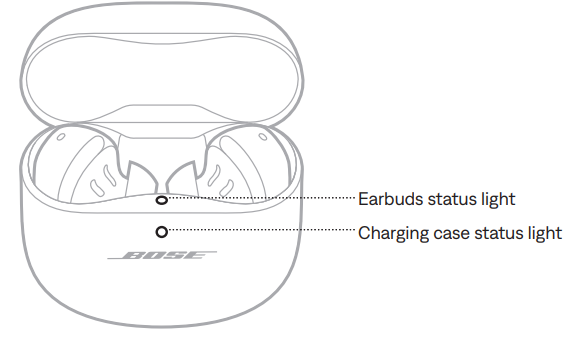
NOTE: When you remove the earbuds from the charging case, close the case to help preserve the battery life and keep the case free of debris.
POWER OFF
Place both earbuds in the charging case.
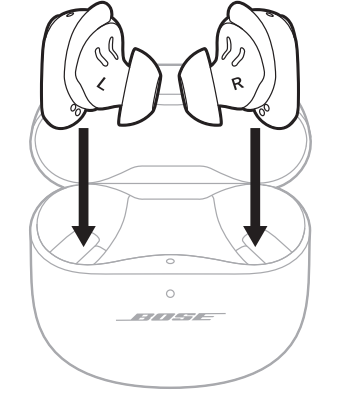
The earbuds disconnect from your device.
- Close the case.
The earbuds power off. The charging case status light glows according to the battery level (see page 43).
USE NOISE CANCELLATION ONLY
You can use noise cancellation only, without audio or interruptions from phone calls.
- Do one of the following:
- If you’re wearing the earbuds, disconnect your device (see page 45).
- If the earbuds are in the charging case, turn the Bluetooth feature off on your device. Then, remove the earbuds from the case and insert them in your ears.
- Touch and hold an earbud to change the mode (see page 34).
NOTE: To reconnect your device, select the earbuds from the Bluetooth list on your device.
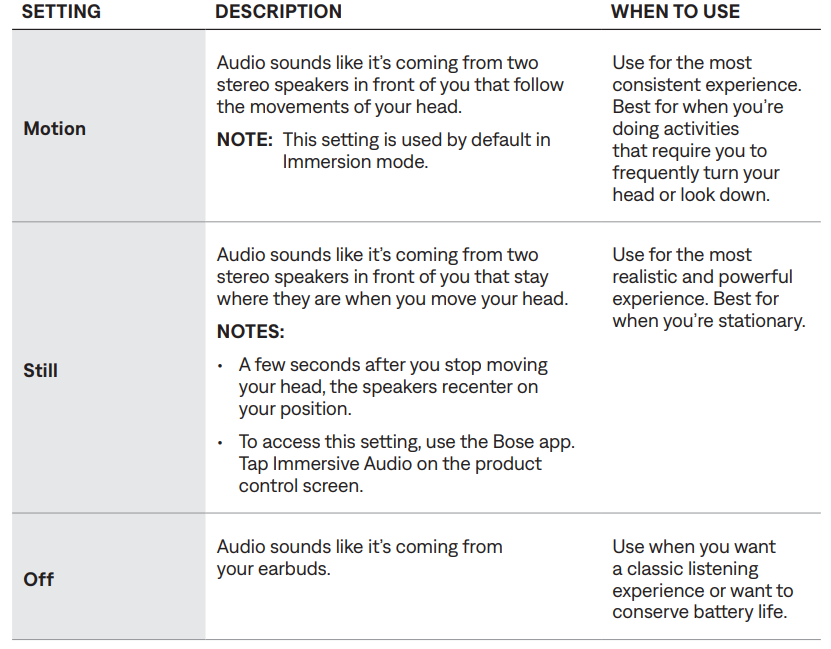
Immersive Audio takes what you’re hearing out of your head and places it in front of you—like you’re always in the acoustic sweet spot. It feels like the sound is coming from outside the earbuds, resulting in a more natural listening experience. Immersive Audio works on any streaming content from any source, taking it to new heights with better sound clarity and richer sound quality.
NOTE: When you make or receive a phone call, Immersive Audio is temporarily set to Off (see page 32).
IMMERSIVE AUDIO SETTINGS
CHECK THE EARBUD BATTERY LEVEL
While using the earbuds
- When you remove the earbuds from the charging case and insert them into your ears, a voice prompt announces the earbud battery level.
- Use the Bose app. The earbud battery level is displayed on the product control screen.
NOTE: If one earbud has a lower battery level than the other, the voice prompt announces the lower battery level. If the battery is low, you hear “Battery low.”
While charging the earbuds
When you place the earbuds into the charging case, the earbuds' status light glows according to the charging status (see page 42).
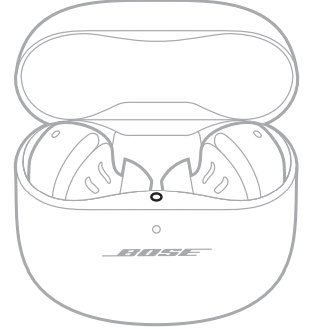
CHECK THE CHARGING CASE BATTERY LEVEL
Open the charging case.
The charging case status light glows according to the battery level (see page 43).
CHARGING TIME
TRY THESE SOLUTIONS FIRST
If you experience problems with the earbuds, try these solutions first:
- Charge the earbuds and the charging case (see page 36).
- Power on the earbuds (see page 22).
- Check the earbuds status light (see page 42) and charging case status light (see page 43).
- Make sure your device supports Bluetooth connections (see page 44).
- Download the Bose app and run available software updates (see page 13).
- Move your device closer to the earbuds (30 ft or 9 m) and away from any interference or obstructions.
- Increase the volume on the earbuds, your device, and the music app.
- Connect another device (see page 13).
RESET THE EARBUDS AND CHARGING CASE
If the earbuds or charging case are unresponsive, you can reset them.
Resetting the earbuds and charging case resets the product controls and reboots the earbuds and case. It doesn’t clear any device settings.
- Place both earbuds in the charging case until they magnetically snap into place and the light displays charging status (see page 42).
Close the case lid, then connect the small end of the USB cable to the USB-C® port on the bottom of the case.

- Connect the other end to a USB-A wall charger (not provided) or computer. The charging case status light slowly pulses amber (see page 43).
- Press and hold the button on the back of the case for up to 30 seconds until the charging case status light turns off.

RESTORE THE EARBUDS TO FACTORY SETTINGS
A restore to factory settings clears all settings and returns the earbuds to their original out-of-box state. After, the earbuds can be configured as if they were being set up for the first time.
Restoring to factory settings is only recommended if you are having issues with the earbuds or if you have been instructed to do so by Bose customer service.
- Remove the earbuds from the Bluetooth list on your device.
- Remove the earbuds from your Bose account using the Bose app.
NOTE: For more information about how to remove the earbuds from your Bose account using the Bose app, visit: support.Bsupport.Bose.ose.com/com/qcueqcue22 With the earbuds in the charging case and the case open, press and hold the button on the back of the case for 25 seconds until the earbuds' light blinks white 2 times, slowly pulses blue, and then turns off.
NOTE: Make sure both earbuds are in the case and the case is open.
- Repeat the previous step 2 more times.
After the third time, the status light blinks amber for 3 seconds to indicate factory settings are being restored.
When the restore is complete, the status light slowly blinks blue. The earbuds are now in their original out-of-the-box state.
NOTE: If you’re unable to resolve your issue, additional troubleshooting and support is available at: support.Bsupport.Bose.ose.com/com/qcueqcue22
Troubleshooting Common Issues with Bose QuietComfort Ultra Earbuds 2ND GEN
- Static or crackling sounds: Ensure firmware is updated. If static persists at low volumes, clean the ear tips and microphones to remove wax or debris.
- Connectivity issues: Reset Bluetooth connection by unpairing and re-pairing earbuds. Ensure device firmware and the Bose app are up to date.
- Battery drains quickly: Disable unnecessary features like ANC when not needed; fully charge both earbuds and the case before use.
- Microphone or call quality problems: Activate AI noise suppression in the Bose app; avoid windy conditions or switch to single-earbud mode for calls.
- Error codes: Refer to the Bose support website or app for specific error code explanations and fixes.
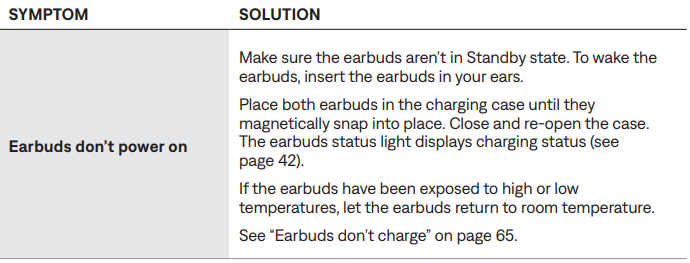
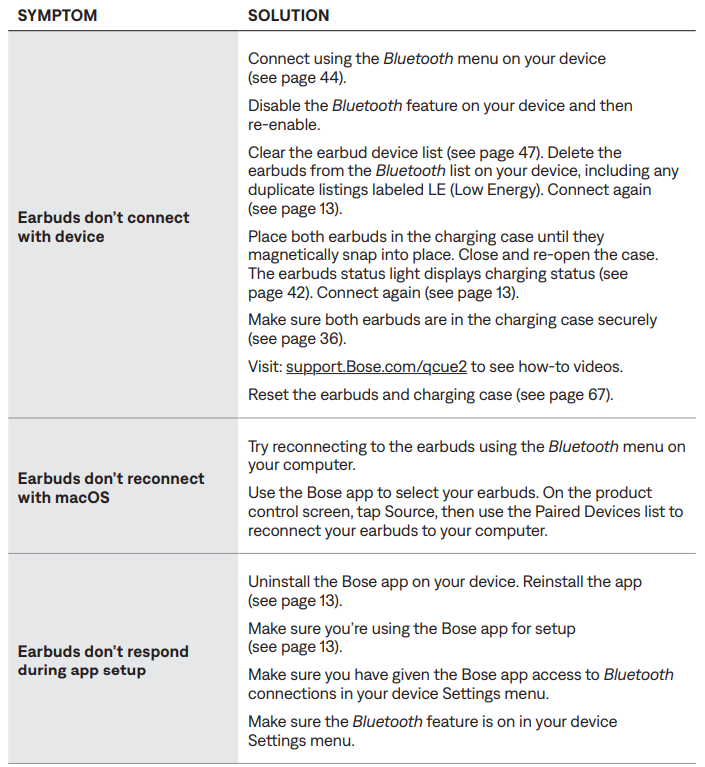
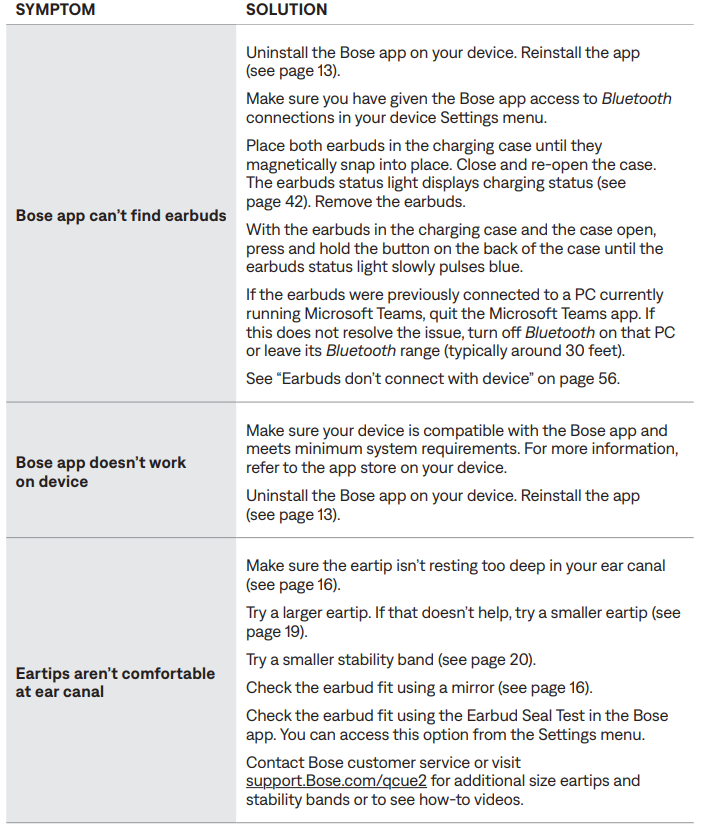
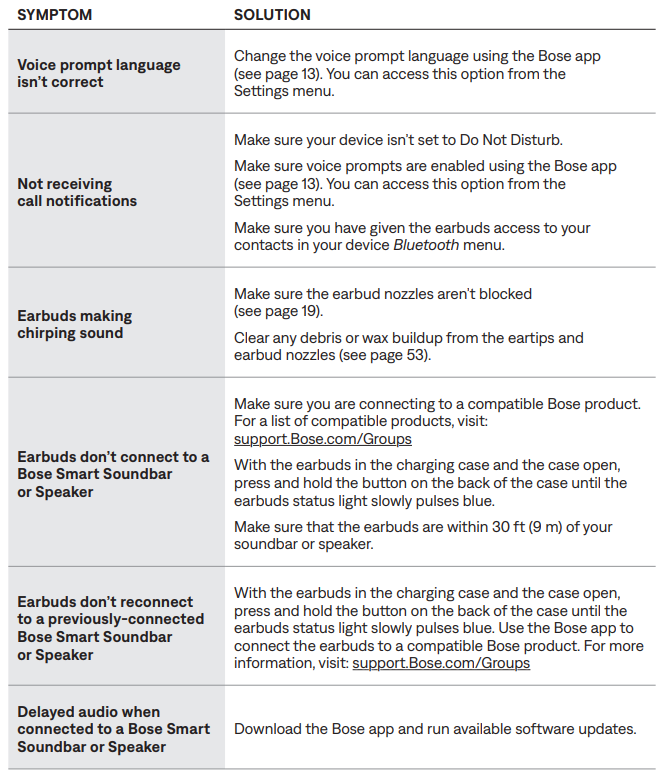
Preventive measures include regular cleaning of ear tips and microphone ports, updating device software, and storing earbuds in the charging case when not in use. Bose offers a limited warranty covering defects and provides customer support via their website and phone hotline for troubleshooting assistance.
Pros & Cons of Bose QuietComfort Ultra Earbuds 2ND GEN
- Pros:
- Exceptional adaptive noise cancellation with smooth transitions in variable environments
- Highly personalized sound through CustomTune calibration technology
- Clear call quality enhanced by AI-powered background noise reduction
- Comfortable fit with multiple ear tip options and a hygiene-focused design
- Wireless charging case and quick recharge time
- Cons:
- Battery life shorter than some competitors—4-6 hours, depending on ANC use
- Relatively bulky earbud size compared to ultra-compact models
- Premium price point at around $299 may not suit all budgets
- Limited IPX4 rating means moderate water resistance only
- TheBosee QuietComfort Ultra Earbuds 2ND GEN offer excellent value for users prioritizing noise cancellation and call clarity over maximum battery life. They stand out against alternatives like the Technics A100 for sound quality and the OnePlus Buds 4 for ANC performance, but with a tradeoff in form factor and cost.
Customer Reviews and Feedback on Bose QuietComfort Ultra Earbuds 2ND GEN
Users consistently praise the Bose QuietComfort Ultra Earbuds 2ND GEN for their superior noise cancellation and crisp audio quality, often awarding 4.7 out of 5 stars in aggregated reviews. Many highlight the earbuds' effective AI noise suppression technology, which improves call clarity even in windy or noisy environments.
Common praises include the comfortable fit and the improved static reduction compared to the first generation. However, some users mention the limited battery life and bulkier design as minor drawbacks. Several reviews recommend these earbuds for commuters and remote workers who value immersive sound and interruption-free calls.
Overall, the earbuds receive strong recommendations for those seeking premium wireless earbuds with tailored sound and advanced noise control features, despite a few tradeoffs in battery endurance.
Faqs
How do I set up Bose QuietComfort Ultra Earbuds 2nd Gen for the first time?
What should I do if my Bose QuietComfort Ultra Earbuds 2nd Gen won’t connect to my device?
Can I use Bose QuietComfort Ultra Earbuds 2nd Gen with multiple devices at once?
How do I change the stability bands on Bose QuietComfort Ultra Earbuds 2nd Gen?
Does Bose QuietComfort Ultra Earbuds 2nd Gen support wireless charging?
How do I check the battery level of Bose QuietComfort Ultra Earbuds 2nd Gen?
What should I do if the sound quality on Bose QuietComfort Ultra Earbuds 2nd Gen seems off?
How do I perform a hard reset on Bose QuietComfort Ultra Earbuds 2nd Gen?
Tags
More bose manuals
- Setup & Pairing: Bose Soundlink Micro Portable Speaker (2ND Gen) User Manual
- Setup: Bose Soundlink Wireless Headphones II User Manual
- Pairing: Bose Soundlink Home Bluetooth Speaker User Manual
- Bose SoundLink Around-Ear Wireless Headphones II User Guide
- Pairing: Bose Smart Speaker 500 User Manual
- Bose T8S ToneMatch Audio Mixer Owners Manual | System Setup
Leave a Comment