
Usage: Cable Matters USB 3.0 KVM Switch 202070 User Manual
Content
Cable Matters USB 3.0 KVM Switch 202070
Introduction
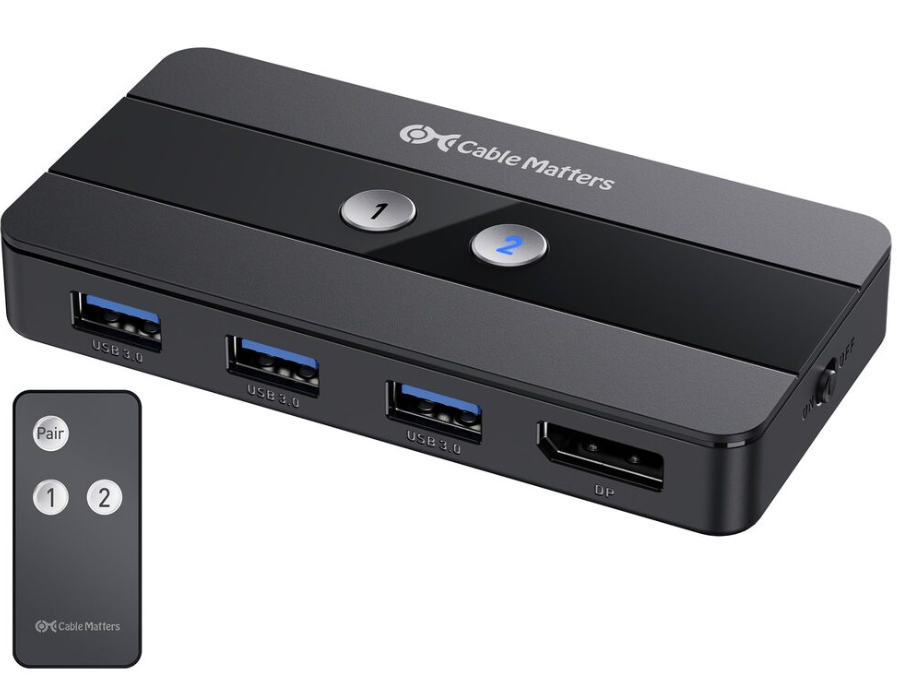
The cable matters USB 3.0 KVM Switch 202070 is a versatile device designed to streamline multi-computer management by allowing users to control two PCs using a single keyboard, mouse, and monitor setup. Ideal for IT professionals, system administrators, gamers, and home office users, this KVM switch enhances productivity by allowing seamless switching between computers without the clutter of multiple peripherals on your desk.
This USB 3.0-enabled switch supports high-speed data transfer and ensures smooth peripheral communication, making it perfect for demanding tasks such as software development, video editing, and gaming. The compact design saves valuable workspace and reduces cable clutter, while plug-and-play functionality eliminates the need for complex drivers or software installation.
Key benefits include easy toggling between systems with hotkey commands or a physical button, compatibility with various operating systems, and support for high-resolution video outputs for crystal-clear display performance. The cable matters USB 3.0 KVM Switch 202070 is available through major electronics retailers and online platforms, typically priced between $30 and $50, offering excellent value for users seeking efficient multi-PC control.
Specifications of Cable Matters USB 3.0 KVM Switch 202070
Switch Connections
- USB-A Input
- 2 x Micro-B 3.0 female
- USB-A Output
- 3 x USB-A 3.0 female
- Power
- 1 x USB-C female (AC adapter included)
- Display Input
- 2 x DisplayPort female
- Display Output
- 1 x DisplayPort female
- Maximum Resolution
- 1 x 8K @60Hz display (7680x4320)
- Remote Battery
- CR2025
Dimensions
- Switch (L x W x H)
- 4.3 x 2.1 x 0.6 Inches (108 x 54 x 16 mm)
- Remote (L x W x H)
- 3.3 x 1.5 x 0.24 Inches (84 x 38 x 6 mm)
- Remote Weight
- 0.5 Ounces(14 g)
Environmental
- Operating Temperature
- 32°F to 104°F
- Storage Temperature
- -4°F to 140°F
- Max Power Consumption
- 1.0 W
- Regulatory Approvals
- USB 3.0 KVM Switch
- Warranty
- FCC, C E, RoHS, UKCA
- Limited One-Year
Package Contents
Please check that the following items are contained in the box:
- 1 x USB 3.0 KVM switch
- 2 x USB 3.0 micro-B cables
- 2 x DisplayPort™ 1.4 cables
- 1 x USB 2.0 Extension cable
- 1 x AC adapter
- 1 x Remote control with battery
- 1 x User Manual
- Note: All cables to connect USB devices and a DisplayPort monitor to the Switch are sold separately
Product Features
- Share one monitor and three USB devices with two computers. Enjoy instant switching access to the connected USB peripherals, like a printer, scanner, keyboard, mouse, webcams, hard disks, and more.
- Connect to USB 3.0 devices for data transferring with a transfer rate up to 5Gbps..
- Connect one monitor over DisplayPort. Supports a maximum 8K @60Hz display (7680 × 4320)
- Switch between 2 computers with a single press button on the lightweight remote controller or on the switch b..ox.
- LED light on the switch box indicates which connected computer has access to all peripherals
- Plug and play, no driver required
- Turn off/on the remote control by pressing and holding down the #1 and #2 buttons on the Switch for 5 seconds
CONNECTION INSTRUCTIONS
Panel Diagram
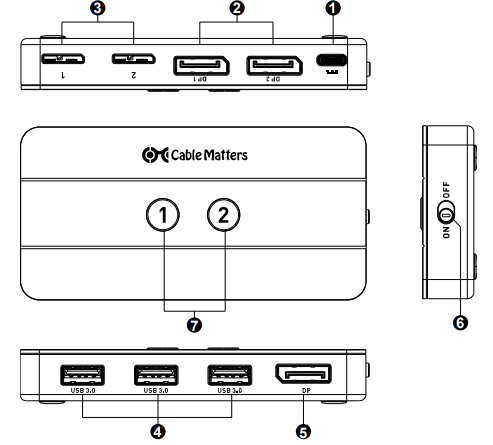
- USB-C power port for optional power (AC adapter included)
- 2 x DisplayPort connectors for host computers
- 2 x USB micro-B ports for host computers
- 3 x USB 3.0 ports for peripherals
- DisplayPort monitor connector
- On / Off switch
- 2 Buttons on top for source switching, with a blue LED light indicating a valid control
Note: All cables to connect USB devices and a DisplayPort display to the Switch are sold separately
Remote Installation
Remove the insulating tab from the end of the battery and check that the battery is installed correctly..
Connection Instructions
- Power off all source equipment
- Make sure the switch is “OFF” before connecting any device
- Optional: Connect the included USB-C AC adapter to the USB-C port and a wall outlet
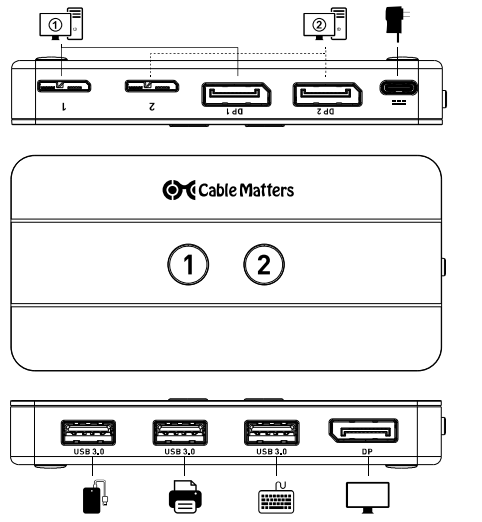
- Connect the DisplayPort and micro-B cables from the switch to each computer. Connect DP 1 and micro-B 1 to computer #1, and connect DP 2 and micro-B 2 to computer #2
- Connect the switch box to up to 3 USB peripherals through the USB-A ports
- Connect a DisplayPort monitor to the front panel DisplayPort port
Troubleshooting Tips
- Verify that the Switch is on and all cables are securely connected
- Verify that the correct wires are connected:
- Micro-B to USB-A cables to the host computers
- DisplayPort cables to the host computers and monitor
- AC adapter to the USB-C port on the Switch (Optional)
- USB devices to the USB-A ports on the Switch
- The LED light turns blue when the connected computer has control over all connected USB devices
- The rapidly blinking LED lights indicate the remote control is turned off. The slowly-blinking LED lights indicate the remote control is turned on.
- Connect the included USB-C AC adapter to the switch and a wall outlet if the USB device is not recognized by the computer.
- Connect an external power supply to hiahigh-power-consumingg USB devices such as a hard drive, flash drive, card reader, etc.
- Check if driver installation is required for the attached devices on the connected computers.
- Test each cable or equipment directly with other equipment
- Restart or reconnect the Switch by unplugging and re-plugging it back in
- If USB keyboards, mice, or other devices do not work or intermittently lose connection, connect the included USB 2.0 extension cable to the switch, and connect the device to the USB extension cable
- Try a lower display resolution and refresh rate if the monitor does not work
- Make sure the DP 1 port and USB 1 port are connected to PC #1, and the DP 2 and USB 2 port is connected to PC #2. If the cables are connected in the incorrect order, the wrong computer may appear on the connected monitor
Warranty and Support
Customer Support and Contact Information
Cable Matters offers lifetime technical support as an integral part of our commitment to provide industry-leading solutions.
Warranty Information
This product is backed by a limited one-year warranty. In addition, Cable Matters warrants its products against defects in materials and workmanship for the periods noted, following the initial date of purchase. During this period, the products may be returned for repair, or replaced with equivalent products at our discretion. The warranty covers parts and labor costs only. Cable Matters does not warrant its products from defects or damages arising from misuse, abuse, alteration, or normal wear and tear.
Limitation of Liability
In no event shall Cable Matters Inc. (including their officers, directors, employees or agents) be liable for any damages (whether direct or indirect, special, punitive, incidental, consequential, or otherwise), loss of profits, loss of business, loss of data, or any pecuniary loss, arising out of, or related to the use of this product exceeding the actual price paid for the product (as allowed by state law).
Cable Matters® is a registered trademark or trademark of Cable Matters Inc. All rights reserved
Pros & Cons of Cable Matters USB 3.0 KVM Switch 202070
- Pros:
- Supports USB 3.0 for fast peripheral data transfer and device compatibility
- Simple and intuitive switching via buttons or buttons, enhancing workflow efficiency
- Plug-and-play functionality requires no driver installation
- Compact and durable design saves desk space
- Affordable price compared to other dual-PC KVM switches with similar features
- Cons:
- Limited to two computers; no option for additional device expansion
- Maximum vis video resolution is capped at 4K 30Hz, which may not satisfy users requiring higher refresh rates
- Some users report occasional USB device recognition issues, particularly with wireless peripherals
- No external power supply; performance depends on the PC's USB port power output
Customer Reviews and Feedback on Cable Matters USB 3.0 KVM Switch 202070
Users consistently find Matters' USB 3.0 KVM Switch 202070 for its straightforward setup and reliable switching between two computers. Many highlight the advantage of USB 3.0 support, which allows seamless use of high-speed devices, including flash drives and external drives.
Common compliments include its compact form factor and the convenience of keyboard hotkeys for switching. Reviewers often rate the product 4 to 4.5 stars out of 5, noting excellent value for money.
Some users report minor issues with occasional USB peripheral dropouts or difficulties with wireless mouse and keyboard connections, often resolved through troubleshooting steps such as changing USB ports or updating drivers. Overall, buyers recommend this KVM switch for dual-PC setups requiring efficient, budget-friendly peripheral sharing.
Faqs
How do I set up the cable matters USB 3.0 KVM Switch 202070 for the first time?
What should I do if the cable matters USB 3.0 KVM Switch 202070 is not recognizing my USB devices?
Can the cable matters USB 3.0 KVM Switch 202070 support gaming keyboards and mice with extra function keys?
Is the cable matters USB 3.0 KVM Switch 202070 compatible with USB-C devices?
How can I optimize the performance of my cable matters USB 3.0 KVM Switch 202070 when switching between computers?
What are the key features of the cable matters USB 3.0 KVM Switch 202070 that improve user experience?
How often should I perform maintenance on the cable matters USB 3.0 KVM Switch 202070 to ensure longevity?
Why does the cable matters USB 3.0 KVM Switch 202070 disconnect my external USB drive when switching computers?
More cable matters manuals
Leave a Comment