
Setup: Dell OptiPlex Desktop D15S User Manual
Content
Dell OptiPlex Desktop D15S Manual and Buying Guide
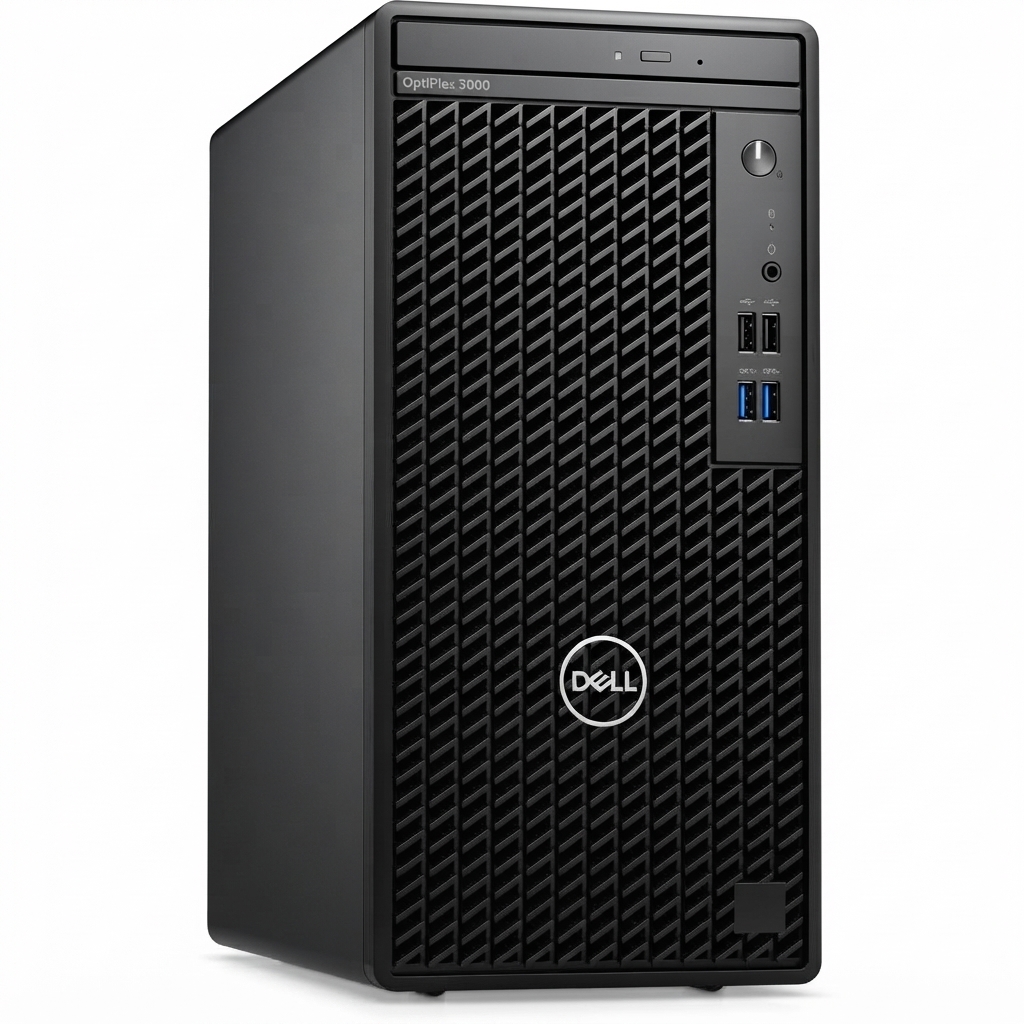
Introduction to the Dell OptiPlex Desktop D15S
The Dell OptiPlex Desktop D15S is a compact business-class desktop designed for dependable everyday productivity, office workflows, and light multitasking. Built around Dell’s enterprise desktop platform, it is commonly found with 10th Gen Intel Core processors such as the Core i5-10500, integrated Intel UHD Graphics 630, DDR4 memory, and fast NVMe SSD storage. This combination makes the Dell OptiPlex Desktop D15S a practical choice for users who need stable performance, quick boot times, and low-maintenance operation in a small form factor system.
One of its biggest strengths is its balance of efficiency and expandability. The system is well suited for office staff, remote workers, students, front-desk environments, and small businesses that need a reliable Windows desktop for email, documents, web apps, video conferencing, and point-of-sale tasks. It also works well as a refurbished desktop option for budget-conscious buyers who want enterprise-grade hardware without paying premium new-PC prices.
Typical configurations of the Dell OptiPlex Desktop D15S include 16 GB of RAM, a 256 GB SSD, Gigabit Ethernet, multiple USB ports, and support for dual displays. Estimated pricing for refurbished units generally falls in the mid-range budget category, often around $250 to $500 depending on configuration, condition, and included accessories. Availability is strongest through refurbished computer sellers, resale marketplaces, and business IT resellers, with new inventory less common than refurbished stock.
Key Features and Technical Overview
- Compact small form factor design for space-saving office setups
- 10th Gen Intel Core processor options for solid everyday performance
- DDR4 memory support with upgrade potential
- NVMe SSD storage for faster startup and file access
- Intel UHD Graphics 630 for standard business visuals
- Gigabit Ethernet for stable wired networking
- Support for multiple displays in many configurations
How to Use the Dell OptiPlex Desktop D15S
Set up the system on a ventilated desk or shelf, connect the power cable, attach your monitor through HDMI or DisplayPort, and plug in a USB keyboard and mouse. After startup, complete Windows setup, install Dell drivers and updates, and configure network, security, and backup tools before daily use. For better long-term reliability, keep the vents clear, update BIOS and drivers periodically, and replace the SSD or add RAM if your workload grows.
Pros and Cons of the Dell OptiPlex Desktop D15S
Pros
- Reliable business-grade build quality makes it a strong choice for daily office use.
- Fast SSD-based performance improves boot times and application loading.
- Compact footprint fits under desks, on counters, or in tight workspaces.
- Good value for money in refurbished form compared with many consumer desktops.
- Suitable for general productivity, remote work, school tasks, and light media use.
Cons
- Integrated graphics limit gaming, design, and heavy creative workloads.
- Refurbished units may vary in cosmetic condition and included accessories.
- Storage capacity can be modest in base configurations, especially 256 GB models.
- Less future-proof than a newer tower with modern expansion and stronger graphics options.
- Some buyers may prefer an alternative mini PC or newer small form factor desktop for quieter operation or newer ports.
For value-focused buyers, the Dell OptiPlex Desktop D15S often offers better long-term reliability than many cheap consumer desktops. Compared with entry-level mini PCs, it usually provides more traditional business features and easier servicing, though newer alternatives may deliver faster processors or more modern connectivity.
Customer Reviews and Real-World Feedback
Users frequently give the Dell OptiPlex Desktop D15S strong ratings, often around 4 to 4.5 out of 5 stars for office performance, reliability, and value. A common positive comment is that it “boots fast, runs quietly, and handles everyday work without hassle.” Buyers also praise the sturdy build and the convenience of a preconfigured Windows-ready system.
Common complaints usually focus on limited storage in base models, average onboard graphics, and the fact that some refurbished listings may show cosmetic wear. Another frequent note is that buyers should confirm whether a keyboard, mouse, and Wi-Fi adapter are included before purchase. For most office users, however, the consensus is positive: it is a smart purchase for productivity, browsing, spreadsheets, and standard business apps.
If you want a dependable refurbished business desktop, the Dell OptiPlex Desktop D15S is an easy recommendation. It is best for users who value stability and practicality over gaming or high-end creative performance.
Is the Dell OptiPlex Desktop D15S Worth It?
Yes, the Dell OptiPlex Desktop D15S is worth considering if you need a compact, affordable, and reliable desktop for work or home office use. Its strongest advantages are business-grade durability, fast SSD performance, and straightforward expandability for typical productivity needs. Buyers seeking a cheap office desktop, refurbished Dell OptiPlex PC, or compact small form factor computer will find it especially appealing.
Frequently Asked Questions
- What is the Dell OptiPlex Desktop D15S best used for? It is best for office work, school tasks, web browsing, remote work, and general productivity.
- Can it handle dual monitors? Many configurations support two displays, making it useful for multitasking.
- Is it good for gaming? It can handle very light or older games, but it is not designed as a gaming desktop.
- Should I buy refurbished? Yes, if you want better value and are comfortable checking the seller’s condition report and warranty.
Final Verdict
The Dell OptiPlex Desktop D15S is a practical, dependable business desktop that delivers strong value in refurbished and resale markets. For users who need a compact office PC with reliable performance, easy setup, and solid everyday speed, it remains a smart and efficient choice.
Faqs
How do I set up the dell OptiPlex Desktop D15S for the first time?
What should I do if my dell OptiPlex Desktop D15S will not power on?
Which monitors and accessories are compatible with the dell OptiPlex Desktop D15S?
How can I improve the performance of my dell OptiPlex Desktop D15S?
Why is my dell OptiPlex Desktop D15S running hot or making more noise than usual?
Can I upgrade the memory or storage in the dell OptiPlex Desktop D15S?
How do I fix display or no-signal problems on the dell OptiPlex Desktop D15S?
What maintenance should I perform to keep the dell OptiPlex Desktop D15S reliable long term?
More dell manuals
Leave a Comment