
Dell XPS-15 Series Laptop User Manual
Content
Introduction to the Dell XPS-15 Series Laptop
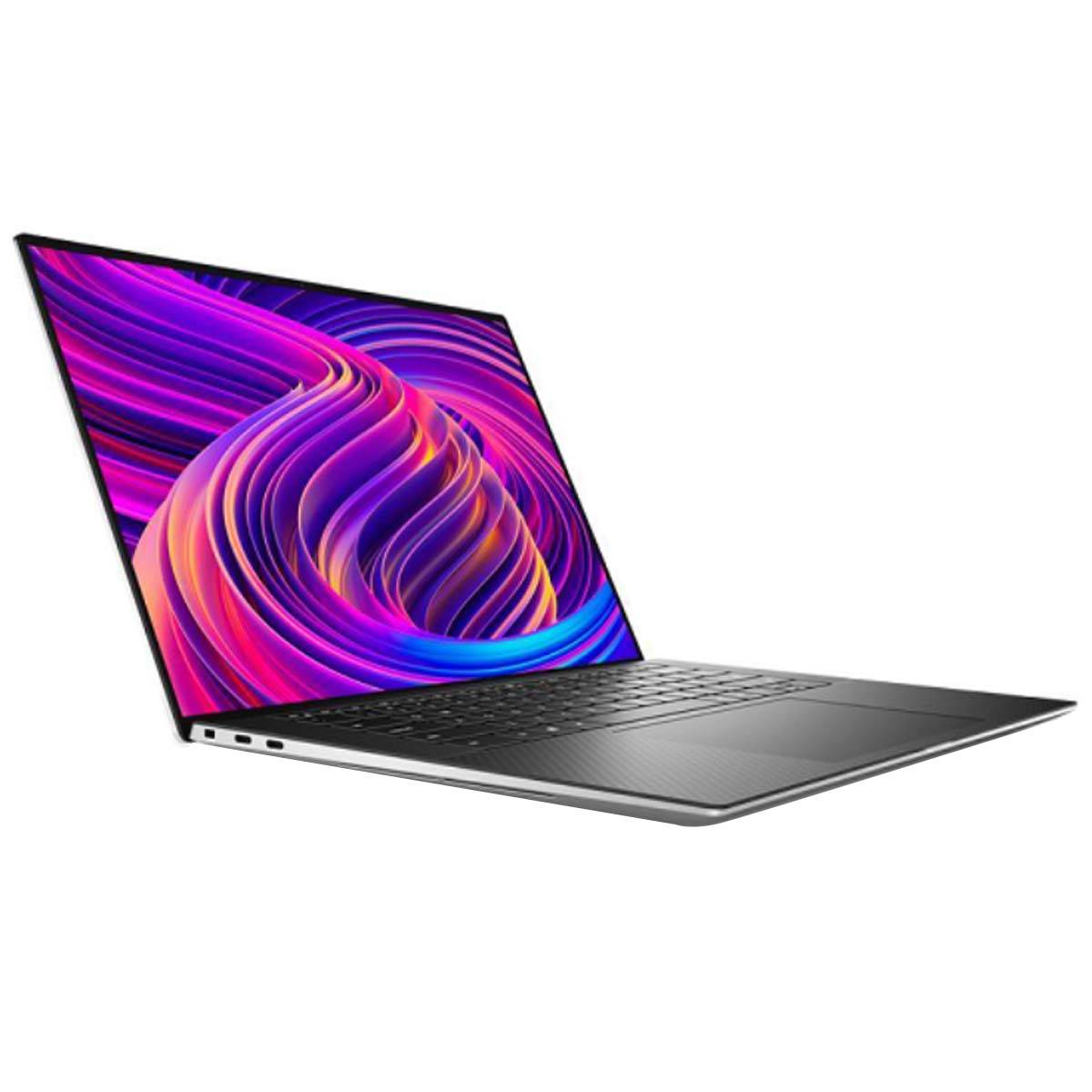
The dell XPS-15 Series Laptop is a premium 15-inch Windows notebook built for creators, professionals, and power users who want strong performance in a portable chassis. It blends a sleek aluminum design, a large high-resolution display, and workstation-style capabilities into a machine that fits video editing, photo retouching, 3D work, software development, and demanding multitasking. For users who want a laptop that feels equally at home in the office, studio, and on the move, the XPS 15 remains one of the most recognizable choices in the thin-and-light performance category.
One of its biggest strengths is the combination of an edge-to-edge InfinityEdge display, powerful Intel H-series processors, fast SSD storage, and dedicated NVIDIA graphics on higher configurations. Depending on the model and configuration, buyers can choose from high-refresh performance, color-accurate OLED panels, and generous memory and storage options. The dell XPS-15 Series Laptop also stands out for its premium keyboard, large touchpad, and refined build quality, making it a strong daily driver for productivity and creative workflows.
Typical pricing for current XPS 15 configurations starts around the mid-range premium tier and can climb into the high-end creator-laptop bracket, with estimated pricing generally ranging from about $1,500 to $2,800 or more depending on CPU, RAM, GPU, and display selection. Availability is usually broad through Dell’s direct store and major electronics retailers, with popular models often selling in multiple trims. For buyers comparing alternatives such as the MacBook Pro 14, Lenovo ThinkPad X1 Extreme, or ASUS Vivobook Pro series, the XPS 15 is often chosen for its balance of design, display quality, and creator-friendly performance.
Detailed Dell XPS-15 Series Laptop Specifications
- Display options typically include a 15.6-inch panel with FHD+ or high-resolution OLED choices, with the premium OLED configuration delivering vivid contrast and strong color accuracy for creative work.
- Processor configurations commonly use Intel Core H-series chips, including Core i7 and Core i9 options in newer trims for strong multitasking and rendering performance.
- Graphics can range from integrated Intel graphics in entry models to discrete NVIDIA GeForce RTX-class GPUs in higher-end creator configurations.
- Memory options generally include 16GB, 32GB, and higher-capacity configurations, making the system suitable for editing timelines, virtual machines, and large project files.
- Storage is typically NVMe SSD-based, with capacities often ranging from 512GB to 1TB or more for fast boot times and quick application loading.
- Connectivity usually includes Thunderbolt 4 USB-C ports, Wi-Fi 6 or newer wireless support, Bluetooth, and a full-size SD card reader on many configurations.
- Battery capacity is designed for all-day productivity in lighter workloads, though demanding creative tasks and high-brightness OLED use reduce runtime.
- Benchmarks and real-world testing of top configurations place the XPS 15 among strong Windows creator laptops, especially for photo editing, content production, and mixed productivity use.
- Compared with the MacBook Pro 14, the dell XPS-15 Series Laptop usually offers a more traditional Windows workflow and broader hardware customization.
- Compared with the Lenovo ThinkPad X1 Extreme, it often feels more design-focused and media-centric, while the ThinkPad line may appeal more to enterprise buyers.
Pros and Cons of the Dell XPS-15 Series Laptop
Pros
- Premium build quality with a slim, professional design that looks and feels high-end in meetings, studios, and travel environments.
- Excellent display quality on higher trims, especially OLED models, which are ideal for photographers, designers, and video editors.
- Strong performance for content creation, with fast processors and optional dedicated graphics handling demanding workloads smoothly.
- Comfortable keyboard and large touchpad that support long writing, editing, and coding sessions.
- Flexible configuration choices, making it easier to match performance and budget needs.
- Good value for users who want a Windows creator laptop rather than a heavier mobile workstation.
Cons
- Premium configurations can become expensive quickly, especially when upgrading to more RAM, storage, or a higher-end GPU.
- Battery life varies significantly by display and workload, with OLED and creative tasks draining power faster.
- Thermals can become noticeable under sustained load, which is common in thin performance laptops.
- Port selection is limited compared with older workstation-style laptops, so some users may need adapters or docking solutions.
- For users focused purely on gaming, alternatives like the ASUS ROG series may offer better frame rates for the money.
Overall, the dell XPS-15 Series Laptop offers strong value for creators and professionals who prioritize display quality, portability, and polished design over maximum raw performance per dollar.
Customer Reviews and Real-World Feedback
Customer feedback for the dell XPS-15 Series Laptop is generally positive, especially from users who value the premium design and vivid display. Many buyers rate it around 4 to 4.5 stars out of 5, praising the sharp screen, fast everyday performance, and solid typing experience. Creators often mention that it handles Adobe Photoshop, Lightroom, Premiere Pro, and coding workflows well, especially in higher-spec variants.
Common complaints include heat buildup during long rendering sessions, fan noise under load, and the higher price of upgraded configurations. Some users also note that battery life can vary widely depending on whether they choose an OLED panel or a performance-focused CPU and GPU setup. A frequent testimonial theme is that the laptop feels “premium in every touchpoint” but “best for users who know they need creator-level power.”
Purchase recommendation: choose this model if you want a professional Windows laptop with excellent build quality and a display that stands out. If you need the best value for heavy gaming or prefer longer battery life at lower cost, compare it with performance-focused alternatives before buying.
Faqs
How do I set up a Dell XPS-15 Series Laptop for the first time without missing any important steps?
Why is my Dell XPS-15 Series Laptop running slow after setup, and what can I do to improve performance?
What should I do if my Dell XPS-15 Series Laptop battery drains too fast during normal use?
How do I connect external monitors and accessories to a Dell XPS-15 Series Laptop?
What are the best ways to fix overheating on a Dell XPS-15 Series Laptop?
Is the Dell XPS-15 Series Laptop compatible with modern software for content creation and business work?
How can I keep my Dell XPS-15 Series Laptop display, keyboard, and chassis in good condition?
What should I check if my Dell XPS-15 Series Laptop won’t boot, freeze, or show a black screen?
More dell manuals
Leave a Comment