
Dell Chromebook 5190 Laptop User Manual
Content
Introduction
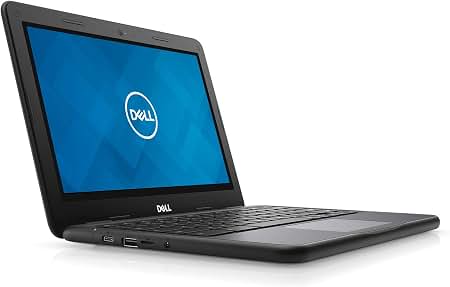
The Dell Chromebook 5190 Laptop is a compact, education-focused Chromebook designed for everyday productivity, classroom use, and light business tasks. Built around Chrome OS, it delivers fast boot times, simple management, and access to web apps and Android apps, making it a practical choice for students, teachers, and users who want a low-maintenance laptop for browsing, documents, email, and online learning. Its 11.6-inch footprint, durable design, and long battery-focused hardware profile make it especially appealing for portable use.
One of the biggest advantages of the Dell Chromebook 5190 Laptop is its balance of durability and simplicity. The device is available in clamshell and 2-in-1 configurations, with touchscreen options in some models, giving buyers flexibility depending on how they plan to use it. The Chromebook’s modest hardware is well-suited to Chrome OS, and its combination of USB-A, USB-C, microSD, and audio connectivity makes it easy to adapt to school or office workflows. Typical used and refurbished pricing often falls in the budget range, usually around $100 to $250 depending on condition, configuration, and seller, while availability is mostly through refurbished marketplaces and resellers rather than new retail channels.
For buyers searching for an affordable student Chromebook, a reliable secondary laptop, or a simple device for cloud-based work, the Dell Chromebook 5190 Laptop remains a strong value-oriented option. It is best for users who prioritize portability, ease of use, and dependable performance over premium display quality or high-end multitasking power.
Specifications
- Display: 11.6-inch HD panel with 1366 x 768 resolution
- Processor: Intel Celeron N3350 or N3450 depending on configuration
- Memory: 4GB LPDDR4 RAM in common configurations
- Storage: 16GB, 32GB, or 64GB eMMC storage options
- Graphics: Intel HD Graphics 500 integrated graphics
- Operating system: Chrome OS
- Connectivity: Wi-Fi 802.11ac, Bluetooth, USB-C, USB-A, microSD, and 3.5 mm audio jack
- Battery: 3-cell 42Wh battery on many models
- Weight: approximately 2.8 to 2.9 pounds
- Dimensions: about 11.96 x 8.19 x 0.82 inches
In real-world use, the Dell Chromebook 5190 Laptop performs well for web browsing, Google Workspace, streaming, and classroom apps, but it is not built for heavy video editing or demanding multitasking. Compared with larger Chromebooks or premium 2-in-1 models, it offers better portability and lower cost, while sacrificing screen size and display sharpness.
Detailed Description
The Dell Chromebook 5190 Laptop is built for simple, reliable daily computing. Its compact chassis is easy to carry in a backpack, and the rugged classroom-friendly design makes it suitable for frequent travel and shared environments. Depending on the model, users may get a standard clamshell notebook or a convertible 2-in-1 design with a touchscreen, which is useful for note-taking, presentations, and interactive learning.
Under the hood, Chrome OS keeps the system responsive by focusing on cloud-based workflows and lightweight local storage needs. The laptop is ideal for documents, spreadsheets, web-based collaboration, video meetings, and Android apps from the Google Play ecosystem. The build typically uses practical materials aimed at durability rather than luxury, and the keyboard, trackpad, and port selection are designed for school and productivity use. User experience is straightforward: it starts quickly, syncs easily with Google accounts, and requires minimal maintenance. For many buyers, that simplicity is the main reason the Dell Chromebook 5190 Laptop remains attractive in the refurbished market.
Setup Guide
- Charge the Chromebook fully using the included USB-C power adapter before first use.
- Press the power button and follow the on-screen Chrome OS setup wizard.
- Select your language, region, Wi-Fi network, and Google account.
- Sign in to sync bookmarks, apps, and settings across devices.
- Check for Chrome OS updates in Settings after setup completes.
- Connect Bluetooth accessories such as a mouse, headset, or printer if needed.
If the device will be used for school or work, enable parental controls or admin policies during setup when appropriate. For touchscreen models, calibrate input by testing taps, scrolling, and stylus behavior if supported. Keep the laptop on a stable surface during charging, avoid blocked ventilation, and use only compatible USB-C accessories. If setup stalls, restart the Chromebook, verify the Wi-Fi connection, or perform a power wash after backing up data.
Troubleshooting
- Slow performance: Close unused tabs, remove unnecessary extensions, and restart the device regularly.
- Wi-Fi problems: Toggle wireless off and on, forget and reconnect to the network, or reboot the router.
- Battery not charging: Check the USB-C cable, test another charger, and inspect the port for debris.
- Frozen screen: Hold the power button for several seconds to force a restart.
- Audio issues: Confirm output settings, reconnect headphones, and test volume keys.
- Storage warnings: Delete downloads, clear cached files, or move files to cloud storage or a microSD card.
Common Chrome OS error screens are often resolved by restarting, updating the system, or recovering the device through Chromebook Recovery. Preventive care includes keeping software updated, avoiding physical damage, and storing the charger safely. Warranty support varies by seller, especially for refurbished units, so buyers should check the return window and warranty terms carefully. For help, use Dell Support, the Chromebook Help Center, or the reseller’s customer service contact listed on the purchase page.
Pros & Cons
Pros
- Affordable and easy to maintain, especially in refurbished form
- Compact and lightweight for students and commuters
- Chrome OS boots quickly and stays simple to use
- Good port selection for a small Chromebook
- Durable design suited to education and everyday handling
Cons
- HD display is basic compared with Full HD alternatives
- Limited local storage makes cloud use essential
- Not ideal for intensive multitasking or demanding creative work
- Battery and performance depend heavily on configuration and device condition
- Refurbished units vary in cosmetic wear and warranty coverage
For value-focused shoppers, the Dell Chromebook 5190 Laptop offers strong affordability and practical everyday performance. Compared with newer premium Chromebooks, it is less powerful and less refined, but it often delivers better price-to-usefulness for basic school and office tasks.
Customer Reviews
Customer feedback for the Dell Chromebook 5190 Laptop is generally positive, especially from students, parents, and budget buyers. Many users rate it around 4 out of 5 stars for its portability, fast startup, and easy Chrome OS experience. Common praise includes reliable Wi-Fi, sturdy construction, and good value for everyday tasks. Typical testimonials mention that it is “great for classes and browsing” and “simple enough for kids and first-time Chromebook users.”
Frequent complaints focus on the 1366 x 768 display, limited storage, and weaker performance with too many browser tabs open. Some buyers also note that refurbished models may show cosmetic wear or battery degradation. It is a smart purchase for users who want a low-cost Chromebook for school, streaming, documents, and web-based work, but buyers seeking long-term premium performance should consider newer models with more memory, larger storage, and a sharper display.
Faqs
How do I set up a Dell Chromebook 5190 Laptop for the first time?
Why is my Dell Chromebook 5190 Laptop running slow and how can I speed it up?
What should I do if the Dell Chromebook 5190 Laptop will not turn on or charge?
Which apps and accessories are compatible with the Dell Chromebook 5190 Laptop?
How do I fix Wi-Fi connection problems on a Dell Chromebook 5190 Laptop?
Can I use a Dell Chromebook 5190 Laptop for schoolwork, Zoom, and Google Docs?
How do I keep my Dell Chromebook 5190 Laptop secure and updated?
What is the best way to clean and maintain a Dell Chromebook 5190 Laptop?
More dell manuals
Leave a Comment