
Dell Latitude 3460 Laptop User Manual
Content
Introduction to the Dell Latitude 3460 Laptop
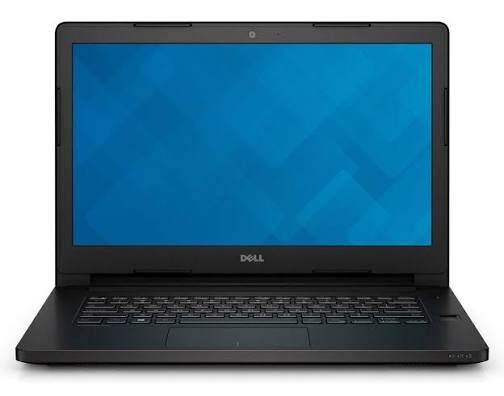
The Dell Latitude 3460 Laptop is a business-focused 14-inch notebook designed for everyday productivity, office workflows, and dependable mobile computing. Built for professionals, students, and small teams, it balances practical performance with a durable chassis and a comfortable keyboard layout. The Latitude 3460 is especially appealing for users who need a straightforward Windows laptop for document editing, web browsing, video calls, and point-of-sale or fieldwork tasks.
One of its biggest strengths is its enterprise-ready design. The system typically comes with 5th Gen Intel Core i3 or Core i5 processors, integrated Intel HD Graphics 5500, and support for DDR3L memory and HDD or SSD storage configurations. That makes it flexible enough for budget-conscious buyers who want a reliable work machine without paying for premium ultrabook features. Its 14-inch display, full-size ports, and wired network support also make it practical for office environments where connectivity matters.
The Dell Latitude 3460 Laptop is commonly found in refurbished and used markets rather than as a new retail model, since it belongs to an older generation of Latitude systems. Estimated pricing usually ranges from budget-friendly refurbished listings to higher prices for upgraded SSD and RAM configurations. Availability is strongest through reseller marketplaces, business IT refurbishers, and select used-computer stores. For users looking for an affordable, serviceable laptop for basic productivity, the Dell Latitude 3460 remains a sensible choice.
Specifications for Dell Latitude 3460 Laptop
- Display: 14.0-inch HD WLED panel, commonly 1366 x 768; some configurations support up to 1920 x 1080 FHD.
- Processor: 5th Gen Intel Core i3 or Core i5 options, including dual-core U-series chips.
- Graphics: Integrated Intel HD Graphics 5500.
- Memory: DDR3L RAM, typically 4 GB or 8 GB, with support up to 16 GB in many configurations.
- Storage: 500 GB 7200 rpm HDD on many models, with SSD upgrade options for faster boot times and app loading.
- Connectivity: Wi-Fi, Bluetooth 4.1, Gigabit Ethernet, VGA, HDMI, USB 2.0, USB 3.0, and audio combo jack.
- Weight: Approximately 1.8 to 1.9 kg depending on configuration.
- Battery: Commonly a 4-cell lithium-ion pack around 40 Wh.
- Comparison: Compared with consumer laptops of the same era, the Latitude 3460 offers stronger business durability, better port selection, and easier maintenance.
- Performance note: It is suitable for office productivity and light multitasking, but not ideal for modern gaming, 4K editing, or heavy development workloads.
Detailed Description of the Dell Latitude 3460 Laptop
The Dell Latitude 3460 Laptop is built around a practical clamshell design that prioritizes reliability over flashy styling. Its 14-inch form factor makes it easy to carry between meetings, classrooms, and work sites, while the matte business finish helps reduce fingerprints and glare. The chassis is designed for everyday corporate use, with a sturdy feel that suits repeated transport and regular typing sessions.
In real-world use, the system works best for tasks such as email, spreadsheets, accounting software, browser-based applications, and remote collaboration tools. The integrated graphics and dual-core processor are enough for standard office workloads, while an SSD upgrade can dramatically improve responsiveness. Users often appreciate the full-size keyboard, the inclusion of legacy ports like VGA, and the Gigabit Ethernet connection, which are useful in older office setups and classroom environments.
Build quality is one of the main reasons buyers still consider this model. The Latitude line is known for business-grade durability, and the 3460 follows that tradition with serviceable components and a practical internal layout. For anyone seeking a dependable work laptop with straightforward maintenance, the Dell Latitude 3460 Laptop remains a functional and cost-effective option.
Setup Guide for Dell Latitude 3460 Laptop
Start by placing the laptop on a flat, ventilated surface and connecting the AC adapter. Power on the device and follow the Windows setup prompts to choose your language, keyboard layout, region, and account options. If the laptop was refurbished, confirm that Windows is activated and that all drivers are installed properly.
Next, connect to Wi-Fi or use the Ethernet port for a more stable internet connection during updates. Pair Bluetooth accessories such as a mouse or headset through Windows settings. If the laptop includes a fresh SSD or memory upgrade, check BIOS settings to ensure the storage device is detected correctly and that boot order is set to the primary drive.
For best results, update Windows, install Dell support drivers, and test the touchpad, keyboard, webcam, audio, and display brightness controls. If the laptop does not power on, verify the charger, battery seating, and wall outlet first. Safety precautions include avoiding blocked ventilation, using only compatible chargers, and shutting the system down before opening the access panel for upgrades.
Troubleshooting Common Dell Latitude 3460 Laptop Problems
If the laptop will not start, check the power adapter, battery charge, and power button response. A blinking light pattern or startup failure can indicate a battery, memory, or motherboard issue. Reseat the RAM and storage drive if the system powers on but does not boot.
If the display is blank, connect an external monitor through VGA or HDMI to determine whether the issue is with the screen or the graphics output. Slow performance usually points to a worn HDD, low RAM, or too many startup applications. Upgrading to an SSD and increasing memory often solves the most common speed complaints.
For Wi-Fi or Bluetooth issues, reinstall the wireless driver and confirm that airplane mode is off. If audio or webcam problems occur, check device manager settings and run the built-in Windows troubleshooters. Preventive maintenance includes regular updates, disk cleanup, and keeping the cooling vents free of dust. Warranty coverage depends on the seller, so refurbished buyers should verify return policy and support terms before purchase. For official hardware help, use Dell support channels through the product support page or service tag lookup.
Pros and Cons of the Dell Latitude 3460 Laptop
Pros
- Business-grade design that feels sturdy and practical for daily use.
- Wide selection of ports, including VGA and Gigabit Ethernet, which is rare on newer laptops.
- Easy to service and upgrade, especially for RAM and storage.
- Good value for money in the refurbished market.
- Suitable for office work, browsing, document editing, and remote learning.
Cons
- Older processor platform limits performance for demanding modern software.
- Base display options are modest, especially HD-only variants.
- Mechanical HDD configurations can feel slow without an SSD upgrade.
- Battery life is average by current standards.
- Not a strong choice for gaming, creative work, or heavy multitasking.
Compared with newer entry-level laptops, the Dell Latitude 3460 Laptop offers better durability and port flexibility, but it lacks the efficiency and display quality of modern models. It is best for buyers who value affordability and repairability over cutting-edge performance.
Customer Reviews of the Dell Latitude 3460 Laptop
Average customer sentiment is typically around 4 out of 5 stars for refurbished business use. Users praise the solid keyboard, reliable performance for office tasks, and excellent upgrade potential. Many reviewers mention that an SSD transform s the laptop from slow to responsive, especially when paired with 8 GB of RAM.
Common complaints focus on the basic screen resolution, fan noise under load, and aging battery health in older units. Some buyers also note that the original hard drive can make startup times feel sluggish. Frequent recommendations include checking the battery condition before purchase and prioritizing a configuration with SSD storage. For budget shoppers needing a dependable daily driver, the Dell Latitude 3460 Laptop is often considered a smart buy.
Faqs
How do I set up the dell Latitude 3460 Laptop for the first time after unboxing?
Why is my dell Latitude 3460 Laptop running slow, and how can I speed it up?
What should I do if the dell Latitude 3460 Laptop will not turn on or charge properly?
Which ports and accessories are compatible with the dell Latitude 3460 Laptop?
How can I improve battery life on the dell Latitude 3460 Laptop?
What are the best troubleshooting steps if the dell Latitude 3460 Laptop freezes or restarts unexpectedly?
Can I upgrade the RAM or storage in the dell Latitude 3460 Laptop?
How should I clean and maintain the dell Latitude 3460 Laptop to avoid long-term problems?
More dell manuals
Leave a Comment