
Pair & Usage: Dyson 360 VisNav Robot Vacuum Cleaner User Manual
Content
Dyson 360 Vis Nav Robot Vacuum Cleaner
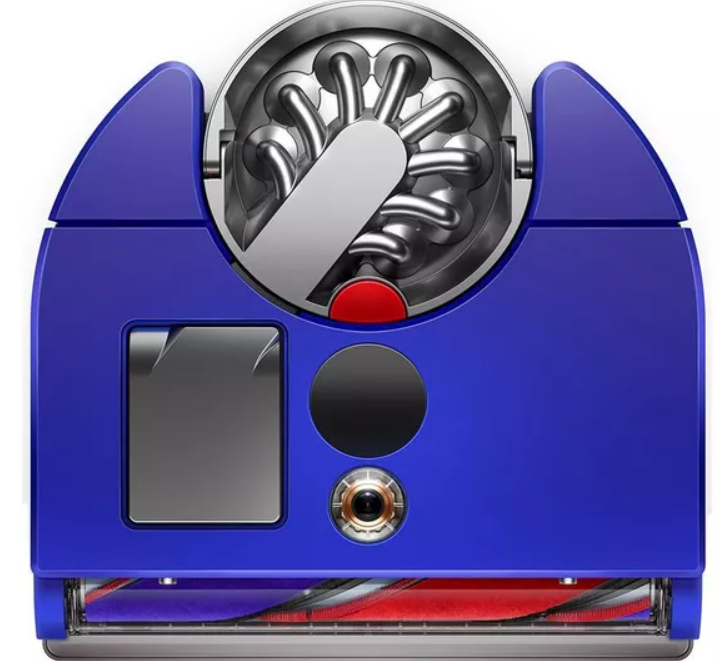
Introduction
Experience the power and precision of the Dyson 360 Vis Nav Robot Vacuum Cleaner, designed to revolutionize your cleaning routine with its unmatched suction power and intelligent navigation system. This high-end robot vacuum boasts a full-width brush bar, automatic extending side duct, and a robust HEPA filtration system, making it ideal for pet owners and those with allergies. The Dyson 360 Vis Nav is controlled via the MyDyson app, allowing users to schedule and customize cleaning sessions from anywhere. With a price range of approximately $1,000 to $1,500, it is available at major retailers and online marketplaces.
The Dyson 360 Vis Nav is perfect for modern homes, offering smart features like voice control through Alexa and Google Assistant, making it a great choice for those embracing smart home technology. Its ability to adapt suction power based on dust levels ensures efficient cleaning across various surfaces.
Specifications
The Dyson 360 Vis Nav Robot Vacuum Cleaner offers a range of impressive features and specifications:
- Suction Power: Up to 22,000 Pa/pascals, significantly outperforming other robot vacuums with 2x the suction power.
- Navigation System: Intelligent 360° vision with time-of-flight camera technology for precise mapping and obstacle avoidance.
- Brush Bar: Full-width, multi-surface brushroll designed to reduce hair tangling and improve cleaning efficiency.
- Filtration System: Whole-machine HEPA filtration capturing 99.97% of particles as small as 0.1 microns.
- Battery Life: Up to 65 minutes of run time before automatic recharging.
- Dimensions: 13 inches in length, 12.6 inches in width, and 3.9 inches in height.
Compared to other robot vacuums, the Dyson 360 Vis Nav stands out with its powerful suction and advanced navigation features, making it a top choice for those seeking a premium cleaning experience.
Getting started
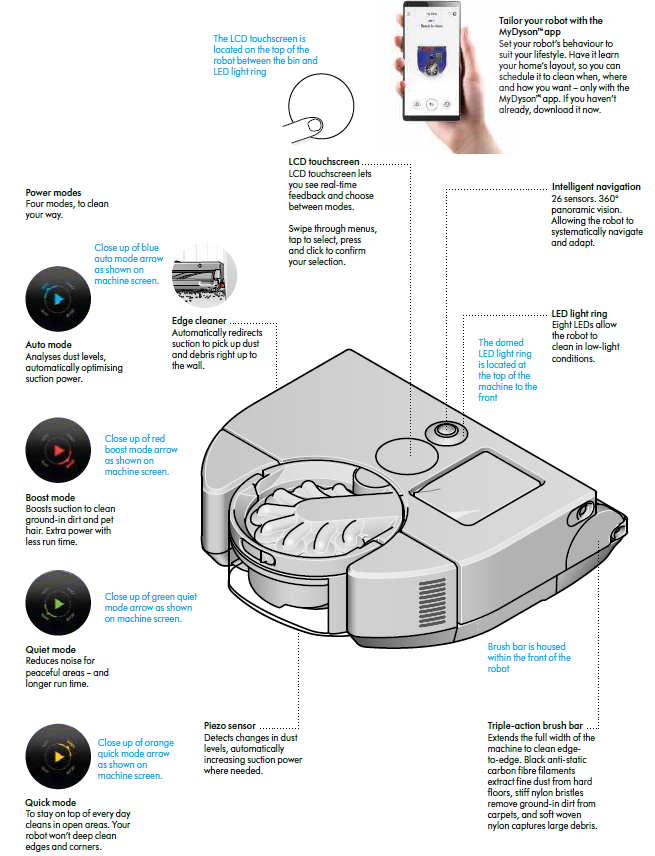
Downloading the MyDyson™ app
- Control your robot – wherever you are. You can start cleaning, check your robot’s progress or troubleshoot a problem. If you haven’t already, download the app now for extra features and the latest updates.
- Download the MyDyson™ app from the App Store or Google Play.
- Open the app and follow the on-screen instructions to create a new account.
- Apple and the Apple logo are trademarks of Apple Inc., registered in the U.S. and other countries.
- App Store is a service mark of Apple Inc., registered in the U.S. and other contries. Google Play and the Google Play logo are trademarks of Google Inc.
Connecting to Wi-Fi
Download the MyDyson™ app
- Choose your robot and follow the instructions on the MyDyson™ app to get connected.
Connection problems
- Your robot accesses the Dyson cloud through your home Wi-Fi network.
- If you have a problem connecting, your robot can help get you back online.
- Go into the settings menu on your robot’s LCD touchscreen and press and click the Wi-Fi icon. Your robot will indicate what Wi-Fi network it is connected to and the signal strength.
- If your robot has failed to connect, press and click on ‘Check connection’ to diagnose the problem. If your robot is not connected to your Wi-Fi router or the internet, try the following:
- Move your robot close to your Wi-Fi router, then turn your robot off and on again to reconnect.
- Check other devices on the same Wi-Fi network can access the internet.
- If not, turn your router off and on again. If the problem persists, contact your internet service provider.
- If you have changed your Wi-Fi network settings, you may need to re-connect your robot. Follow the ‘Change or add new Wi-Fi network’ instructions to re-connect.
- If your robot is not connected to the Dyson cloud, try connecting to your robot again later.
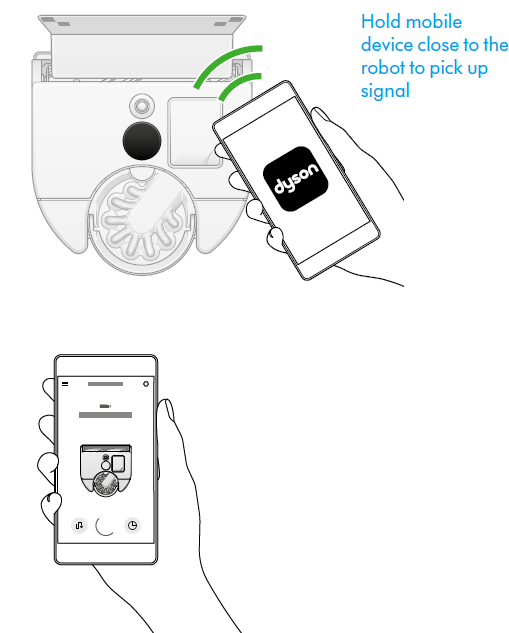
Changing or adding a new Wi-Fi network
Open the settings menu in the MyDyson™ app and scroll down to ‘Add new Wi-Fi’.
Follow the on-screen instructions to add a new Wi-Fi network.
Preparing to clean
Caring for your floors
- Check that the underside of your robot is clean and free from any objects that may cause damage.
- Before vacuuming your flooring, rugs, and carpets, check the manufacturer’s recommended cleaning instructions.
- The brush bar on your robot can damage certain carpet types and floors. Some carpets will fuzz if a rotating brush bar is used when vacuuming.
- We recommend blocking access or creating a ‘No brush bar’ area in the MyDyson™ app.
Prepare your home
- Remove thin rugs or loose objects that your robot may suck up. Tidy small items such as shoe laces or thin cables that your robot won't detect and may get tangled in the brush bar.
- Clean any liquid spills or sharp items that could damage your robot.
- Open all doorways and clear away any furniture or items that are not permanent so that your robot can access all areas.
- Clear away any obstructions from drops or steps.
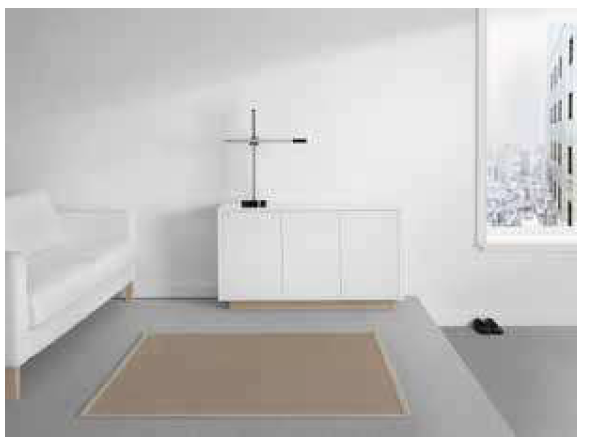
Starting a clean
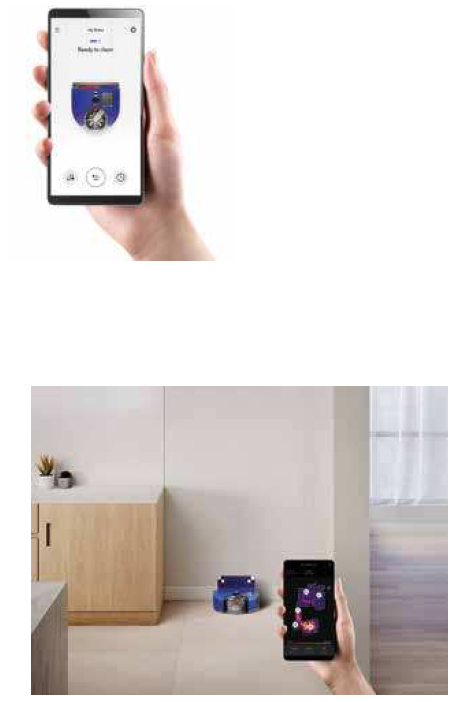
Use the MyDyson™ app to start your clean or press and click the LCD touchscreen. You can start your clean from the dock or pick up your robot and move it to a specific position.
Start from the dock with the MyDyson™ app or voice control
- Start the clean using either the MyDyson™ app or with voice control that you have set up.
- Choose to use a customised clean of an individual room, a selection of rooms, or clean all accessible areas. Your robot will clean following your mapping, zoning and restriction settings in the MyDyson™ app.
Start from the dock
- Start the clean by choosing your power mode then press and click the LCD touchscreen or from the app, to start the clean. Your robot will clean all areas that are accessible.
- Your robot will return to the dock to charge when the battery is low.
- Once your robot has charged, it will automatically continue its clean.
Starting a clean off the dock
- To clean a specific area or a different level, start your robot away from the dock.
- Your robot will clean all the accessible space it can reach on a single charge.
- Your robot won't return to the dock to charge, when the battery is low, but return to its starting point.
- You won’t be able to start your clean from the MyDyson™ app and your robot won’t obey room boundaries or restrictions.
Troubleshooting
Common issues and solutions for the Dyson 360 Vis Nav Robot Vacuum Cleaner include:
- Navigation Issues: Ensure the robot's sensors are clean and free from obstructions. Reset the mapping system if necessary.
- Connection Problems: Check your Wi-Fi connection and ensure the MyDyson app is updated.
- Bin Full Alerts: Regularly empty the dustbin to prevent clogging.
- Warranty and Support: Dyson offers comprehensive support through their website and customer service hotline.
For further assistance, contact Dyson's customer support or visit their official website for detailed troubleshooting guides.
Pros & Cons
Pros
- Unmatched Suction Power: Cleans more effectively than other robot vacuums.
- Intelligent Navigation: Maps and navigates efficiently around obstacles.
- HEPA Filtration: Excellent for allergy sufferers and pet owners.
- Smart Features: Compatible with voice commands and customizable through the MyDyson app.
Cons
- High Price: More expensive than many other robot vacuums on the market.
- Short Battery Life in Boost Mode: May not be suitable for very large spaces without frequent recharging.
Overall, the Dyson 360 Vis Nav offers exceptional performance but may not be the best value for those on a budget.
Customer Reviews
Users praise the Dyson 360 Vis Nav for its powerful suction and ease of use, with many noting its ability to handle pet hair and allergens effectively. However, some users have mentioned that the battery life could be longer, especially in high-suction modes. Overall, it receives high ratings for its performance and smart features.
Star Ratings: 4.5/5 stars. Common praises include its efficiency and smart navigation, while complaints often revolve around the price and battery life.
Recommended for those seeking a premium robot vacuum with advanced features and powerful cleaning capabilities.
Faqs
How do I set up the Dyson 360 VisNav Robot Vacuum Cleaner for the first time?
What should I do if my Dyson 360 VisNav Robot Vacuum Cleaner is not docking properly?
How can I use the Dyson 360 VisNav Robot Vacuum Cleaner's cleaning modes for better performance?
Can the Dyson 360 VisNav Robot Vacuum Cleaner map multi-level homes and how do I manage zones?
What are common troubleshooting steps if the Dyson 360 VisNav Robot Vacuum Cleaner loses Wi-Fi connection?
How do I clean and maintain the brush bar and filter of the Dyson 360 VisNav Robot Vacuum Cleaner?
Is the Dyson 360 VisNav Robot Vacuum Cleaner compatible with smart home devices or voice assistants?
How can I optimize the cleaning path and efficiency of my Dyson 360 VisNav Robot Vacuum Cleaner?
More dyson manuals
- Setup: Dyson WashG1 Wet Floor Cleaner User Manual
- Setup: Dyson Gen5detect Cordless HEPA Vacuum Cleaner User Manual
- Setup & Usage: Dyson Pure Cool Me Personal Purifier Fan User Manual
- Setup: Dyson Outsize Vacuum Cleaner User Manual
- Setup: Dyson Pure Cool Air Purifier User Guide
- How to Use: Dyson V7 Advanced Vacuum Cleaner User Manual
Leave a Comment