
How to Use: Fitbit Versa 2 Wrist Watch User Manual
Content
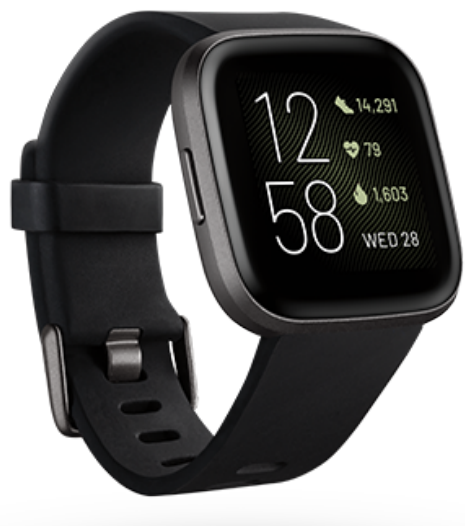
Fitbit Versa 2 Wrist Watch
Introduction
The **Fitbit Versa 2 Wrist Watch** is a versatile and feature-rich smartwatch designed for those who want a seamless blend of style and fitness tracking. With its vibrant AMOLED touchscreen display, sturdy aluminum case, and water-resistant design, this watch is perfect for both casual wearers and fitness enthusiasts. The Versa 2 supports a wide range of apps, including Spotify and Strava, and offers built-in Amazon Alexa for voice commands. It is suitable for users of all ages who want a reliable fitness companion that also handles basic smartwatch functions like notifications and music control.
Key benefits include up to six days of battery life, 24/7 heart rate monitoring, and advanced sleep tracking features. The watch is compatible with both iOS and Android devices, making it accessible to a broad audience. The estimated price range for the Fitbit Versa 2 is typically between $150 to $200, depending on the retailer and any promotions available. It is widely available at major electronics stores and online marketplaces.
Get started
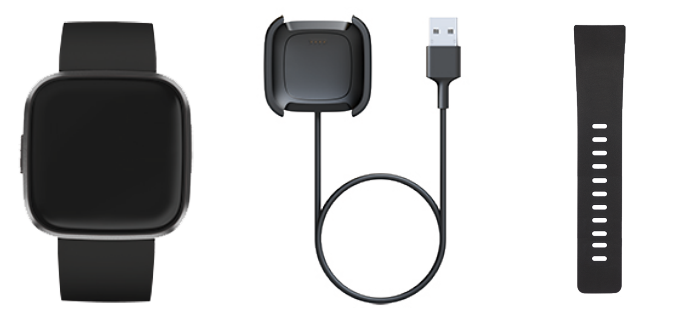
What's in the box
Set up Versa 2
- Use the Fitbit app for iPhones and Android phones.
- To create a Fitbit account, you're prompted to enter your birthdate, height, weight, and sex to calculate your stride length and to estimate distance, basal metabolic rate, and calorie burn. After you set up your account, your first name, last initial, and profile picture are visible to all other Fitbit users. You have the option to share other information, but most of the information you provide to create an account is private by default.
Charge your watch
- A fully-charged Versa 2 has a battery life of 6+ days. Battery life and charge cycles vary with use and other factors; actual results will vary.
To charge Versa 2:
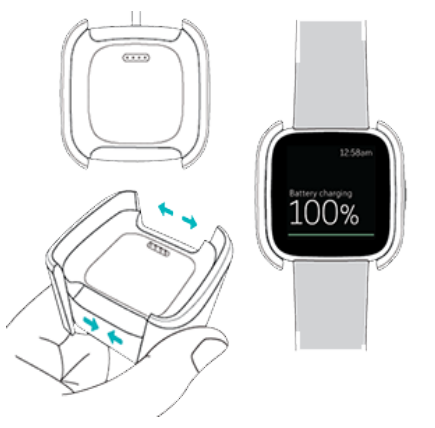
- Plug the charging cable into the USB port on your computer, a UL-certified USB wall charger, or another low-energy charging device.
- Pinch the clip and place Versa 2 in the charging cradle. The pins on the charging cradle must align with the gold contacts on the back of the watch. The percent charged appears on screen. While the watch charges, tap the screen twice to turn the screen on and check the battery level. Tap again to use Versa 2.
Set up with your pho..ne
Set up Versa 2 with the Fitbit app for iPhones and iPads or Android phones. The Fitbit app is compatible with most popular phones. The See the Fitbit devices to check if your phone is compatible.

To get started:
- Download the Fitbit app:
Apple App Store for iPhones
Google Play Store for Android phones - Install the app, and open it.
- Tap Sign in with Google, and follow the on-screen instructions to set up your device.
When you're done with setup, read through the guide to learn more about your new watch and then explore the Fitbit app.
For more information, see the related help article.
Connect to Wi-Fi
During setup, you're prompted to connect Versa 2 to your Wi-Fi network. Versa 2 uses Wi-Fi to more quickly download apps from the Fitbit Gallery and for faster, more reliable OS updates. Versa 2 can connect to open, WEP, WPA personal, and WPA2 personal Wi-Fi networks. Your watch won't connect to 5GHz, WPA Enterprise, or public Wi-Fi
networks that require more than a password to connect—for example, logins, subscriptions, or profiles. If you see fields for a username or domain when connecting to the Wi-Fi network on a computer, the network isn't supported.
- For best results, connect Versa 2 to your home Wi-Fi network. Make sure you know the network password before connecting.
- For more information, see the related help article.
- See your data in the Fitbit app..
- Open the Fitbit app on your phone to see your health metrics, activity, type, ty and sleep data, choose a workout or mindfulness session, and more.
Unlock Fitbit Premium
- Fitbit Premium is your personalized resource in the Fitbit app that helps you stay active, sleep well, and manage stress. A Premium subscription includes programs tailored to your health and fitness goals, personalized insights, hundreds of workouts from fitness brands, guided meditations, and more.
- Customers can redeem a Fitbit Premium trial subscription in the Fitbit app.
- For more information, see the related help article.
Wear Versa 2
- Wear Versa 2 around your wrist. If you need to attach a different size band, or if you purchased another band, see the instructions in "Change the band" on page 14.
- Placement for all-day wear vs. exercise
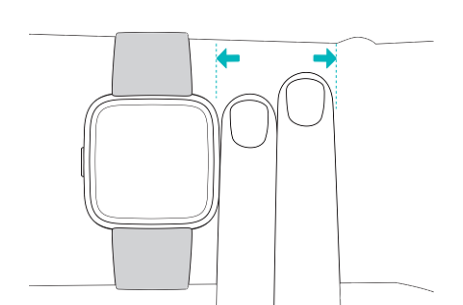
- When you're not exercising, wear Versa 2 a finger's width above your wrist bone.
- In general, it's always important to give your wrist a break regularly by removing your watch for around an hour after extended wear. We recommend removing your watch while you shower. Although you can shower while wearing your watch, not doing so reduces the potential for exposure to soaps, shampoos, and conditioners, which can cause long-term damage to your watch and may cause skin irritation.
For optimized heart-ratthe the e tracking while exercising:
- During a workout, experiment with wearing your watch a bit higher on your wrist for an improved fit. Many exercises, such as bike riding or weight lifting, cause you to bend your wrist frequently, which could interfere with the heart-rate signal if the watch is lower on your wrist.
- Wear your watch on top of your wrist, and make sure the back of the device is in contact with your skin.
- Consider tightening your band before a workout and loosening it when you’re done. The band should be snug but not constricting (a tight band restricts blood flow, potentially affecting the heart-rate signal).
Handedness
For greater accuracy, you must specify whether you wear Versa 2 on your dominant or non-dominant hand. Your dominant hand is the one you use for writing and eating. To start, the Wrist setting is set to non-dominant. If you wear Versa 2 on your dominant hand, change the Wrist setting in the Fitbit app:
From the Today tab in the Fitbit app, tap the icon in the top left >Versa 2 tile >Wrist >Dominant.
Wear and care tips
- Clean your band and wrist regularly with a soap-free cleanser.
- If your watch gets wet, remove it and dry it completely after your activity.
- Take your watch off from time to time.
Change the band
Versa 2 comes with a small band attached and an additional large, bottom band in the box. Both the top and bottom bands can be swapped with accessory bands, sold separately on Fitbit. For band measurements, see "Band size" on page 68.
Fitbit Versa and Fitbit Versa Lite Edition bands are compatible with Versa 2.
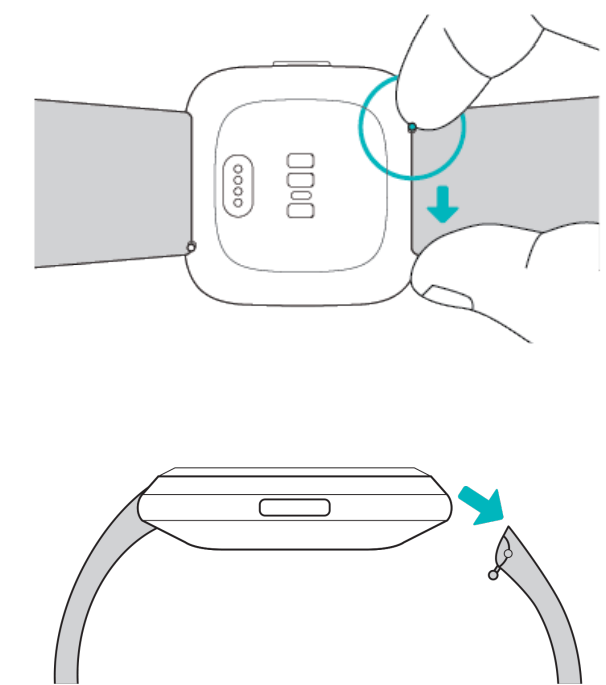
Remove a band
- Turn over Versa 2 and find the quick-release lever.
- While pressing the quick-release lever inward, gently pull the band away from the watch to release it.
- Repeat on the other side.
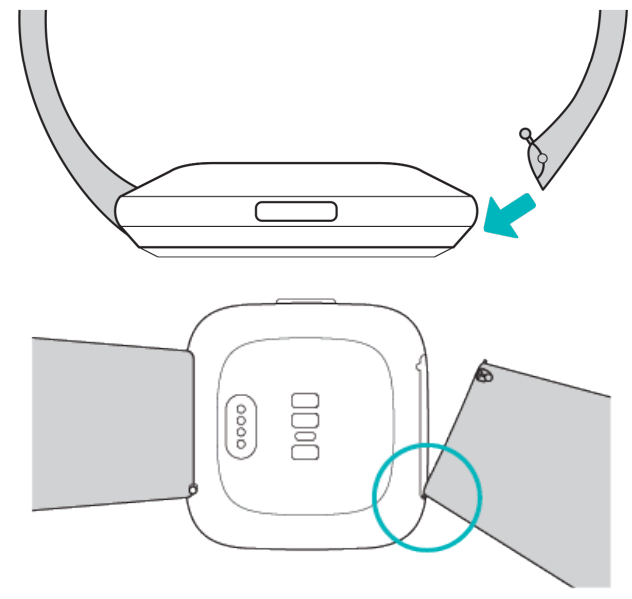
Attach a band
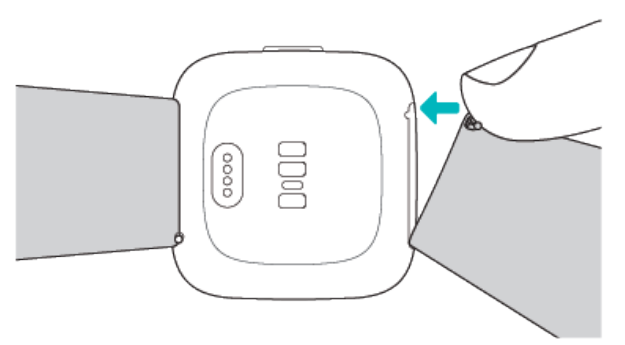
- To attach a band, hold the band at a 45° angle and slide the pin (the side opposite the quick-release lever) into the notch on the watch.
- While pressing the quick-release lever inward, slide the other end of the band into place.
- When both ends of the pin are inserted, release the quick-release lever.
Troubleshooting
- If Versa 2 isn't working properly, see our troubleshooting steps below.
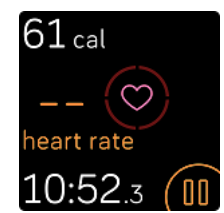
- Heart-rate signal missing
Versa 2 continuously tracks your heart rate while you're exercising and throughout the day. If the heart-rate sensor on your watch has difficulty detecting a signal, dashed lines appear. - If your watch doesn't detect a heart-rate signal, first make sure heart-rate tracking is turned on in the Settings app on your watch. Next, make sure you're wearing your watch correctly, either by moving it higher or lower on your wrist or by tightening or loosening the band. Versa 2 should be in contact with your skin. After holding your arm still and straight for a short time, you should see your heart rate again.
- For more information, see the related help article.
- GPS signal missing
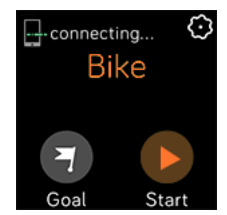
Environmental factors, including tall buildings, dense forest, steep hills, and thick cloud cover, can interfere with your phone's ability to connect to GPS satellites. If your phone is searching for a GPS signal during an exercise, a connection appears at the top of the screen. - For best results, wait for your phone to find the signal before you start your workout.
Can't connect to Wi-Fi
If Versa 2 can't connect to Wi-Fi, you might have entered an incorrect password, or the password might have changed:
- From the Today tab in the Fitbit app, tap the icon in the top left> Versa2 tile.
- Tap Wi-Fi Settings >Next.
- Tap the network you want to use.. Remove.
- Tap Add Network and follow the on-screen instructions to reconnect the Wi-Fi network.
To check if your Wi-Fi network is working correctly, connect another device to your network; if it connects successfully, try again to connect your watch.
If Versa 2 still won't connect to Wi-Fi, make sure that you're attempting to connect your watch to a compatible network. For best results, use your home Wi-Fi network. Versa 2 can't connect to 5GHz Wi-Fi, WPA enterprise, or public networks that require logins, subscriptions, or profiles.
For a list of compatible network types, see "Connect to Wi-Fi" on page 9.
After you verify the network is compatible, restart your watch and try connecting to Wi-Fi again. If you see other networks appear in the list of available networks, but not your preferred network, move your watch closer to your router.
For more information, see the related help article.
Other issues
If you experience any of the following issues, restart your watch:
- Won't sync
- Won't respond to taps, swipes, or button presses
- Won't track steps or other data
- Won't show notifications
General Info and Specifications
Sensors and Components
Fitbit Versa 2 contains the following sensors and motors:
- Optical heart-rate tracker
- An altimeter, which tracks altitude changes
- 3-axis accelerometer, which tracks motion patterns
- Ambient light sensor
- Vibration motor
- Microphone
Materials
The housing and buckle on Versa 2 are made of anodized aluminum. While anodized aluminum can contain traces of nickel, which can cause an allergic reaction in someone with nickel sensitivity, the amount of nickel in all Fitbit products meets the European Union's stringent Nickel Directive.
The Versa 2 classic band is made of a premium, comfortable silicone similar to that used in many sport watches.
Wireless technology
Versa 2 contains a Bluetooth 4.0 radio transceiver, Wi-Fi chip, and NFC chip.
Haptic feedback
Versa 2 contains a vibration motor for alarms, goals, notifications, reminders, and apps.
Battery
Versa 2 contains a rechargeable lithium-polymer battery.
Memory
Versa 2 stores your data, including daily stats, sleep information, and exercise history, for 7 days. See your historical data in the Fitbit app.
Display
Versa 2 has a color AMOLED display.
Band size
Band sizes are shown below. Note that accessory bands sold separately may vary slightly.
- Small band
Fits a wrist between 5.5 - 7.1 inches (140 mm - 180 mm) in circumference - Large band
Fits a wrist between 7.1 - 8.7 inches (180 mm - 220 mm) in circumference
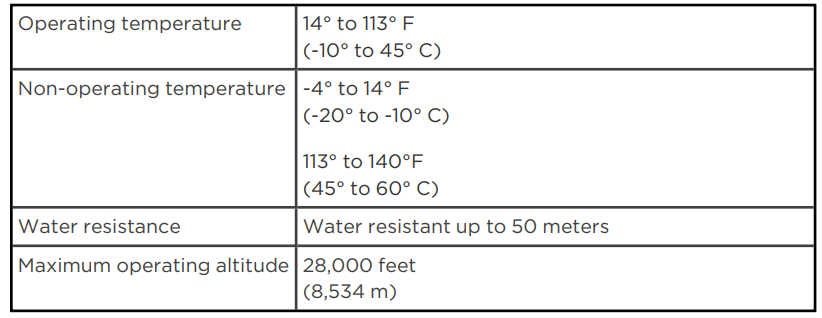
Environmental conditions
Return policy and warranty
Find warranty information and the Fitbit. Return policy on our website.
Pros and Cons of Fitbit Versa 2 Wrist Watch
Pros:
- Long Battery Life: Offers up to six days of battery life, even with frequent use.
- Advanced Fitness Tracking: Includes features like heart rate monitoring, sleep scoring, and guided breathing sessions.
- Always-on Display: Allows users to view the time and stats without needing to interact with the watch.
- App Compatibility: Supports a variety of apps, including music streaming services and popular fitness apps.
Cons:
- Lack of Built-in GPS: Requires a connected smartphone for accurate GPS tracking.
- No Speaker for Calls: Users must use their phone to answer calls, despite having a microphone for Alexa.
- Limited Customization: Initially, limited customization options for always-on watch faces.
Customer Reviews and Testimonials
Users praise the **Fitbit Versa 2 Wrist Watch** for its ease of use, vibrant display, and robust fitness tracking features. Common praises include its long battery life and compatibility with a wide range of apps. However, some users express disappointment over the lack of built-in GPS and the inability to answer calls directly from the watch. On average, the Versa 2 receives a 4.5-star rating from satisfied customers. For those looking for a reliable fitness-centric smartwatch with a user-friendly interface, the Fitbit Versa 2 is a solid choice.
Purchase recommendations include considering the Fitbit Versa 2 if you prioritize fitness tracking and do not mind using your smartphone for GPS functions. It offers good value for its price, especially when compared to more expensive smartwatches that lack its fitness focus.
Faqs
How do I set up my fitbit Versa 2 Wrist Watch for the first time?
What should I do if my fitbit Versa 2 Wrist Watch is not syncing with the Fitbit app?
Can I use fitbit Versa 2 Wrist Watch with both Android and iOS devices?
How do I enable and customize the always-on display feature on fitbit Versa 2 Wrist Watch?
What are the best practices to maintain and clean my fitbit Versa 2 Wrist Watch?
How can I optimize battery life on my fitbit Versa 2 Wrist Watch?
What fitness tracking features does the fitbit Versa 2 Wrist Watch offer?
How do I troubleshoot if the touchscreen on my fitbit Versa 2 Wrist Watch is unresponsive?
More fitbit manuals
- How to Use: Fitbit Versa 3 Wrist Watch User Manual
- How to Use: Fitbit Versa Wrist Watch User Manual
- How to Use: Fitbit Versa Lite Edition Wrist Watch User Manual
- Setup & Usage: Fitbit Surge Fitness Super Watch User Manual
- How to Use: Fitbit Inspire HR Wristband User Manual
- How to Use: Fitbit Charge 2 Fitness Tracker User Manual
Leave a Comment