
Setup & Usage: Fitbit Surge Fitness Super Watch User Manual
Content
Fitbit Surge Fitness Super Watch
Introduction
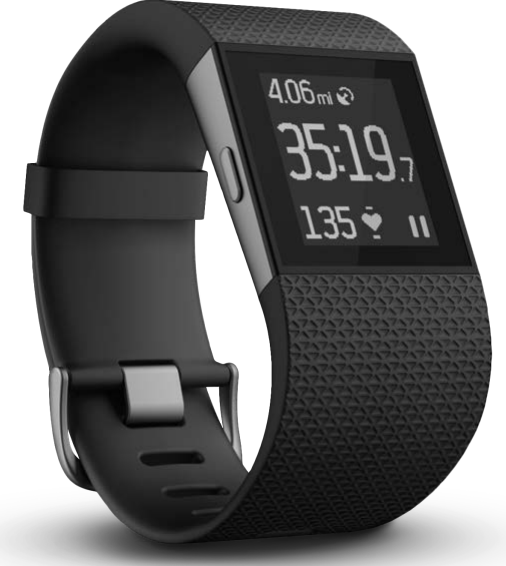
The Fitbit Surge Fitness Super Watch is a high-performance wearable designed to elevate your fitness and daily activity tracking with advanced technology. Marketed as a "super watch," it combines essential fitness monitoring features such as continuous heart rate tracking, built-in GPS, and a monochrome touchscreen display with a long battery life of up to seven days. Its robust sensor suite, including a 3-axis accelerometer, altimeter, and optical heart rate sensor, delivers accurate data on steps, distance, calories burned, floors climbed, and sleep quality, making it a comprehensive companion for fitness enthusiasts.
This device targets athletes, runners, cyclists, and health-conscious users who seek detailed, real-time insights into their workouts and everyday activity without frequent charging interruptions. The always-on screen with backlight provides easy visibility during workouts and in low-light environments. Additionally, it supports smart notifications such as call and text alerts, ensuring connectivity without needing to check your phone constantly.
Available in multiple sizes with adjustable bands, the Fitbit Surge typically ranges around $200 to $250, offering a competitive price point compared to other GPS-enabled fitness watches. It is widely available through online retailers, specialty electronics stores, and Fitbit’s official website. The balance of comprehensive fitness features, durable hardware, and extended battery life makes the Fitbit Surge an attractive option for
Getting Started
Welcome to Fitbit Surge™, the high-performance Fitness Super Watch that helps you meet your fitness goals.
What you’ll find in the box
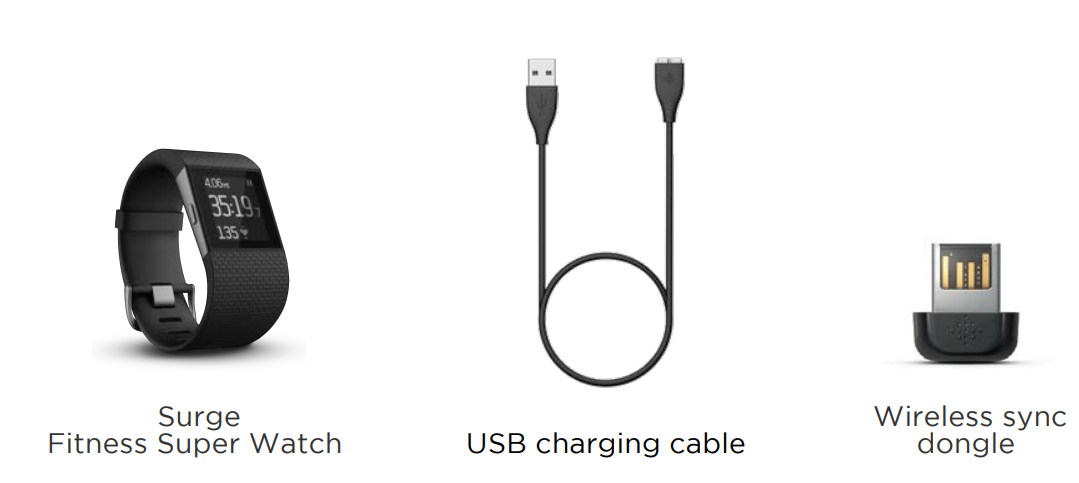
Your Surge box includes:
Setting up your Fitbit Surge
To make the most of your Surge, use the free Fitbit app available for iOS®,
Android™, and Windows® 10 devices. If you don’t have a compatible mobile device,, you can use a computer instead, but keep in mind that a mobile device is required for key features such as notifications, music control, and GPS.
Setting up your tracker on your mobile device
The Fitbit app is compatible with more than 200 mobile devices that support iOS, Android, and Windows 10 operating systems.
To get started:
- Make sure the Fitbit app is compatible with your mobile device
- Find the Fitbit app in one of these locations, depending on your device:
- The Apple® App Store® for iOS devices such as an iPhone® or iPad®.
- The Google Play™ Store for Android devices such as the Samsung® Galaxy® S5 and Motorola Droid Turbo.
- The Microsoft® Windows Store for Windows 10 mobile devices,, such as the Lumia™ phone or Surface™ tablet.
- Install the app. Note that you’ll need an account with the applicable store before you can download even a free app such as Fitbit.
- When the app is installed, open it and tap Join Fitbit to get started. You’ll be guided through the process of creating a Fitbit account and connecting.
(paiYour) Your Surge to your mobile device. Pairing makes sure the tracker and mobile device can communicate with one another (sync their data).
Note that the personal information you’re asked for during setup is used to calculate your basal metabolic rate (BMR), which helps determine your estimated calorie expenditure. This information is private unless you go into your Privacy settings and opt to share age, height, or weight with Fitbit friends.
After setup,, you’re ready to get moving.
- Setting up your tracker on your PC (Windows 10)
- If you don’t have a mobile device, you can set up and sync your tracker on your Windows 10 PC using the same Fitbit app available for Windows mobile devices.
- To get the app, click the Start button and open the Windows Store (called Store). Search for “Fitbit app.” Note that if you’ve never downloaded an app from the store to your computer, you’ll be prompted to create an account.
- Open the app and follow the instructions to create a Fitbit account and set up your Surge. To set up and sync,,nc you’ll need to use the wireless sync dongle that came in the box with your Surge.
- Setting up your tracker on your PC (Windows 8.1 and below)
- If you don’t have a compatible mobile device, you can set up your tracker with a computer and see your Fitbit stats on fitbit. To use this me,,thod you’ll first install a free software application called Fitbit Connect that lets Surge sync its data with your Fitbit. Dashboard.
To install Fitbit Connect and set up your tracker:
- Go to .fitbit./setup.
- Scroll down and click the option to download.
- When prompted, save the file that appears.
- Double-click the file (FitbitConnect_Win.exe). The Fitbit Connect installer opens.
- Click Continue to move through the installer.
- When prompted, choose Set up a New Fitbit Device.
- Follow the onscreen instructions to create a Fitbit account and connect your tracker. You’ll be prompted to plug in the wireless sync dongle that came in the box with your Surge.
Note that the personal information you’re for asked for during setup is used to calculate your basal metabolic rate (BMR), which helps determine your estimated calorie expenditure. This information is private unless you go into your Privacy settings and opt to share age, height, or weight with Fitbit friends.
Setting up your tracker on your Mac
If you don’t have a compatible mobile device, you can set up your tracker with a computer and see your Fitbit stats on fitbit.. To use this setup method,, you’ll first install a free software application called Fitbit Connect that lets Surge sync its data with your Fitbit dashboard.
To install Fitbit Connect and set up your tracker:
- Go to .fitbit./setup.
- Scroll down and click the option to download. If the button does not correctly show your type of computer (for example, if it says “Download for Mac”), choose the correct type, then click the button.
- When prompted, save the file that appears.
- Double-click the file (Install Fitbit Connect.pkg). The Fitbit Connect installer opens.
- Click Continue to move through the installer.
- When prompted, choose Set up a New Fitbit Device.
- Follow the onscreen instructions to create a Fitbit account and connecyour Surgeege. You should be able to sync wirelessly with your Mac, but if not, plug in the wireless sync dongle that came with your tracker.
Note that the personal information you’re asfor ked for during setup is used to calculate your basal metabolic rate (BMR), which helps determine your estimated calorie expenditure. This information is private unless you go into your Privacy settings and opt to share with Fitbit friends.
Syncing your tracker data to your Fitbit account
Once you've set up and started using Surge, you'll need to make sure it regularly transfers (syncs) its data to Fitbit so you can track your progress, see your exercise history, earn badges, analyze your sleep logs, and more on your Fitbit dashboard. A daily sync is recommended but not required.
The Fitbit apps use Bluetooth Low Energy (BLE) technology to sync with your Fitbit tracker. Each time you open the app,, it will sync if the tracker is nearby. If you’re running the Fitbit app on a Windows 10 PC that doesn’t have Bluetooth, you’ll need to make sure the wireless sync dongle is installed.
Fitbit Connect on a Mac® also uses Bluetooth for syncing (if available;, otherwise,, you’ll need to make sure your dongle is plugged into the computer. Fitbit Connect will sync automatically every 15 minutes if:
- The tracker is within 20 feet of your computer.
- The computer is powered on, awake, and connected to the Internet.
Getting to know your Fitbit Surge
- This section tells you how best to wear, navigate, and recharge your tracker.
Wrist placement
- Review these tips to make sure you’re wearing your tracker correctly.
All-day wear and exercise
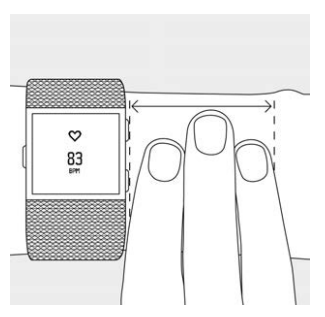
- Your Surge should be worn on your wrist. While it may track stats such as steps and floors when placed in a pocket or backpack, it is most accurate on the wrist. For all-day wear, your Surge should usually rest a finger’s width below your wrist bone and lay flat (as you would normally wear a watch).
As with all heart-rate tracking technology, whether a chest strap or a wrist-based sensor, accuracy is affected by personal physiology, location of wear, and type of movement. In other words, not every person will get a perfectly accurate reading with every type of exercise. For best heart rate accuracy keep these tips in mind:
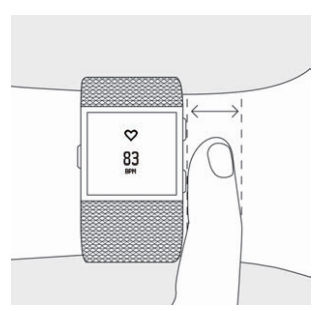
- Experiment with wearing the tracker higher on your wrist during exercise.
Because blood flow in your arm increases the farther up you go, moving the tracker up a couplof e of inches can improve the heart rate signal. Also, many exercises,, such as spinning,, ng cause you to bend your wrist frequently, which is more likely to interfere with the heart rate signal if the tracker is lower on your wrist. - Do not wear your tracker tightly; a tight band restricts blood flow, potentially affecting the heart rate signal. That being said, the tracker should also be slightly tighter (snug but not constricting) during exercise than during all-day wear.
- With high-intensity interval training or other activities where your wrist is moving vigorously and non-rhythmically, the movement may prevent the sensor from finding an accurate heart rate. Similarly, with exercises such as weight lifting or rowing, your wrist muscles may flex in such a way that the band tightens and loosens during exercise. Try relaxing your wrist and staying still briefly (about 10 seconds), after which you should see an accurate heart rate reading.
Dominant or non-dominant wrist
To improve the accuracy of your Surge, we ask you to specify whether you’re wearing it on your dominant or non-dominant hand. Your dominant hand is the one you use for most day-to-day activities,, such as writing or brushing your teeth. You can specify this setting in the Account section of the Fitbit app or in the Devices section of your Fitbit. Dashboard.
Navigation
The Surge has a touch screen with a backlight and three buttons: Home, Select, and Action. Take a moment to memorize these button names and their locations. Refer back to this image when reading the tasks in this manual:
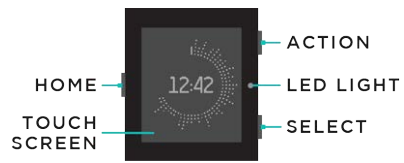
Your Surge has two sets of screens: the Clock, where you can see your all-day stats, and the Menu. To switch between the two sets, press the Home button.
- When viewing the Clock, swipe left and right to see:
- Current heart rate
- Steps taken
- Distance covered
- Calories burned
- Floors climbed
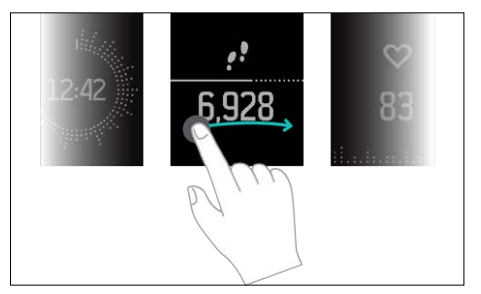
When viewing the Menu, swipe left and right to see the different menu items. To choose a menu option, either press the Select button or just tap the screen. To exit the Run, Exercise, Timer, Alarms, or Settings screens, press the Home button.

Double-pressing the Home button displays the music playback control.
Note: The functions of the Select and Action buttons vary depending on what you’re doing. An icon next to the button tells you what it does, such as pausing and resuming or selecting an option.
Battery life and charging
Depending on your usage, your battery life may vary:
- If you aren’t tracking runs or exercises that use GPS, your fully charged Surge should last up to 7 days as a fitness watch with continuous heart rate tracking and activity tracking.
- Your fully charged Surge can track a maximum of about 10 hours of activities that use GPS before needing a charge. To ensure that you’re always tracking your data, we recommend charging your Surge after any activity that uses GPS.
Determining your current battery level
When looking at the Menu, your tracker’s battery level appears in the top left.
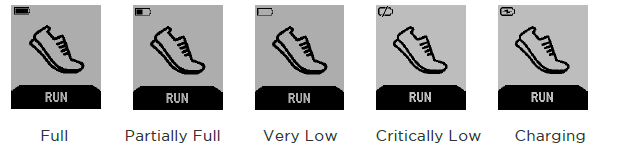
If your battery is critically low, charge your Surge as soon as possible.
You can also check your battery level from the Fitbit app, or by logging into
Fitbit and clicking the gear icon on the top-right corner of the page. In these cases, the battery level shown reflects the last time you synced your Surge. To make sure you are seeing the current battery level, sync your Surge.
Charging your tracker
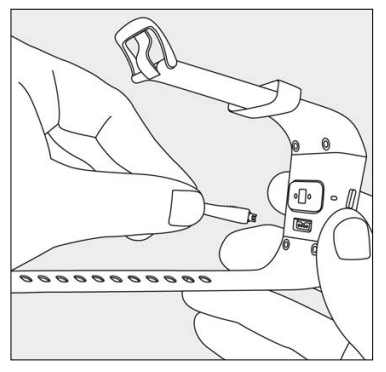
To charge your Surge, plug the charging cable into the USB port on your computer or a UL-certified USB wall charger and plug the other end into the port on the back of the Surge. Charging completely takes 1 to 2 hours.
Conserving battery life
If you won’t be using your Surge for a while, you can conserve battery life by shutting it down. To do so, swipe to the Settings screen and swipe up to find Shutdown.
Care
It’s important to clean and dry your Surge regularly.
Troubleshooting your Fitbit Surge
Heart-rate signal missing
Surge continuously tracks your heart rate while you’re exercising and throughout the day. However, occasionally the heart rate tracker may have difficulty getting a strong signal. In those cases, you’ll see this screen:
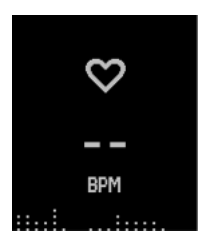
If you don’t see your heart rate on your Surge, first make sure you’re wearing it correctly. Experiment with placing the tracker higher on your wrist, because blood flow in your arm increases the farther up yogooMovingngg the tracker,, top to a couple of inches, can be helpful. Also, make sure you're not wearing your tracker too tightly; a tight band restricts blood flow, potentially affecting the heart rate signal. After a short wait, you should see your correct heart rate again.
Unexpected behavior
If you experience one of the following problems with your Surge, it may be fixed by restarting your tracker:
- It is not syncing.
- It is not responding to movement.
- It doesn’t respond even when in a charger.
- It has a battery charge but is not lighting up.
- It isn’t tracking your steps or other data.
- It’s not responding to button presses, taps, or swipes.
Restarting your Surge does not delete any data except text and call notifications. To restart your Surge:
- Press and hold the Home and Select buttons (left and bottom right) for 10 to 15 seconds until you see the screen flash or start to dim.
- Let go of the buttons.
- After your screen turns completely off, wait 10 seconds and then press the Home button to turn your Surge back on.
Your Surge should now work normally.
Fitbit Surge General Info & Specifications
Sensors and motors
Your Surge contains the following sensors and motors:
- A MEMS 3-axis accelerometer, which measures your motion patterns and determines your steps taken, distance traveled, calories burned, active minutes, and sleep quality
- An altimeter, which measures floors climbed
- A GPS receiver, which tracks your location during a workout
- A Bluetooth 4.0 radio transceiver
- A vibration motor, which allows the Surge to vibrate when alarms go off, when you reach a goal, when a GPS signal is found, and when you receive call or text notifications
- An optical heart rate tracker, which measures your BPM at rest and when you are exercising
- An ambient light sensor, which turns on the backlight in low-light conditions
Battery
Surge contains a rechargeable lithium-polymer battery.
Memory
- Surge holds detailed minute-by-minute information for the most recent 7 days, and 30 days of daily summaries. Heart rate data is stored at one-second intervals during exercise tracking and at five-second intervals at all other times.
- Your recorded data consists of steps taken, distance traveled, calories burned, floors climbed, active minutes, heart rate, and sleep tracked.
- Sync your Surge regularly to have the most detailed data available to view on your Fitbit. Dashboard.
Display
The Surge display is a touch screen, monochrome LCD with a backlight for low-light visibility.
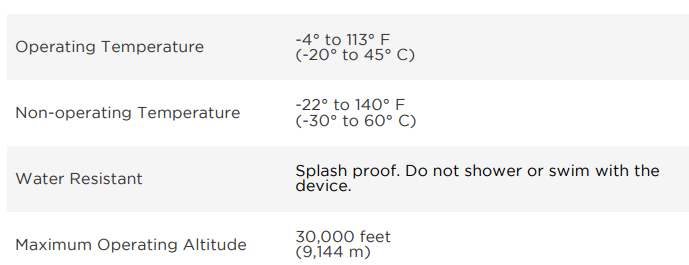
Environmental conditions
Return policy and warranty..
Warranty information and the Fitbit. Store Return Policy can be found onli..ne
Care and wearing tips
- Clean and dry your Fitbit product regularly, particularly in areas in contact with the skin. Use a clean, damp cloth. Do not wash the product under a faucet.
- Wear your Fitbit product loosely enough to allow air circulation.
- Use skin care products sparingly on the areas of the skin covered by your Fitbit product.
- Take the product off from time to time to clean it and allow for your skin to be uncovered.
- Do not open the enclosure or disassemble your Fitbit product.
- Do not use your Fitbit product if the display is cracked.
- Substances in this product and its battery may harm the environment or cause injury if handled and disposed of improperly.
- Do not place your Fitbit product in a dishwasher, washing machine, or dryer.
- Do not expose your Fitbit product to extremely high or low temperatures.
- Do not use your Fitbit product in a sauna or steam room.
- Do not leave your Fitbit product in direct sunlight for an extended period of time.
- Do not dispose of your Fitbit product in a fire. The battery could explode.
- Do not use abrasive cleaners to clean your Fitbit product.
- Do not wear your Fitbit product while charging it.
- Do not charge your Fitbit product while it is wet.
- Remove your Fitbit product if it feels warm or hot.
Faqs
How do I set up the fitbit Surge Fitness Super Watch for the first time?
What should I do if my fitbit Surge Fitness Super Watch is not syncing with the app?
How does the GPS feature on the fitbit Surge Fitness Super Watch work during workouts?
Can the fitbit Surge Fitness Super Watch monitor heart rate continuously throughout the day?
Is the fitbit Surge Fitness Super Watch compatible with both Android and iOS devices?
How can I optimize the battery life of my fitbit Surge Fitness Super Watch?
What maintenance is recommended to keep the fitbit Surge Fitness Super Watch functioning well?
Why is the touchscreen on my fitbit Surge Fitness Super Watch sometimes unresponsive, and how can I fix it?
More fitbit manuals
- How to Use: Fitbit Versa Wrist Watch User Manual
- How to Use: Fitbit Charge 2 Fitness Tracker User Manual
- How to Use: Fitbit Versa 2 Wrist Watch User Manual
- How to Use: Fitbit Charge HR Activity Wristband User Manual
- How to Use: Fitbit Versa 3 Wrist Watch User Manual
- How to Use: Fitbit Charge Wireless Activity Wristband User Manual
Leave a Comment