
How to Use: Fitbit Charge HR Activity Wristband User Manual
Content
Fitbit Charge HR Activity Wristband
Introduction
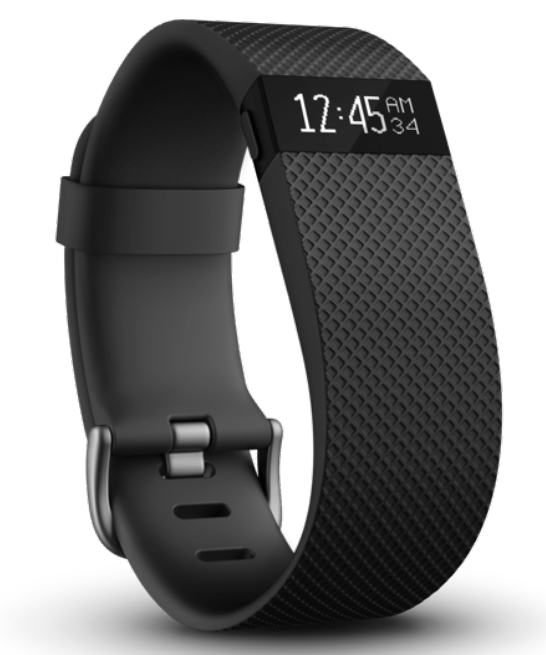
The Fitbit Charge HR Activity Wristband is a versatile fitness tracker designed to provide continuous heart rate monitoring alongside comprehensive activity tracking. It uniquely combines an optical heart rate sensor with a built-in altimeter and 3-axis accelerometer to track steps, distance, calories burned, active minutes, floors climbed, and sleep quality. This makes it an ideal companion for fitness enthusiasts, casual exercisers, and health-conscious users seeking detailed insights into their daily activity levels and heart health.
Equipped with Fitbit’s PurePulse technology, the Charge HR delivers 24/7 wrist-based heart rate monitoring without the need for an uncomfortable chest strap. Its bright OLED display keeps users informed with real-time stats, call notifications, and alarm vibrations, ensuring seamless integration into daily routines. The wristband is available in multiple sizes and colors, catering to a wide audience with wrist sizes from 5.5 to 9.1 inches.
Priced approximately between $100 and $130, the Fitbit Charge HR offers good value for those looking for an advanced activity tracker without the premium cost of GPS-enabled devices. Available through Fitbit's website, major retailers, and online marketplaces, it suits individuals aiming to improve fitness, monitor heart health, or simply stay motivated through detailed activity feedback and social sharing features.
What you’ll find in the box
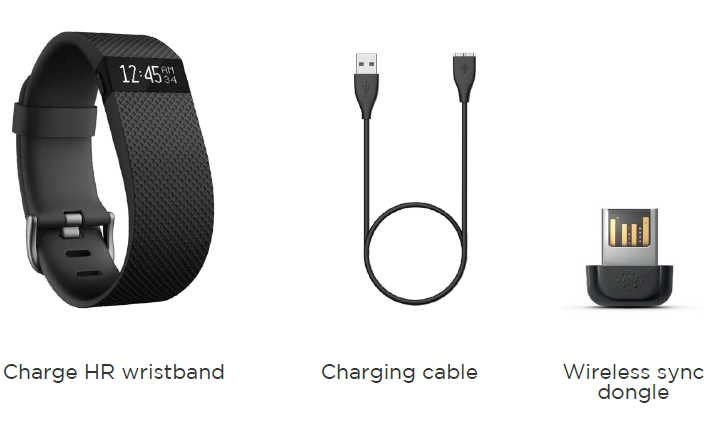
Your Charge HR box includes:
Fitbit Charge HR General Info & Specifications
Sensors and motors
Your Charge HR uses a MEMS 3-axis accelerometer to measure your motion patterns and determine your steps taken, distance traveled, calories burned, and sleep quality. Charge HR also contains:
- An altimeter, which measures floors climbed
- A vibration motor, which allows it to vibrate when alarms go off, when you reach a goal, and when you receive call notifications
- An optical heart rate tracker, which measures your beats per minute (BPM) at rest and when you are exercising
Battery
Charge HR contains a rechargeable lithium-polymer battery.
Memory
Charge HR holds detailed minute-by-minute information for the most recent 7 days and 30 days of daily summaries. Heart rate data is stored at one-second intervals when in exercise mode and at five-second intervals at all other times.
Your recorded data consists of steps taken, distance traveled, calories burned, floors climbed, active minutes, heart rate, and sleep tracked.
Sync your Charge HR regularly to have the most detailed data available to view on your fitbit.com dashboard.
Size
- Small wristband: Fits a wrist between 5.5 and 6.7 inches in circumference
- Large wristband: Fits a wrist between 6.3 and 7.6 inches in circumference
- Extra large wristband: Fits a wrist between 7.6 and 9.1 inches in circumference
Environmental conditions
- Operating Temperature: -4° to 113° F (-20° to 45° C)
- Non-operating Temperature: -22° to 140° F (-30° to 60° C)
- Water Resistant: Splash proof. Do not shower or swim with the device.
- Maximum Operating Altitude: 30,000 feet (9,144 m)
What’s in this document
This manual gets you started quickly with setting up your tracker. Set up ensures that your tracker can synchronize its data with fitbit.com or the Fitbit app, where you can get detailed information on your stats, view historical trends, log food, and more. As soon as setup is complete,e you’re ready to start moving.
The remainder of the manual walks you through every function on your Charge HR and also explains how to update your tracker when free firmware updates are available. Throughout the manual, you’ll notice that for tasks that can be done on the fitbit.com dashboard or the Fitbit app, only the fitbit.com instructions appear—if you have the Fitbit app for iOS, Android, or Windows, you can find instructions at https://help.fitbit.com.
Setting up your Fitbit Charge HR
You can set up your Charge HR using your computer or the Fitbit apps for iOS, Android, or Windows 10.
Setting up your tracker on your mobile device
The Fitbit app is compatible with more than 200 mobile devices that support iOS, Android, and Windows 10 operating systems.
To get started:
- Make sure the Fitbit app is compatible with your mobile device by checking http://www.fitbit.com/devices.
- Find the Fitbit app in one of these locations, depending on your device:
- The Apple® App Store® for iOS devices such as an iPhone® or iPad®.
- The Google Play™ Store for Android devices such as the Samsung® Galaxy® S5 and Motorola Droid Turbo.
- The Microsoft® Windows Store for Windows 10 mobile devices,, such as the Lumia™ phone or Surface™ tablet.
- Install the app. Note that you’ll need an account with the applicable store before you can download even a free app such as Fitbit.
- When the app is installed, open it and tap Join Fitbit to get started. You’ll be guided through the process of creating a Fitbit account and connecting.
(pairing) Your Charge HR to your mobile device. Pairing makes sure the tracker and mobile device can communicate with one another (sync their data).
Note that the personal information you’re asked for during setup is used to calculate your basal metabolic rate (BMR), which helps determine your estimated calorie expenditure. This information is private unless you go into your Privacy settings and opt to share age, height, or weight with Fitbit friends.
After setup,, you’re ready to get moving.
Setting up your tracker on your PC (Windows 10)
If you don’t have a mobile device, you can set up and sync your tracker on your Windows 10 PC using the same Fitbit app available for Windows mobile devices.
To get the app, click the Start button and open the Windows Store (called Store). Search for “Fitbit app.” Note that if you’ve never downloaded an app from the store to your computer, you’ll be prompted to create an account.
Open the app and follow the instructions to create a Fitbit account and set up your Charge HR. You can set up and sync wirelessly if your computer has Bluetooth ®; otherwise,, you’ll need to use the wireless sync dongle that came in the box with your Charge HR.
Setting up your tracker on your PC (Windows 8.1 and below)
If you don’t have a compatible mobile device, you can set up your tracker with a computer and see your Fitbit stats on fitbit.com. To use this method,, you’ll first install a free software application called Fitbit Connect that lets Charge HR sync its data with your fitbit.com dashboard.
To install Fitbit Connect and set up your tracker:
- Go to http://www.fitbit.com/setup.
- Scroll down and click the option to download.
- When prompted, save the file that appears.
- Double-click the file (FitbitConnect_Win.exe). The Fitbit Connect installer opens.
- Click Continue to move through the installer.
- When prompted, choose Set up a New Fitbit Device.
- Follow the onscreen instructions to create a Fitbit account and connect your tracker.
Note that the personal information you’re asked for during setup is used to calculate your basal metabolic rate (BMR), which helps determine your estimated calorie expenditure. This information is private unless you go into your Privacy settings and opt to share age, height, or weight with Fitbit friends.
Setting up your tracker on your Mac
If you don’t have a compatible mobile device, you can set up your tracker with a computer and see your Fitbit stats on fitbit.com. To use this setup method,, you’ll first install a free software application called Fitbit Connect that lets Charge HR sync its data with your fitbit.com dashboard.
To install Fitbit Connect and set up your tracker:
- Go to http://www.fitbit.com/setup.
- Scroll down and click the option to download. If the button does not correctly show your type of computer (for example, if it says “Download for Mac”), choose the correct type, then click the button.
- When prompted, save the file that appears.
- Double-click the file (Install Fitbit Connect.pkg). The Fitbit Connect installer opens.
- Click Continue to move through the installer.
- When prompted, choose Set up a New Fitbit Device.
- Follow the onscreen instructions to create a Fitbit account and connect your Charge HR. Setup on a Mac can usually take place wirelessly via Bluetooth; if not, you’ll be prompted to plug in the wireless sync dongle that came with your tracker.
Note that the personal information you’re asked during setup is used to calculate your basal metabolic rate (BMR), which helps determine your estimated calorie expenditure. This information is private unless you go into your Privacy settings and opt to share age, height, or weight with Fitbit friends.
Using your Fitbit.com Dashboard
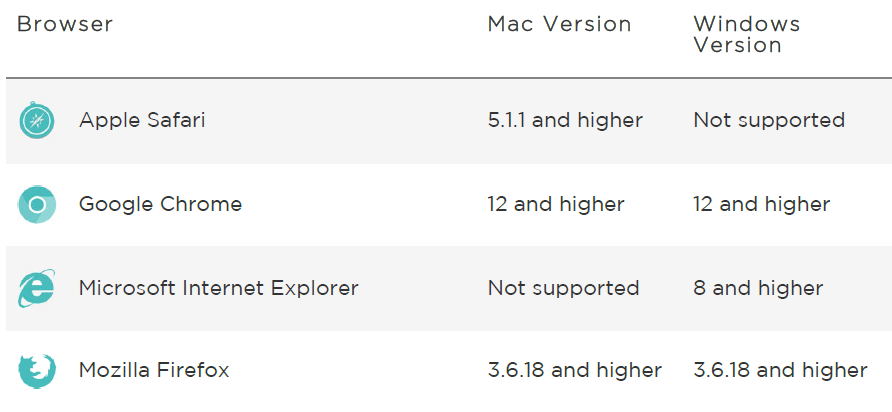
Fitbit provides you with a free online tool — the fitbit.com dashboard — to help track, manage, and evaluate your fitness progress. Use the dashboard to see your progress towards goals, view graphs with historical data, and log food.
Browser requirements
Troubleshooting Fitbit Charge HR
If you experience one of the following problems, it may be fixed by restarting your tracker:
- It isn’t syncing
- It doesn’t respond even when in a charger
- It isn't tracking your steps
- It isn’t responding to button presses
Note that restarting your tracker does not delete any data.
To restart your Charge HR:
- Plug your charging cable into your computer and attach the Charge HR to the cable.
- When your tracker starts charging, press and hold the button for 10 or more seconds until the Fitbit logo,,o followed by a version number, ber appears (for example, “V88”).
- Let go of the button.
Your Charge HR should now work normally.
For additional troubleshooting suggestions or to contact Customer Support, see http://help.fitbit.com.
Help
Troubleshooting and assistance for your Charge HR can be found at http://help.fitbit.com.
Return policy and warranty.
Warranty information and the fitbit.com Store Return Policy can be found online at http://www.fitbit.com/returns.
Pros & Cons of Fitbit Charge HR Activity Wristband
Pros
- Continuous Heart Rate Monitoring: The built-in optical sensor provides accurate heart rate data 24/7, improving calorie burn and workout intensity tracking without a chest strap.
- Comprehensive Activity Tracking: Tracks steps, distance, floors climbed, calories, and sleep patterns with detailed minute-by-minute data stored for 7 days and daily summaries for 30 days.
- Comfortable Design: Made from durable elastomer material with a surgical-grade stainless steel buckle, available in multiple sizes and colors for a customized fit.
- Bright OLED Display & Alerts: Enables quick access to stats, call notifications, and alarms with vibration alerts, enhancing usability.
- Good Battery Life: Rechargeable lithium-polymer battery supports extended use with regular syncs to update detailed data.
Cons
- No Built-in GPS: Distance and pace are estimated based on step count and stride length, which may reduce accuracy for runners compared to GPS-enabled devices.
- Charging Cable Limitations: Some users report issues with the charging connector’s fit and short cable length, which may be inconvenient.
- Step Counting Accuracy: Can vary,, especially during activities that are not step-based, such as cycling or strength training.
- Display Size: While functional, the smaller OLED screen can be less readable in bright sunlight or during intense workouts.
- Competition: Alternatives like Garmin Vivosmart or Fitbit Surge offer GPS and enhanced features,, es but at higher prices.
Customer Reviews and User Feedback on Fitbit Charge HR Activity Wristband
The Fitbit Charge HR Activity Wristband generally receives positive feedback, with users praising its ease of use and the convenience of continuous heart rate monitoring. Many highlight the detailed sleep tracking and motivational features,s such as goal alerts and socialsharingn,,g as valuable benefits. Typical star ratings average around 4 out of 5.
Common praises include the comfortable fit and accurate heart rate readings during various exercises. Users appreciate the vibrant display and call notification functionality that keeps them connected without pulling out their phones.
However, frequent complaints relate to occasional discrepancies in step and distance tracking, particularly during long runs where GPS is absent, leading to an underestimation of mileage. Some also report frustration with the charging cable’s short length and connection stability. Despite this, Fitbit’s customer service is noted as responsive and efficient in addressing hardware concerns.
Overall, many recommend the Fitbit Charge HR for those seeking an affordable, reliable heart rate and activity tracker without GPS, especially for walking, gym workouts, and general fitness tracking.
Faqs
How do I set up my fitbit Charge HR Activity Wristband for the first time?
What should I do if my fitbit Charge HR Activity Wristband is not syncing with the app?
Can the fitbit Charge HR Activity Wristband track my sleep automatically?
Is the fitbit Charge HR Activity Wristband compatible with both Android and iOS devices?
How can I customize the display and set activity goals on my fitbit Charge HR Activity Wristband?
What are the best practices for maintaining and cleaning my fitbit Charge HR Activity Wristband?
How long does the battery last on the fitbit Charge HR Activity Wristband, and how do I charge it?
Why is my fitbit Charge HR Activity Wristband not detecting heart rate accurately during exercise?
More fitbit manuals
- How to Use: Fitbit Charge 2 Fitness Tracker User Manual
- How to Use: Fitbit Charge Wireless Activity Wristband User Manual
- Setup & Usage: Fitbit Surge Fitness Super Watch User Manual
- How to Use: Fitbit Inspire Fitness Tracker User Manual
- How to Use: Fitbit Versa Wrist Watch User Manual
- How to Pair: Fitbit Flyer Headphones Instruction Guide
Leave a Comment