
How to Pair: Fitbit Flyer Headphones Instruction Guide
Content
Fitbit Flyer Headphones: Premium Wireless Audio for Fitness Enthusiasts
Introduction
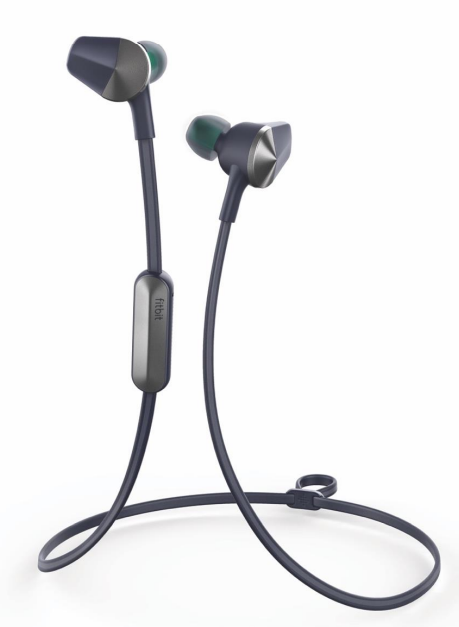
The Fitbit Flyer Headphones are wireless, Bluetooth-enabled earbuds designed specifically for active lifestyles. Engineered with fitness in mind, these headphones combine durable, sweatproof construction with high-quality audio performance. Featuring a secure, customizable fit with interchangeable ear tips, wings, and fins, the Fitbit Flyer ensures comfort and stability during rigorous workouts or everyday wear.
Key benefits include superior sound clarity enhanced by Waves MaxxAudio technology, two sound profiles—Signature and Power Boost for dynamic audio customization—and passive noise isolation to reduce distractions. Multi-device connectivity allows seamless switching between your Fitbit Ionic smartwatch, phone, or computer. The dual microphone system delivers clear, hands-free calls by minimizing ambient noise, making these headphones ideal for fitness enthusiasts, commuters, and casual listeners alike.
Available in sleek colorways such as Nightfall Blue and Lunar Gray, Fitbit Flyer headphones retail in the mid-range price segment, typically around $130 to $150. They can be purchased from major retailers and online platforms. Their blend of performance, durability, and smart features makes them a compelling choice for users seeking reliable wireless headphones tailored for workouts and active use.
Getting started
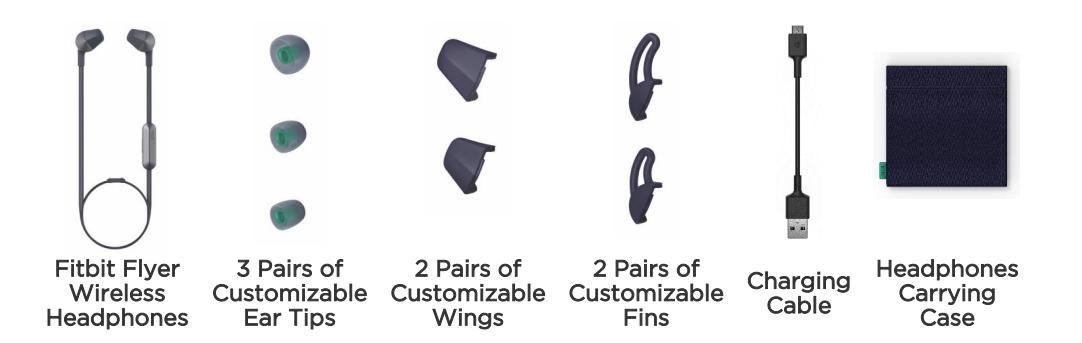
What’s included
Setting up Fitbit Flyer
You must connect Flyer to a Bluetooth®-enabled device. After connecting Flyer, you’ll be able to play audio and receive phone calls through your headphones.
Powering on
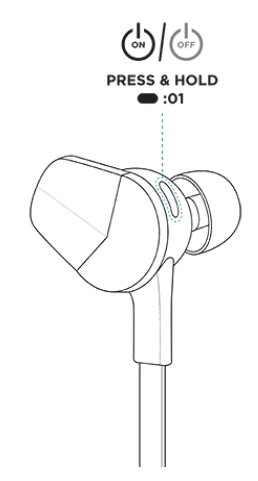
To power on the Flyer, press and hold the Power button until the LED lights up. If Flyer does not turn on, it may need to be charged first. For instructions, see Charging Flyer.
Connecting to devices
To pair Flyer to a device, you must put the headphones in pairing mode, indicated by a pulsing blue light.
Enthusiasts-setting
The first time you turn on Flyer, it will automatically be in pairing mode, and you can skip to step 2.
To pair Flyer to a new device:
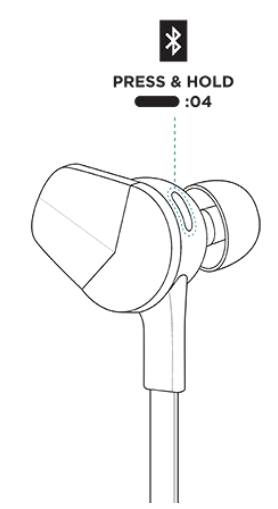
- Press and hold the Power button for 4 seconds when turning on Flyer, and wait until the LED pulses blue. If you release the Power button before Flyer is in pairing mode, Flyer turns on, but won’t pair to your device. If Flyer doesn’t enter pairing mode, turn it off by holding the power button for 1 second, and try this step again.
- Open the Bluetooth menu on your device and select Flyer. You’ll hear an audio notification through the headphones letting you know Flyer and your device are paired.
When you pair Flyer to a new device, it is stored in Flyer's memory. Flyer automatically attempts to connect to this device if it's nearby the headphones when you turn them on. Flyer can store up to 8 Bluetooth-enabled devices, such as phones, tablets, and smartwatches. If Flyer already has 8 devices in its memory and you pair a new device, it forgets the first device you paired.
Of these devices in Flyer's memory, it can connect to 2 of them at the same time. This means you can listen to audio or receive phone calls from either connected device. When you turn on Flyer, the audio notification tells you how many devices are currently connected. The device and Flyer must be nearby each other to connect. Note that you can only listen to audio from 1 device at a time. To switch between 2 connected devices, pause the audio on your first device, and then play the audio on your second device. For more information about connecting Flyer to your devices, as well as troubleshooting tips
NOTE: If Flyer is connected to 2 devices, you can manually switch between them by opening the Bluetooth menu on the device you want to use and selecting Flyer from the list of connected devices.
Connecting to Fitbit Ionic
If you own a Fitbit Ionic watch, pair Flyer to listen to audio such as music, audiobooks, and podcasts. To pair Flyer, press and hold the Power button for 4 seconds when turning on the headphones, and wait until the LED pulses blue, which indicates Flyer is in pairing mode.
To pair Flyer to Ionic:
- On Ionic, open the Settings app.
- Tap Bluetooth.
- Tap + New Device.
- When Ionic finds Flyer, tap Flyer on the screen to pair the headphones to Ionic. When pairing is complete, a green checkmark appears on Ionic’s screen and an audio notification plays through Flyer.
In the future, Flyer automatically attempts to connect to Ionic if it's nearby the headphones when you turn them on. To allow the two devices to connect, turn on Ionic’s screen to wake it up. For more information about connecting Flyer to Ionic, including troubleshooting tips
Changing the language
Flyer provides voice prompts for various notifications such as powering on and off, the current battery level, and how many devices the headphones are currently connected to. Flyer defaults to English; to change the language of these prompts, press the Power button and the Select button at the same time. Press the same 2 buttons again to switch to the next language.
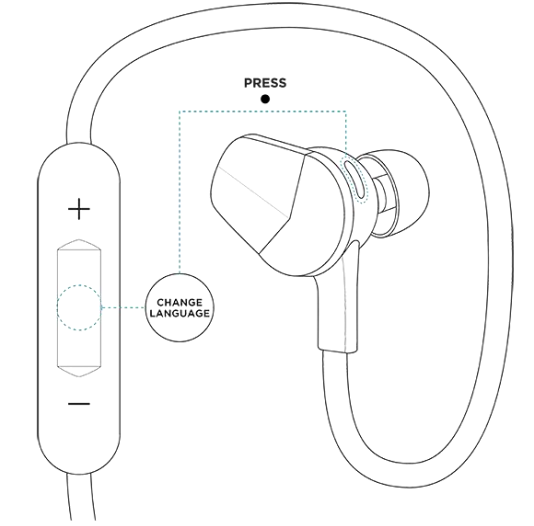
Language selection is only available while your audio is paused and you are not on a phone call. The supported languages, in order, are:
- English
- French
- Italian
- German
- Spanish
- Chinese
- Korean
- Japanese
- No language (tones only)
Customizing your fit
Flyer comes with ear tips, wings, and fins. Attach the ear tips and either wings or fins before inserting the headphones into your ears to ensure a secure, comfortable fit.
Choosing ear tips
For optimal comfort and sound quality, you should select an ear tip that fits snugly in your ear canal. Flyer comes with 3 sizes (small, medium, and large) of ear tips; we recommend trying all 3 options to see which size works best for you. Choose the ear tip that seals the headphones with your ear canal to reduce outside noise and provides the best overall sound quality.
NOTE: You may want to choose a different sized ear tip for your right and left ears.
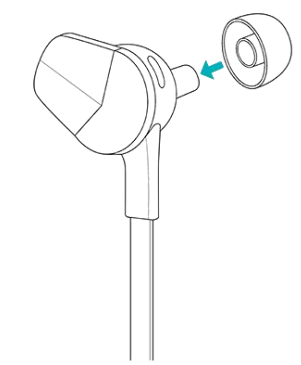
To attach an ear tip, hold the earbud in one hand and the ear tip in the other hand. Press the ear tip fully onto the stem of the earbud until it fits snugly against it. To remove an ear tip, pinch it between your fingers and pull it off.
Choosing wings or fins
Flyer comes with 2 pairs of wings and 2 pairs of fins in small and large sizes. We recommend trying both sets of wings and fins to determine which provides the most comfortable and secure fit. Both wings and fins should tuck into the fold of your ear to keep the headphones in place.
To attach a wing or fin:
- Slide the bottom edge of the wing or fin into the rounded slot of the earbud.
- Press down on the top of the wing or fin to insert it under the metal cap. It snaps into place when inserted correctly.
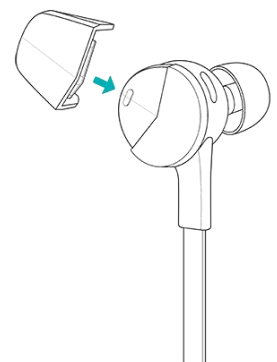
To remove a wing or fin, pinch the base of it between your fingers and pull away from the earbud to slide it out of the rounded slot.
NOTE: If the headphones don’t tuck into your ears correctly, try switching the right and left fins.
Wearing your headphones
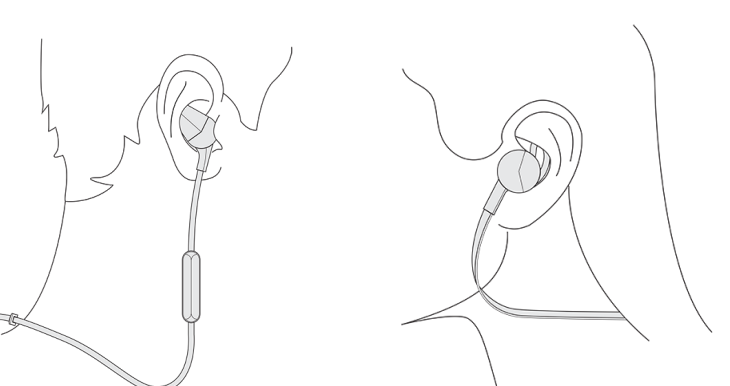
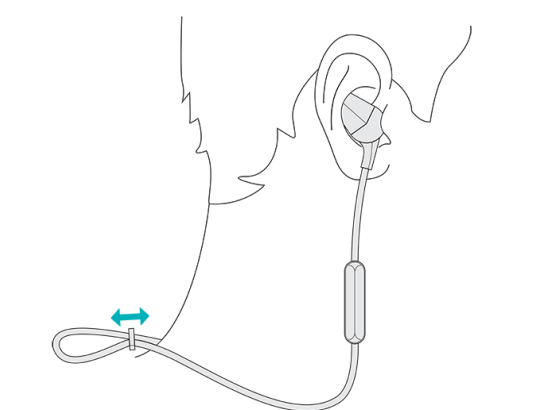
After you select the correct attachments, we recommend wearing Flyer behind your neck with the controls on the right side. Tighten the sliding cable fastener to keep the headphones secure.
Wear and care
Ear tips, wings, and fins
Remove the ear tips and wings or fins from the device and wash them with water or a wet cloth. Use water only. Allow them to dry completely before reattaching them to the headphones.
Fitbit Flyer
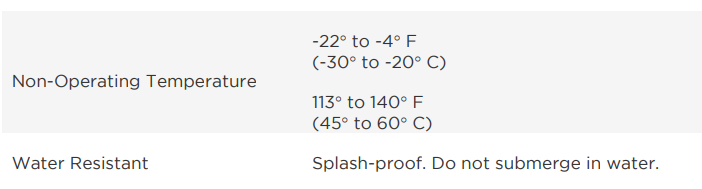
Clean the headphones with a soft, damp cloth. Use water only. The headphones are designed to be rain, sweat, and splash-proof, but shouldn’t be submerged in water.
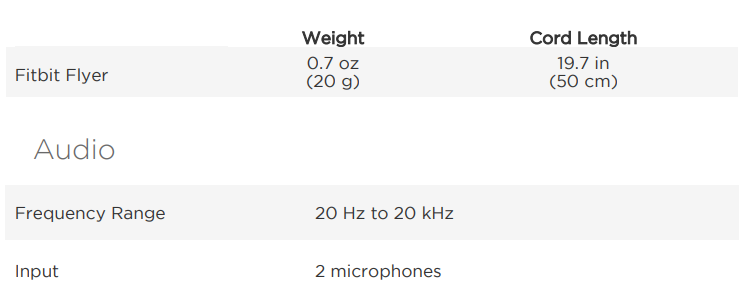
Fitbit Flyer General Info & Specifications
- Materials
Flyer is made of a combination of silicone, polycarbonate, polyurethanes, elastomers, and aluminum. These materials allow the headphones to be flexible, durable, and lightweight. - Wireless technology
Flyer contains a Bluetooth 4.2 transceiver. - Battery
Flyer contains a rechargeable lithium-ion battery. - Size
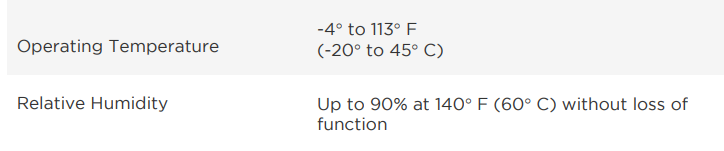
Environmental conditions
Return policy and warranty
Warranty information and the Fitbit Store Return Policy may be found at fitbit
Troubleshooting and Support for Fitbit Flyer Headphones
- Connectivity Issues: If pairing fails, turn off headphones, restart in pairing mode by holding power button until LED flashes, and ensure Fitbit Ionic is out of Bluetooth range to avoid automatic connection.
- Audio Problems: Distorted sound at high volumes can be mitigated by lowering volume or switching sound profiles. Check ear tips for proper fit to optimize sound quality.
- Battery Concerns: If battery drains unusually fast, fully recharge using microUSB cable included. Charge time is about 1-2 hours; quick charge provides 1 hour playback after 15 minutes.
- Call Quality Issues: Ensure microphones are unobstructed and clean. Use Power Boost mode to enhance voice clarity in windy or noisy environments.
- Preventive Measures: Avoid submersion in water; wipe off sweat after workouts to extend device life. Store in a dry place and keep charging cable safe from damage.
Fitbit offers a limited warranty on the Flyer headphones, generally covering manufacturing defects for one year. For further assistance, contact Fitbit Support via their official website or customer service hotline.
Pros & Cons of Fitbit Flyer Headphones
- Pros:
- Excellent sound quality with customizable audio profiles
- Durable, sweatproof design built for fitness activities
- Secure and comfortable fit with multiple ear tip options
- Seamless multi-device Bluetooth connectivity, especially with Fitbit Ionic
- Clear hands-free calling via dual microphone noise suppression
- Cons:
- Battery life (up to 6 hours) is shorter than some competitors
- Pairing process can be confusing when switching devices
- Passive noise isolation less effective than active noise cancelling
- Controls on inline box may be hard to reach or operate during intense workouts
Considering the Fitbit Flyer’s price point and fitness focus, it offers good value for users who prioritize workout compatibility and Fitbit ecosystem integration over extended battery capacity or advanced noise cancellation.
Customer Reviews and Feedback on Fitbit Flyer Headphones
Users frequently praise the Fitbit Flyer headphones for their clear and powerful bass sound and secure fit during exercise sessions. Many appreciate the seamless pairing with Fitbit Ionic smartwatches and the convenience of multi-device connectivity. The dual microphone system also receives positive remarks for call clarity in outdoor environments.
Common complaints include the somewhat shorter battery life compared to other wireless earbuds and occasional difficulty in switching Bluetooth connections between devices. A few users mention that the inline control buttons can be challenging to operate while running or cycling. Nevertheless, the overall star rating averages around 4 out of 5, with most recommending the Fitbit Flyer for fitness users seeking reliable, sweatproof headphones.
Faqs
How do I set up and pair my Fitbit Flyer Headphones with a smartphone for the first time?
What should I do if my Fitbit Flyer Headphones are not connecting or pairing properly?
Can Fitbit Flyer Headphones connect to multiple devices simultaneously, and how does that work?
How can I optimize sound quality using the special features of Fitbit Flyer Headphones?
Are Fitbit Flyer Headphones compatible with fitness trackers like the Fitbit Ionic?
What common issues might cause calls to not route through Fitbit Flyer Headphones and how can I fix this?
What is the best way to maintain and clean Fitbit Flyer Headphones to ensure longevity?
How do I control volume, calls, and voice assistant features using Fitbit Flyer Headphones?
More fitbit manuals
- How to Use: Fitbit Inspire Fitness Tracker User Manual
- Setup: Fitbit Flex 2 Wristband User Guide
- How to Use: Fitbit Charge Wireless Activity Wristband User Manual
- How to Use: Fitbit Flex Wireless Activity + Sleep Wristband User Manual
- How to Use: Fitbit Charge HR Activity Wristband User Manual
- How to Use: Fitbit Charge 5 Fitness Tracker User Manual
Leave a Comment