
How to Use: Fitbit Charge Wireless Activity Wristband User Manual
Content
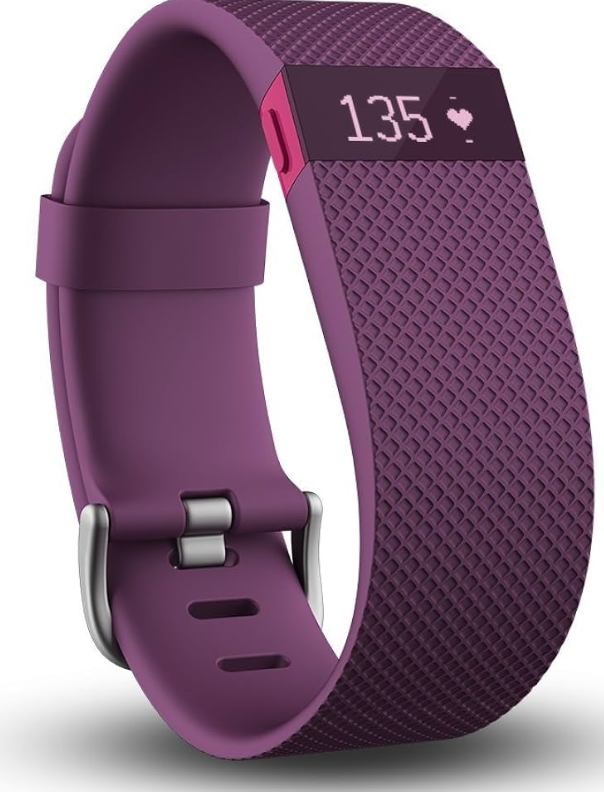
Fitbit Charge Wireless Activity Wristband
Introduction
The Fitbit Charge Wireless Activity Wristband is a versatile fitness tracker designed to help users monitor their health and achieve their fitness goals with ease. Combining a sleek, lightweight design with advanced tracking capabilities, this wristband records steps taken, calories burned, floors climbed, active minutes, and even sleep quality. It's built-in PurePulse optical heart rate monitor ensures continuous heart rate tracking, providing valuable insights for workouts and daily health management.
Ideal for fitness enthusiasts, casual walkers, and anyone seeking to improve their wellness routine, this wristband supports a variety of activities and delivers real-time stats directly on its bright OLED display. The device features wireless syncing to the Fitbit app, allowing users to analyze their progress conveniently on smartphones or computers.
With an estimated price range between $80 and $1,30 depending on the model and retailer, the Fitbit Charge Wireless Activity Wristband is widely available through major online platforms and specialty electronics stores. Its water-resistant design makes it suitable for sweaty workouts and light rain, although swimming is not recommended for all models. Overall, this tracker is an excellent companion for those wanting a reliable, comprehensive tool to keep active and track health metrics throughout the day.
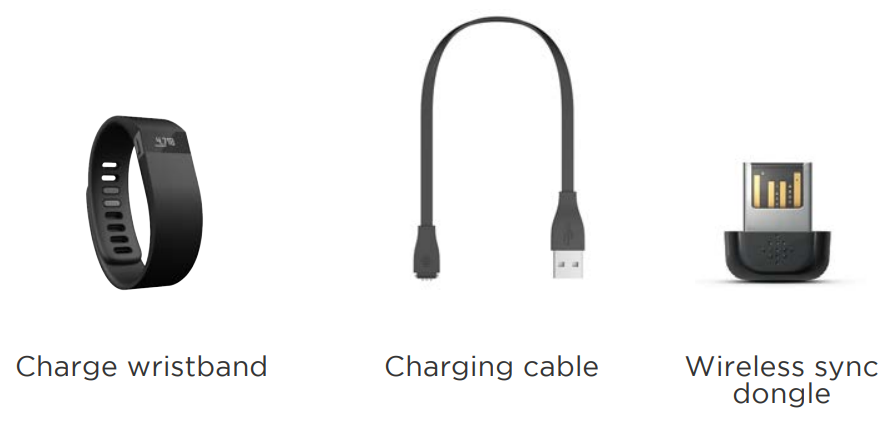
What’s in the box
Setting up your Fitbit Charge
You can set up your Fitbit Charge using your computer or the Fitbit apps for iOS®, Android™, or Windows®.
Setting up your tracker on your mobile device
The Fitbit app is compatible with more than 200 mobile devices that support iOS, Android, and Windows 10 operating systems.
To get started:
- Make sure the Fitbit app is compatible with your mobile device .
- Find the Fitbit app in one of these locations, depending on your device:
- The Apple® App Store® for iOS devices, such as an iPhone® or iPad®.
- The Google Play™ Store for Android devices such as the Samsung® Galaxy® S5 and Motorola Droid Turbo.
- The Microsoft® Windows Store for Windows 10 mobile devices,s such as the Lumia™ phone or Surface™ tablet.
- Install the app. Note that you’ll need an account with the applicable store before you can download even a free app such as Fitbit.
- When the app is installed, open it and tap Join Fitbit to get started. You’ll be guided through the process of creating a Fitbit account and connecting..
(pairing)Your charge to your mobile device. Pairing makes sure the tracker and mobile device can communicate with one another (sync their data). Note that the personal information you’re asked for during setup is used to calculate your basal metabolic rate (BMR), which helps determine your estimated calorie expenditure. This information is private unless you go into your Privacy settings and opt to share age, height, or weight with Fitbit friends.
After setup,, you’re ready to get moving.
- Setting up your tracker on your PC (Windows 10 only
- If you don’t have a mobile device, you can set up and sync your tracker on your Windows 10 PC using the same Fitbit app available for Windows mobile devices.
- To get the app, click the Start button and open the Windows Store (called Store). Search for “Fitbit app.” Note that if you’ve never downloaded an app from the store to your computer, you’ll be prompted to create an account.
- Open the app and follow the instructions to create a Fitbit account and set up your Charge. You can set up and sync wirelessly if your computer has Bluetooth;, otherwise, you’ll need to use the wireless sync dongle that came in the box with your Fitbit Charge.
Setting up your tracker on your PC (Windows 8.1 and below)
- If you don’t have a compatible mobile device, you can set up your tracker with a computer and see your Fitbit stats on fitbit.com. To use this setup method,,d you’ll first install a free software application called Fitbit Connect that lets Charge sync its data with your fitbit.com dashboard.
- To install Fitbit Connect and set up your tracker:
- Go to .fitbit.setup.
- Scroll down and click the option to download.
- When prompted, save the file that appears.
- Double-click the file (FitbitConnect_Win.exe). The Fitbit Connect installer opens.
- Click Continue to move through the installer.
- When prompted, choose Set up a New Fitbit Device.
- Follow the onscreen instructions to create a Fitbit account and connect your Charge.
Note that the personal information you’re asked for during setup is used to calculate your basal metabolic rate (BMR), which helps determine your estimated calorie expenditure. This information is private unless you go into your Privacy settings and opt to share age, height, or weight with Fitbit friends.
Setting up your tracker on your Mac
If you don’t have a compatible mobile device, you can set up your tracker with a computer and see your Fitbit stats on fitbit. To use this setup method,, you’ll first install a free software application called Fitbit Connect that lets Charge sync its data with your Fitbit. Dashboard.
To install Fitbit Connect and set up your tracker:
- Go to .fitbit.setup.
- Scroll down and click the option to download.
- When prompted, save the file that appears.
- Double-click the file (Install Fitbit Connect.pkg). The Fitbit Connect installer opens.
- Click Continue to move through the installer.
- When prompted, choose Set up a New Fitbit Device.
- Follow the onscreen instructions to create a Fitbit account and connect your Charge.
Note that the personal information you’re asked for or during setup is used to calculate your basal metabolic rate (BMR), which helps determine your estimated calorie expenditure. This information is private unless you go into your Privacy settings and opt to share age, height, or weight with Fitbit friends.
Syncing your tracker data to your Fitbit account
Once you've set up and started using Charge, you'll need to make sure it regularly transfers (syncs) its data to Fitbit so you can track your progress, see your exercise history, earn badges, analyze your sleep logs, and more on your Fitbit dashboard. A daily sync is recommended but not required.
The Fitbit apps use Bluetooth Low Energy (BLE) technology to sync with your Fitbit tracker. Each time you open the app,, it will sync if the tracker is nearby, and the app will also sync periodically throughout the day if you have the all-day sync setting enabled. If you’re running the Fitbit app on a Windows 10 PC that doesn’t have Bluetooth, you’ll need to make sure the tracker is connected to the computer.
Fitbit Connect on a Mac® also uses Bluetooth for syncing (if available ;); otherwise, you’ll need to make sure your wireless sync dongle is plugged into the computer. Fitbit Connect on a PC requires that you plug in your wireless sync dongle. You can force Fitbit Connect to sync at any time,, or it will happen automatically every 15 minutes if:
- The tracker is within 15-20 feet of your computer.
- The computer is powered on, awake, and connected to the Internet.
Getting to know your Fitbit Charge
- This section tells you how best to wear, recharge, and care for your tracker.
Wrist placement
- Your Charge is designed to be most accurate when worn on your wrist. Though it will track stats such as steps and floors when placed in a pocket or backpack, it is most accurate on the wrist.
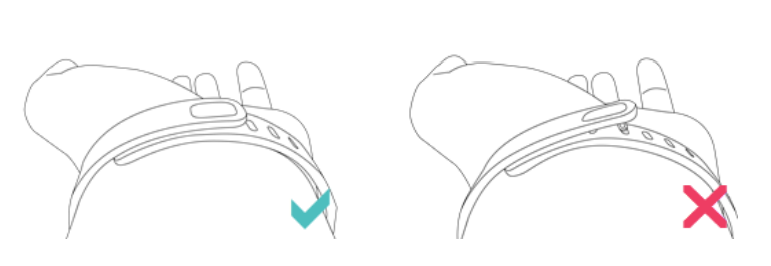
Putting on your Charge
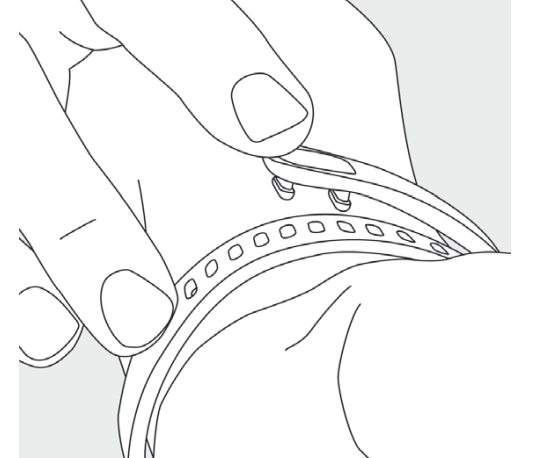
- Put on the wristband so the screen is closest to the outside of your wrist and facing you.
- Align both ends of the wristband so they are directly overlapping each other, er with the clasp over the two holes that best fit your wrist.
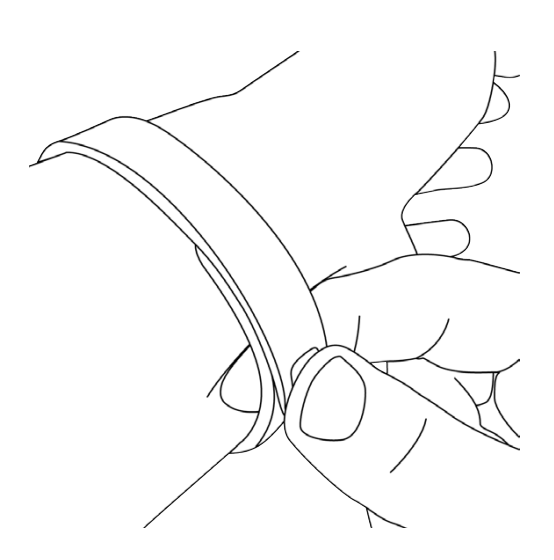
- Squeeze both the clasp and the wristband between your thumb and forefinger until you hear a soft click.
- You’ll know your Charge wristband is securely fastened if both pegs on the clasp are fully inserted.
- NOTE: If you’re having trouble, try securing the wristband off your wrist to get feel forr how it securely clasps and then try again on your wrist.
Wearing on your dominant vs. non-dominant wrist
To get the most accurate reading from your Charge, configure whether you are wearing the wristband on your dominant or non-dominant wrist. Your dominant wrist is the one you use for most day-to-day activities, such as writing or throwing a ball.
To configure this setting:
- Log in to fitbit..
- Click the gear icon in the top-right corner of the dashboard.
- Click Settings.
- Find and edit the Dominant Wrist setting.
- Sync your Charge to send the change to your tracker.
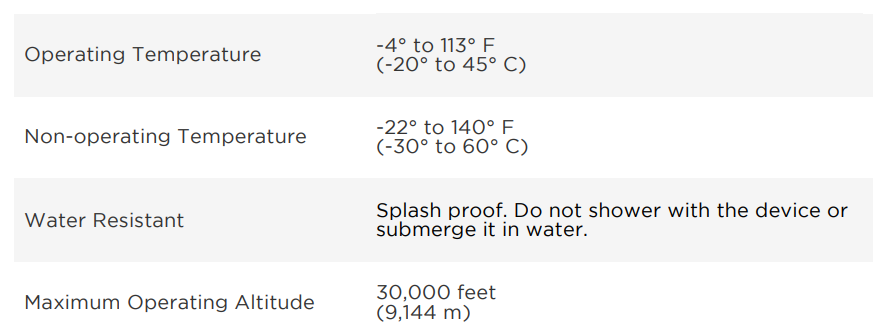
Using your Charge in wet conditions
Your Charge is water resistant, which means it is splash and rainproof and can stand up to even the sweatiest workout. Give your tracker a break while showering or swimming and dry it thoroughly after getting it wet.
Battery life and charging
- Your Charge contains a rechargeable lithium-polymer battery.
- With normal use, your fully charged Charge should last about 7 to 10 days before needing a charge.
Determining your current battery level
- You can check the level of your battery by logging into Fitbit. And clicking the gear icon on the top-right corner of the page or looking at the Fitbit app.
- When you press the button on your Charge to cycle through your stats, the first screen will show a battery if there is approximately one day or less of battery life remaining.
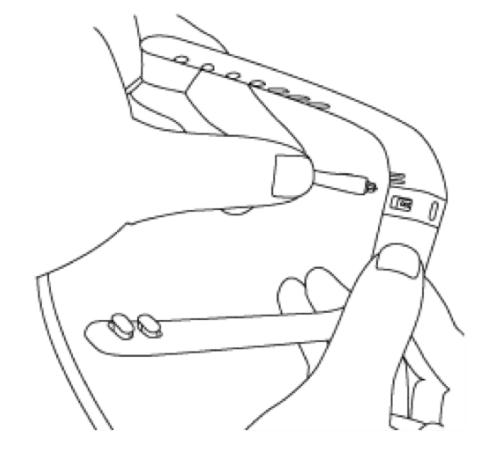
Charging your tracker
To charge your Charge, plug the charging cable into the USB port on your computer and plug the other end into the port on the back of the Charge.
Care
It’s important to clean and dry your Charge regularly
Troubleshooting your Fitbit Charge
If you experience one of the following problems, it may be fixed by restarting your tracker:
- Your tracker isn’t syncing
- Your tracker isn’t responding to movement
- Your tracker isn’t responding even when charging
- Your tracker has a battery charge, , but isn’t lighting up
- Your tracker isn't tracking your steps
- Your tracker isn't responding to button presses
To restart your Charge:
- Plug your charging cable into a USB port on your computer and insert the other end into the port on the back of your Charge. Your Charge will begin charging.
- Press and hold the button for 10 to 12 seconds until you see the Fitbit icon and a version number (e.,g. "V70").
- Let go of the button.
- Unplug your tracker from the charging cable.
Your Charge should now work normally.
Fitbit Charge General Info & Specifications
Sensors and motors
Your Charge uses a MEMS 3-axis accelerometer to measure your motion patterns and determine your steps taken, distance traveled, calories burned, and sleep quality. Charge also contains:
- An altimeter, which measures floors climbed
- A vibration motor, which allows it to vibrate when alarms go off, when you reach a goal, and when you receive call notifications
BatterThe charger contains a rechargeable lithium-polymer battery.
Memory
- Charge holds detailed minute-by-minute information for the most recent 7 days, and 30 days of daily summaries.
- Your recorded data consists of steps taken, distance traveled, calories burned, floors climbed, and sleep tracked.
NOTE: Your Charge starts tracking your goal for the next day at midnight for the time zone selected in your account.
Though your stats reset to zero at midnight , t s does not delete the previous day’s data; that data will be uploaded to your Fitbit dashboard the next time you sync your Charge.
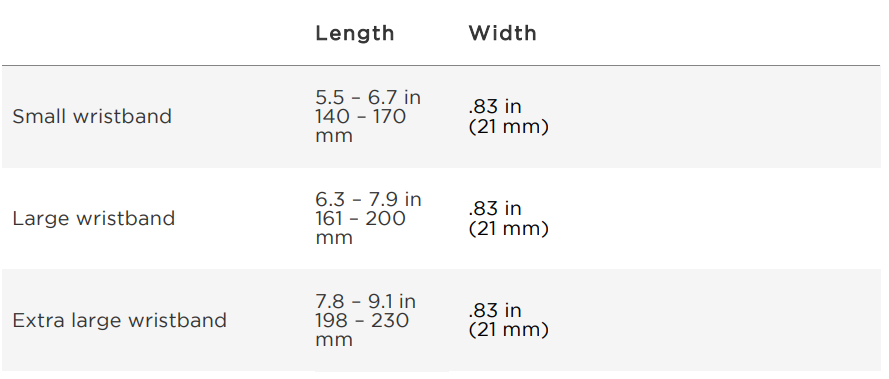
Size
Return policy and warranty
Warranty information and the Fitbit. Store Return Policy can be found online..
Pros & Cons of the Fitbit Charge Wireless Activity Wristband
Pros
- Accurate Heart Rate Monitoring: Uses PurePulse optical sensors for continuous, reliable heart rate data, improving workout efficiency and health tracking.
- Comprehensive Activity Tracking: Monitors steps, distance, calories burned, floors climbed, and active minutes to deliver a full picture of daily fitness.
- Long Battery Life: Offers up to 7-10 days of battery life on a single charge, reducing downtime and frequent recharging.
- Wireless Syncing: Seamlessly syncs data to the Fitbit app for detailed analysis and goal setting without cables.
- Water Resistant Design: Suitable for rain and sweat, allowing users to wear it comfortably throughout daily activities.
Cons
- Limited Waterproofing: Not designed for swimming or extended water exposure, so users must remove it for some water activities.
- Basic Display: The OLED screen, while brightlacks s the color and advanced customization found in higher-end models.
- Fewer Smart Features: Compared to smartwatches, it has limited notifications and app integrations.
- Price Compared to Alternatives: Slightly higher than some entry-level trackers without offering all smartwatch functionalities.
Compared to alternatives like the Fitbit Inspire series or budget trackers from other brands, the Charge offers a solid balance of features and battery life, making it a worthy investment for serious activity tracking without the bulk of a full smartwatch.
Customer Reviews for Fitbit Charge Wireless Activity Wristband
Users consistently praise the Fitbit Charge Wireless Activity Wristband for its accurate heart rate monitoring and long battery life. Many highlight how it motivates daily activity and supports healthier lifestyle habits. One user noted, “The heart rate tracking during workouts is impressively precise, and I love how it keeps me accountable throughout the day.”
Common complaints focus on the device’s limited water resistance and the simplicity of the display, with some users wishing for more advanced smartwatch features. Battery longevity and comfort receive high marks, with most users recommending the tracker as a reliable fitness companion. The wristband generally holds an average rating of 4 out of 5 stars across major retailers, confirming its solid performance for the price point.
Purchase recommendations typically suggest it for users prioritizing fitness tracking and heart rate accuracy over smartwatch capabilities, making it a great choice for active individuals looking for an effective and user-friendly fitness band.
Faqs
How do I set up my fitbit Charge Wireless Activity Wristband for the first time?
What should I do if my fitbit Charge Wireless Activity Wristband is not syncing with my phone?
How can I improve heart rate accuracy on my fitbit Charge Wireless Activity Wristband?
Is the fitbit Charge Wireless Activity Wristband compatible with both iOS and Android devices?
How often should I clean and maintain my fitbit Charge Wireless Activity Wristband?
What are the key features of the fitbit Charge Wireless Activity Wristband that help track fitness progress?
Why is my fitbit Charge Wireless Activity Wristband showing inaccurate step counts and how can I fix this?
How do I change the wrist setting on my fitbit Charge Wireless Activity Wristband for better accuracy?
More fitbit manuals
- How to Use: Fitbit Charge HR Activity Wristband User Manual
- How to Use: Fitbit Inspire Fitness Tracker User Manual
- How to Use: Fitbit Charge 2 Fitness Tracker User Manual
- How to Pair: Fitbit Flyer Headphones Instruction Guide
- Setup & Usage: Fitbit Surge Fitness Super Watch User Manual
- Setup: Fitbit Flex 2 Wristband User Guide
Leave a Comment