
How to Use: Fitbit Flex Wireless Activity + Sleep Wristband User Manual
Content
Fitbit Flex Wireless Activity + Sleep Wristband
Introduction
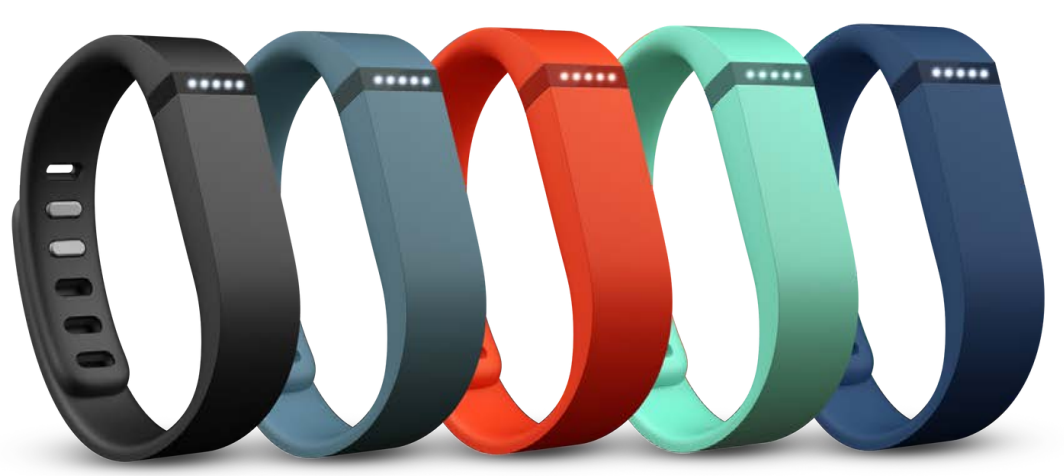
The **Fitbit Flex Wireless Activity + Sleep Wristband** is a versatile and user-friendly fitness tracker designed to monitor your daily activities and sleep patterns. This sleek device is perfect for anyone looking to maintain an active lifestyle and improve their sleep quality. It tracks steps, distance, calories burned, active minutes, and sleep quality, providing valuable insights into your daily habits. The Fitbit Flex is ideal for individuals seeking a simple yet effective way to stay fit and monitor their health. With its silent wake alarm, it gently vibrates to wake you up at your desired time without disturbing others, making it perfect for couples. Priced in the range of $50 to $100, the Fitbit Flex is widely available at major retailers like Best Buy and Walmart. Its compact design and ease of use make it a popular choice among fitness enthusiasts and beginners alike.
Getting Started
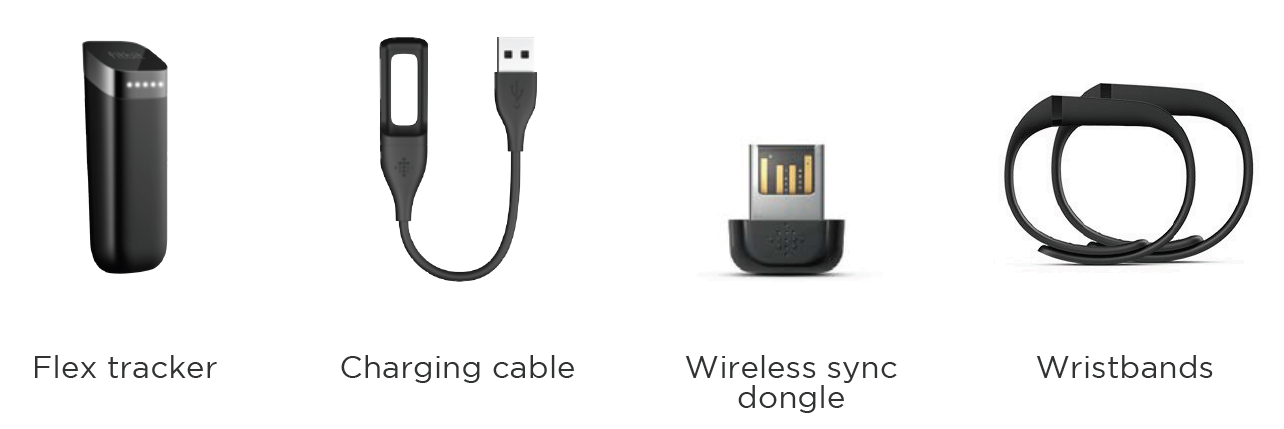
What’s in the box
Putting on your Fitbit Flex
- Your Flex comes with a large and a small wristband. If you want to use the small wristband, complete the next task before continuing. If you want to use the large wristband, skip the next task and go directly to Inserting the tracker into the wristband.
Moving the clasp from the large to the small wristband
- If you choose the small wristband, you’ll need to remove the clasp from the large wristband and put it into the small wristband. To do so:
- Push the clasp out with one thumb from the inside of the wristband.
- Pull out the clasp.
- Insert the clasp into the small wristband by pressing a few times with both thumbs to ensure that the clasp is flat and in line with the wristband.
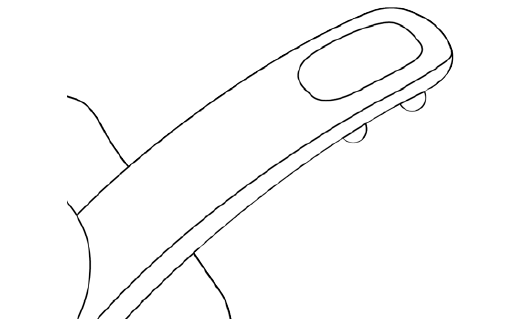
NOTE: If there is a bulge on the inside of the band between the two inside prongs of the clasp, find a small object like a credit card to push it flat.
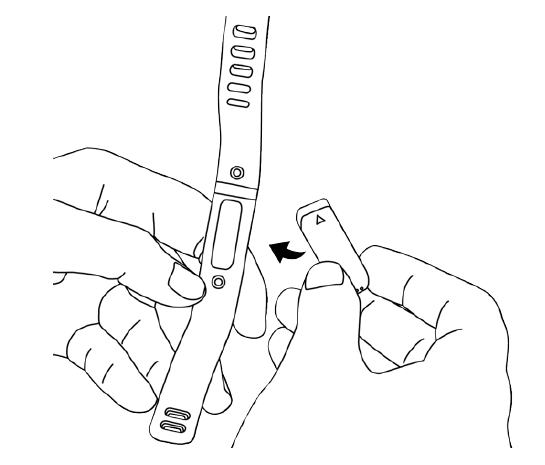
Inserting the tracker into the wristband
Hold the tracker in your hand with the grey arrow facing up. Insert this end into the wristband, with the arrow pointing toward the holes in the wristband.
Securing your wristband
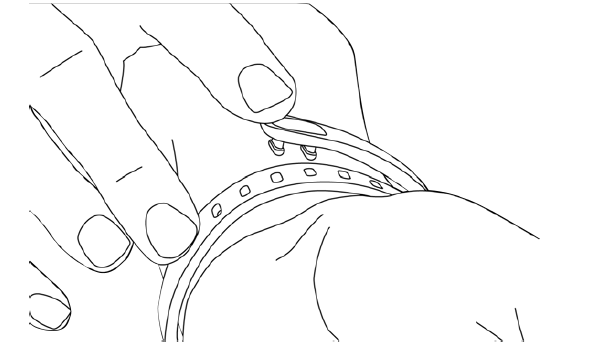
- Put on the wristband so the window of lights is closest to the outside of your wrist and facing you.
- Align both ends of the wristband so they are directly overlapping each other, with the clasp over the two holes that best fit your wrist.
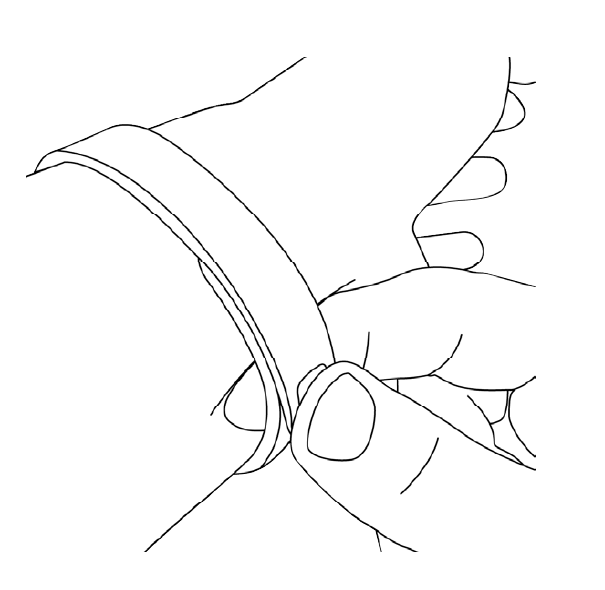
- Squeeze both the clasp and the wristband between your thumb and forefinger until you hear a click.
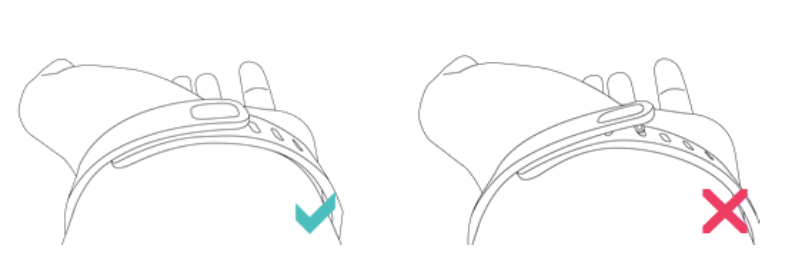
- You’ll know your Flex wristband is securely fastened if both ends of the wristband are fully inserted.
- NOTE: If you’re having trouble, try securing the wristband off your wrist to get a feel for how it securely clasps and then try again on your wrist.
Setting up your Fitbit Flex
You can set up your Flex using a computer or the Fitbit apps for iOS, Android, or Windows.
Setting up your tracker on your mobile device
The Fitbit app is compatible with more than 200 mobile devices that support iOS, Android, and Windows 10 operating systems.
To get started:
- Make sure the Fitbit app is compatible with your mobile device
- Find the Fitbit app in one of these locations, depending on your device:
- The Apple® App Store® for iOS devices, such as an iPhone® or iPad®.
- The Google Play™ Store for Android devices such as the Samsung® Galaxy® S5 and Motorola Droid Turbo.
- The Microsoft® Windows Store for Windows 10 mobile devices,s such as the Lumia™ phone or Surface™ tablet.
- Install the app. Note that you’ll need an account with the applicable store before you can download even a free app such as Fitbit.
- When the app is installed, open it and tap Join Fitbit to get started. You’ll be guided through the process of creating a Fitbit account and connecting (pairing) your Flex to your mobile device. Pairing makes sure the tracker and mobile device can communicate with one another (sync their data).
Note that the personal information you’re asked during setup is used to calculate your basal metabolic rate (BMR), which helps determine your estimated calorie expenditure. This information is private unless you go into your Privacy settings and opt to share age, height, or weight with Fitbit friends.
After setup you’re ready to get moving.
- Setting up your tracker on your Windows 10 PC
- If you don’t have a mobile device, you can set up and sync your tracker on your Windows 10 PC using the same Fitbit app available for Windows mobile devices.
- To get the app, click the Start button and open the Windows Store (called Store). Search for “Fitbit app.” Note that if you’ve never downloaded an app from the store to your computer, you’ll be prompted to create an account.
- Open the app and follow the instructions to create a Fitbit account and set up your Flex. You can set up and sync wirelessly if your computer has Bluetooth®; otherwise, you’ll need to use the wireless sync dongle that came in the box with your Fitbit Flex.
Setting up your tracker on your Mac
If you don’t have a compatible mobile device, you can set up your tracker with a computer and see your Fitbit stats. To use this setup method,d you’ll first install a free software application called Fitbit Connect that lets Flex sync its data with your Fitbit. Dashboard.
To install Fitbit Connect and set up your tracker:
- Scroll down and click the option to download. If the button does not correctly show your type of computer (for example, if it says “Download for Mac”), choose the correct type, then click the button.
- When prompted, save the file that appears.
- Double-click the file (Install Fitbit Connect.pkg). The Fitbit Connect installer opens. 5. Click Continue to move through the installer.
- When prompted, choose Set up a New Fitbit Device.
- Follow the onscreen instructions to create a Fitbit account and connect your Flex.
- Note that the personal information you’re asked during setup is used to calculate your basal metabolic rate (BMR), which helps determine your estimated calorie expenditure. This information is private unless you go into your Privacy settings and opt to share age, height, or weight with Fitbit friends.
Syncing your tracker data to your Fitbit account
Once you've set up and started using Flex, you'll need to make sure it regularly transfers (syncs) its data to Fitbit so you can track your progress, see your exercise history, earn badges, analyze your sleep logs, and more on your Fitbit dashboard. A daily sync is recommended but not required.
The Fitbit apps use Bluetooth Low Energy (BLE) technology to sync with your Fitbit tracker. Each time you open the app, it will sync if the tracker is nearby, and the app will also sync periodically throughout the day if you have the all-day sync setting enabled. If you’re running the Fitbit app on a Windows 10 PC that doesn’t have Bluetooth, you’ll need to make sure the tracker is connected to the computer.
Fitbit Connect on a Mac® also uses Bluetooth for syncing (if available;, otherwise, you’ll need to make sure your wireless sync dongle is plugged into the computer. You can force Fitbit Connect to sync at any time,e or it will happen automatically every 15 minutes if:
- The tracker is within 20 feet of your computer.
- The computer is powered on, awake, and connected to the Internet.
Getting to know your Fitbit Flex
- This section tells you how best to wear, charge, and care for your tracker. Your Flex is designed to be most accurate when worn on your wrist. Wearing on your dominant vs. non-dominant wrist
- To get the most accurate reading from your Flex, make sure your account knows if you’re wearing the wristband on your dominant or non-dominant wrist. Your dominant wrist refers to handedness, that is, the hand that you use for activities such as writing and throwing a ball.
To configure this setting:
- Log in to Fitbit. And click the gear icon in the top-right corner.
- Click Settings > Devices.
- Under Dominant Hand, nd choose the correct setting.
- Sync your tracker to save the change:
- Click the Fitbit Connect icon near the date and time on your computer.
- Click Sync Now.
Using your Flex in wet conditions
- Your Flex is water-resistant, which means it is rain-proof and splash-proof and can stand up to even the sweatiest workout.
- Do not swim with your Flex. We also don't recommend showering with your Flex; though the water won't hurt the device, wearing it 24/7 does not give your skin a chance to breathe. Whenever you get your Flex wet, dry it thoroughly before putting it back on.
Understanding the LED indicator lights
- Your Flex has 5 LED indicator lights. The lights behave differently depending on what the tracker is doing.
Goal tracking
- The indicator lights illuminate as you hit 20% increments towards your goal. Tap your Flex to see your progress. When you reach your goal, Flex will celebrate by buzzing and flashing its lights.
Sleep mode
- When you tap your Flex rapidly for one or two seconds to manually enter sleep mode, it will vibrate and display two slowly dimming lights. During manual sleep mode, two blinking lights alternate. After you tap your Flex rapidly to exit manual sleep mode, it will vibrate and flash all five lights three times and then display a spinning light pattern.
These light patterns only apply to manual sleep mode. If you let Flex detect your sleep automatically, no special light patterns appear.
Charging
While your Flex is charging, an indicator light will pulse to show the battery level every few seconds. Each indicator light represents progress towards the total charge. When the Flex has charged completely, all 5 indicator lights will blink.
Updating
If an update fails to complete, your Flex's LED indicator lights may cycle back and forth repeatedly, from left to right, and your Flex may no longer respond to taps, charging, or resets.
Alarms
When a silent alarm goes off, the Flex vibrates and the center light flashes.
Charging your Flex
With normal use, your Flex should last up to five days before needing a charge. You can check the level of your battery by logging in to Fitbit nd clicking on the gear icon in the top-right corner of the page.
To charge your Flex, plug the charging cable into the USB port on your computer. Remove the tracker from the wristband, and insert it into the charging cable, with the LED indicator lights facing up.
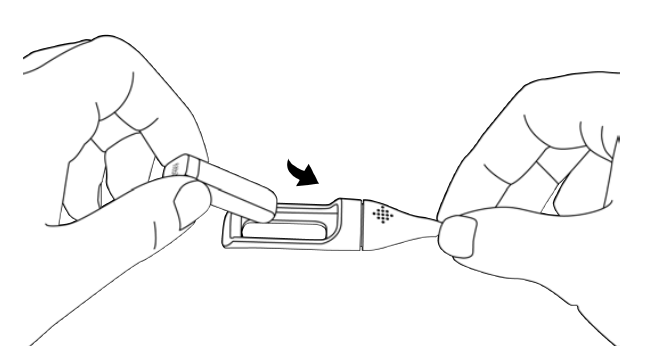
The LED indicator lights will progressively illuminate on your Flex as it charges. Each light represents 20% of the maximum charge. Once all five lights pulse in unison, your Flex will be fully charged. Charging completely can take up to three hours.
Care
It’s important to clean and dry your Flex regularly
Troubleshooting your Fitbit Flex
If you experience one of the following problems, it may be fixed by restarting your tracker:
- Your Flex is not syncing
- Your Flex is not responding to movement
- Your Flex isn’t tracking your steps
- Your Flex isn't responding to taps
To restart your Flex:
- Remove the tracker from the wristband.
- Plug your charging cable into the USB port and insert your tracker into the charging cable.
- Insert a paperclip into the small pinhole on the back of the charger.
- Press on the pinhole for 3-4 seconds. Your Flex will restart, and you can put it back in the wristband.
Fitbit Flex General Info & Specifications
Sensors and motors
Your Flex uses a MEMS 3-axis accelerometer that measures your motion patterns to determine your calories burned, distance traveled, steps taken, and sleep quality. Flex also contains a vibration motor, which allows it to vibrate when alarms go off.
Battery
Your Flex comes equipped with a rechargeable lithium-polymer battery.
Size and weight
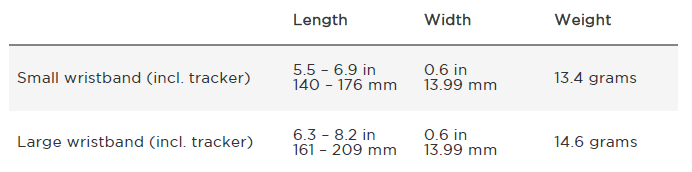
Environmental conditions
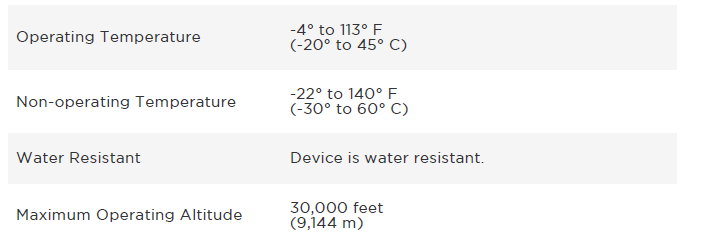
Return policy and warranty.
Warranty information and the Fitbit Return Policy can be found online.
Pros and Cons of the Fitbit Flex Wireless Activity + Sleep Wristband
Pros:
- Compact Design: The Fitbit Flex is slim and lightweight, making it comfortable to wear all day and night.
- Easy Setup and Syncing: Syncs wirelessly with your computer or mobile device using Bluetooth 4.0, providing real-time data access.
- Water Resistance: Suitable for swimming and showering, ensuring continuous tracking even in wet conditions.
- Silent Wake Alarm: Gently wakes you up with vibrations, helping you start your day without disturbing others.
Cons:
- Limited Display Features: Uses LED lights to indicate progress, which some users find less intuitive than a full display.
- No Heart Rate Monitoring: Does not include heart rate tracking, which is a feature available in some other Fitbit models.
- Manual Log Food and Weight: Requires users to manually log food intake and weight, unlike some newer models with automatic tracking capabilities.
The Fitbit Flex offers great value for money, providing essential fitness tracking features at an affordable price. Compared to other basic fitness trackers, it excels in its simplicity and effectiveness.
Customer Reviews and Feedback
The **Fitbit Flex Wireless Activity + Sleep Wristband** has received positive reviews from users, with a rating of 4.2 out of 5 stars based on over 500 reviews. Users praise its comfort, ease of use, and silent alarm feature. Some users have noted that the LED lights can be less intuitive than a full display, but overall, the device is appreciated for its simplicity and effectiveness in tracking daily activities and sleep. Common recommendations include purchasing additional bands for style versatility and ensuring regular syncing to maintain accurate data tracking. Testimonials highlight the device's ability to encourage users to stay active and improve their sleep habits, making it a worthwhile investment for those seeking a basic yet effective fitness tracker.
Faqs
How do I set up the fitbit Flex Wireless Activity + Sleep Wristband for the first time?
What should I do if the fitbit Flex Wireless Activity + Sleep Wristband is not syncing with my phone?
How can I use the sleep tracking feature on the fitbit Flex Wireless Activity + Sleep Wristband effectively?
Is the fitbit Flex Wireless Activity + Sleep Wristband compatible with all smartphones and tablets?
How do I charge and maintain the battery life of my fitbit Flex Wireless Activity + Sleep Wristband?
What can the LED lights on the fitbit Flex Wireless Activity + Sleep Wristband tell me about my activity progress?
How do I properly wear and secure the fitbit Flex Wireless Activity + Sleep Wristband for accurate tracking?
What troubleshooting steps can I take if my fitbit Flex Wireless Activity + Sleep Wristband isn’t charging?
More fitbit manuals
- Setup: Fitbit Flex 2 Wristband User Guide
- How to Use: Fitbit Charge 5 Fitness Tracker User Manual
- How to Pair: Fitbit Flyer Headphones Instruction Guide
- Setup: Fitbit Charge 4 Fitness Tracker Instruction Manual
- How to Use: Fitbit Inspire Fitness Tracker User Manual
- How to Use: Fitbit Charge 3 User Manual
Leave a Comment