
Fujifilm Instax Mini EVO Printer Camera Instruction Manual
Content
Fujifilm Instax Mini EVO Printer Camera
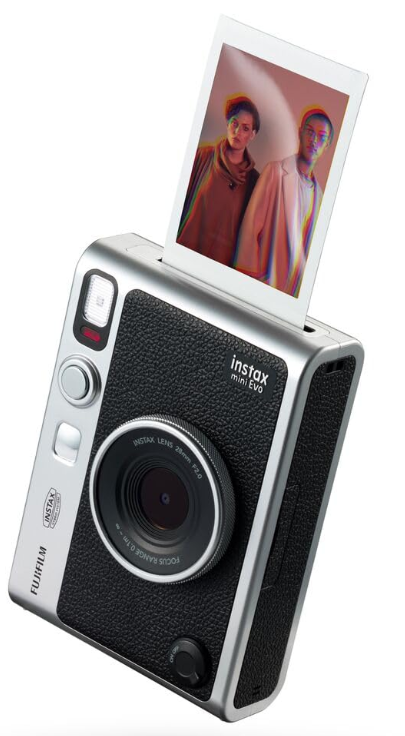
Introduction
The Fujifilm Instax Mini EVO Printer Camera is a revolutionary hybrid device that combines the nostalgia of instant film photography with the convenience of modern digital technology. Launched in 2022, this camera is designed for those who love the tactile experience of physical photos while still enjoying the benefits of digital photography. The estimated price for this device is around $200, making it an accessible option for both casual and enthusiast photographers.
The Instax Mini EVO allows users to capture and print photos instantly, using Fujifilm's iconic Instax Mini film. It features a 3-inch LCD screen, 10 lens effects, and 10 film effects, providing a wide range of creative options. The camera also includes a self-timer, macro mode, and a built-in flash, making it versatile for various shooting scenarios.
Whether you're looking to capture memorable moments at parties, events, or everyday life, the Fujifilm Instax Mini EVO is an excellent choice. Its compact size and user-friendly interface make it easy to carry and use on the go.
Specifications
- Camera Function
- Image sensor: 1/5-inch CMOS with primary color filter
- Number of recorded pixels: 2560 × 1920
- Storage media: Internal memory, microSD/microSDHC memory card (sold separately)
- Storage capacity: Approximately 45 images in internal memory, approximately 850 images per 1 GB in microSD/microSDHC memory card
- Recording method: DCF compliant Exif Ver 2.3
- Focus distance: f = 28 mm (35 mm film equivalent)
- Aperture: F2.0
- Auto focus: Single AF (with AF Illuminator)
- Shooting distance: 3.9 in (10 cm) and beyond
- Shutter speed: 1/4 second to 1/8000 second (automatic switching)
- Shooting sensitivity: ISO100 to 1600 (automatic switching)
- Exposure control: Program AE
- Exposure compensation: 2.0 EV to +2.0 EV (1/3 EV step)
- Metering method: TTL 256 split metering, multi metering
- White balance: Auto, Fine, Shade, Fluorescent 1, Fluorescent 2, Fluorescent 3, Incandescent
- Flash: Auto flash / Forced flash / Suppressed flash Shooting range with flash: Approximately 19.7 in (50 cm) to 59 in (1.5 m)
- Self-timer: 2 settings: Approximately 2 seconds / Approximately 10 seconds
- Image Effect Options: 10 lens effects, 10 film effects, Total of 100 lens/film effect combination options
Print function
- Exposure pixel count: 1600 × 600 dots (800 × 600 dots when printed from the Smartphone App)
- Exposure resolution: 25 dots/mm × 12.5 dots/ mm (635 × 318 dpi, 40 × 80 μm dot pitch) 12.5 dots/mm when printed from Smartphone App (318 dpi, 80 μm dot pitch)
- Exposure gradation: RGB gradation of 256 colors
- Interface: Bluetooth Ver. 4.2 (BLE)
- Printable image format: JPEG images taken with this unit
- Print transmission time: Approximately 16 seconds for transmission and to start printing, plus 7 seconds when printed using INSTAX-Rich Mode immediately after startup.
- Print function: Images in the internal memory or on a memory card (sold separately) can be printed
- Reprint: Reprint is possible for images stored in print history (up to 50)
Supplied Accessories
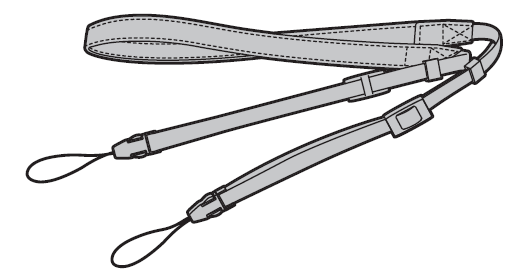
Shoulder strap (1)
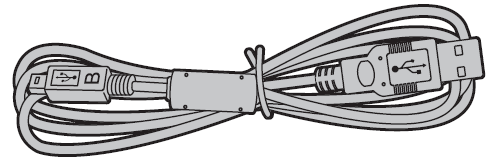
USB cable for charging (1)
- User’s Guide (1)
Main Features
- Provides the best INSTAX image quality to date.
- Provides up to 100 different expressions with 10 lens effect options and 10 film effect options.
- You can take photos while looking at the LCD Screen and save them to either the main unit or a micro SD card (sold separately).
- Select stored photos to print using the INSTAX Print feature.
- Luxurious, classic design.
- Analog-like operability with lens dial, film dial, and print lever.
- Features a selfie mirror for easy selfies.
Free, Downloadable INSTAX MINI EVO App
Download of the Free INSTAX MINI EVO App is required for the following features.
For instructions on how to download the App, please see page 9.
- Direct Print Function
Transfer a photo from your Smartphone to the camera, and print it on INSTAX MINI instant film (sold separately) using the INSTAX Print feature. Before transferring the photo, you can use the INSTAX MINI EVO App to rotate it, enlarge it,, or reduce its size. - Remote Shooting Function
Control the camera with your Smartphone for remote shooting of photos. - Printed Image Transfer Function
Send images that were previously printed with the camera to the INSTAX MINI EVO App and save them as INSTAX frame images on your Smartphone. See “Using the Playback Menu” (p. 23).
Part Names
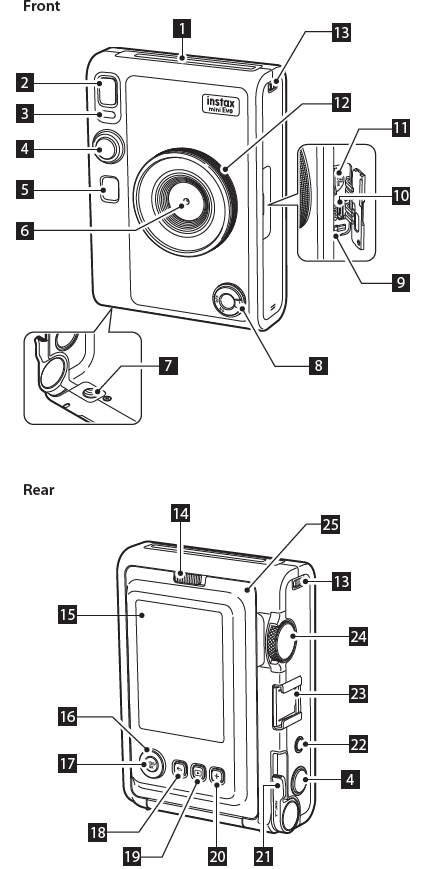
- Film ejection slot
The exposed INSTAX MINI instant film will be ejected from the film ejection slot during printing. - Flash
The flash operates depending on the setting. You can also set the flash to not operate. - Self-timer lamp/Charging lamp
The self-timer lamp/charging lamp blinks when you take a photo with the self-timer. Also, it lights up during charging and turns off when charging is complete. - Shutter button
Press the shutter button halfway to focus on the subject. Then press it fully to operate the camera shutter and take a photo. Press the shutter button in Playback Mode to switch to Shooting Mode. - Selfie mirror
Use the selfie mirror to check your framing before taking a selfie. - Photo Lens
This is the lens used to take photos. Make sure that your fingers do not obstruct the lens during shooting. - Tripod hole
You can attach a tripod (sold separately) by using this hole. - Power switch
Turn the power switch clockwise to turn on the power. Turn it counter-clockwise to turn off the power. - Reset button
If the camera is not operating properly, press this button to force the camera to turn off. After pressing the reset button, turn the power switch off and then on again to start the camera. Do not use the reset button while the camera is operating normally. Doing so may cause the photo data to be erased. - USB port (micro USB Micro-B)
This is the USB port for charging the camera using the provided charging cord. The USB port cannot be used for data transfer. - Micro SD card slot
This is the slot for a micro SD card (sold separately). - Lens dial
Turn the lens dial to switch between 10 different lens effect options. - Strap hook
Pass the cord on the strap through the strap hook to attach the strap. - Film door lock
Slide the film door lock to the right to unlock and open the film door. - LCD Screen
You can preview the image before shooting or printing and view the image after it has been captured, on the LCD Screen. Also, menus are displayed on the LCD Screen based on the user's operation. - Select buttons

Use the select buttons to select menu items and to use the functions displayed on the LCD Screen. - MENU/OK button
During shooting or playback, press the MENU/OK button to display the menu on the LCD Screen. This button is also used to confirm menu items. _button.png) (Back) button
(Back) button
Press the (Back) button to return to the previous screen from the menu currently displayed on the LCD Screen. This button is also used to cancel photo printing._button.png) (Playback) button
(Playback) button
Press the(Playback) button to display the photos you have taken on the LCD Screen. When in Shooting Mode, this button is also used to switch to Playback Mode.- + (Function) button
Press the + (Function) button in Shooting Mode to check the current effects used on the LCD Screen. You can also save and use effects. - Print lever
Print the image displayed on the LCD Screen. - Effect reset button
Return both the lens and film effects to normal. - Accessory shoe
This is the mounting connector for camera accessories. - Film dial
Turn the film dial to switch between 10 different film effect options. - Film door
When loading/unloading an INSTAX MINI instant film pack (sold separately), slide the film door lock to unlock the film door and lift it open. Do not open the film door until you have used up the instant film pack.
Charging the Battery
- Turn off the camera before charging the battery. The battery will not charge if the camera is powered on.
Be careful to properly attach the cable as indicated.
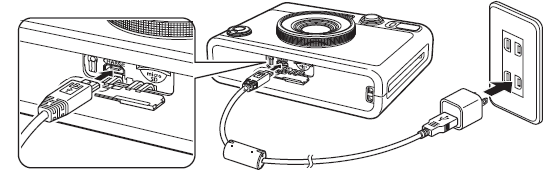
Connect the camera and a USB AC adapter supplied with your Smartphone using the supplied USB cable, then connect the USB AC adapter to an indoor power outlet.
Charging time is approximately 2 to 3 hours.
Charging Status Indication
| While charging | Self-timer lamp lights up. |
| Charging finished | Self-timer lamp goes off. |
| Charging error | Self-timer lamp flashes. |
When charging from a PC:
- Connect the camera directly to the PC using the supplied USB cable, not through a USB hub or keyboard.
- If the PC goes into hibernation (sleep mode) while charging, charging will be stopped. To continue charging, wake up the PC from hibernation (sleep mode) and reconnect the USB cable.
- Depending on your PC’s specifications, settings, or condition, it may not be possible to charge the camera battery from your PC.
- It is not possible to remove the battery.
- The battery has not been fully charged at the factory. Be sure to charge the battery before using the camera.
- Please refer to “Camera Care” for precautions regarding the battery. (p. 27)
Setup Guide
To set up your Fujifilm Instax Mini EVO Printer Camera, start by inserting the batteries and loading the Instax Mini film pack into the camera. Turn on the device and follow the on-screen instructions to set the date and time. If you plan to use a microSD card, insert it into the card slot.
To operate the camera, simply frame your shot using the viewfinder or LCD screen, adjust any settings as needed, and press the shutter button to capture the photo. You can then choose to print the photo immediately or save it to the microSD card for later printing.
Pairing the camera with your smartphone is also possible via the Fujifilm Instax Mini Link app, allowing you to transfer and print photos from your mobile device.
Troubleshooting
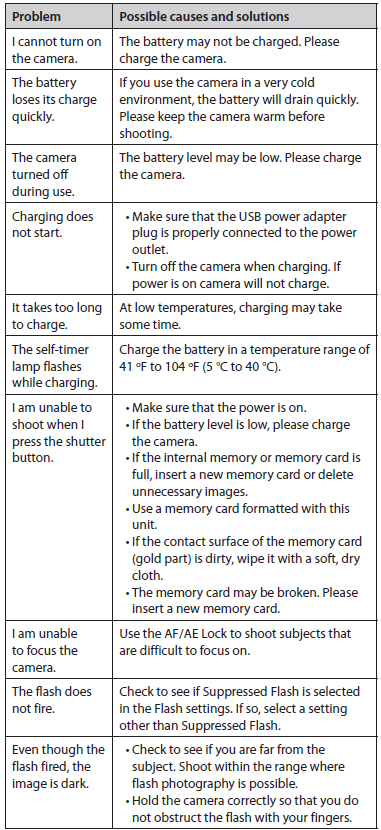
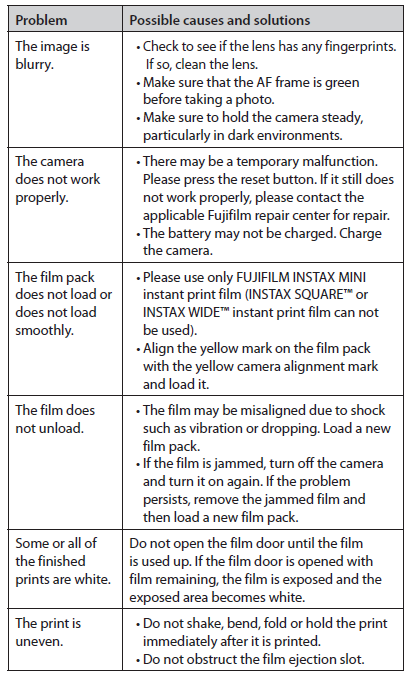
Please check the following items before considering a problem to be a malfunction. If the problem persists even after taking action, please contact the FUJIFILM service center for repair in your country or visit the website below.
FUJIFILM website: https://www.fujifilm.com/
If the following problem occurs
Pros & Cons
Pros:
- Instant Printing: The ability to print photos instantly adds a unique and enjoyable experience to photography.
- Creative Options: With 10 lens effects and 10 film effects, users have a wide range of creative possibilities.
- Compact Design: The camera is lightweight and easy to carry, making it perfect for travel and everyday use.
- Dual Functionality: It serves both as a digital camera and an instant film printer.
- User-Friendly Interface: The intuitive design makes it easy for anyone to use, regardless of their photography experience.
Cons:
- Cost of Film: The ongoing cost of purchasing Instax Mini film can be expensive in the long run.
- Limited Digital Storage: Without a microSD card, the camera's internal storage is limited.
- Battery Life: Frequent use of the printer function can drain batteries quickly.
- No Rechargeable Batteries: The camera uses disposable batteries, which may not be environmentally friendly.
Customer Reviews
Customers have praised the Fujifilm Instax Mini EVO for its ease of use, creative features, and the joy of instant printing. Many have noted that it is a great tool for capturing memories at events and gatherings. However, some users have expressed concerns about the cost of the film and the limited battery life.
A common complaint is the lack of rechargeable battery options, which can add to the overall cost and environmental impact. Despite these drawbacks, the majority of users find the camera to be a fun and versatile addition to their photography toolkit.
Faqs
What is the Fujifilm Instax Mini EVO Printer Camera?
How do I load the Instax Mini film into the camera?
Can I use the Fujifilm Instax Mini EVO with my smartphone?
How many photos can I print with one pack of Instax Mini film?
Is the Fujifilm Instax Mini EVO suitable for outdoor use?
Can I save digital copies of my photos?
How long does the battery last in the Fujifilm Instax Mini EVO?
What are the dimensions and weight of the Fujifilm Instax Mini EVO?
Does the Fujifilm Instax Mini EVO come with any additional accessories?
How do I clean and maintain my Fujifilm Instax Mini EVO?
Is there a warranty for the Fujifilm Instax Mini EVO?
More fujifilm manuals
Leave a Comment