
Garmin Drivecam 76 All-In-One Gps Car Navigator User Manual
Content
Garmin DriveCam 76 All-In-One GPS Car Navigator: Complete Product Manual and Guide
Introduction
The Garmin DriveCam 76 All-In-One Gps Car Navigator combines turn-by-turn navigation and dash cam recording in a single windshield-mounted device, making it a practical choice for drivers who want both guidance and incident documentation. With a large 6.95-inch touchscreen, built-in camera, voice control, and driver alerts, it is designed to simplify everyday commuting, long road trips, and fleet-style travel. The integrated dash cam records in 1080p and can automatically save video when an incident is detected, helping users capture important driving moments without needing a separate camera.
This model is especially useful for commuters, rideshare drivers, families, and road-trippers who want a dependable GPS navigator with added safety features. It supports Bluetooth, Wi-Fi, Garmin Drive app connectivity, and traffic-aware routing, giving users access to live information and convenient updates. The display is bright and easy to read, while the interface is designed for quick destination entry and voice-assisted operation. The garmin Drivecam 76 All-In-One Gps Car Navigator is typically available in the mid-range premium category, with an estimated price range of about $330 to $400 depending on the retailer and included bundle. Availability is generally strong through major electronics stores, online marketplaces, and Garmin-authorized sellers.
Specifications for Garmin DriveCam 76 All-In-One GPS Car Navigator
- Display: 6.95-inch touchscreen, 1024 x 600 resolution, IPS color TFT
- Dimensions: approximately 6.97 x 4.17 x 1.38 inches
- Weight: about 9.56 oz. (271 g)
- Navigation: GPS and Galileo satellite support
- Camera: built-in dash cam with 1080p recording
- Field of view: 140 degrees diagonal
- Frame rate: up to 30 FPS
- Storage: 16 GB pre-installed microSD card, additional microSD support
- Battery: rechargeable lithium-ion, up to 30 minutes of use
- Connectivity: Bluetooth, Wi-Fi, and smartphone app support
- Maps: preloaded street maps with free lifetime map updates
- Voice features: voice control and text-to-speech guidance
- Typical benchmark: fast route rendering on a large screen with clear lane guidance and driver alerts
- Comparison: more capable than standard GPS-only navigators because it adds an integrated dash cam, but less versatile than smartphone apps with unlimited cloud storage
Compared with similar car GPS units, the garmin Drivecam 76 All-In-One Gps Car Navigator stands out for combining dedicated navigation hardware with a high-resolution dash camera, which reduces windshield clutter and simplifies setup.
Detailed Description of the Garmin DriveCam 76
The Garmin DriveCam 76 is built as a two-in-one driving assistant: one part GPS navigator, one part dash camera. The navigation side provides maps, route directions, speed alerts, and live traffic features, while the camera side continuously records the road ahead and can save footage automatically after a collision or sudden impact. This makes it useful for daily commuting, accident documentation, and trip logging.
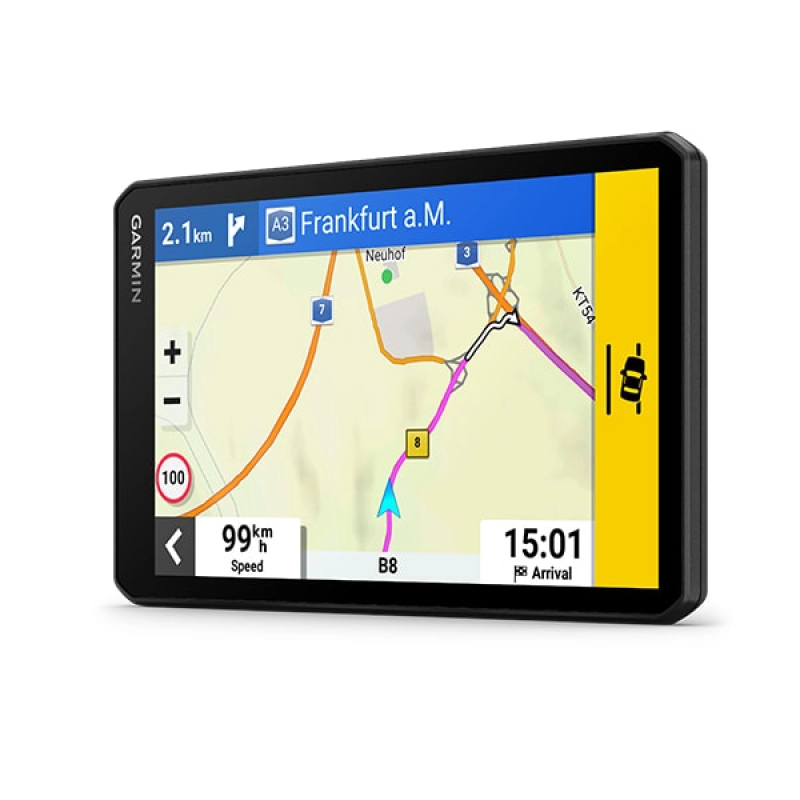
The device uses a wide 6.95-inch display that is easy to read in landscape orientation, and the capacitive touchscreen responds smoothly to taps and swipes. The construction feels solid for in-car use, with a black housing designed to mount securely on the windshield. The included suction-cup mount and power cable make installation straightforward, and the integrated design helps keep cables and accessories to a minimum. In real-world use, drivers benefit from spoken navigation prompts, speed limit data, road hazard alerts, and dash cam footage stored locally on microSD media.
Setup Guide: How to Install and Configure Garmin DriveCam 76
- Attach the suction-cup mount to the windshield in a location that does not block your view of the road.
- Connect the power cable to the vehicle charger and plug the USB-C end into the navigator.
- Insert the included memory card if it is not already installed, then power on the device.
- Follow the on-screen setup prompts to choose language, region, time format, and map preferences.
- Pair the device with your smartphone through Bluetooth and install the Garmin Drive app for traffic, updates, and notifications.
- Adjust dash cam settings such as alignment, incident detection, and recording preferences.
- Run map and software updates over Wi-Fi before first use.
For safety, always configure the device while parked. Avoid placing the navigator where it could interfere with airbags or visibility. If the camera view looks misaligned, use the dash cam alignment settings to correct vehicle height and camera position. If pairing fails, restart Bluetooth on the phone and reboot the navigator.
Troubleshooting Common Issues
- No power: check the vehicle charger, cable connection, and fuse in the power adapter.
- Weak GPS signal: move to an open area, restart the device, and confirm the windshield mount is not blocked by metal tinting.
- Camera not recording: verify that the microSD card is inserted correctly and has available space.
- Touchscreen lag: clean the screen and restart the unit to clear temporary software issues.
- Bluetooth pairing failure: remove the device from phone Bluetooth settings and pair again from scratch.
- Incorrect dash cam angle: re-run the camera alignment tool from the settings menu.
Preventive care helps avoid most problems. Keep the firmware updated, format the memory card when recommended, and avoid prolonged heat exposure. The built-in lithium-ion battery should not be left in direct sunlight for long periods. Warranty coverage is typically one year, with support available through Garmin customer service and authorized retailers.
Pros and Cons of Garmin DriveCam 76 All-In-One GPS Car Navigator
Pros
- Combines GPS navigation and dash cam recording in one device
- Large 6.95-inch display improves visibility and readability
- 1080p camera with 140-degree field of view captures useful road detail
- Voice control and Bluetooth reduce driver distraction
- Lifetime map updates improve long-term value
- Ideal for drivers who want a dedicated navigation tool instead of relying only on a phone
Cons
- Higher price than basic GPS navigators
- Battery life is limited to short unplugged use
- Dash cam storage depends on microSD management
- Bulkier than a phone-based navigation setup
- Not the best choice if you already use a separate premium dash cam and smartphone navigation app
For value for money, the garmin Drivecam 76 All-In-One Gps Car Navigator makes sense if you want one reliable dashboard device instead of buying and mounting separate products. Compared with lower-cost alternatives, it offers better integration and convenience.
Customer Reviews and User Feedback
Average customer sentiment is generally strong, with many owners rating the device around 4.3 out of 5 stars. Users frequently praise the clear display, accurate route guidance, and convenience of having a built-in dash cam. One common positive comment is that the device feels like a true all-in-one driving companion rather than a cluttered add-on setup.
Common complaints include the short battery life, occasional dependence on memory card maintenance, and the learning curve for first-time Garmin users. A typical testimonial is: “The navigation is excellent and the camera gives me peace of mind on every drive.” Another frequent remark is: “It is expensive, but the combined features saved me from buying two separate devices.” The product is a strong recommendation for drivers who value safety, convenience, and a dedicated GPS experience.
Faqs
How do I set up garmin Drivecam 76 All-In-One Gps Car Navigator for the first time?
Why is my garmin Drivecam 76 All-In-One Gps Car Navigator not getting a GPS signal?
How do I record, save, and review dash cam footage on garmin Drivecam 76 All-In-One Gps Car Navigator?
What should I do if garmin Drivecam 76 All-In-One Gps Car Navigator is not recording video properly?
Can garmin Drivecam 76 All-In-One Gps Car Navigator work with my smartphone and Garmin Drive app?
How do I reduce false alerts on garmin Drivecam 76 All-In-One Gps Car Navigator?
What accessories and requirements does garmin Drivecam 76 All-In-One Gps Car Navigator need for daily use?
How should I clean and maintain garmin Drivecam 76 All-In-One Gps Car Navigator?
More garmin manuals
Leave a Comment