
Setup: Garmin Forerunner 55 Smartwatch User Manual
Content
Garmin Forerunner 55 Smartwatch
Introduction
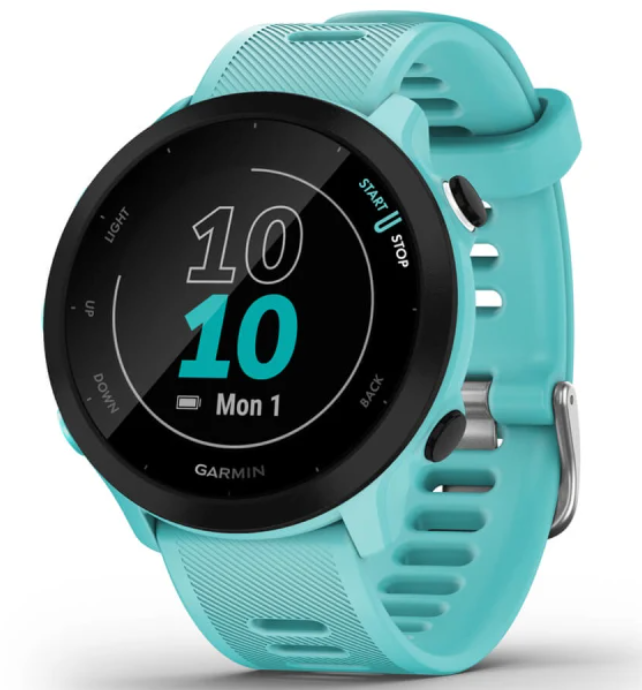
The Garmin Forerunner 55 Smartwatch is a versatile and user-friendly GPS running watch designed for runners of all skill levels and fitness enthusiasts. It combines essential running features with smartwatch capabilities, providing accurate tracking for pace, distance, heart rate, and more. Garmin has integrated advanced running tools such as PacePro, Track Run mode, and daily suggested workouts, typically available only in higher-end models, making this an outstanding option for beginners and intermediate athletes seeking detailed insights without overwhelming complexity.
The watch features built-in GPS, a wrist-based heart rate monitor, and swim tracking with water resistance up to 50 meters (5 ATM), enabling multi-sport use. Its lightweight design (42mm case size, 37 grams) and customizable silicone bands ensure comfort during extended wear. Battery life is impressive, lasting up to 14 days in smartwatch mode and up to 20 hours in GPS mode, supporting long training sessions and daily use without frequent charging.
Targeted primarily at runners and fitness newcomers, the Garmin Forerunner 55 suits anyone looking for reliable performance metrics, easy navigation, and motivational features like predicted race times and recovery advice. It is also ideal for those transitioning from basic fitness trackers to dedicated GPS watches. The approximate price range is around $200, making it an affordable, feature-rich alternative to premium models that cost significantly more.
Specifications
- Battery type:
Rechargeable, built-in lithium-ion battery - Battery life: Up to 14 days for smartwatch mode with smart notifications and wrist heart rate, Up to 20 hr. in GPS mode
- Operating temperature range: From -20º to 60ºC (from -4º to 140ºF)
- Charging temperature range: From 0º to 45ºC (from 32º to 113ºF)
- Wireless frequency: 2.4 GHz @ 1 dBm maximum
- Water rating: Swim, 5 ATM1
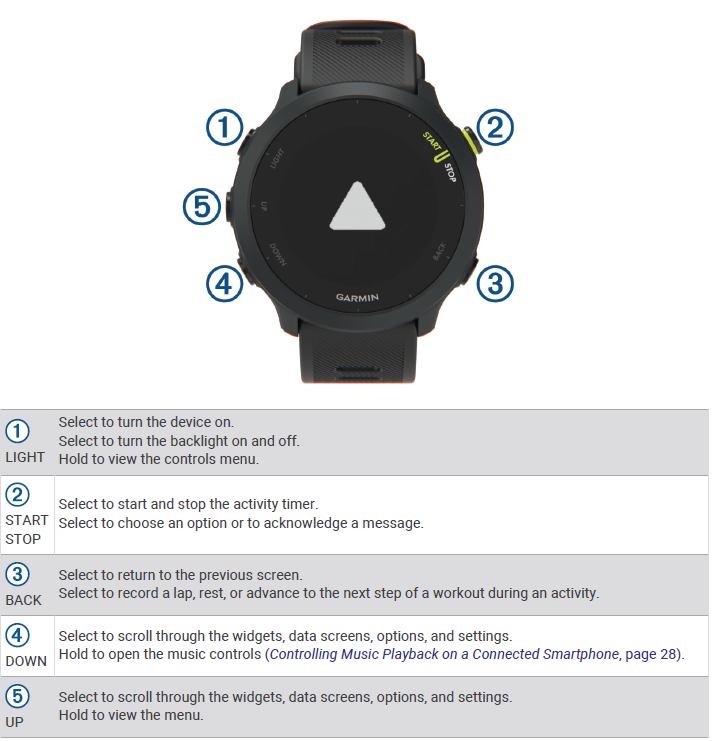
Device Overview
Status Icons
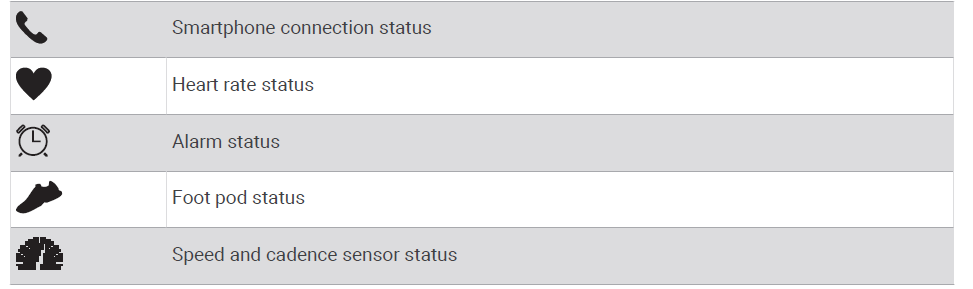
The status icons appear when you start an activity. For outdoor activities, the status bar turns green when GPS is ready. A flashing icon means the device is searching for a signal. A solid icon means the signal was found or the sensor is connected.
Connect IQ Features
You can add Connect IQ features to your watch from Garmin and other providers using the Connect IQ app. You can customize your device with watch faces, data fields, widgets, and device apps.
- Watch Faces: Allow you to customize the appearance of the clock.
- Data Fields: Allow you to download new data fields that present sensor, activity, and history data in new ways.
You can add Connect IQ data fields to built-in features and pages. - Widgets: Provide information at a glance, including sensor data and notifications.
- Device Apps: Add interactive features to your watch, such as new outdoor and fitness activity types.
Downloading Connect IQ Features
Before you can download features from the Connect IQ app, you must pair your Forerunner device with your smartphone (Pairing Your Smartphone with Your Device, page 25).
- From the app store on your smartphone, install and open the Connect IQ app.
- If necessary, select your device.
- Select a Connect IQ feature.
- Follow the on-screen instructions.
Downloading Connect IQ Features Using Your Computer
- Connect the device to your computer using a USB cable.
- Go to apps.garmin.com, and sign in.
- Select a Connect IQ feature, and download it.
- Follow the on-screen instructions.
Device Care
- Avoid extreme shock and harsh treatment, because it can degrade the life of the product.
- Avoid pressing the keys underwater.
- Do not use a sharp object to clean the device.
- Avoid chemical cleaners, solvents, and insect repellents that can damage plastic components and finishes.
- Thoroughly rinse the device with fresh water after exposure to chlorine, salt water, sunscreen, cosmetics, alcohol, or other harsh chemicals. Prolonged exposure to these substances can damage the case.
- Do not store the device where prolonged exposure to extreme temperatures can occur, because it can cause permanent damage.
Troubleshooting
Product Updates
On your computer, install Garmin Express (www.garmin.com/express). On your smartphone, install the Garmin Connect app.
This provides easy access to these services for Garmin devices:
- Software updates
- Data uploads to Garmin Connect
- Product registration
Updating the Software Using the Garmin Connect App
Before you can update your device software using the Garmin Connect app, you must have a Garmin Connect account, and you must pair the device with a compatible smartphone (Pairing Your Smartphone with Your Device, page 25).
Sync your device with the Garmin Connect app (Manually Syncing Data with Garmin Connect, page 26).
When new software is available, the Garmin Connect app automatically sends the update to your device. The update is applied when you are not actively using the device. When the update is complete, your device restarts.
Setting Up Garmin Express
- Connect the device to your computer using a USB cable.
- Go to www.garmin.com/express.
- Follow the on-screen instructions.
Updating the Software Using Garmin Express
Before you can update your device software, you must have a Garmin Connect account, and you must download the Garmin Express application.
- Connect the device to your computer using the USB cable.
When new software is available, Garmin Express sends it to your device. - Follow the on-screen instructions.
- Do not disconnect your device from the computer during the update process.
Getting More Information
- Go to support.garmin.com for additional manuals, articles, and software updates.
- Go to buy.garmin.com, or contact your Garmin dealer for information about optional accessories and replacement parts.
Activity Tracking
For more information about activity tracking accuracy, go to garmin.com/ataccuracy.
My daily step count does not appear
The daily step count is reset every night at midnight.
- If dashes appear instead of your step count, allow the device to acquire satellite signals and set the time automatically.
My step count does not seem accurate
If your step count does not seem accurate, you can try these tips.
- Wear the device on your non-dominant wrist.
- Carry the device in your pocket when pushing a stroller or a lawnmower.
- Carry the device in your pocket when actively using your hands or arms only.
NOTE: The device may interpret some repetitive motions, such as washing dishes, folding laundry, or clapping your hands, as steps.
Maximizing Battery Life
You can take several steps to extend the battery's life.
- Reduce the backlight timeout (Changing the Backlight Settings, page 44).
- Turn off Bluetooth wireless technology when you are not using connected features (Turning Off the Bluetooth Smartphone Connection, page 28).
- Turn off activity tracking (Activity Tracking Settings, page 17).
- Use a watch face that is not updated every second.
For example, use a watch face without a second hand (Customizing the Watch Face, page 42). - Limit the smartphone notifications the device displays (Managing Notifications, page 28).
- Stop broadcasting heart rate data to paired Garmin devices (Broadcasting Heart Rate Data to Garmin Devices, page 19).
- Turn off wrist-based heart rate monitoring (Turning Off the Wrist-based Heart Rate Monitor, page 20). NOTE: Wrist-based heart rate monitoring is used to calculate vigorous intensity minutes and calories burned.
My device is in the wrong language
You can change the device language selection if you have accidentally selected the wrong language on the device.
- Hold UP.
- Scroll down to the last item in the list, and press START.
- Press START.
- Select your language.
- Press START.
Is my smartphone compatible with my device?
The Forerunner device is compatible with smartphones using Bluetooth technology.
Can I use the cardio activity outdoors?
You can use the cardio activity and turn on the GPS for outdoor use.
- Select START > Cardio > Options > Cardio Settings > GPS.
- Select an option.
- Go outside, and wait while the device locates satellites.
- Select START to start the activity timer.
GPS stays on for the selected activity until you turn it off. Go to www.garmin.com/ble for compatibility information.
Pros & Cons of the Garmin Forerunner 55 Smartwatch
- Pros:
- Comprehensive running features,, including PacePro pacing, track mode, and finish time estimation, add value for serious runners.
- Long battery life—up to 14 days in smartwatch mode and 20 hours with GPS active—supports extended usage without recharge.
- Lightweight and comfortable design with a sunlight-visible, transflective memory-in-pixel (MIP) display for easy readability outdoors.
- Water-resistant to 50 meters, allowing pool swimming tracking and durability in wet conditions.
- Affordable price provides excellent value compared to higher-end Garmin models and competitor GPS watches.
- Cons:
- Display resolution is relatively low and lacks touchscreen functionality, which may feel outdated compared to newer smartwatches.
- Limited advanced training metrics, such as training load or readiness, which are available on more premium Garmin models.
- Does not support multisport auto-switching or onboard music storage, limiting use for triathletes or users wanting music on the wrist.
- Basic navigation features; lacks detailed cycling maps, a barometric altimeter, and advanced outdoor navigation tools.
Customer Reviews of the Garmin Forerunner 55 Smartwatch
Users consistently praise the Garmin Forerunner 55 Smartwatch for its ease of use, accuracy in GPS tracking, and reliability during runs. Many highlight the watch’s intuitive setup and simple interface, which is ideal for beginners. Positive feedback emphasizes the battery life and durable design, with several users noting the helpfulness of features like daily suggested workouts and recovery time recommendations.
Common complaints include the basic screen quality, limited smartwatch features compared to more expensive options, and the absence of touchscreen functionality. Some users desire more in-depth training, analytical,s and music capabilities. Despite these points, the majority recommend the watch for its price point and value, especially for those new to GPS running watches. Star ratings typically range from 4 to 4.5 out of 5, reflecting a strong overall satisfaction among buyers.
Faqs
How do I set up my garmin Forerunner 55 Smartwatch for the first time?
What should I do if my garmin Forerunner 55 Smartwatch is not syncing with the Garmin Connect app?
Can the garmin Forerunner 55 Smartwatch track indoor activities without GPS?
Is the garmin Forerunner 55 Smartwatch compatible with both Android and iOS devices?
How can I optimize battery life on my garmin Forerunner 55 Smartwatch during long workouts?
What are the main safety and tracking features available on the garmin Forerunner 55 Smartwatch?
How do I troubleshoot GPS signal issues on my garmin Forerunner 55 Smartwatch?
What maintenance tips should I follow to keep my garmin Forerunner 55 Smartwatch in good condition?
More garmin manuals
- How to Use: Garmin Inreach Mini 2 Satellite Communicator User Manual
- Pairing: Garmin Venu SQ Fitness & Sport Smartwatch User Manual
- Usage & Pairing: Garmin Epix Gen 2 Standard Pro Series Smartwatch User Manual
- Installation: Garmin Wireless BC 40 Backup Camera User Manual
- Setup: Garmin Dēzl 760 GPS Navigator User Manual
- Garmin Instinct Rugged Outdoor Watch Instruction Manual
Leave a Comment