
Garmin TANDEM Dash Camera User Manual
Content
Garmin Dash Cam Tandem Product Manual and Buyer Guide
Introduction
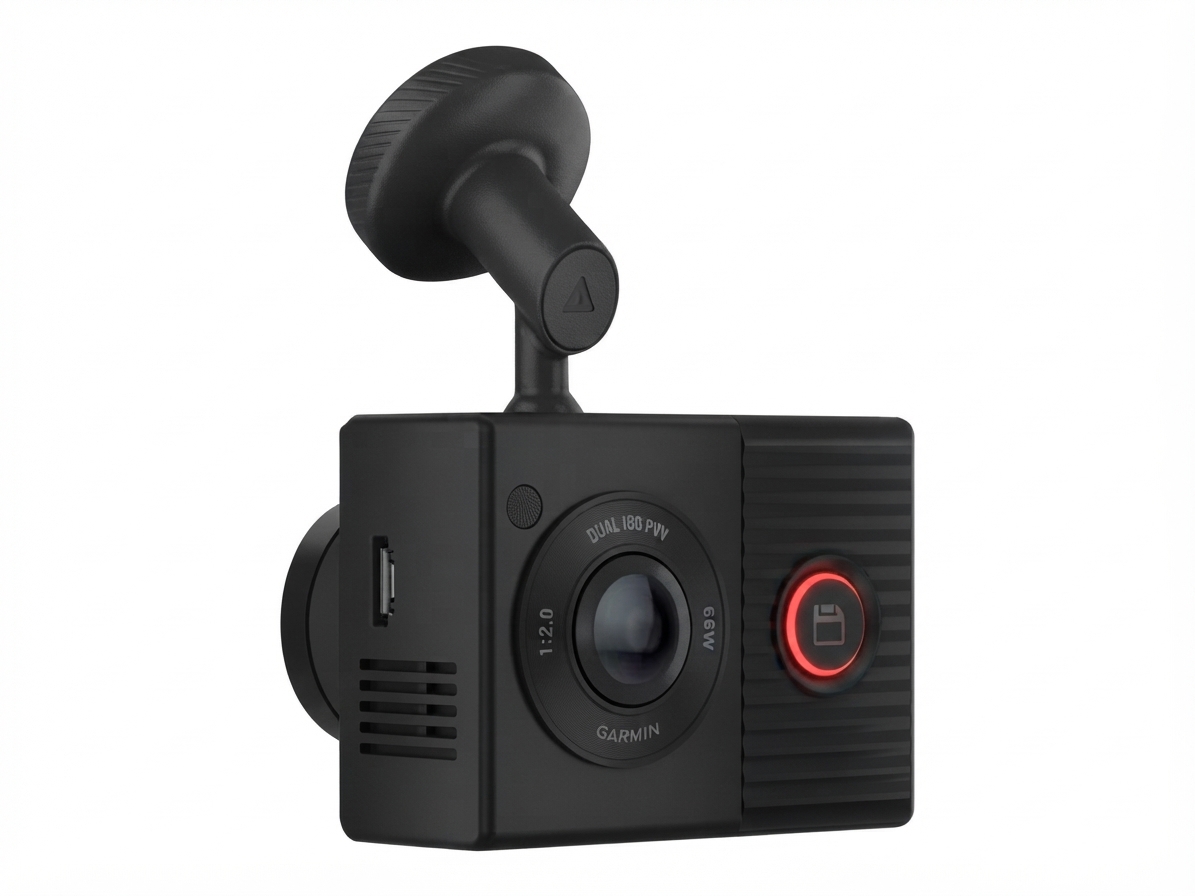
The Garmin Dash Cam Tandem is a dual-lens dash camera built for drivers who want complete cabin and road coverage in a compact, easy-to-install device. It uses a front-facing camera for the road and an interior-facing camera for the cabin, making it especially useful for rideshare drivers, fleet operators, parents, and commuters who want extra visibility inside and outside the vehicle. The standout feature is Garmin’s NightGlo-style interior recording, which helps capture activity in low light when many standard dash cams struggle.
This model is designed for users who value reliable event recording, wide-angle coverage, and simple operation through Garmin’s mobile app and voice commands. The front camera records in 1440p, while the interior camera records in 720p, creating a practical balance between clarity and storage efficiency. Features such as loop recording, parking surveillance support, GPS tracking, and wireless connectivity make it a versatile option for everyday driving and professional use. The Garmin Dash Cam Tandem is also compact, so it blends neatly behind the windshield without blocking visibility.
As of current market listings, the Garmin Dash Cam Tandem typically falls in the approximate $230 to $300 range, depending on retailer, promotions, and included accessories. It is widely available through major online electronics and automotive retailers, as well as Garmin’s own sales channels. For shoppers comparing front-and-inside recording cameras, the Garmin Dash Cam Tandem remains one of the most recognizable premium options in this category.
Specifications and Key Features of Garmin Dash Cam Tandem
- Camera system: Dual-lens dash cam with front-facing and interior-facing recording.
- Front video resolution: 1440p at 30 fps for clearer license plates and road detail.
- Interior video resolution: 720p at 30 fps for passenger and cabin monitoring.
- Field of view: 180 degrees on both lenses for broad coverage.
- Night recording: Interior lens uses night-optimized imaging for low-light cabin visibility.
- Connectivity: Wi-Fi support for app-based setup, video review, and sharing.
- Controls: Voice control support for hands-free operation.
- Storage: microSD recording with an included memory card on many retail bundles.
- Mounting: Low-profile windshield mount for discreet installation.
- Power: Vehicle-powered operation with no internal battery for long-term heat stability.
- Size and weight: Compact body at roughly 2.2 x 1.6 x 0.9 inches and about 2.3 oz.
Compared with single-lens dash cams, the Garmin Dash Cam Tandem offers stronger cabin coverage and better suitability for rideshare or security-focused use. Compared with rear-camera bundles, it is simpler to install but does not provide a dedicated rear exterior view, so drivers needing full 360-degree road coverage may want a multi-camera system instead.
Setup Guide for Garmin Dash Cam Tandem
Installing the Garmin Dash Cam Tandem is straightforward and usually takes less than 30 minutes. Start by inserting the included microSD card or formatting a compatible card before first use. Next, attach the adhesive windshield mount in a position that gives the front lens a clear road view and the interior lens an unobstructed cabin view. Connect the power cable to the camera and route it safely along the headliner and pillars, making sure it does not interfere with airbags, steering, or pedals.
After powering on the unit, pair it with the Garmin Drive app over Wi-Fi for software setup, clip review, and camera configuration. From the app, you can adjust video settings, enable or disable voice control, and manage saved recordings. Test the angle of both lenses before finalizing the adhesive placement. If the camera does not power on, check the vehicle outlet, cable seating, and memory card installation.
Safety warning: Always route cables away from moving parts and never place the camera where it obstructs your view of the road. If hardwiring for parking mode, use proper vehicle power management to prevent battery drain.
Troubleshooting Common Garmin Dash Cam Tandem Problems
- Camera will not power on: Check the USB power source, vehicle outlet, and cable connection. Test with another power port if needed.
- Memory card error: Reformat the microSD card in the camera and use a high-endurance card rated for dash cam recording.
- No Wi-Fi connection: Restart the camera and phone, then reconnect through the Garmin Drive app.
- Poor video quality: Clean both lenses, confirm the camera is not behind tinted or reflective glass, and verify the resolution setting.
- Recording stops unexpectedly: Replace an older or incompatible card and check for firmware updates.
- Excessive heat shutdown: Improve windshield ventilation and avoid leaving the camera in direct sun for extended periods when parked.
There are no commonly referenced numeric error codes for everyday setup issues; most problems are handled through on-screen prompts, app alerts, or memory card warnings. Preventive maintenance includes regular lens cleaning, periodic card formatting, and firmware updates through the mobile app or Garmin software tools. Garmin typically offers a limited one-year warranty on this product, and support is available through Garmin customer service, online manuals, and product registration resources. If help is needed, users should contact Garmin support through the company’s official support portal or regional customer service line.
Pros and Cons of Garmin Dash Cam Tandem
Pros
- Dual-lens design captures both the road and the cabin in one device.
- Front 1440p recording provides strong detail for daily driving evidence.
- Interior night recording is ideal for rideshare and taxi drivers.
- Compact, discreet design fits well behind the windshield.
- Wi-Fi, app support, and voice control make operation convenient.
- Good value for drivers who need cabin monitoring without buying multiple cameras.
Cons
- No dedicated rear exterior camera, so it does not replace a full 3-channel setup.
- Interior lens is limited to 720p, which is adequate but not class-leading.
- Parking mode may require extra hardwiring accessories.
- Higher price than basic single-lens dash cams.
- Some alternatives offer rear coverage or higher interior detail at a similar price.
Overall, the Garmin Dash Cam Tandem offers strong value for drivers who prioritize front-and-inside recording over maximum channel count. Compared with cheaper dash cams, it adds meaningful security features and better cabin visibility, but buyers who need rear-road protection may prefer a multi-camera competitor.
Customer Reviews and Real-World Feedback
Owners often rate the Garmin Dash Cam Tandem around 4 out of 5 stars for its balanced performance, compact design, and dependable dual-view recording. Positive feedback commonly highlights the clear front footage, useful interior night vision, and easy app connection. Rideshare drivers especially praise the added reassurance of recording passenger activity during nighttime trips.
Common complaints focus on the lack of a rear camera, the 720p interior resolution, and the need for careful cable routing during installation. Some users also note that parking mode setup can take extra effort if hardwiring is required. For buyers who need a premium dual-lens dash cam and value brand reliability, the Garmin Dash Cam Tandem is a strong purchase recommendation. For users who want three-channel coverage or rear collision recording, a more advanced alternative may be a better fit.
Quick Answer: Is Garmin Dash Cam Tandem Worth Buying?
Yes, the Garmin Dash Cam Tandem is worth buying if you want a trusted dual-lens dash camera with front road recording and cabin monitoring in one compact unit. It is especially practical for rideshare drivers, commuters, and families who want dependable evidence capture and simple day-to-day operation.
Faqs
How do I set up garmin TANDEM Dash Camera for the first time?
Why is my garmin TANDEM Dash Camera not turning on or powering up?
How does the garmin TANDEM Dash Camera record both the road and the cabin at the same time?
What should I do if the garmin TANDEM Dash Camera video looks blurry or low quality?
Can I use garmin TANDEM Dash Camera with the Garmin Drive app on my phone?
Does garmin TANDEM Dash Camera work well for rideshare drivers and nighttime recording?
How can I improve parking mode performance on garmin TANDEM Dash Camera?
How should I maintain and care for garmin TANDEM Dash Camera to keep it working reliably?
More garmin manuals
Leave a Comment