
Setup & Features: Gigabyte G27F Gaming Monitor User Manual
Content
Gigabyte G27F Gaming Monitor: Complete Product Manual and Buying Guide
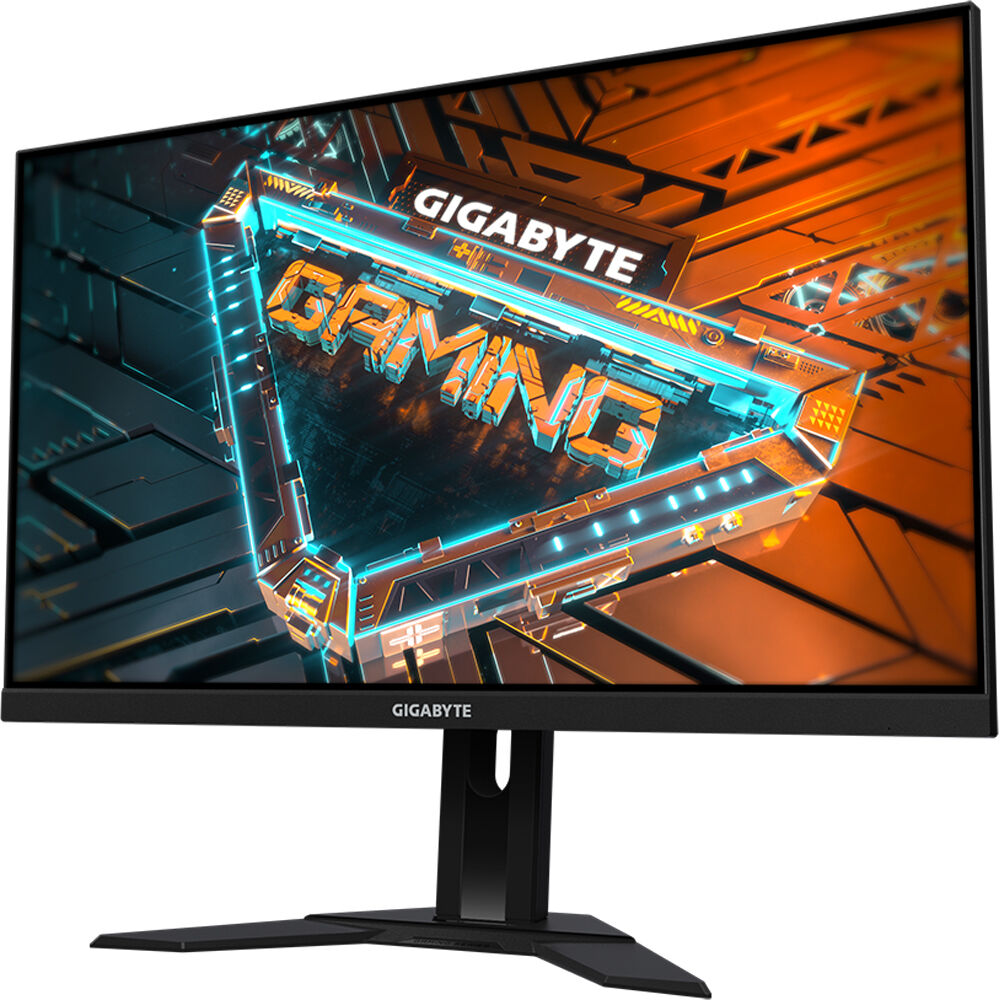
Introduction
The Gigabyte G27F Gaming Monitor is a 27-inch Full HD gaming display built for players who want smooth performance, vivid color, and practical everyday features in one affordable package. With an IPS panel, a 144Hz refresh rate, and 1ms response performance, it is designed to reduce motion blur and screen tearing while keeping visuals sharp during fast-paced games, streaming, and general productivity. Its wide viewing angles and strong color reproduction make it a versatile choice for gamers, students, creators, and home office users who want a monitor that handles both entertainment and work with ease.
One of the biggest strengths of the Gigabyte G27F Gaming Monitor is its balance between price and features. It typically sits in the budget-to-midrange category, with an estimated price range of about $140 to $220 depending on retailer, region, and stock availability. This makes it an appealing option for first-time PC gamers and anyone upgrading from a standard 60Hz display. The monitor is commonly available through major online retailers and electronics stores, although exact configurations may vary by market.
Its standout features include AMD FreeSync Premium support, ergonomic adjustments, built-in USB ports, and a clean minimalist design that fits most gaming setups. Whether used for competitive shooters, casual RPGs, movie watching, or productivity tasks, the G27F offers a reliable all-around experience with strong value for money.
Specifications
- Display size: 27-inch IPS panel
- Resolution: 1920 x 1080 Full HD
- Refresh rate: 144Hz for smooth gaming performance
- Response time: 1ms MPRT / fast gray-to-gray gaming response
- Brightness: Up to 300 nits
- Contrast ratio: 1000:1 static, with dynamic contrast support
- Color performance: 8-bit color depth with wide-gamut coverage for vibrant images
- Adaptive sync: AMD FreeSync Premium, typically 48–144Hz variable refresh range
- Viewing angles: 178° horizontal and vertical
- Connectivity: 1 DisplayPort 1.2, 2 HDMI 1.4, USB 3.0 ports, and 3.5mm audio out
- Audio: Built-in speakers for basic sound output
- Mounting: VESA-compatible for arm or wall mounting
Compared with similar 27-inch gaming monitors, the Gigabyte G27F Gaming Monitor stands out for its IPS panel quality and practical USB connectivity. While some competitors offer 165Hz or 170Hz refresh rates, the G27F remains competitive thanks to its strong image quality, stable gaming performance, and ergonomic design.
Detailed Description
The Gigabyte G27F Gaming Monitor uses an IPS panel to deliver accurate colors and consistent image quality across wide viewing angles. In practical use, this means the display looks clear whether you are sitting directly in front of it or viewing it from the side. The 144Hz refresh rate helps animation and motion appear smoother than on standard 60Hz displays, which is especially noticeable in fast-action games like shooters, racing titles, and esports games. The 1ms response performance reduces visible blur and makes on-screen action feel more responsive.
Real-world use cases include gaming, web browsing, video editing, office work, and content consumption. The Full HD resolution is a good fit for midrange GPUs, making it easier to achieve high frame rates without excessive system demands. The monitor’s build quality is practical and functional, with a modern matte finish and a sturdy stand that supports height adjustment. The materials feel designed for durability rather than luxury, which suits its value-focused positioning. Users generally appreciate the wide color output, solid motion handling, and the convenience of extra USB ports for peripherals.
Setup Guide
Setting up the Gigabyte G27F Gaming Monitor is straightforward and can usually be completed in minutes.
- Unbox the monitor carefully and place the panel on a soft, flat surface to avoid scratching the screen.
- Attach the stand or VESA mount according to your preferred setup.
- Connect the power cable securely, then plug the monitor into a wall outlet or power strip.
- Use DisplayPort for the best chance of achieving the full 144Hz refresh rate, especially on gaming PCs.
- If using HDMI, confirm that your GPU and cable support the desired refresh settings.
- Turn on the monitor and open your computer’s display settings to select 1920 x 1080 at 144Hz.
- Enable FreeSync or adaptive sync in the monitor menu and graphics driver settings if supported.
- Adjust brightness, contrast, and gaming presets for your room lighting and preferred image style.
For safety, avoid pressing directly on the screen, keep liquids away from the unit, and never block ventilation openings. If the display does not show an image, check cable input selection, ensure the GPU output is active, and restart both the PC and monitor. For best results, update graphics drivers before calibration.
Troubleshooting
Most issues with the Gigabyte G27F Gaming Monitor are easy to resolve with basic checks. If the screen stays black, confirm that the power LED is on, the correct input source is selected, and the video cable is fully inserted. If the image appears blurry, verify that the monitor is set to its native 1920 x 1080 resolution and that scaling is not being forced by the operating system.
- No signal: Switch inputs, reseat cables, and test with another port or device.
- Flickering: Use DisplayPort, lower cable interference, and ensure FreeSync settings match your GPU support.
- No 144Hz option: Check cable type, GPU settings, and display control panel refresh rate.
- Audio not working: Make sure the monitor is selected as the audio output device if using the built-in jack or speakers.
- Color issues: Reset picture settings or choose a standard preset before fine-tuning.
Error codes are not commonly displayed on this model, so most troubleshooting focuses on input, refresh rate, and cable compatibility. Preventive care includes keeping firmware and graphics drivers updated, using quality cables, and avoiding unnecessary panel pressure. Warranty coverage and support are handled through Gigabyte’s official customer support channels and the retailer from which the monitor was purchased.
Pros & Cons
Pros
- Excellent value for a 27-inch gaming monitor with IPS image quality
- 144Hz refresh rate delivers smooth motion in competitive games
- Wide viewing angles make it great for shared viewing and multitasking
- FreeSync Premium helps reduce tearing and stuttering
- USB ports add convenience for accessories and peripherals
- Good choice for budget-conscious buyers seeking strong performance per dollar
Cons
- Full HD resolution on a 27-inch screen is less sharp than QHD alternatives
- HDMI 1.4 limits some high-refresh configurations compared with newer HDMI standards
- Built-in speakers are basic and not ideal for immersive audio
- Color and brightness are strong for the class, but not premium-tier
- Competitive alternatives may offer 165Hz or 170Hz panels for a similar price
Overall, the Gigabyte G27F Gaming Monitor offers strong value for gamers who want fast refresh performance without paying for a higher-resolution display. It is a smart pick for entry-level and midrange gaming setups, especially when paired with a PC that targets high frame rates at 1080p.
Customer Reviews
Typical customer feedback for the Gigabyte G27F Gaming Monitor is positive, with many users rating it around 4.3 out of 5 stars for its speed, color quality, and overall value. Reviewers often praise the smooth 144Hz gameplay, the IPS panel’s vibrant look, and the monitor’s simple setup process. A common comment is that it feels like a serious gaming upgrade without becoming expensive.
Frequent complaints usually focus on the 1080p resolution at 27 inches, which some buyers consider less sharp than expected for desktop use. Others mention that the built-in speakers are only suitable for casual use. One typical user impression is: “Great for gaming and everyday use, but I would choose external speakers and a DisplayPort cable from day one.”
For buyers who want a reliable, affordable gaming display, this monitor is often recommended. If sharper text rendering or higher pixel density matters more than refresh rate, a QHD alternative may be a better long-term choice.
Faqs
How do I set up the gigabyte G27F Gaming Monitor for the first time?
Why is my gigabyte G27F Gaming Monitor showing the wrong refresh rate after setup?
What should I do if the gigabyte G27F Gaming Monitor has no signal?
Is the gigabyte G27F Gaming Monitor compatible with PS5, Xbox, and gaming PCs?
How can I optimize the gigabyte G27F Gaming Monitor for competitive gaming?
What are the best picture settings for the gigabyte G27F Gaming Monitor for everyday use?
How do I clean and maintain the gigabyte G27F Gaming Monitor safely?
Why does the gigabyte G27F Gaming Monitor look blurry or stretched on my PC?
More gigabyte manuals
- Setup: Gigabyte X570 AORUS XTREME User Manual
- Setup: Gigabyte Motherboard Aorus Elite X570 User Manual
- Setup: Gigabyte Aorus Motherboard B450 User Manual
- Installation: Gigabyte Motherboard GA-Z170-HD3P User Manual
- Installation: Gigabyte Gaming Monitor M27Q P User Guide
- How to Install: Gigabyte Motherboard Gaming Z390
Leave a Comment