
How to Use: Hp Compaq Business PC User Manual
Content
hp Compaq Business PC Manual and Product Overview
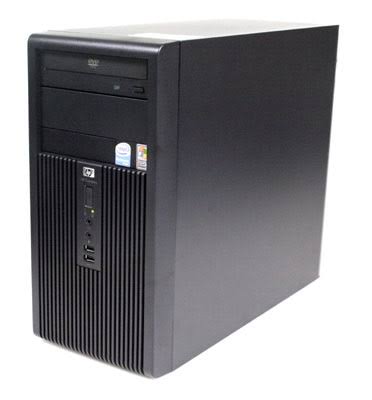
The hp Compaq Business PC is a dependable desktop solution built for office productivity, administrative workloads, and everyday business computing. Designed with a practical balance of performance, expandability, and reliability, it remains a popular choice for small businesses, front-desk environments, home offices, and organizations that need a stable workstation for word processing, spreadsheets, accounting software, and light multitasking.
One of the biggest advantages of the hp Compaq Business PC is its business-focused design. It typically includes multiple USB ports, legacy connectivity for older peripherals, and upgrade-friendly internal layouts that make maintenance easier. Depending on the model, users may find options such as Intel Pentium Dual-Core or Core-series processors, DDR2 or DDR3 memory support, SATA storage, integrated graphics, and expansion slots for network, storage, or graphics upgrades. This flexibility makes the hp Compaq Business PC a practical long-term investment for offices that want a low-cost machine that can still be customized for changing needs.
The target audience includes business users, IT departments, students, and budget-conscious buyers looking for a capable desktop computer for daily tasks. Common use cases include email, document creation, web browsing, billing systems, customer management software, and point-of-sale setups. Estimated pricing for refurbished or used units generally ranges from budget-level entry pricing to midrange depending on condition, configuration, storage, and installed operating system. Availability is strongest through refurbished computer sellers, office equipment resellers, and secondary marketplaces.
Specifications for hp Compaq Business PC
- Processor options: Models commonly shipped with Intel Pentium Dual-Core, Core 2 Duo, Core i3, or similar business-class CPUs.
- Memory: Typical support includes DDR2 or DDR3 RAM, with upgrade ceilings varying by model and motherboard revision.
- Storage: SATA hard drives are standard, with many systems supporting SSD upgrades for faster boot times and improved responsiveness.
- Graphics: Integrated graphics handle office software, video playback, and basic display tasks with low power consumption.
- Ports: USB, Ethernet, audio in/out, VGA, serial, and sometimes parallel ports for legacy office hardware.
- Expansion: PCI or PCI Express slots are often available for add-on cards, wireless adapters, or upgraded graphics.
- Performance: In real-world business use, the system is best suited for light to moderate multitasking rather than demanding creative workloads.
- Comparison: Compared with newer compact desktops, the hp Compaq Business PC offers better legacy compatibility and easier field servicing, but newer systems deliver faster CPUs, quieter operation, and improved energy efficiency.
For users searching for a reliable business desktop PC, this platform is most competitive when refurbished with an SSD and adequate RAM.
Setup Guide for hp Compaq Business PC
Start by placing the desktop on a flat, ventilated surface with enough room for airflow around the case. Connect the monitor, keyboard, mouse, power cable, and Ethernet cable if wired networking is required. If the unit includes onboard wireless or a Wi-Fi adapter, complete the network setup through the operating system after first boot. Before powering on, verify that all cables are seated properly and that the voltage setting on the power supply matches local electrical standards if your model includes a selectable switch.
On first startup, enter the BIOS or system setup screen if you need to change boot order, enable virtualization, configure onboard devices, or check hardware recognition. Install the operating system, then apply chipset, graphics, audio, and network drivers. For pairing external devices, use USB or Bluetooth peripherals as supported by the installed hardware; most models rely on wired connections, though wireless adapters can be added easily through expansion slots or USB.
- Keep vents unobstructed to prevent overheating.
- Use a surge protector to protect the power supply and motherboard.
- Disconnect power before opening the case.
- If the PC does not post, reseat RAM, check the monitor input source, and confirm the power supply switch is on.
Troubleshooting the hp Compaq Business PC
Common issues include no power, no display, repeated restarts, slow startup, and noisy fans. If the system fails to power on, check the wall outlet, power cord, and rear power switch. If the machine powers on but shows no image, test the monitor, cable, and integrated graphics output, then reseat memory modules. A blank screen after hardware changes often indicates incompatible RAM or a loosely connected component.
Slow performance is usually caused by aging hard drives, limited memory, or background software. Upgrading to an SSD and increasing RAM often delivers the most noticeable improvement. If you see beep codes or diagnostic lights, consult the board-specific service guide for memory, graphics, or CPU fault interpretation. Typical fixes include clearing CMOS, removing newly added peripherals, and booting with minimal hardware installed.
- Error-style symptom: Continuous beeps usually point to memory seating or failure.
- Error-style symptom: Power on then off may indicate overheating or a failing power supply.
- Preventive measures: Clean dust from fans, replace old thermal paste, and keep BIOS settings documented.
- Support: Use HP warranty services if the machine is covered, or contact HP business support and an authorized service provider for parts and repair guidance.
Pros and Cons of hp Compaq Business PC
Pros
- Solid value for money in refurbished or budget business deployments.
- Good legacy compatibility for older office equipment such as serial devices and older printers.
- Easy to service and upgrade in many tower and small-form-factor models.
- Reliable for everyday productivity tasks like email, browsing, and document editing.
- Lower replacement cost compared with many newer business desktops.
Cons
- Older CPU and memory platforms cannot match modern desktop performance.
- Energy efficiency is weaker than current-generation business PCs.
- Noise and heat can increase on older units with worn fans or dusty internals.
- Limited suitability for heavy multitasking, content creation, or modern gaming.
- Some models may require legacy parts that are harder to source.
Compared with newer alternatives such as compact office desktops or mini PCs, the hp Compaq Business PC wins on serviceability and price, but loses on speed, warranty length, and power efficiency.
Customer Reviews of hp Compaq Business PC
Customer feedback is generally positive for buyers who want a low-cost office machine that gets basic work done. Many users rate it around 4 out of 5 stars for reliability, upgrade flexibility, and strong compatibility with business software. A common compliment is that it feels sturdy and easy to maintain, especially when used as a refurbished desktop PC in administrative environments.
Typical praise includes fast improvement after an SSD upgrade, quiet everyday operation once cleaned, and dependable performance for spreadsheets and web-based tools. Common complaints focus on older hardware limitations, slow original hard drives, and the lack of modern features such as built-in Wi-Fi or USB-C on many models. Buyers who need an affordable work computer and do not require high-end performance usually recommend it, while users needing advanced graphics or heavy multitasking often look at newer business desktops instead.
Conclusion
The hp Compaq Business PC remains a practical choice for offices and home users who value affordability, compatibility, and straightforward maintenance. When paired with an SSD and sufficient RAM, it can still serve as a dependable business desktop for everyday tasks, especially in environments that rely on older peripherals or established workflows.
Faqs
How do I set up hp Compaq Business PC for the first time without missing important configuration steps?
Why is my hp Compaq Business PC running slow, and what performance tweaks usually help most?
What should I do if my hp Compaq Business PC does not display anything after powering on?
Which accessories and peripherals are compatible with hp Compaq Business PC models?
How can I improve security on an hp Compaq Business PC used for office work?
What are the best ways to maintain and clean an hp Compaq Business PC to extend its life?
How do I troubleshoot frequent restarts or shutdowns on an hp Compaq Business PC?
Can I upgrade an hp Compaq Business PC for better multitasking and office productivity?
Tags
More hp manuals
- How to Use: Hp Docking Station/Advanced Docking Station User Manual
- Setup & Features: Hp ZBook Create 15.6 Inch G8 Notebook PC User Manual
- Setup & Features: Hp EliteDesk 800 G5 Desktop Mini User Manual
- How to Use: Hp DesignJet Printers User Manual
- How to Use: Hp 1920 × 1080 at 60 Hz for a 21.5-inch Monitor User Manual
- How to Use: Hp LaserJet Print Media User Manual
Leave a Comment