
How to Use: Hp Docking Station/Advanced Docking Station User Manual
Content
HP Docking Station/Advanced Docking Station Overview
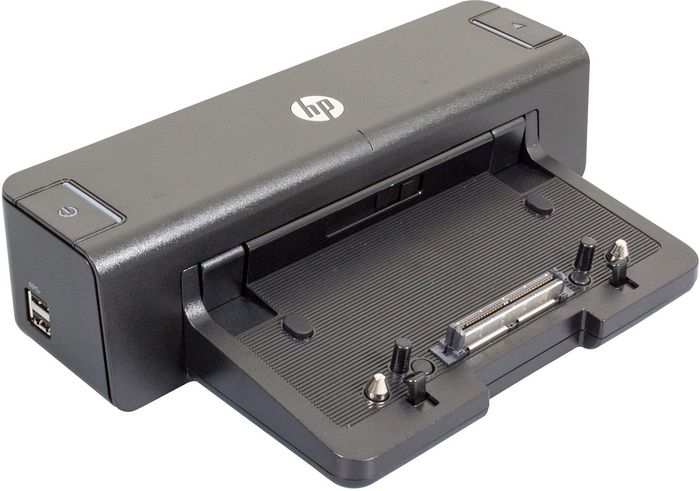
The HP Docking Station/Advanced Docking Station is designed to turn a compatible HP business notebook into a full desktop workstation with one cable. It simplifies cable management, expands connectivity, and supports multi-monitor productivity for office, hybrid, and IT-managed environments. For users who move between meetings, desks, and home offices, this kind of docking solution reduces setup time while adding ports for displays, networking, audio, and peripherals.
One of the biggest advantages of the HP Docking Station/Advanced Docking Station is its business-focused design. It is built for reliability, secure attachment, and long-term use in corporate fleets. Depending on the model, users can get DisplayPort, VGA, DVI, eSATA, USB 2.0, USB 3.0, Ethernet, serial, parallel, and expansion options that are still valued in industrial and enterprise workflows. The advanced model is especially useful for users who need legacy device support, larger desktop expansion, or drive-bay functionality.
Typical use cases include dual-monitor office setups, permanent desk docking, call centers, accounting stations, engineering labs, and shared workspaces. Pricing varies widely by generation and condition, but modern HP docks commonly range from around budget-friendly entry prices to premium business dock pricing, with legacy advanced docking units often sold through resellers and refurbished channels. Availability is strongest through HP business channels, enterprise resellers, and third-party marketplaces, especially for older models.
Specifications for HP Docking Station/Advanced Docking Station
- Compatible with select HP business notebook families, including EliteBook, ProBook, and workstation-class systems depending on the dock generation.
- Common connectivity includes USB ports, RJ-45 Ethernet, audio in/out, DisplayPort, VGA, DVI, and optional eSATA on advanced versions.
- Power input typically supports universal AC voltage, with docking power delivery varying by model and notebook generation.
- Advanced docking models can include a SATA swappable bay and an ExpressCard slot for added expansion.
- Performance is optimized for desktop replacement workflows, with stable video output, wired network access, and support for multiple peripherals at once.
- Legacy advanced models often provide more ports than standard docks, making them better suited to specialized office and lab environments.
- Compared with newer USB-C docks, the HP Docking Station/Advanced Docking Station offers stronger legacy compatibility but less modern universal convenience.
In practical terms, these docks are best for users who need full-size ports and dependable desk-based productivity rather than the smallest possible accessory footprint.
Detailed Description of the HP Docking Station/Advanced Docking Station
The HP Docking Station/Advanced Docking Station works as a fixed connection hub between a notebook and desktop accessories. Once the laptop is seated on the dock or connected through the supported interface, the dock routes video, USB data, network traffic, and power-related functions through a single connection point. This creates a cleaner workstation and makes it easy to disconnect and leave without unplugging multiple cables.
Real-world applications include running two external monitors, connecting a keyboard and mouse, using a wired Ethernet connection for stable video calls, and attaching storage or specialty devices. In advanced business environments, legacy ports can be especially valuable for scanners, printers, serial equipment, and older display hardware.
Build quality is typically enterprise-oriented, with a sturdy black chassis, practical port layout, and a design intended for frequent daily use. The docking experience feels straightforward and dependable rather than flashy. Users generally value the consistent connection, reduced desktop clutter, and the ability to keep a workstation ready at all times.
Setup Guide: How to Set Up HP Docking Station/Advanced Docking Station
- Place the dock on a stable, ventilated desk surface and connect the AC adapter before attaching the notebook.
- Connect external monitors, Ethernet, keyboard, mouse, speakers, and any required peripherals to the correct dock ports.
- Insert or align the compatible HP notebook with the docking connector, then seat it firmly until the connection is secure.
- Power on the docked notebook and allow the operating system to detect the attached devices.
- Open display settings to configure extended desktop, mirrored mode, resolution, and monitor order.
- Install any required HP drivers or firmware updates for the dock generation being used.
For troubleshooting during setup, check monitor input selection, verify that the notebook model is supported, and confirm that the power adapter is rated correctly for the dock. Avoid forcing the notebook onto the connector, and do not block ventilation openings. If the dock is used in a shared space, secure cables to reduce accidental disconnection and wear.
Troubleshooting HP Docking Station/Advanced Docking Station Problems
- No display output: Recheck monitor cables, select the correct input source, and reconnect the notebook to the dock.
- Dock not charging the laptop: Confirm adapter connection, verify compatibility, and inspect the power brick and dock connector.
- USB devices not working: Try another port, restart the notebook, and test the device directly on the laptop.
- Ethernet not detected: Update drivers, reconnect the network cable, and test with a different cable or port.
- Intermittent connection: Clean the docking connector, reseat the notebook, and check for bent pins or debris.
Preventive maintenance includes keeping the dock dust-free, using certified power adapters, and updating BIOS, chipset, and dock firmware when available. Older HP docking systems often include one-year limited warranty coverage when sold new, while support options may include online help, manuals, and phone assistance through HP or an authorized business reseller. For enterprise deployments, IT administrators should keep inventory records and replacement part numbers available for faster service.
Pros and Cons of HP Docking Station/Advanced Docking Station
Pros
- Excellent legacy compatibility for HP business notebooks and older enterprise hardware.
- Wide port selection on many models, including serial, parallel, DVI, VGA, and eSATA on advanced units.
- Strong value for office environments that need a permanent desktop setup.
- Reliable wired networking and multi-monitor support for productivity workflows.
- Good choice for users replacing multiple adapters with one centralized dock.
Cons
- Older designs are not as universal as modern USB-C or Thunderbolt docks.
- Some advanced models are harder to find new and are often sold refurbished.
- Larger physical footprint than newer compact docking stations.
- May require model-specific compatibility checks before purchase.
For buyers comparing alternatives, modern USB-C docks are better for portability and cross-device flexibility, while the HP Docking Station/Advanced Docking Station is better for dedicated desks and legacy support. It remains a strong value when the notebook and dock are matched correctly.
Customer Reviews and User Feedback
Average user sentiment for the HP Docking Station/Advanced Docking Station is generally positive, often landing around 4 out of 5 stars in business-use discussions. Users frequently praise the stable connection, easy desktop transition, and broad port selection.
One common testimonial is: “It turned my laptop into a real desktop setup with no hassle.” Another typical comment is: “Great for dual monitors and wired internet, but make sure your laptop is compatible.”
Frequent complaints include bulkier size, older connector standards, and occasional driver or display configuration issues on legacy systems. Buyers looking for a reliable office dock, especially in HP-centered environments, usually find it worthwhile. Users who want a single dock for many different laptop brands may prefer a newer universal USB-C model instead.
Frequently Asked Questions
What is the HP Docking Station/Advanced Docking Station used for?
It is used to connect a compatible HP notebook to monitors, peripherals, Ethernet, and other desk-based accessories through a single docking connection.
Is the HP Docking Station/Advanced Docking Station worth buying?
It is worth buying for users who need a stable, feature-rich desk setup and who own a compatible HP business laptop or workstation.
Does it support multiple monitors?
Yes, many models support dual-monitor or multi-display configurations depending on the notebook and dock generation.
Where can it be purchased?
It is commonly available through HP business channels, enterprise resellers, and refurbished or third-party marketplaces.
Faqs
How do I set up hp Docking Station/Advanced Docking Station for the first time?
Why is my hp Docking Station/Advanced Docking Station not detecting dual monitors?
What laptops are compatible with hp Docking Station/Advanced Docking Station?
How can I fix hp Docking Station/Advanced Docking Station charging problems?
How do I update firmware and drivers for hp Docking Station/Advanced Docking Station?
Why does my hp Docking Station/Advanced Docking Station disconnect randomly?
What are the best ways to optimize hp Docking Station/Advanced Docking Station performance?
How should I clean and maintain hp Docking Station/Advanced Docking Station safely?
More hp manuals
- Setup & Features: Hp EliteDesk 800 G5 Desktop Mini User Manual
- How to Use: Hp Compaq Business PC User Manual
- How to Use: Hp 1920 × 1080 at 60 Hz for a 21.5-inch Monitor User Manual
- Setup & Features: Hp ZBook Create 15.6 Inch G8 Notebook PC User Manual
- Specs & Features: Hp Webcam HD 5210 User Manual
- How to Use: Hp DesignJet Printers User Manual
Leave a Comment