
Specs & Features: Hp Webcam HD 5210 User Manual
Content
HP Webcam HD 5210: Full HD Webcam Manual and Product Overview
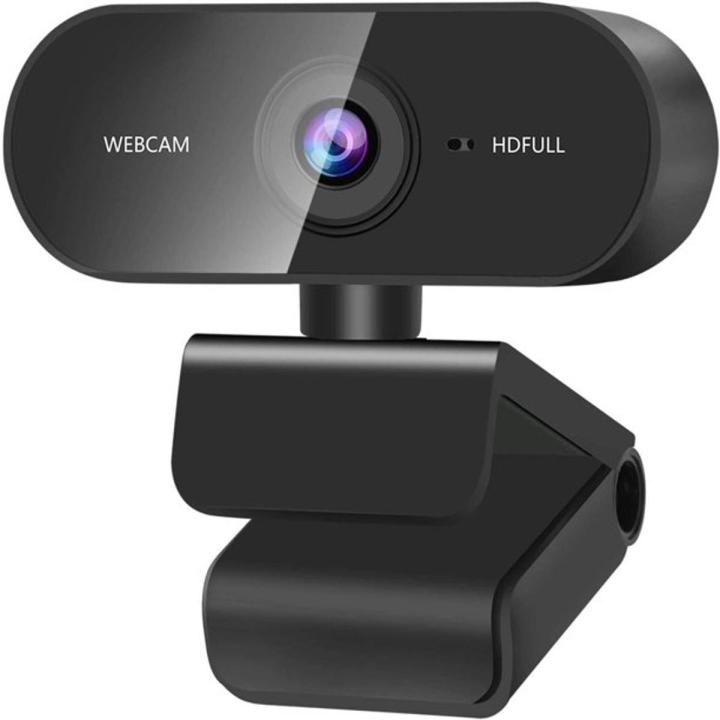
The HP Webcam HD 5210 is a premium USB webcam designed for users who want sharper video calls, reliable local recording, and a compact desktop-friendly design. Built around a Full HD 1080p sensor with 720p video calling support, it stands out for features such as autofocus, HP TrueVision auto-light exposure, face tracking, and a 5x digital zoom. These capabilities make it a strong option for remote work, online classes, content creation, and personal video chats where image clarity matters. The integrated H.264 hardware video processor also helps deliver smoother video with reduced system load, which is especially useful on older or less powerful computers.
Although the hp Webcam HD 5210 is not a current mainstream model, it remains available through select third-party sellers, resale listings, and specialty retailers. Typical pricing has historically placed it in the upper webcam range, around $99 in the US or about £90 in the UK, though current market prices may vary depending on condition and stock availability. For buyers looking for a wired webcam with dependable image quality, decent low-light performance, and simple plug-and-play use, this model still offers solid value. It is best suited for professionals, students, and home users who need a dependable webcam for Zoom, Skype, Teams, and local HD recording.
hp Webcam HD 5210 Specifications and Key Features
- Video resolution: up to 1920 x 1080 Full HD for recording, with 720p HD support for video calls.
- Frame rate: up to 30 fps, helping maintain smoother motion during conferencing and recordings.
- Sensor type: CMOS with a Full HD imaging pipeline.
- Lens and image controls: autofocus, automatic exposure, face tracking, and 5x digital zoom.
- Audio: integrated microphone for voice pickup during meetings and casual calls.
- Connectivity: USB 2.0 connection for broad compatibility.
- Recommended software support: works with common video calling platforms such as Skype, with system requirements depending on resolution and recording use.
- Dimensions: approximately 90 mm wide, 45 mm deep, and 65 mm high.
- Color: black compact housing with a universal desktop mount design.
Compared with lower-cost HD webcams, the hp Webcam HD 5210 offers stronger image processing and more advanced adjustment features. Against modern budget webcams, it may lack newer extras such as 4K capture or advanced background effects, but it still competes well on core image quality, autofocus, and exposure handling. For users focused on stable Full HD recording rather than flashy software, it remains a practical choice.
Pros and Cons of the HP Webcam HD 5210
Pros
- Sharp Full HD recording helps produce clearer tutorial videos, interviews, and personal content.
- Autofocus and automatic light adjustment improve everyday video quality in changing lighting conditions.
- Face tracking is useful for keeping the subject centered during movement.
- 5x digital zoom adds flexibility for close framing without moving the camera.
- H.264 hardware processing can reduce lag and improve smoothness during capture.
- Good value for users who want premium webcam features without moving to expensive pro streaming gear.
Cons
- The model is older, so it lacks modern features like 4K streaming, AI framing, and advanced noise cancellation.
- USB 2.0 is adequate, but newer webcams may offer more efficient connectivity and richer software ecosystems.
- Local 1080p recording is a strength, while video calling is typically limited to 720p in many use cases.
- Best suited for legacy systems and basic conferencing rather than high-end creator workflows.
- Price can feel high compared with newer entry-level webcams that offer similar call quality at a lower cost.
Overall, the hp Webcam HD 5210 is a strong mid- to upper-tier webcam for its class, but buyers comparing it with newer alternatives should weigh its image quality against the lack of modern features.
Customer Reviews and User Feedback on hp Webcam HD 5210
User feedback typically highlights clear video output, reliable autofocus, and strong performance for video meetings and local recording. Many buyers appreciate the webcam’s sturdy build and the way its automatic exposure adapts to changing room light. Average ratings in user review databases and retailer feedback tend to land around 4 out of 5 stars for image quality and ease of use.
Common complaints include the premium pricing compared with newer webcams, limited calling resolution in some apps, and the fact that it feels dated by modern standards. A typical testimonial is: “Great picture for meetings, especially in mixed lighting, but it is expensive for what you get today.” Another recurring note is that it performs best when paired with a strong light source and a capable computer. For buyers who want dependable Full HD capture and simple setup, the HP Webcam HD 5210 is still worth considering, especially if found at a discount.
Faqs
How do I set up hp Webcam HD 5210 for the first time on my laptop or desktop?
Why is my hp Webcam HD 5210 not being recognized by Windows or video apps?
What should I do if hp Webcam HD 5210 shows a black screen or no video preview?
Is hp Webcam HD 5210 compatible with Zoom, Microsoft Teams, and browser-based calls?
How can I improve video quality and lighting when using hp Webcam HD 5210?
Can hp Webcam HD 5210 work without installing special drivers or software?
How do I fix audio-video sync or stuttering issues with hp Webcam HD 5210 during calls?
What is the best way to clean and maintain hp Webcam HD 5210 for long-term use?
More hp manuals
- Features & Specs: Hp DeskJet 720C User Manual
- How to Use: Hp 1920 × 1080 at 60 Hz for a 21.5-inch Monitor User Manual
- Setup: Hp Thunderbolt 100W G6-Dock User Manual
- Setup & Features: Hp EliteDesk 800 G5 Desktop Mini User Manual
- Setup: Hp Poly Voyager Bluetooth Headset User Manual
- How to Use: Hp Docking Station/Advanced Docking Station User Manual
Leave a Comment