
Setup: Hp Thunderbolt 100W G6-Dock User Manual
Content
HP Thunderbolt 100W G6 Dock Overview
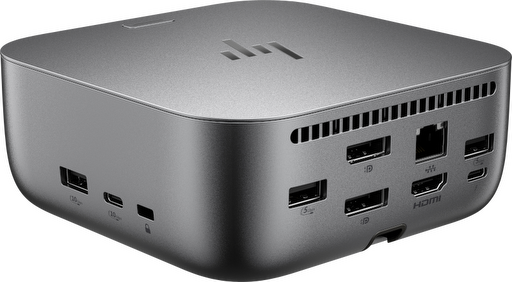
The HP Thunderbolt 100W G6 Dock is a premium Thunderbolt 4 docking station designed to turn a single laptop connection into a full desktop workstation. Built for professionals who need fast data transfer, reliable networking, and support for multiple displays, it is a strong fit for hybrid offices, creative workflows, and IT-managed business environments. The dock supports up to 100W power delivery through Thunderbolt 4, making it suitable for many modern laptops while reducing cable clutter and simplifying desk setup.
One of the biggest advantages of the HP Thunderbolt 100W G6 Dock is its broad compatibility across Windows, macOS, Linux, ChromeOS, and ThinPro systems. It offers a balanced mix of performance and practicality with a Thunderbolt 4 upstream port, HDMI 2.1, dual DisplayPort 1.4 outputs, USB-A and USB-C expansion, and 2.5 GbE Ethernet. This makes it especially appealing for users who need a dependable USB-C docking station for dual- or multi-monitor setups, fast peripherals, and stable wired internet.
Typical pricing varies by region and retailer, but the dock generally sits in the premium business-docking category, often landing in the mid-to-high price range for Thunderbolt docks. Availability is strongest through HP’s store and major electronics retailers, with bundles sometimes including display and Ethernet cables. For users searching for an enterprise-grade Thunderbolt 4 dock with 100W charging, the HP Thunderbolt 100W G6 Dock is one of the more capable options currently available.
Detailed Specifications for HP Thunderbolt 100W G6 Dock
- Host connection: Thunderbolt 4 with USB-C, up to 40Gbps signaling
- Power delivery: Up to 100W to supported laptops through the Thunderbolt connection
- Power adapter: 120W external power supply
- Display outputs: 1 HDMI 2.1, 2 DisplayPort 1.4, and Thunderbolt-based display support
- Maximum resolution: Up to 8K, depending on host and display configuration
- Networking: 2.5 GbE RJ-45 Ethernet for faster wired connections
- USB ports: Multiple USB-A and USB-C ports, including 10Gbps and 5Gbps charging-capable connections
- Security: Nano security lock slot
- Compatibility: Windows 10, Windows 11, macOS, Linux, ThinPro, and ChromeOS
- Dimensions: Approximately 4.77 x 4.77 x 2 in; compact square footprint for desk use
- Weight: Roughly 0.65 to 0.8 kg depending on configuration and packaging
- Typical use case: Business laptops, remote workstations, dual-monitor office setups, and hybrid hot-desk environments
In practical performance, the dock stands out for its ability to handle multiple external displays, fast charging, and high-speed peripherals without turning into a cluttered hub. Compared with a standard USB-C dock, the HP Thunderbolt 100W G6 Dock offers better bandwidth, stronger display flexibility, and more reliable workstation-style expansion.
Pros and Cons of the HP Thunderbolt 100W G6 Dock
Pros
- Excellent workstation expansion: The dock supports multiple displays, fast Ethernet, and several high-speed USB ports, making it ideal for productivity-focused users.
- Strong charging capability: Up to 100W power delivery is enough for many business laptops, reducing the need for separate chargers.
- Broad OS compatibility: It works well across Windows, macOS, Linux, ChromeOS, and ThinPro, which is valuable for mixed-device environments.
- Compact premium design: The small footprint helps keep the desk organized while still offering full docking functionality.
- Good future-proofing: Thunderbolt 4, HDMI 2.1, and 2.5 GbE make it a strong long-term investment for office use.
Cons
- Premium price: It costs more than basic USB-C docks, so it may be excessive for simple single-monitor setups.
- Best value for power users: Casual users who only need charging and one display may get better value from a simpler alternative.
- Performance depends on host device: Full Thunderbolt and multi-display benefits require a compatible laptop.
- Could be overkill for budget buyers: Cheaper USB-C docks may be enough if you do not need Thunderbolt speeds or advanced video output.
Overall, the HP Thunderbolt 100W G6 Dock offers strong value for professionals who need a reliable docking solution, but it is less compelling for entry-level users. Compared with lower-cost alternatives, it delivers better connectivity, charging, and display support at a higher price point.
Customer Reviews and Real-World Feedback
Customer feedback for the HP Thunderbolt 100W G6 Dock is generally positive, with many users praising its clean setup, stable connectivity, and the convenience of one-cable laptop docking. A common highlight is the ability to connect multiple monitors while keeping charging and peripherals handled through one device.
Average user sentiment: 4.3 out of 5 stars
- Praise: Users appreciate the fast data transfer, strong display support, and reliable wired networking for work-from-home and office setups.
- Praise: Many buyers like the compact design and how easily it reduces desk clutter.
- Complaint: Some users mention the premium price as the biggest drawback.
- Complaint: A few reviews note that setup is best on Thunderbolt-compatible laptops, which may limit value on older systems.
- Testimonial style feedback: “It replaced my charger, USB hub, and monitor switch all at once.”
- Testimonial style feedback: “Excellent for a two-monitor workstation, but definitely more expensive than basic docks.”
If you need a professional-grade Thunderbolt dock for daily work, the HP Thunderbolt 100W G6 Dock is a strong recommendation. Buyers looking for the best price-to-feature ratio should compare it with simpler USB-C docking stations before deciding.
Frequently Asked Questions About the HP Thunderbolt 100W G6 Dock
Is the HP Thunderbolt 100W G6 Dock good for dual monitors?
Yes. It is designed for multi-display setups and supports HDMI and DisplayPort connections, making it well suited for dual-monitor productivity.
Does it charge laptops through Thunderbolt?
Yes. It provides up to 100W power delivery, which is enough for many business laptops and mobile workstations.
Who should buy this dock?
It is best for professionals, remote workers, IT teams, and anyone who needs a dependable Thunderbolt 4 dock with advanced connectivity and strong charging support.
Faqs
How do I set up hp Thunderbolt 100W G6-Dock for the first time?
Why is my hp Thunderbolt 100W G6-Dock not charging my laptop at full 100W?
Can hp Thunderbolt 100W G6-Dock support dual monitors, and what should I check first?
What should I do if hp Thunderbolt 100W G6-Dock is not being detected by my laptop?
Which laptops are compatible with hp Thunderbolt 100W G6-Dock?
How can I get the best performance from hp Thunderbolt 100W G6-Dock during heavy work use?
How do I fix display flickering or unstable video on hp Thunderbolt 100W G6-Dock?
What maintenance tips help extend the life of hp Thunderbolt 100W G6-Dock?
Tags
More hp manuals
Leave a Comment