
Setup & Features: Hp ZBook Create 15.6 Inch G8 Notebook PC User Manual
Content
Introduction to the HP ZBook Create 15.6 Inch G8 Notebook PC
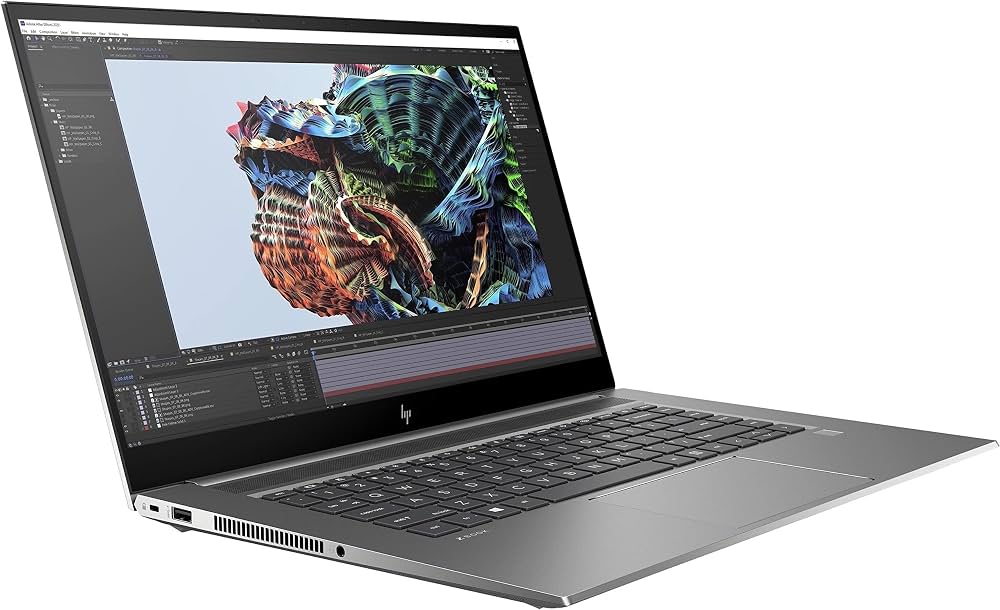
The HP ZBook Create 15.6 Inch G8 Notebook PC is a premium mobile workstation designed for creators, engineers, and professionals who need strong performance in a slim, portable chassis. Built for demanding workflows such as 3D design, video editing, CAD, photo production, and software development, it combines workstation-class stability with a creator-focused form factor. The hp ZBook Create 15.6 Inch G8 Notebook PC stands out for its 11th Gen Intel Core processor options, professional NVIDIA graphics, and fast PCIe SSD storage, making it a compelling choice for users who want desktop-like capability on the move.
One of its biggest strengths is flexibility. Buyers can choose from multiple display options, including a standard Full HD panel or a brighter high-nit screen for color-critical work. The machine also supports up to 64 GB of DDR4 memory and up to 2 TB of NVMe SSD storage, which helps with heavy multitasking and large project files. For creators who rely on accurate visuals, consistent responsiveness, and reliable connectivity, this model delivers a balanced mix of power and portability.
In terms of pricing, the hp ZBook Create 15.6 Inch G8 Notebook PC originally sat in the premium workstation range, and current market availability typically depends on configuration, region, and reseller stock. Refurbished and used units are often easier to find than brand-new inventory, with estimated pricing commonly varying from mid-range business laptop levels to higher workstation pricing based on CPU, GPU, memory, and display options.
Specifications for HP ZBook Create 15.6 Inch G8 Laptop
- Processor: 11th Generation Intel Core i5-1135G7, i5-1145G7, or i7-1185G7 options.
- Memory: Up to 64 GB DDR4-3200 non-ECC SDRAM, with 2 SODIMM slots and dual-channel support.
- Storage: 256 GB to 2 TB PCIe Gen3 x4 NVMe M.2 2280 SSD options.
- Display: 15.6-inch diagonal Full HD IPS anti-glare panel, with standard 250-nit and high-brightness 1000-nit options.
- Graphics: Professional NVIDIA graphics configurations vary by build, suited for creative and workstation tasks.
- Connectivity: Thunderbolt 4, USB-A ports, HDMI, Wi-Fi, Bluetooth, and audio combo support.
- Security: Business-class security features and optional self-encrypting drive support.
- Performance note: Fast SSD storage and quad-core Intel CPUs support quick boot times, responsive app launches, and stable multitasking.
- Comparable models: It competes closely with other 15-inch mobile workstations such as the HP ZBook Studio series and Dell Precision creator laptops.
Detailed Description of the HP ZBook Create 15.6 Inch G8 Workstation
The HP ZBook Create 15.6 Inch G8 Notebook PC is built to handle creative production and professional workloads without the bulk of a traditional workstation. Its design focuses on mobility, with a slim 15.6-inch body that still supports serious processing, fast storage, and high-speed connectivity. This makes it useful for 4K video editing, digital illustration, music production, presentation design, light 3D rendering, and remote engineering workflows.
Internally, the system works like a compact performance workstation. The Intel Core processor manages general computing and multitasking, while the SSD reduces load times and improves project responsiveness. In supported configurations, the discrete GPU assists with visual acceleration and smoother timeline playback in creative applications. The build quality is professional and business-oriented, with durable materials chosen to support daily travel and office use. The keyboard, trackpad, and display are tuned for long working sessions, and the anti-glare screen helps reduce reflections in bright environments.
For users, this means a laptop that feels fast, stable, and practical. It is especially valuable for professionals who need a single machine for content creation, client work, meetings, and travel. The hp ZBook Create 15.6 Inch G8 Notebook PC is not the cheapest option, but it offers a strong balance of creator-focused performance and enterprise-grade reliability.
Setup Guide for HP ZBook Create 15.6 Inch G8 Notebook PC
- Unbox the laptop, power adapter, and documentation, then inspect the device for shipping damage before first use.
- Connect the AC adapter and charge the battery to at least 50 percent before starting setup.
- Press the power button and follow the on-screen Windows setup process, including language, account, and privacy settings.
- Install available Windows updates, HP support tools, and recommended driver updates for graphics, Wi-Fi, audio, and chipset performance.
- Configure display scaling, power mode, and color settings if you use the laptop for editing, design, or presentation work.
- Pair Bluetooth accessories such as a mouse, headset, or pen-enabled peripherals through the system settings menu.
- Connect external monitors or docks using Thunderbolt 4 or HDMI for a dual-screen workstation setup.
Troubleshooting tip: if the laptop does not power on, verify the charger connection and test a different outlet. If Wi-Fi or Bluetooth is unstable, reinstall the wireless driver and restart the system. Safety warning: avoid blocking ventilation openings during setup, and do not use the device on soft surfaces that can trap heat.
Troubleshooting Common HP ZBook Create 15.6 Inch G8 Issues
- Won’t boot: Hold the power button for 15 seconds, reconnect AC power, and retry startup.
- Slow performance: Check background apps, free storage space, and confirm that power mode is set for balanced or best performance.
- Display flicker: Update the graphics driver and disconnect external displays to isolate the issue.
- Overheating or fan noise: Clean vents, use the laptop on a hard surface, and keep BIOS and firmware current.
- Network errors: Reinstall Wi-Fi drivers and reset network settings if the adapter fails to connect.
- Common error handling: BIOS-related startup problems are often solved by restoring default settings or updating firmware.
Preventive care includes regular updates, careful battery charging habits, and keeping the cooling system clear of dust. Warranty support is typically handled through HP business support channels, authorized service providers, and the original reseller. For help, users should check the serial number and product support page in HP’s official support ecosystem or contact the seller if the machine is still under return coverage.
Pros and Cons of the HP ZBook Create 15.6 Inch G8 Laptop
Pros
- Strong performance for creative and professional workloads.
- Portable workstation design that is easier to carry than heavier desktop-replacement laptops.
- Up to 64 GB RAM and fast NVMe storage support.
- High-quality display options for content creation and color-sensitive work.
- Thunderbolt 4 connectivity improves docking and external monitor support.
Cons
- Premium pricing compared with mainstream productivity laptops.
- Some configurations may not match the raw power of larger workstation models.
- Availability can be limited since this is an older generation model.
- Battery life varies significantly by display, GPU, and workload.
For value, it makes the most sense for users who need workstation features in a lighter chassis. Compared with alternatives like the HP ZBook Studio or Dell Precision creator laptops, it offers a strong mix of mobility and professional capability, but buyers focused on maximum GPU performance may prefer a larger mobile workstation.
Customer Reviews of the HP ZBook Create 15.6 Inch G8 Notebook PC
Typical user feedback is positive, with many owners giving it around 4 out of 5 stars for performance, portability, and build quality. Common praise includes fast startup times, smooth multitasking, and a display that works well for editing and design. One frequent comment is that the keyboard and trackpad feel comfortable for long work sessions.
Common complaints usually focus on price, battery life under heavy workloads, and the fact that certain configurations are hard to find in stock. Users who purchase the hp ZBook Create 15.6 Inch G8 Notebook PC for creative work often recommend it to professionals who want a dependable workstation that can travel easily. Buyers looking for the best experience should choose a higher-memory configuration and, if available, the brighter display option.
Final Buying Advice
The hp ZBook Create 15.6 Inch G8 Notebook PC is a capable mobile workstation for creators, power users, and professionals who need reliable performance in a portable 15.6-inch package. It remains a smart choice for users who value workstation-class features, upgrade flexibility, and premium build quality over budget pricing.
Faqs
How do I set up the hp ZBook Create 15.6 Inch G8 Notebook PC for the first time?
What should I do if the hp ZBook Create 15.6 Inch G8 Notebook PC is running slowly?
How can I fix battery drain issues on the hp ZBook Create 15.6 Inch G8 Notebook PC?
Which accessories are compatible with the hp ZBook Create 15.6 Inch G8 Notebook PC?
How do I connect multiple monitors to the hp ZBook Create 15.6 Inch G8 Notebook PC?
Why is the hp ZBook Create 15.6 Inch G8 Notebook PC fan so loud?
How do I keep the hp ZBook Create 15.6 Inch G8 Notebook PC secure for work use?
What maintenance does the hp ZBook Create 15.6 Inch G8 Notebook PC need to stay reliable?
More hp manuals
- How to Use: Hp Compaq Business PC User Manual
- How to Use: Hp DesignJet Printers User Manual
- How to Use: Hp Docking Station/Advanced Docking Station User Manual
- How to Use: Hp LaserJet Print Media User Manual
- Setup & Features: Hp EliteDesk 800 G5 Desktop Mini User Manual
- How to Use: Hp External Hard Drive Docking Station User Manual
Leave a Comment