
Hp Office Jet Pro All-in-One Printer 8720 User Manual
Content
hp Office Jet Pro All-in-One Printer 8720 Overview
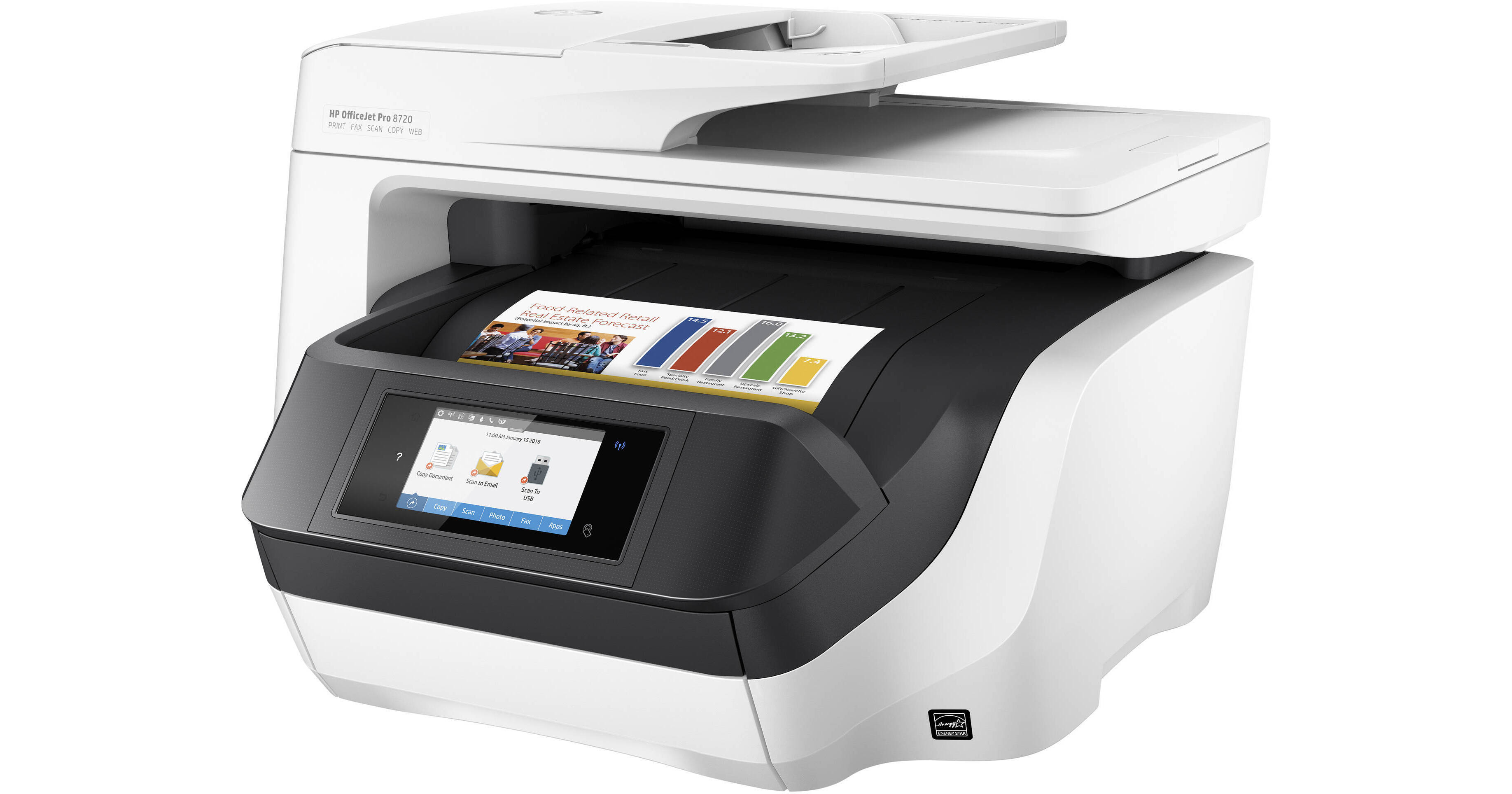
The hp Office Jet Pro All-in-One Printer 8720 is a business-class inkjet printer built for small offices, home offices, and teams that need fast, reliable printing, copying, scanning, and faxing in one machine. It stands out for its automatic duplex printing, 35-sheet automatic document feeder, wide wireless connectivity, and touchscreen-driven workflow, making it a strong fit for users who want office efficiency without moving to a bulky laser device. With print speeds up to 24 ppm black and 20 ppm color, the 8720 is designed to handle everyday documents, reports, invoices, presentations, and scan-to-email tasks with minimal effort.
One of the biggest advantages of the HP OfficeJet Pro 8720 All-in-One Printer is its balance of speed, output quality, and value. The printer uses a 4-cartridge pigment-based ink system for crisp text and sharp graphics, while also supporting borderless printing for brochures, marketing materials, and photos. Its 4.3-inch color touchscreen simplifies setup and daily use, and the built-in Ethernet, USB, and wireless networking options make it easy to deploy in shared office environments. It also supports mobile printing and cloud-connected workflows for users who print from smartphones, tablets, and laptops.
This model is aimed at business users, freelancers, and busy households that need dependable all-in-one functionality. It typically falls in the midrange office printer category, with an estimated price range of about $150 to $250 depending on condition, retailer, and availability. New stock may be limited in some regions, so many buyers find it through select online stores, office equipment resellers, or HP’s direct storefront. For users searching for a practical office printer with solid everyday performance, the hp Office Jet Pro All-in-One Printer 8720 remains a proven option.
Specifications for HP OfficeJet Pro 8720 All-in-One Printer
- Print speed: Up to 24 ppm black and up to 20 ppm color for ISO-quality office printing.
- Print resolution: Up to 1200 x 1200 rendered dpi in black and up to 4800 x 1200 optimized dpi in color on supported photo paper.
- Functions: Print, copy, scan, and fax in one multifunction device.
- Display: 4.3-inch color graphic touchscreen for setup and navigation.
- Connectivity: USB 2.0, host USB, Ethernet, and wireless 802.11b/g/n.
- Paper handling: 250-sheet input tray and automatic duplex printing.
- ADF: 35-sheet automatic document feeder for multi-page scanning and copying.
- Ink system: 4 cartridges, one each for black, cyan, magenta, and yellow.
- Processor: 600 MHz for everyday office processing tasks.
- Typical duty cycle: Suited for light-to-medium office workloads rather than heavy enterprise use.
- Comparison: Compared with compact home all-in-ones, the 8720 offers faster duplex output, better office networking, and a more robust ADF; compared with entry-level laser printers, it provides better color output and lower upfront complexity.
Detailed Description of the HP Office Jet Pro All-in-One Printer 8720
The hp Office Jet Pro All-in-One Printer 8720 is a thermal inkjet office printer that combines document printing and scanning into a single compact workstation. It is built around productivity features that matter in daily work, such as automatic two-sided printing, a legal-size flatbed scanner, and a front-facing touchscreen interface that guides users through tasks quickly. The printer is especially useful when you need to scan contracts, copy ID cards, print business reports, or fax signed documents without switching devices.
Its build quality is practical and office-friendly, with a sturdy chassis designed for desk or shelf placement. The materials feel functional rather than premium, but the unit is made for dependable everyday use. Output quality is strong for text-heavy documents, and color prints are sharp enough for charts, slides, and internal marketing material. In real-world use, the 8720 performs best in shared workspaces where multiple users need network access and fast job completion. Users also appreciate the simple control layout and the convenience of mobile printing support. For many small offices, it delivers the right mix of speed, versatility, and manageable operating cost.
Setup Guide: How to Install and Configure the HP OfficeJet Pro 8720
- Unpack the printer, remove all packing tape, and place it on a flat, stable surface with enough clearance for the paper trays and scanner lid.
- Connect the power cord directly to the printer and then to a grounded outlet.
- Power on the device and follow the touchscreen prompts to choose language, region, date, and time.
- Install the starter ink cartridges carefully, matching each color to its corresponding slot.
- Load plain paper into the input tray and adjust the side guides so the stack sits snugly.
- Choose a connection method: Wi-Fi for wireless printing, Ethernet for stable office networking, or USB for a direct computer connection.
- Use the wireless setup wizard on the touchscreen to connect to your home or office network.
- Install the HP software or mobile app on your computer or smartphone to enable printing, scanning, and maintenance tools.
- Run a test page, align the cartridges if prompted, and confirm duplex printing works correctly.
For best results, keep the printer away from heat, moisture, and direct sunlight. Avoid touching the printhead contacts, and never power-cycle the unit while it is actively initializing. If the wireless connection fails, restart the router and the printer, then reconnect through the setup menu.
Troubleshooting the HP OfficeJet Pro 8720
- Printer not connecting to Wi-Fi: Recheck the network name and password, move the printer closer to the router, and use the wireless setup wizard again. A router restart often resolves unstable connections.
- Poor print quality: Run printhead cleaning and alignment from the maintenance menu. Replace low or empty cartridges and use fresh plain paper.
- Paper jams: Remove paper slowly in the direction of the paper path, fan the stack before reloading, and avoid using curled or damp sheets.
- Slow printing: Reduce high-resolution settings for drafts, close unnecessary background jobs, and use a wired connection if the network is congested.
- Touchscreen unresponsive: Power the printer off for 30 seconds, then restart it. If needed, update the firmware through HP software.
- Common error behavior: Cartridge or paper path alerts usually clear after reseating supplies, removing jammed paper, or reopening the access door.
Preventive maintenance includes keeping firmware current, using recommended paper types, and printing a test page periodically to prevent ink clogging. The printer is typically covered by a one-year limited hardware warranty, and HP support generally provides web-based help, drivers, setup guides, and troubleshooting resources. If a hardware issue persists, contact HP support or the retailer where the printer was purchased for warranty assistance.
Pros and Cons of the hp Office Jet Pro All-in-One Printer 8720
Pros
- Fast document printing for a business inkjet, with up to 24 ppm black output.
- Automatic duplex printing saves paper and supports professional double-sided documents.
- 35-sheet ADF improves productivity for scanning and copying multi-page files.
- Versatile connectivity with Wi-Fi, Ethernet, USB, and mobile printing support.
- Strong text quality and solid color graphics for office reports and presentations.
- Good value for small offices that need one device for multiple tasks.
Cons
- Ink costs can be higher over time than some monochrome laser alternatives.
- Bulkier than compact home printers, so it needs more desk space.
- Not ideal for very high-volume office environments.
- Availability may be limited because this model is older and often sold through remaining stock or resellers.
Compared with entry-level all-in-one printers, the 8720 offers better office features and stronger productivity tools. Compared with a laser printer, it provides better color flexibility and easier photo-like output, but may not match laser cost efficiency for heavy black-and-white use.
Customer Reviews of the HP OfficeJet Pro 8720
Many users rate the printer around 4 out of 5 stars, praising its fast setup, reliable wireless printing, and strong everyday performance. Common compliments include the clear touchscreen, automatic two-sided printing, and the ability to handle scanning and copying without slowing down a busy workflow. One frequent comment is that the printer feels like a real small-office workhorse rather than a basic home printer.
Typical complaints focus on ink expense, occasional wireless hiccups, and the printer size. Some buyers also note that advanced users may want a newer model with more modern app integration. Overall, the hp Office Jet Pro All-in-One Printer 8720 is a solid purchase for offices that need dependable multifunction printing, especially when found at a competitive price.
Faqs
How do I set up hp Office Jet Pro All-in-One Printer 8720 for the first time?
Why won’t my hp Office Jet Pro All-in-One Printer 8720 connect to Wi-Fi?
What should I do if hp Office Jet Pro All-in-One Printer 8720 prints slowly or the print quality looks poor?
Which devices and operating systems work with hp Office Jet Pro All-in-One Printer 8720?
What are the main features of hp Office Jet Pro All-in-One Printer 8720 for office use?
How do I scan multiple pages on hp Office Jet Pro All-in-One Printer 8720 without losing page order?
How often should I maintain hp Office Jet Pro All-in-One Printer 8720 to keep it running smoothly?
Why is my hp Office Jet Pro All-in-One Printer 8720 showing paper jam or feed errors?
More hp manuals
Leave a Comment