
Jbl Quantum 400 Headphones User Manual
Content
JBL Quantum 400 Headphones Manual: Features, Setup, Troubleshooting, and Buying Guide
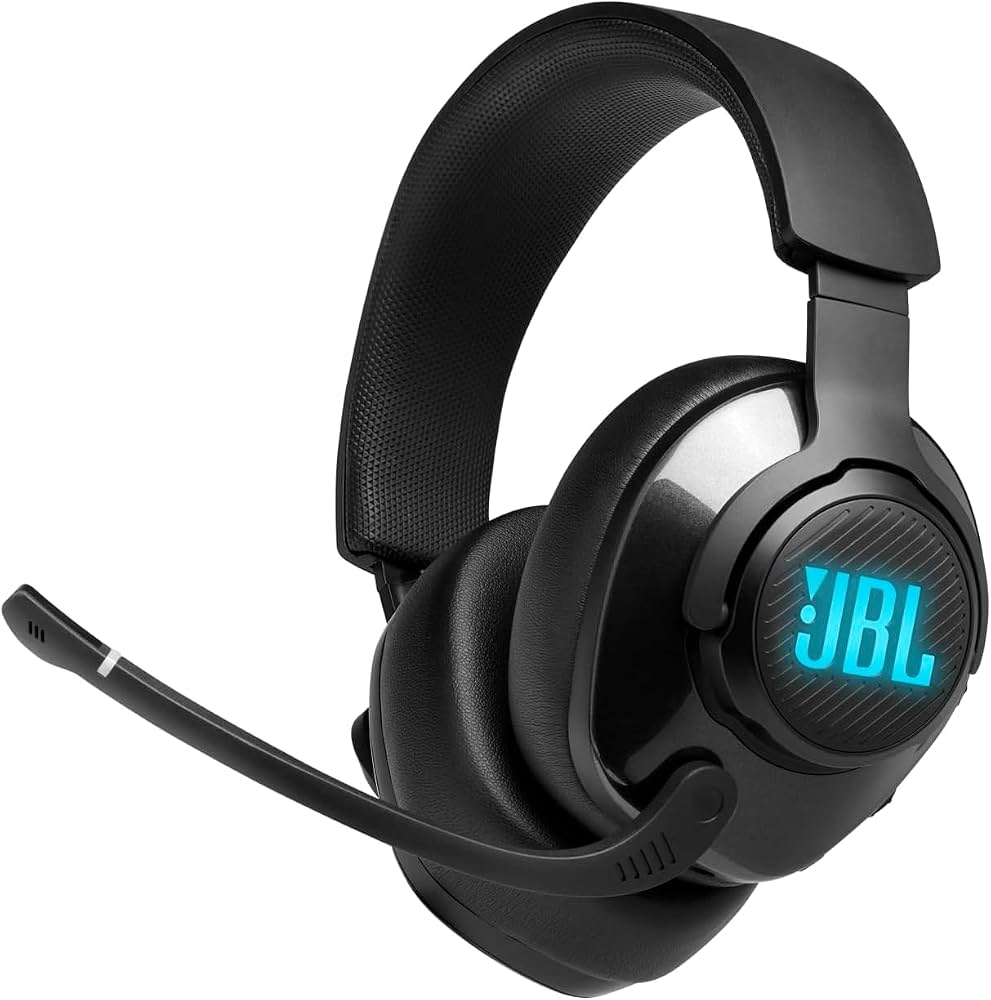
Introduction to the JBL Quantum 400 Headphones
The JBL Quantum 400 Headphones are wired over-ear gaming headphones built for players who want clear directional audio, a comfortable fit, and dependable voice chat performance. With 50 mm dynamic drivers, a 20 Hz to 20 kHz frequency response, and a directional flip-up microphone, this model is designed to deliver immersive game sound and reliable communication across PC, PlayStation, Xbox, Nintendo Switch, and mobile devices. The headset also supports JBL QuantumSURROUND and DTS Headphone:X 2.0 on compatible platforms, giving competitive gamers an edge in hearing footsteps, environmental cues, and in-game direction more accurately.
One of the biggest strengths of the JBL Quantum 400 Headphones is its game-chat balance control, which lets users quickly adjust the mix between game audio and team voice chat. The memory foam ear cushions and adjustable headband make it suitable for long gaming sessions, while the USB and 3.5 mm connection options provide flexible use with desktops, laptops, and consoles. This makes the headset appealing to casual players, esports enthusiasts, streamers, and students who need a practical everyday gaming headset.
As of 2026, the estimated price range for the JBL Quantum 400 Headphones is typically around $60 to $100, depending on retailer, region, promotions, and whether the headset is sold new or refurbished. It remains widely available through major electronics retailers and online marketplaces, making it a strong mid-range option for buyers looking for value, surround sound features, and cross-platform compatibility.
How to Set Up JBL Quantum 400 Headphones on PC, Console, and Mobile
- Connect the USB cable for PC use when you want access to JBL QuantumSURROUND, DTS processing, and headset software features.
- Use the 3.5 mm audio cable for consoles, laptops, controllers, and mobile devices that support analog audio input.
- Adjust the headband so the ear cups fully cover your ears without pressing too tightly.
- Flip the microphone down to activate voice capture and raise it when you want to mute communication.
- Set the game-chat balance dial to match your preference for in-game sound versus voice chat.
- Install compatible audio software on PC if you want to customize surround sound, EQ, or microphone monitoring settings.
Troubleshooting Common JBL Quantum 400 Headphones Problems
If the JBL Quantum 400 Headphones are not producing sound, first check the cable connection, default playback device, and system volume. For USB use, try another port and restart the device; for 3.5 mm use, confirm the plug is fully inserted and the controller or device supports headset audio. If the microphone is not working, make sure the mic boom is lowered, the input device is selected correctly, and privacy permissions are enabled in the operating system.
Common issues include one-sided audio, distorted sound at high volume, or surround sound not activating on PC. These problems are usually caused by loose connections, outdated drivers, incorrect software settings, or incompatible audio modes. Some users may also see software warnings or device detection errors rather than a specific headset code; in those cases, reinstalling the audio driver or unplugging and reconnecting the headset often helps. Preventive care includes storing the headset in a dry place, avoiding cable strain, cleaning the ear cushions regularly, and keeping software and firmware up to date when available.
The headset is generally covered by the manufacturer’s standard warranty period, which is commonly one year for audio products, though terms can vary by region. For help, contact JBL customer support through the official support website, your retailer, or the product registration and warranty service page. Keep your proof of purchase ready, especially if you need repair, replacement, or warranty confirmation.
Pros and Cons of JBL Quantum 400 Headphones
Pros
- Strong value for money for a mid-range gaming headset with surround sound support.
- 50 mm drivers deliver powerful, game-friendly audio with clear low-end impact.
- Game-chat balance is useful in team-based titles like shooters and MOBAs.
- Works across PC, PlayStation, Xbox, Nintendo Switch, and mobile devices with the right connection.
- Comfortable enough for long sessions thanks to memory foam padding and an adjustable headband.
Cons
- Wired design limits mobility compared with wireless gaming headsets.
- Surround sound features are most effective on PC, so console users may get fewer advanced options.
- Microphone quality is solid for gaming but not ideal for studio-grade voice recording.
- Some alternatives at similar prices may offer stronger passive isolation or more premium materials.
Overall, the JBL Quantum 400 Headphones are a smart choice if you want a feature-rich wired headset without paying premium wireless prices. Compared with alternatives such as HyperX Cloud or budget SteelSeries models, it stands out for its software-enhanced surround audio and game-chat balance, though competitors may win on build feel or microphone refinement.
Customer Reviews of JBL Quantum 400 Headphones
Customer feedback for the JBL Quantum 400 Headphones is generally positive, with many users praising the immersive soundstage, comfortable fit, and useful chat mix control. A common rating pattern is around 4 out of 5 stars, especially among buyers who use the headset for competitive gaming and long play sessions. Many reviewers describe the headset as a dependable “plug in and play” option with strong bass and clear positional audio.
Frequent complaints focus on the wired-only design, occasional software setup confusion on PC, and microphone performance that is good but not exceptional. A typical user comment might read: “Great sound for the price, and the game-chat dial is genuinely useful, but the cable makes it less convenient than wireless headsets.” Another common takeaway is that it is best for gamers who prioritize sound quality and value over portability.
For most buyers, the JBL Quantum 400 Headphones are worth considering if you want a reliable gaming headset with strong audio features and a reasonable price.
Faqs
How do I set up JBL Quantum 400 Headphones for the first time on PC or console?
Why is my JBL Quantum 400 Headphones microphone not being detected?
Can JBL Quantum 400 Headphones work with PS5, PS4, Xbox, Nintendo Switch, and PC?
How do I fix low volume or weak bass on JBL Quantum 400 Headphones?
What is the best way to use JBL Quantum 400 Headphones for gaming chat and voice communication?
How do I optimize JBL Quantum 400 Headphones for surround sound and competitive gaming?
Why do JBL Quantum 400 Headphones keep disconnecting or cutting out during use?
How should I clean and maintain JBL Quantum 400 Headphones to extend their lifespan?
More jbl manuals
Leave a Comment