
Setup: Mobvoi TicWatch Pro 5 User Manual
Content
Mobvoi TicWatch Pro 5: Comprehensive Product Manual and Review
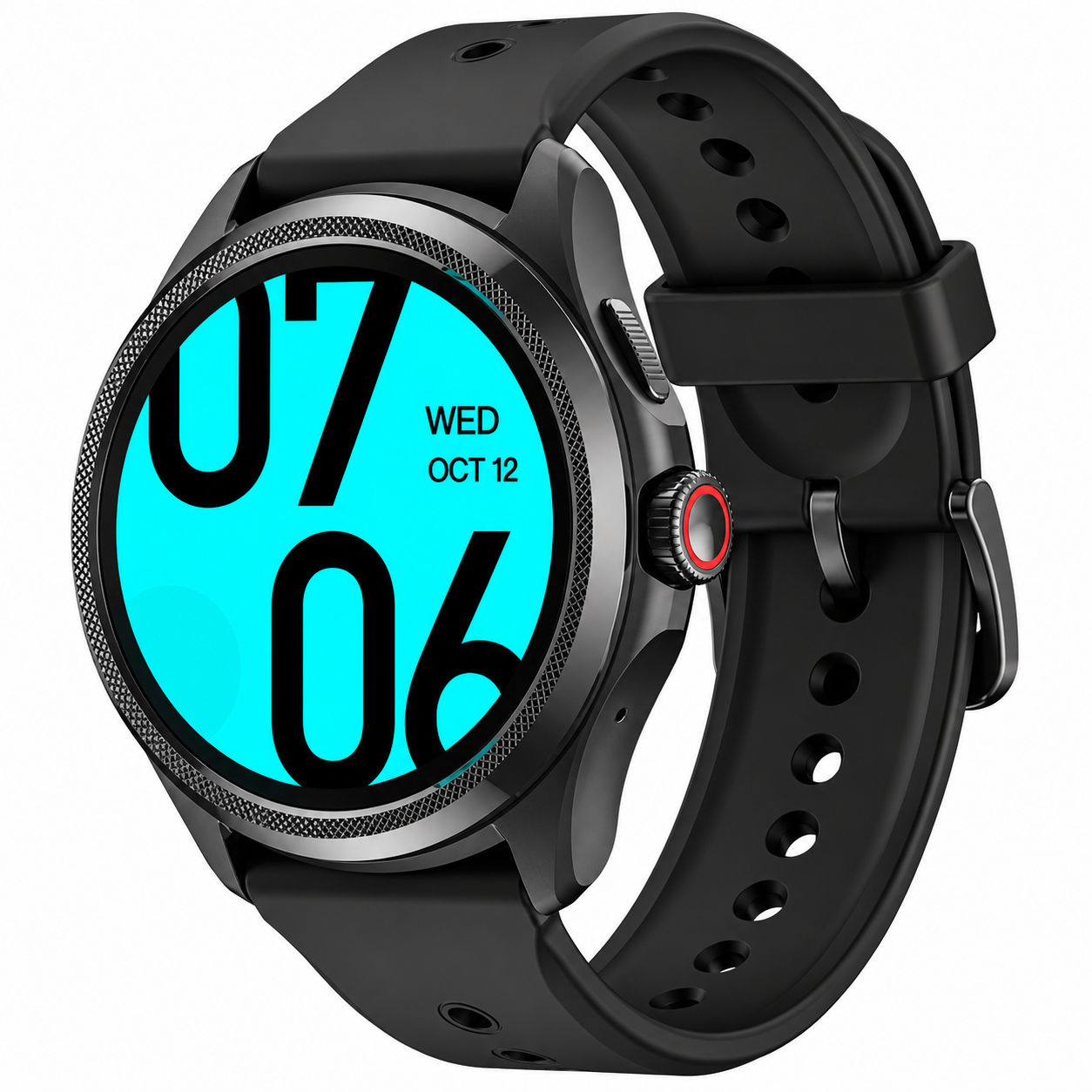
Introduction to Mobvoi TicWatch Pro 5
The Mobvoi TicWatch Pro 5 is a premium Wear OS smartwatch designed for fitness enthusiasts, outdoor adventurers, and everyday users seeking exceptional battery life and advanced health tracking. Powered by Qualcomm's Snapdragon W5+ Gen 1 platform, this smartwatch stands out with its innovative dual-display system: a vibrant 1.43-inch AMOLED screen for rich visuals and an ultra-low-power secondary display for glanceable info, extending battery life up to 80 hours in Smart Mode or even 45 days in Essential Mode.[1][2][4] Key benefits include over 100 workout tracking modes, one-tap health metrics like heart rate, SpO2, VO2 Max, and stress levels, plus NFC for Google Wallet payments and MIL-STD-810H durability for rugged conditions.
Ideal for athletes monitoring recovery time, professionals needing all-day connectivity, or hikers tackling harsh weather, the mobvoi TicWatch Pro 5 combines Wear OS 3.5 fluidity with real-world toughness, featuring 5ATM water resistance and a rotating crown for easy navigation.[2][4] Compared to rivals like the Samsung Galaxy Watch, it excels in battery endurance without sacrificing performance. Priced at around $349 or €359, it's available immediately in Obsidian or Slate colors via official channels, offering premium value for long-lasting smartwatch features.[1][4] Whether syncing with Android 8.0+ devices via the Mobvoi Health app or handling GPS workouts, this TicWatch Pro 5 manual guides you through setup, usage, and optimization for peak performance.
Mobvoi TicWatch Pro 5 Specifications and Key Features
The Mobvoi TicWatch Pro 5 delivers top-tier specs for a Wear OS smartwatch, outperforming predecessors like the TicWatch Pro 3 with doubled RAM and quadrupled storage for snappier performance.
- Processor: Snapdragon W5+ Gen 1 wearable platform for smooth app loading and multitasking.
- Display: 1.43-inch 466x466 AMOLED (326ppi) + Ultra-low-power FSTN display; Corning Gorilla Glass protection.
- Memory: 2GB RAM, 32GB storage.
- Battery: 628mAh, up to 80 hours Smart Mode, 45 days Essential Mode; 65% charge in 30 minutes.
- Sensors: Accelerometer, Gyro, HD PPG Heart Rate, SpO2, Skin Temperature, Barometer, Compass, Low Latency Off-Body.
- Connectivity: Bluetooth 5.2, Wi-Fi 2.4GHz, GPS+Beidou+GLONASS+Galileo+QZSS, NFC (Google Wallet).
- Build: 7000-series aluminum, high-strength nylon, 44.7g weight, 50.15 x 48 x 11.95 mm, 5ATM + MIL-STD-810H.
- OS: Wear OS by Google 3.5; 100+ workouts, VO2 Max tracking.
Versus Samsung Galaxy Watch 6 (similar chipset but shorter battery), the TicWatch Pro 5 shines in endurance and dual-screen efficiency.
Button & functions
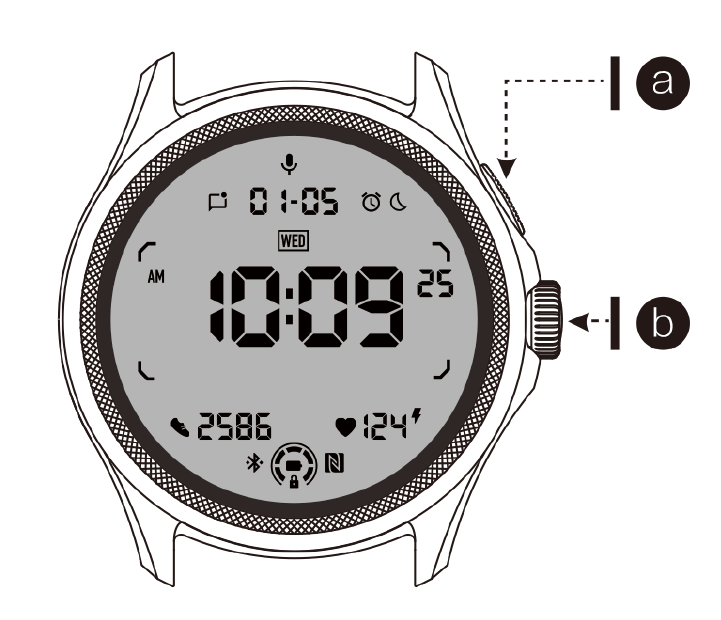
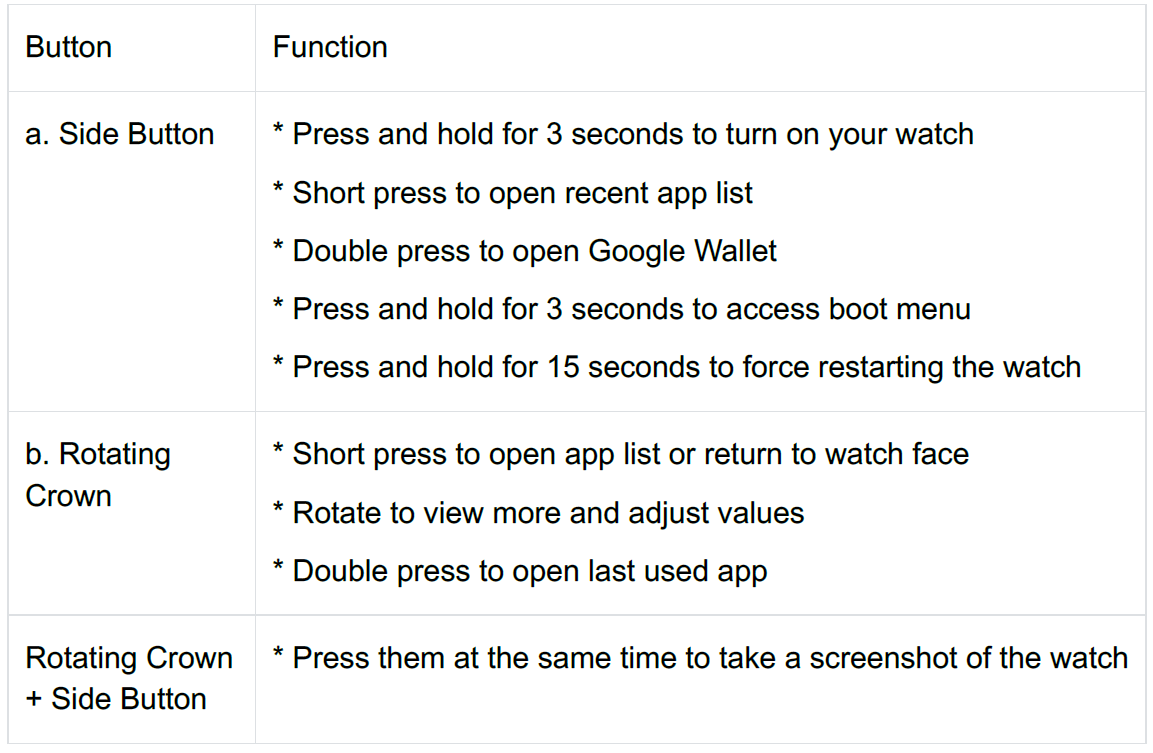
Setup
Rotating crown
Rotate the crown clockwise or anticlockwise to easily control various watch functions.
- Rotate to view tiles:
- On the home screen, rotate to view tiles.
- The function can be enabled in Settings -> General -> Rotating for tiles.
- Rotate to view watch faces:
- Long-press the home screen and rotate to view watch faces.
- Rotate to scroll pages.
- Rotate to adjust values, including volume, numbers, brightness, etc.
Wear the watch
a. Accurate data on heart rate during exercise can be obtained through correct use of the watch. Inaccurate data on heart rate will be obtained if it is worn too tightly or loosely.
b. The watch should be worn 1–2 horizontal fingers above the wrist bone. The watch worn should fit the arm. Shake the hand a few times to ensure comfortable wear.
c. Keep the wrist clean. Long-term use of the watch on the same area may constrict blood vessels. It is recommended to adjust the position.
Turn the watch on and off:
Turn on the watch
Press and hold the side button for a few seconds to turn on the watch.
Turn off the watch
- Press and hold the side button for a few seconds.
- Tap 【Power off】.
Force restart
If your watch is frozen and unresponsive, press and hold the side button for 15 seconds to restart it.
Pair your watch with phone
Install the Mobvoi Health app on your phone
To connect your watch to a smartphone, please install the Mobvoi Health app on your phone first.
- Search and download "Mobvoi Health" in the Google Play Store.
- Mobvoi Health app is only compatible with TicWatch that runs on the Wear OS 3 platform. If you have other types of TicWatch, you may need to install the Mobvoi app and follow the instructions.
- If you already have the Wear OS by Google app or Mobvoi app installed, please uninstall them before pairing.
Connect your watch to a smartphone
- Turn on the watch.
- Tap and select a language.
- On-screen instructions for launching the Mobvoi Health app will appear.
- Launch the Mobvoi Health app on your smartphone.
- Tap the [Device] tab and tap [Add a new device].
- Select your watch on the screen.
- Follow the on-screen instructions to complete the pairing process.
Pair with multiple watches
For Android devices, it is possible to pair with multiple TicWatches at the same time.
- Launch the Mobvoi Health app on your smartphone.
- Tap the [Device] tab.
- Tap the [+] icon in the top right corner to start the pairing process.
Remove the paired watch
- Open the Mobvoi Health app and tap Settings.
- Tap the unpair and reset button at the bottom to unpair the watch from the app.
How to maintain connection stability?
After the watch is paired, please make sure to maintain a stable connection between the watch and mobile phone to ensure normal functions such as message notifications.
For Android:
- It can be connected via Bluetooth or Wi-Fi. Please make sure your Bluetooth is turned on.
- Or keep the watch and phone connected to the same Wi-Fi network.
Watch face
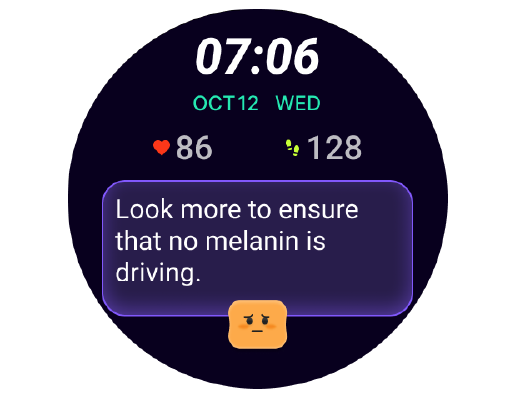
Sleep coach watch face
The Sleep Coach watch face displays different states and provides suggestions based on your sleep cycle and sleep records. You can check your sleep information at a glance on the watch face every morning.
How to use
- Long press the watch face to enter the watch face edit list.
- Select the Sleep Coach watch face and apply it.
- Set your sleep cycle. Please go to TicSleep -> Settings -> Sleep cycle to modify your bedtime and wake-up time.
Bedtime reminder
Starting one hour before your bedtime, the Sleep Coach watch face will remind you to go to bed on time.
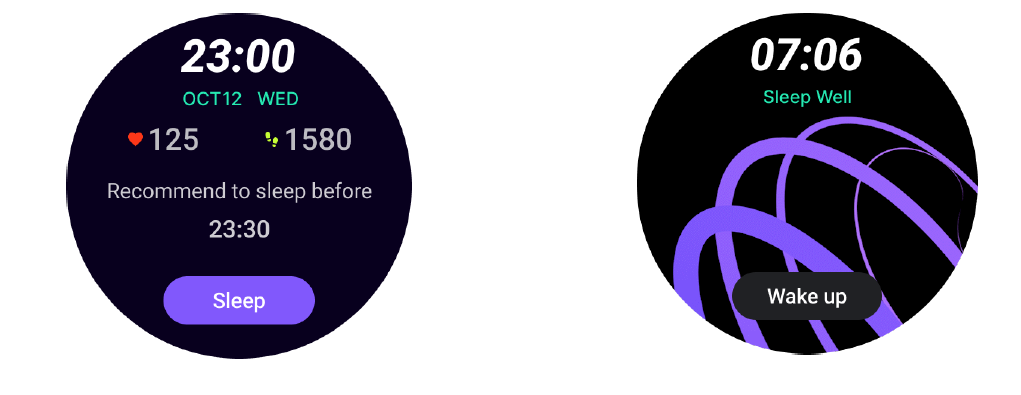
Sleep tips
Every day at different time periods, sleep tips that are beneficial to improving sleep quality will be displayed. Click on the dialog box to view complete content.
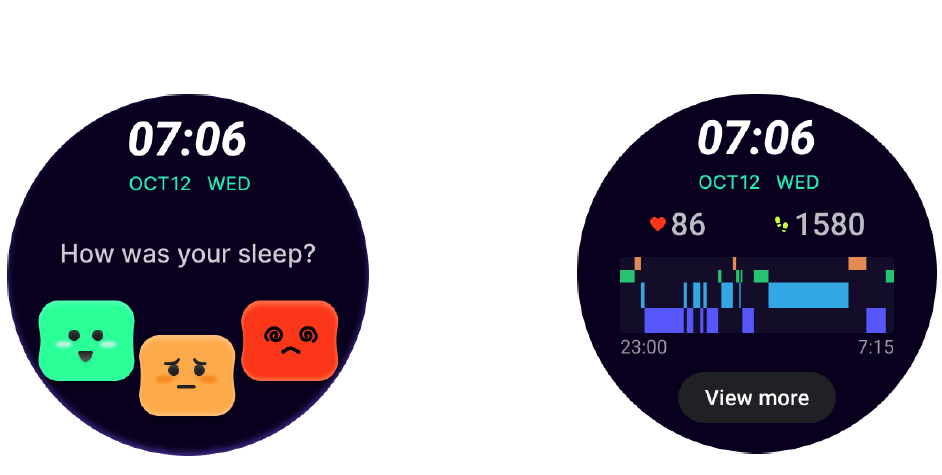
Sleep data overview
After waking up each day, you can quickly check last night's sleep data and provide subjective feedback on your sleep experience. Click on "View more" to enter TicSleep to view details.
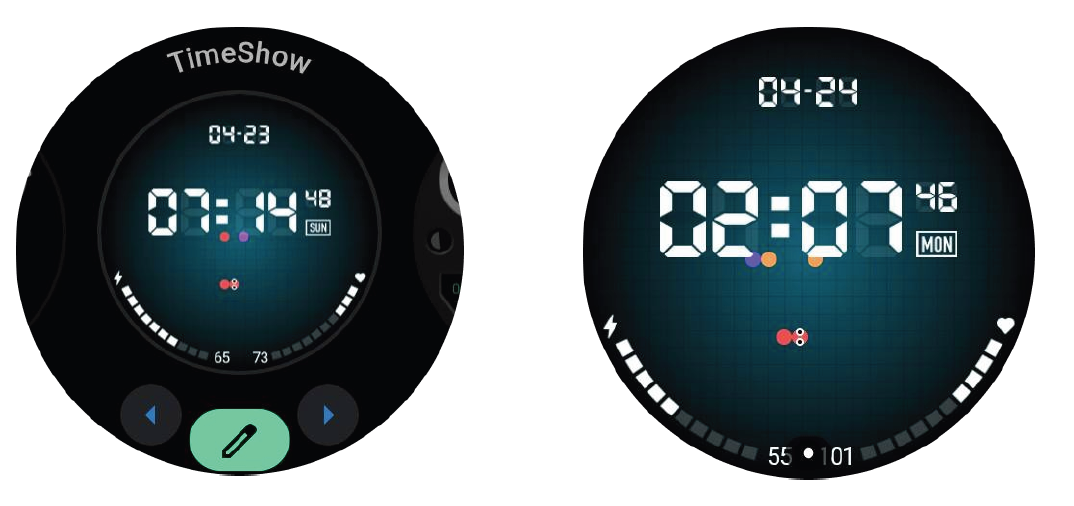
Happy rotation watch face
A very fun watch face that can interact with the rotating button.
How to use
- Long press the watch face to enter the watch face edit list.
- Select the Happy Rotation watch face and apply it.
- Tap "Play" to enter the game mode, and rotate the rotating button to switch to different images.
- Swipe from left to right to exit the game mode and apply the current image.
TimeShow - Browse more watch faces
- Long press the watch face to enter the watch face edit list.
- Tap the TimeShow watch face to apply.
- You can choose different watch faces from the TimeShow app both on your watch and phone. Make sure you set TimeShow as your current watch face.
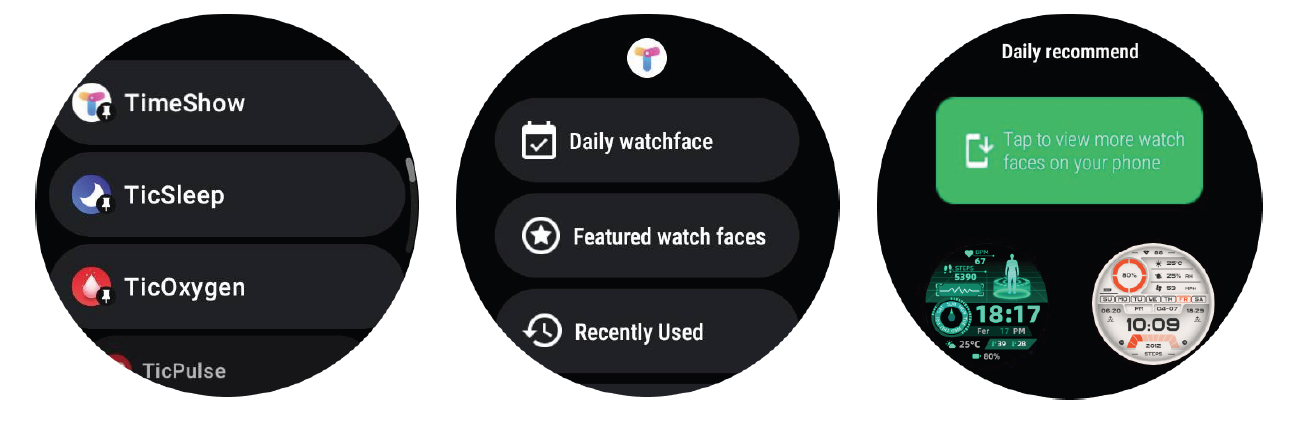
Browse watch faces on your watch
- Press the rotating crown to enter the application list menu.
- Tap the TimeShow app.
- You can browse watch faces from the daily recommendation or featured list.
- Tap the watch face to preview it.
- You can download the free watch face and apply it directly.
- Or you can purchase the paid watch faces.
View TimeShow on your phone
You can find more watch faces through the following methods:
- Download and install the TimeShow app on your phone.
- You can use your Mobvoi registered email address and password to log into TimeShow directly or log in with a Google account.
- If you want to purchase or sync free watch faces, please tap on the sync button and follow the instructions.
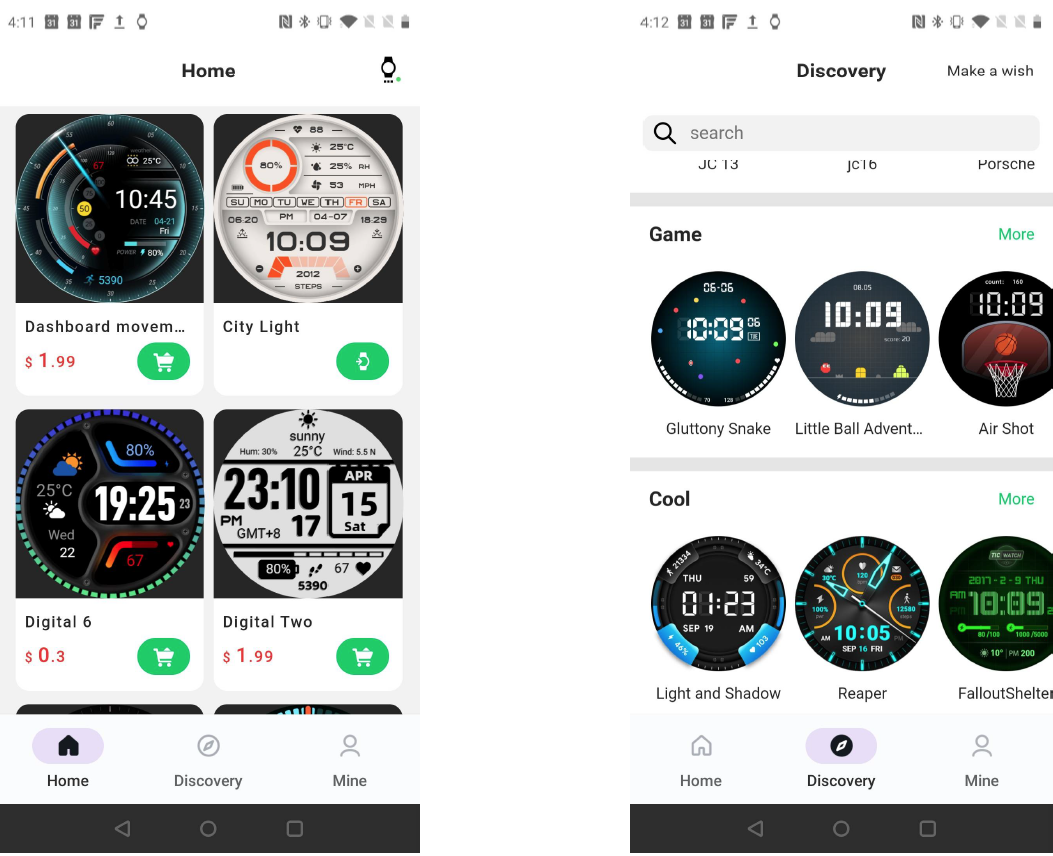
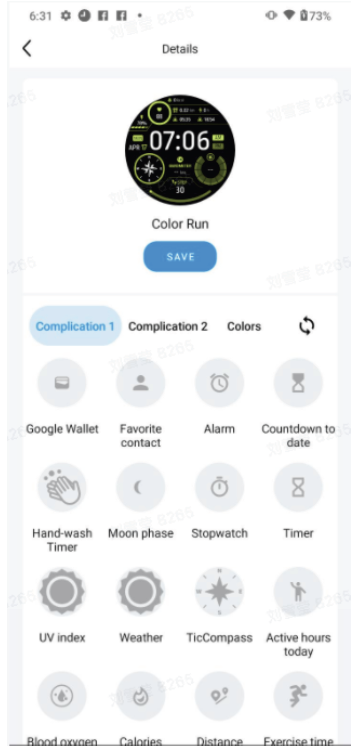
Edit watch face on your phone
- You can apply and customize the watch face on your phone. Launch the Mobvoi Health app on your phone.
- Tap the Device tab.
Please make sure your phone and watch are connected via Bluetooth.
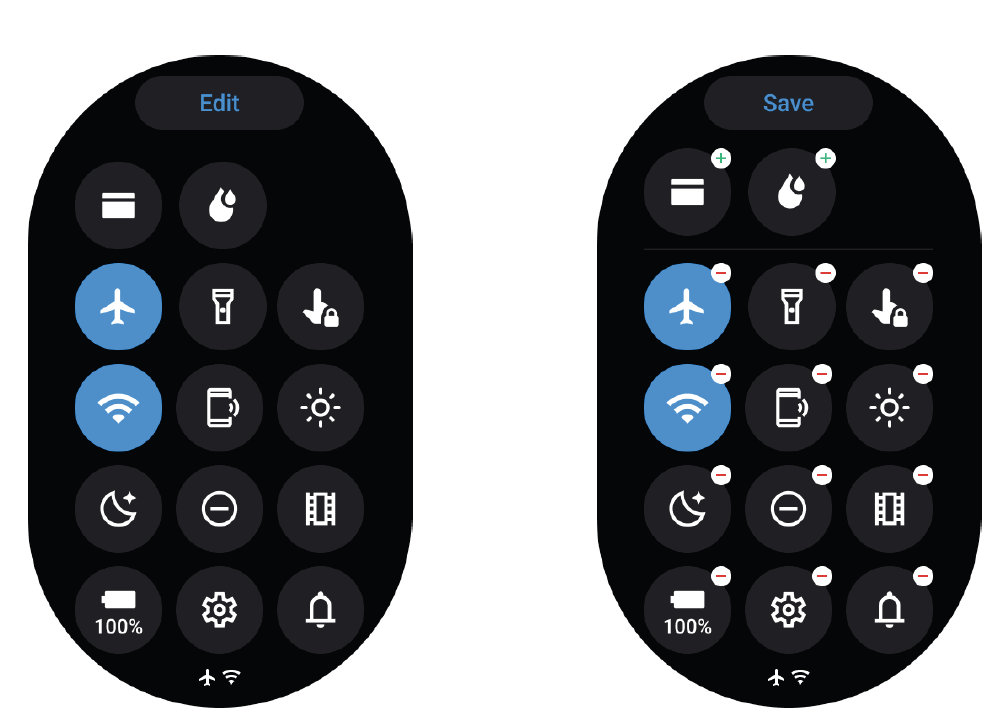
Edit quick settings
- Tap the Edit button to edit quick setting icons.
- Tap [+] to add the icons to appear on the QSS tray.
- Tap [-] to remove icons from the QSS tray.
- Tap [Save] to save changes.
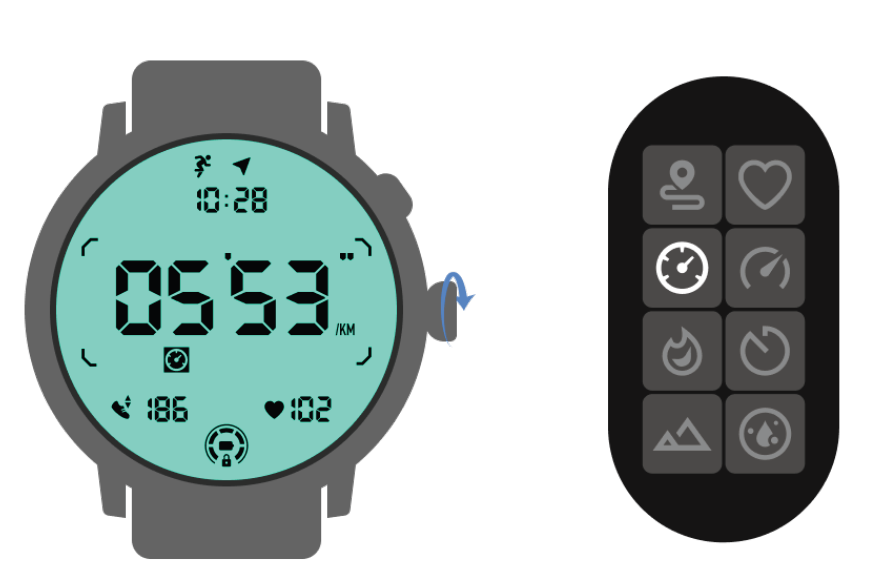
The UI of the ULP display
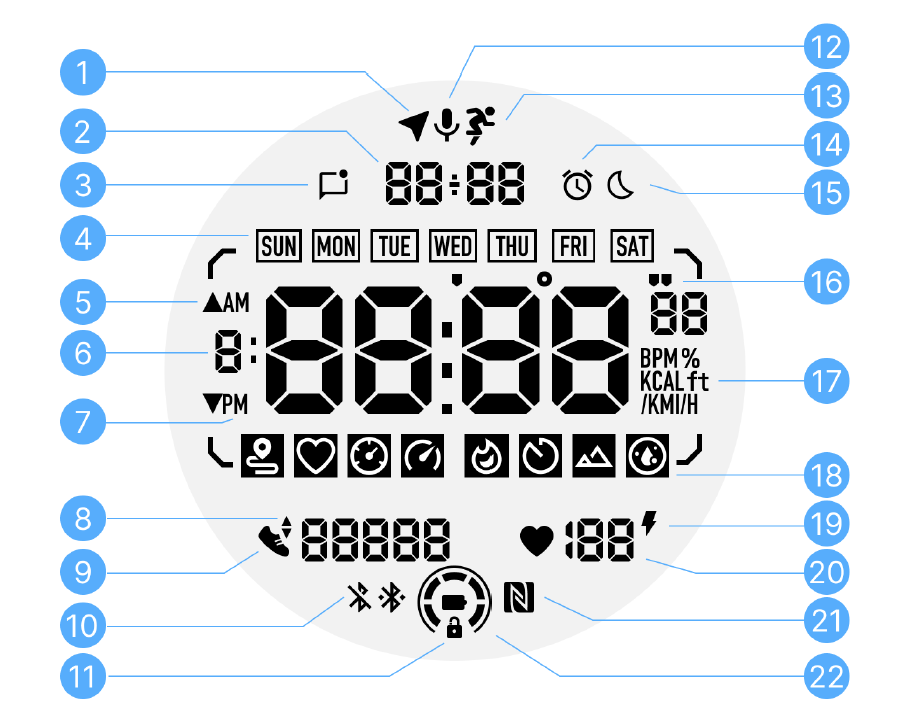
The operations of the ULP display
How to turn on and off the backlight?
- The tilt-to-wake backlight option is on by default.
- Please go to "Settings -> Display -> Tilt-to-wake" for details.
- Generally speaking, there are two ways to light up the backlight: raising your wrist or rotating the rotating crown more than 180 degrees. The backlight will automatically turn off when the timeout is reached or when you lower your wrist, and the ULP display will be locked to prevent accidental operations.
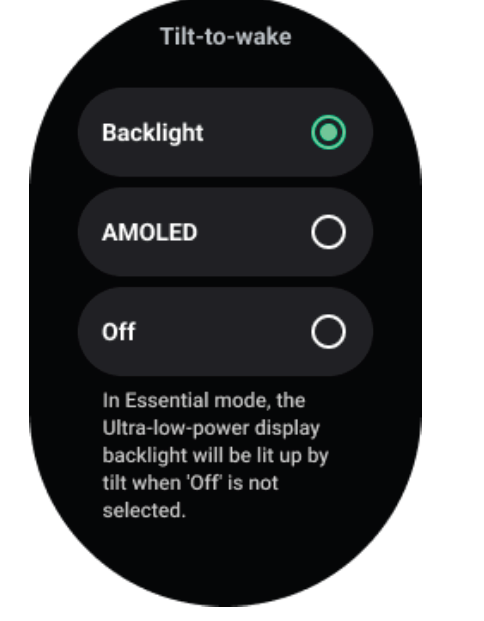
How to disable tilt-to-wake backlight?
- If you only want to temporarily disable the tilt-to-wake backlight, you can enable Bedtime mode or Theater mode.
- If you want to disable this feature permanently, choose the "Off" option in the tilt-to-wake settings.
How to switch ULP tiles?
After unlocking the ULP display, rotating the crown clockwise or counterclockwise will sequentially switch ULP tiles in ascending and descending order.
Troubleshooting Mobvoi TicWatch Pro 5 Common Issues
Encountering glitches with your Mobvoi TicWatch Pro 5? This section covers frequent problems, fixes, and prevention for optimal Wear OS performance.
- Battery Drain: Switch to Essential Mode via settings; disable unused sensors. Expect 80 hours normal use—reset if below 50% daily.
- Sync Issues with Mobvoi Health App: Ensure Android 8.0+ compatibility; restart Bluetooth, clear app cache. Update via Google Play.
- Display Not Switching: Rotate crown to toggle AMOLED/FSTN; check for software updates in Wear OS settings.
- Health Sensor Errors (e.g., Inaccurate HR/SpO2): Clean sensors, wear snugly; recalibrate in app. No specific error codes noted, but restart resolves most.
- Connectivity Drops: Forget/re-pair Bluetooth; toggle Wi-Fi. GPS fixes improve with multiple satellites.
Prevent issues by updating firmware regularly and avoiding extreme temps.
Pros and Cons of Mobvoi TicWatch Pro 5
Pros
- Exceptional battery life (80+ hours) beats competitors like Pixel Watch 2, ideal for multi-day adventures.
- Snappy Snapdragon W5+ Gen 1 and dual-display for fluid Wear OS experience with glanceable metrics.
- Rugged MIL-STD-810H build and comprehensive sensors offer great value at $349.
- 100+ workouts, NFC payments, and VO2 Max tracking rival high-end Apple Watch features.
Cons
- Limited color options (Obsidian/Slate) and no LTE variant.
- Wear OS 3.5 may lag behind newer updates on Samsung devices.
- Bulky 44.7g design not ideal for small wrists; secondary display backlight could be brighter.
- App ecosystem relies on Google Play; occasional sync hiccups reported.
Overall, strong value for battery-focused users versus pricier alternatives.
Customer Reviews and Feedback on Mobvoi TicWatch Pro 5
Users rave about the Mobvoi TicWatch Pro 5's battery and performance, averaging 4.5/5 stars across reviews. "Best Wear OS battery life—80 hours easy!" praises one on Techaeris, highlighting quick swipes and health accuracy. Testers love the dual-screen for workouts: “Crown access to HR/SpO2 without waking OLED is genius.”
Common praises: Smooth Snapdragon chip, durable build, Google Wallet ease. Complaints include occasional app sync delays and dim FSTN backlight at night. "VO2 Max and GPS tracking spot-on for runners," notes Pocketnow (4.5 stars). Recommended for Android users seeking TicWatch Pro 5 Enduro-like endurance without the premium price—fix sync via updates for flawless use.
Faqs
How do I set up mobvoi TicWatch Pro 5 for the first time with my Android phone?
What should I do if mobvoi TicWatch Pro 5 won't pair with my smartphone?
How can I customize tiles and watch faces on mobvoi TicWatch Pro 5?
Is mobvoi TicWatch Pro 5 compatible with iPhone, and how do I connect it?
How do I optimize battery life on mobvoi TicWatch Pro 5 using Essential Mode?
What to do if mobvoi TicWatch Pro 5 won't turn on or charge properly?
How do I maintain a stable connection for mobvoi TicWatch Pro 5 with my phone?
How do I perform a factory reset on mobvoi TicWatch Pro 5 if it's lagging?
More mobvoi manuals
- Setup: Mobvoi Treadmill Ultra T4226 User Manual
- Setup: Mobvoi TicWatch Atlas Owner Manual
- Setup: Mobvoi Ticwatch Pro 5 Enduro Smartwatch Instruction Guide
- Setup: Mobvoi TicNote AI Voice Recorder User Manual
- Setup: Mobvoi Treadmill SE Incline T4089 User Manual
- Setup: Mobvoi Walking Treadmill Edge TM10 User Manual
Leave a Comment