
How to Use: Netgear Nighthawk App Setup User Manual
Content
Netgear Nighthawk App Setup: Complete Product Manual
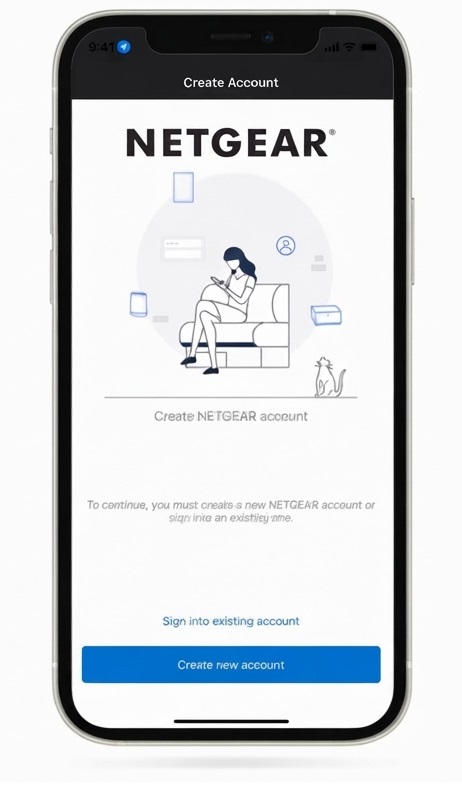
The Netgear Nighthawk App Setup experience is designed to make home network installation and management fast, simple, and mobile-friendly. Built for NETGEAR Nighthawk routers and mesh systems, the app helps users configure Wi-Fi, create secure passwords, monitor connected devices, run speed tests, and manage parental controls from a smartphone or tablet. For many households, it replaces the need to dig through complex router menus and makes first-time setup much more approachable.
This product is especially useful for home users, remote workers, gamers, and families who want better visibility into their internet connection without needing advanced networking knowledge. The app supports guided installation, remote management, firmware updates, guest network control, and device pausing, making it a practical solution for everyday Wi-Fi administration. It also supports account-based access for cloud features, which adds convenience for users who want to manage their network away from home.
Availability is broad across iOS and Android devices, and it is typically free to download. Pricing for the overall setup experience is tied to the compatible NETGEAR hardware rather than the app itself, with Nighthawk router pricing commonly ranging from budget models to premium Wi-Fi 6E and Wi-Fi 7 systems. Depending on the router model, total purchase prices can range from about $100 to $800 or more. The main value lies in the app’s ability to simplify advanced networking tasks into a few clear steps.
Specifications and Key Features
- Platform support: iOS and Android mobile devices for router installation and management.
- Core functions: internet setup, Wi-Fi name and password changes, device management, guest network creation, firmware updates, and speed testing.
- Connectivity: works with supported NETGEAR Nighthawk routers and mesh systems through local Wi-Fi and account-based remote access.
- Security tools: access to network controls, guest access, device pausing, and compatibility with parental control and security add-ons on supported models.
- Performance monitoring: built-in speed test for checking download and upload performance from the ISP to the router.
- Management tools: view connected devices, identify device types, and monitor activity from a single dashboard.
- Comparison: easier for beginners than browser-only router setup, while offering fewer deep manual options than full web-based advanced configuration pages.
For most users, the Nighthawk App offers faster onboarding than traditional router login pages and more convenient control than competing basic router apps. It is best suited for users who want a clean, guided interface rather than a highly technical admin console.
Step-by-Step Netgear Nighthawk App Setup Guide
To complete a successful Netgear Nighthawk App Setup, start by downloading the app on your mobile device. Connect the modem to the router’s Internet port, attach antennas if your model includes them, and power on the router. Wait until the Wi-Fi indicator lights up, then find the default Wi-Fi name and password on the router label.
- Connect your phone or tablet to the router’s default Wi-Fi network.
- Open the Nighthawk app and sign in or create a NETGEAR account if prompted.
- Select the option to set up a new system.
- Scan the QR code on the router if available, or continue with manual setup.
- Follow the on-screen instructions to name your Wi-Fi network and create a strong password.
- Set an admin password and allow firmware updates if the app requests them.
- Complete the installation and test internet access on a connected device.
If the app reports an internet issue, verify the modem is online, check cable connections, and restart both modem and router. Some advanced WAN configurations may require Static IP or PPPoE details from your ISP. Safety precautions include keeping the router in a ventilated area, using the supplied power adapter only, and avoiding setup near water, heat sources, or enclosed metal spaces.
Troubleshooting Common Nighthawk App Problems
Even with a smooth interface, setup issues can occur. A common problem is the app not detecting the router. In most cases, this is caused by the phone being connected to the wrong Wi-Fi network, weak router power, or an incomplete modem reboot. Reconnecting to the router’s default SSID and restarting the hardware usually resolves the issue.
- App cannot find router: confirm your phone is on the router’s local Wi-Fi network.
- Internet check fails: power-cycle the modem and router, then retry setup.
- Setup stops at advanced WAN settings: contact your ISP for PPPoE or Static IP details.
- Firmware update stalls: keep the router powered on and wait for the reboot to complete.
- Devices not showing in the list: refresh the dashboard or reconnect the device one at a time.
If error messages persist after restart and cable checks, reset the router only as a last resort. Preventive measures include updating firmware regularly, using a stable power source, and recording your Wi-Fi and admin credentials in a secure location. For warranty or support help, use NETGEAR’s official support channels, live assistance options, and product registration services. If you need direct assistance, NETGEAR support email channels are also available through the app store support listing and official support pages.
Pros and Cons of Netgear Nighthawk App Setup
Pros
- Simple guided setup makes first-time installation easier than manual router administration.
- Useful dashboard for checking connected devices, internet speed, and Wi-Fi settings.
- Remote management is convenient for users who want to control home Wi-Fi away from home.
- Strong value for NETGEAR owners who want one app for setup, monitoring, and maintenance.
- Helpful for families needing guest access, parental controls, and device pausing.
Cons
- Some advanced network settings are still easier to manage in the web interface.
- Setup depends on compatible hardware, so it is not a universal router app.
- Cloud-based features may require account sign-in, which some users prefer to avoid.
- Occasional detection issues can happen during initial pairing or modem handoff.
- Compared with enterprise-grade tools, it offers fewer professional network diagnostics.
Overall, the app delivers strong value for home users who want simplicity and speed. Compared with alternative router apps, it stands out for clean setup flows and broad management features, though power users may still prefer browser-based administration for deeper control.
Customer Reviews and User Feedback
Users generally rate the Netgear Nighthawk App Setup experience around 4 out of 5 stars for ease of use and convenience. Many praise the app for making router installation quick, especially when setting up a new home network or replacing an old router. Positive testimonials often mention the clear instructions, easy Wi-Fi renaming, and useful device list for managing family internet access.
Common complaints focus on occasional connection hiccups during the first setup attempt, especially when the modem needs a full restart or the phone is on the wrong network. Some users also note that advanced settings can feel limited compared with the browser dashboard. Despite that, most reviews recommend the app for everyday home users, especially those who value simple setup, remote management, and straightforward Wi-Fi controls.
Faqs
How do I complete netgear Nighthawk App Setup for the first time on a new router?
Why is my netgear Nighthawk App Setup stuck on router discovery, and how can I fix it?
What devices and operating systems are compatible with netgear Nighthawk App Setup?
What should I do if netgear Nighthawk App Setup says my login or password is incorrect?
Which Nighthawk app features are most useful after netgear Nighthawk App Setup is complete?
How can I improve Wi‑Fi performance after netgear Nighthawk App Setup?
How often should I update firmware and maintain the router after netgear Nighthawk App Setup?
What are the safest troubleshooting steps if netgear Nighthawk App Setup still fails after reinstalling the app?
More netgear manuals
- How to Setup: Netgear WiFi 7 Extender EXS18, EXS25, EXS27 User Manual
- Setup & Features: Netgear High Speed Cable Modem CM700 User Manual
- Setup & Features: Netgear Orbi Whole Home Tri-Band Mesh WiFi 6 System User Manual
- Setup & Features: Netgear Nighthawk Mesh WiFi 6 System User Manual
- How to Use: Netgear Multi-Gig Speed Cable Modem CM1200 User Manual
- Setup & Features: Netgear Nighthawk AC2300 Smart WiFi Router R7000P User Manual
Leave a Comment