
Netgear Nighthawk M7 Mobile Router MH7110 User Manual
Content
Introduction
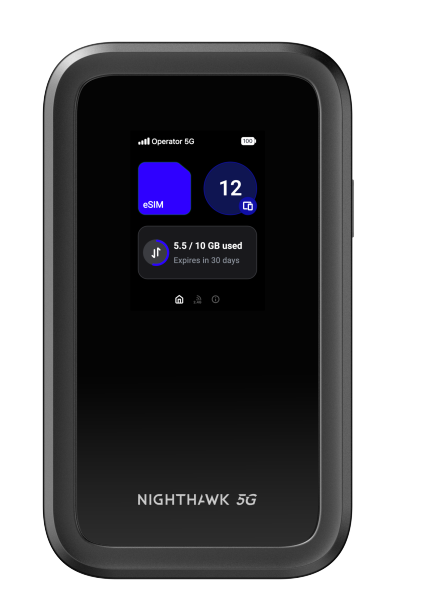
The netgear Nighthawk M7 Mobile Router MH7110 is a premium portable 5G hotspot designed for users who need fast, reliable internet on the go. Combining 5G sub-6 connectivity with Wi‑Fi 7, it delivers a strong balance of speed, coverage, and mobility for travel, remote work, RV use, temporary offices, and backup home internet. With support for up to 32 connected devices, it is built for families, small teams, and power users who want a private network wherever cellular service is available.
This model stands out for its compact size, color display, long-lasting 3,850 mAh battery, and support for both physical SIM and eSIM in many configurations. It also includes modern security features such as WPA3, a built-in firewall, and automatic firmware updates, making it a practical option for business travelers and security-conscious users. The netgear Nighthawk M7 Mobile Router MH7110 is typically positioned in the premium mobile-router category, with an estimated price range around the upper midrange to high-end segment depending on carrier branding, region, and bundled plans. Availability is generally strongest through major carriers, electronics retailers, and NETGEAR’s regional product channels.
For users searching for a portable 5G Wi‑Fi 7 hotspot that can replace unreliable public Wi‑Fi, the MH7110 is an appealing choice. It is especially useful for streaming, video calls, cloud access, and keeping multiple devices connected without draining a phone’s battery.
Specifications
- Model: NETGEAR Nighthawk M7 MH7110
- Connectivity: 5G Sub-6 and 4G LTE Cat 20
- Wi‑Fi: Wi‑Fi 7, dual-band 2.4 GHz and 5 GHz
- Wireless Standard Support: 802.11a/b/g/n/ac/ax/be
- Maximum Wireless Speed: Up to 3.6 Gbps under optimal conditions
- Cellular Speed Claims: Up to 4 Gbps depending on network and region
- Device Capacity: Up to 32 connected devices
- Battery: 3,850 mAh non-removable Li-ion battery
- Display: 2.4-inch color screen
- Dimensions: Approximately 145 x 83.6 x 16.9 mm
- Weight: About 240 g with battery
- Ports: USB-C for charging and tethering
- Security: WPA3, firewall, firmware updates
Compared with older 5G hotspots that use Wi‑Fi 6 or Wi‑Fi 6E, the MH7110 offers newer wireless standards, stronger multi-device performance, and better future-proofing. Against similar premium mobile routers, it competes closely on battery life, device support, and cellular band coverage, while its Wi‑Fi 7 capability gives it an edge for newer laptops and phones.
Detailed Description
The netgear Nighthawk M7 Mobile Router MH7110 works by combining a cellular modem with a compact wireless router, allowing it to create a personal internet bubble from a 5G or 4G network connection. Insert a compatible SIM or activate supported eSIM service, and the device shares that mobile data connection over secure Wi‑Fi to phones, tablets, laptops, gaming devices, and smart accessories. Its 2.4-inch screen and navigation controls make it easy to check signal strength, battery status, Wi‑Fi details, and connected clients without opening an app.
Real-world use cases include remote work from hotels, mobile internet for road trips, a backup connection during home broadband outages, and shared connectivity for travel groups. It is also useful in campervans, construction sites, pop-up retail spaces, and field operations where wired internet is not available. The compact chassis, lightweight build, and integrated battery make it easy to carry in a backpack or glove compartment.
Build quality is in line with a premium mobile networking product, with a durable plastic housing and a practical layout centered on portability. In daily use, the experience is designed to be straightforward: power on, connect to the network, and start sharing internet within minutes.
Setup Guide
- Charge the router fully with the included USB-C cable before first use.
- Insert a compatible nano SIM card or activate eSIM service if supported by your model and carrier.
- Power on the device and wait for the cellular signal to register.
- Use the display to confirm signal strength, network status, and battery level.
- Connect a phone, laptop, or tablet to the default Wi‑Fi network name shown on the screen or label.
- Open the router’s admin interface if you want to change the SSID, Wi‑Fi password, data limits, or security settings.
- Enable WPA3 and set a strong admin password for better protection.
- Test internet access on one device first, then add the remaining devices once the connection is stable.
If pairing fails, restart both the router and the client device, confirm the SIM is active, and verify that the carrier supports the required bands. Avoid covering the router during operation, keep it away from extreme heat, and do not use damaged charging cables or adapters. For the best results, place the device near a window or in an open area when signal strength is weak.
Troubleshooting
- No internet connection: Check SIM activation, data plan status, and carrier coverage.
- Weak signal: Move the router closer to a window or higher location and restart the device.
- Wi‑Fi devices cannot connect: Confirm the correct password and make sure the hotspot limit has not been reached.
- Battery drains quickly: Reduce screen brightness, disconnect unused clients, and avoid extended use in weak-signal areas.
- Slow speeds: Test different locations, check network congestion, and verify that your carrier plan supports 5G speeds.
- Firmware issues: Reboot the router and apply updates when available.
Common error indicators usually relate to SIM, signal, or network registration issues rather than hardware failure. Preventive care includes keeping firmware current, avoiding overheating, and using the device within supported band and carrier ranges. Warranty coverage and support availability vary by region and retailer, so users should contact NETGEAR support or the original seller for repair, replacement, or activation help. Carrier support teams can also assist with SIM, APN, and network provisioning issues.
Pros & Cons
Pros
- Wi‑Fi 7 support for faster, more efficient wireless performance.
- Portable 5G hotspot design that works well for travel and remote work.
- Supports up to 32 devices, making it suitable for groups and small teams.
- 2.4-inch color screen improves visibility and quick status checks.
- Strong security features, including WPA3 and automatic updates.
- Useful as a broadband backup for home or office internet outages.
Cons
- Premium pricing may be high for casual users.
- Best performance depends heavily on carrier coverage and signal quality.
- Battery life can vary significantly with heavy 5G use and multiple connected devices.
- Some advanced features may require carrier-specific setup or compatibility checks.
For value, the MH7110 is strongest when portability, multi-device sharing, and modern wireless standards matter more than low cost. Compared with simpler 4G hotspots, it offers a clear upgrade. Compared with other premium mobile routers, it competes on speed, security, and future readiness, especially for users with Wi‑Fi 7 devices.
Customer Reviews
Customer feedback for the netgear Nighthawk M7 Mobile Router MH7110 is generally positive, with many users praising its fast connection, compact design, and ability to keep multiple devices online at once. Typical ratings trend around 4 out of 5 stars from buyers who value portability and 5G performance.
Common praise includes easy setup, strong hotspot range, and useful screen-based controls. Frequent complaints focus on price, battery life under heavy loads, and performance variability in weak coverage areas. A common testimonial theme is that it works extremely well in strong 5G zones but becomes less impressive where cellular signal is poor.
It is a good purchase for travelers, digital nomads, and households needing a dependable backup internet option. Buyers looking for the lowest price or only occasional hotspot use may prefer a simpler, cheaper alternative.
Frequently Asked Questions
Is the netgear Nighthawk M7 Mobile Router MH7110 good for travel?
Yes. Its compact size, battery power, and support for multiple devices make it a strong travel companion for hotels, road trips, and mobile work setups.
Does it support Wi‑Fi 7?
Yes. The MH7110 supports Wi‑Fi 7, which helps improve throughput and efficiency with compatible devices.
How many devices can it handle?
It can support up to 32 connected devices, depending on network conditions and usage type.
Is it worth buying?
It is worth buying if you need premium mobile internet performance, secure sharing, and modern wireless features in a portable form factor.
Faqs
How do I set up the netgear Nighthawk M7 Mobile Router MH7110 for the first time?
Why is my netgear Nighthawk M7 Mobile Router MH7110 not connecting to mobile data?
What devices are compatible with the netgear Nighthawk M7 Mobile Router MH7110?
How many devices can the netgear Nighthawk M7 Mobile Router MH7110 handle at once?
How do I improve speed on the netgear Nighthawk M7 Mobile Router MH7110?
Does the netgear Nighthawk M7 Mobile Router MH7110 support Wi-Fi 7 and 5G?
How do I reset the netgear Nighthawk M7 Mobile Router MH7110 without losing my settings?
How should I maintain and care for the netgear Nighthawk M7 Mobile Router MH7110 battery?
More netgear manuals
- Netgear EX6130 AC1200 Dual Band WiFi Range Extender User Manual
- Netgear Nighthawk Ultra-High Speed Modem CM2050V User Manual
- Netgear 4-Stream WiFi 6 Mesh Extender EAX16 User Manual
- Netgear Nighthawk Tri-band Mesh WiFi 6E System MR90 User Manual
- Netgear WAX628 Insight Managed WiFi 6 AX5400 Access Point User Manual
- Netgear MP101 Digital Music Player User Manual
Leave a Comment