
Netgear Nighthawk Ultra-High Speed Modem CM2050V User Manual
Content
Netgear Nighthawk Ultra-High Speed Modem CM2050V Review and Product Manual
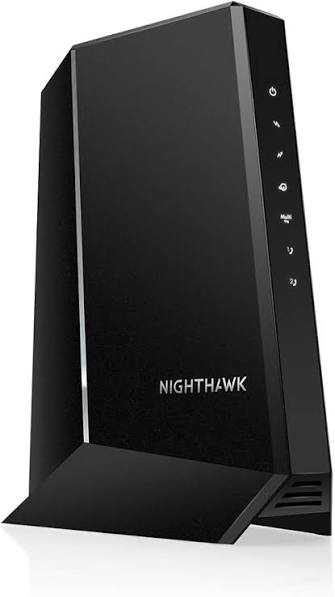
The netgear Nighthawk Ultra-High Speed Modem CM2050V is a DOCSIS 3.1 cable telephony modem built for households that want multi-gig internet speeds and Xfinity Voice support in one compact device. It is designed for users who need a high-performance cable modem for 2.5Gbps internet plans, low-latency streaming, gaming, video calls, and reliable home phone connectivity. With one 2.5Gbps Ethernet port and two RJ-11 voice ports, the CM2050V stands out as a strong choice for power users who want a future-ready cable modem without renting equipment from their provider.
Its biggest selling points are speed, voice compatibility, and straightforward operation. The modem supports DOCSIS 3.1 for modern broadband performance while remaining backward compatible with DOCSIS 3.0 service tiers. It is especially useful for Xfinity customers who want to keep phone service active while upgrading to faster internet. The netgear Nighthawk Ultra-High Speed Modem CM2050V is typically positioned in the premium cable modem category, with an estimated price range of about $180 to $300 depending on seller, stock, and whether the unit is new or refurbished. Availability is generally strongest through major electronics retailers, online marketplaces, and NETGEAR’s product channel, though pricing can fluctuate by region and service compatibility.
Specifications for Netgear Nighthawk Ultra-High Speed Modem CM2050V
- DOCSIS 3.1 cable modem with support for high-speed cable internet and voice service.
- One 2.5Gbps Ethernet port for multi-gig wired connections to a router or compatible device.
- Two RJ-11 telephone ports for Xfinity Voice support, including dual-line setups.
- 32 downstream and 8 upstream SC-QAM channels.
- 2 OFDM downstream channels and 2 OFDMA upstream channels for improved efficiency.
- Physical size: 6.8 x 3.7 x 8.2 inches.
- Weight: approximately 1.09 lb.
- Power input: 110–120V, 47–60 Hz; output: 12 VDC, 2.5A.
- Designed for cable plans up to 2.5Gbps, making it a strong alternative to lower-tier DOCSIS 3.1 modems such as 1Gbps or 2Gbps models.
- Compared with standard gigabit modems, this model offers a faster LAN port and voice support, but it does not include built-in Wi-Fi.
For users comparing cable modem options, the CM2050V is best suited to customers who need both multi-gig speed and telephony support. If voice service is unnecessary, a non-voice DOCSIS 3.1 modem may be a simpler and often less expensive option.
Setup Guide for Netgear Nighthawk Ultra-High Speed Modem CM2050V
Start by disconnecting your old modem and router, then place the CM2050V near a cable wall outlet and a power source. Connect the coaxial cable firmly to the modem’s cable port. If you subscribe to Xfinity Voice, plug your telephone into Tel 1 and, if needed, connect a second phone line to Tel 2. Next, attach an Ethernet cable from the modem’s 2.5Gbps LAN port to your router’s WAN or internet port.
Plug in the power adapter and wait for the LEDs to stabilize. If the modem is replacing an existing unit, the provider may require activation through the account portal. Keep in mind that the modem does not provide Wi-Fi on its own, so it must be paired with a separate router or mesh system. For best results, use a direct wall outlet instead of a long splitter chain; if a splitter is unavoidable, use a low-loss 3.5dB splitter.
- Do not bend or sharply twist the coaxial cable.
- Use only the supplied power adapter.
- Do not place the modem in a closed cabinet or near excessive heat.
- If the Online light does not turn solid after several minutes, restart the modem and verify service activation.
Troubleshooting Netgear Nighthawk Ultra-High Speed Modem CM2050V
Common issues usually involve activation, signal quality, or voice registration. If the Online LED remains off or never turns solid, confirm that the coax line is active and that the modem has been registered with your internet provider. A flashing LED often means the modem is still syncing with the network. If you cannot access the internet but the Online light is white, check whether the modem’s MAC address has been added to your Xfinity account and confirm that the account is properly provisioned for the service tier.
If phone service is not working, reseat the telephone cable, test both Tel 1 and Tel 2 ports, and verify voice activation with the provider. After a factory reset, allow several minutes for the modem to reinitialize. If the modem repeatedly drops connection, replace damaged coax cables, remove unnecessary splitters, and check for loose wall connectors.
- Error-like symptom: no Online light — solution: reboot modem, verify coax signal, and contact the ISP.
- Error-like symptom: no voice dial tone — solution: confirm Tel port connection and voice provisioning.
- Error-like symptom: slow speed — solution: check router capability and ensure the Ethernet link is negotiated at 2.5Gbps or 1Gbps.
- Preventive measure: keep firmware and provider provisioning current through the service account.
- Support options: NETGEAR typically provides limited warranty coverage and complimentary technical support for eligible purchases through authorized resellers.
For unresolved problems, contact your internet service provider first, then reach out to NETGEAR support through its official help channels. Retain your proof of purchase for warranty claims.
Pros and Cons of the Netgear CM2050V Cable Modem
Pros
- True multi-gig performance with a 2.5Gbps Ethernet port.
- Built-in voice support makes it ideal for Xfinity Voice users.
- DOCSIS 3.1 and DOCSIS 3.0 backward compatibility improve service flexibility.
- Compact design fits easily into home network setups.
- Strong choice for users who want to replace rental modems and reduce monthly equipment fees.
Cons
- No built-in Wi-Fi, so a separate router is required.
- Best value is limited to customers who actually need voice service.
- Premium pricing may be high compared with standard gigabit cable modems.
- Compatibility is more focused on specific cable providers, especially Xfinity.
Overall, the netgear Nighthawk Ultra-High Speed Modem CM2050V delivers excellent value for households that need both speed and telephony. Compared with basic DOCSIS 3.1 alternatives, it offers more premium hardware and voice support, but users who only need internet access may find a non-voice modem more cost-effective.
Customer Reviews of the Netgear Nighthawk Ultra-High Speed Modem CM2050V
Customer feedback is generally positive, with many users praising the modem’s fast speeds, easy installation, and reliable voice support. Common star ratings tend to cluster around 4 to 5 stars for performance-focused buyers, especially those upgrading from rented equipment. One typical user comment is: “Setup was quick, and my 2.5Gbps plan finally performs the way it should.”
Complaints usually focus on the lack of built-in Wi-Fi, the need for provider activation, and the higher purchase price. Some users also mention that voice setup can be confusing if the telephone ports are not provisioned correctly. For buyers who need a premium cable modem for Xfinity Voice and multi-gig internet, the CM2050V is often recommended. For users without voice service, a simpler modem may be a better match.
Faqs
How do I set up the netgear Nighthawk Ultra-High Speed Modem CM2050V for the first time?
What internet and voice service requirements does the netgear Nighthawk Ultra-High Speed Modem CM2050V need to work properly?
Why is my netgear Nighthawk Ultra-High Speed Modem CM2050V not connecting to the internet after setup?
Can I use the netgear Nighthawk Ultra-High Speed Modem CM2050V with any Wi-Fi router?
What makes the netgear Nighthawk Ultra-High Speed Modem CM2050V faster than standard cable modems?
How do I fix voice line issues on the netgear Nighthawk Ultra-High Speed Modem CM2050V?
What are the best troubleshooting steps if the netgear Nighthawk Ultra-High Speed Modem CM2050V keeps losing connection?
How should I maintain and care for the netgear Nighthawk Ultra-High Speed Modem CM2050V to keep it running well?
More netgear manuals
- Netgear Nighthawk M7 Mobile Router MH7110 User Manual
- Netgear Nighthawk Tri-band Mesh WiFi 6E System MR90 User Manual
- Netgear EX6130 AC1200 Dual Band WiFi Range Extender User Manual
- Netgear MP101 Digital Music Player User Manual
- Netgear 4-Stream WiFi 6 Mesh Extender EAX16 User Manual
- Netgear Nighthawk Tri-band Mesh WiFi 6 System MR80 User Manual
Leave a Comment