
Pairing & Setup: Samsung SM-R170 Galaxy Buds User Manual
Content
Samsung SM-R170 Galaxy Buds
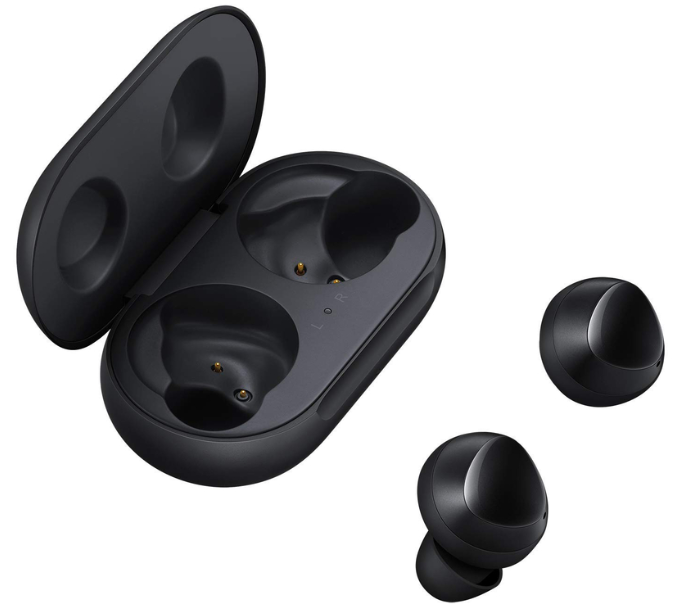
Introduction
The Samsung SM-R170 Galaxy Buds are a pair of true wireless earbuds designed to deliver high-quality audio and seamless connectivity for everyday use. With a compact design and reliable Bluetooth 5.0 technology, these earbuds provide users with freedom from wires while enjoying rich sound performance optimized by Samsung's advanced audio technologies.
Ideal for music lovers, commuters, fitness enthusiasts, and professionals who require hands-free communication, the Galaxy Buds SM-R170 offer up to 13 hours of battery life with the charging case, supporting extended listening and talk times. Featuring IPX2-rated splash resistance, they are suited to light sweat and minor exposure to moisture, making them practical for active lifestyles.
These earbuds include touch controls, ambient sound modes, and Bixby voice integration, enhancing user convenience and control. Available in stylish colors such as Yellow, the SM-R170 Galaxy Buds typically retail in the mid-range price segment, making them an attractive option for users seeking quality sound and smart features without premium pricing. They are widely available through Samsung's official channels and major retailers.
Package contents
Refer to the quick start guide for package contents.
- The items supplied with the Galaxy Buds, available accessories, and their images may vary depending on the region or service provider.
- The supplied items are designed only for the Galaxy Buds and may not be compatible with other devices.
- Appearances and specifications are subject to change without prior notice.
- You can purchase additional accessories from the Samsung website. Make sure they are compatible with the model before purchase.
- Use only Samsung-approved accessories. Using unapproved accessories may cause performance problems and malfunctions that are not covered by the warranty.
- Availability of all accessories is subject to change, depending entirely on the manufacturing companies. For more information about available accessories, refer to the Samsung website.
Specifications of Samsung SM-R170 Galaxy Buds
- Bluetooth Version: 5.0 for stable and energy-efficient connectivity
- Battery Life: Up to 6 hours of continuous playtime per charge, with an additional 7 hours from the wireless charging case, totaling approximately 13 hours
- Charging: Wireless Qi-certified charging and USB-C wired charging options
- Audio Features: High-quality sound with dual microphones per earbud for clear calls and ambient noise awareness
- Water Resistance: IPX2 splash resistance, suitable for sweat and light rain
- Dimensions & Weight: Earbuds approximately 0.69" x 0.76" x 0.88", weighing about 0.2 oz (5.6g) each; charging case compact and lightweight
- Compatibility: Supports Android 5.0+ with 1.5GB RAM and iOS 10.0+ devices
- Sensors: Touch, accelerometer, proximity, and voice pickup unit for intuitive control and enhanced voice clarity
- Unique Features: Bixby voice assistant support, ambient sound mode, and customizable touch controls
Compared to similar products like the Galaxy Buds+ and Galaxy Buds Live, the SM-R170 Galaxy Buds offer competitive battery life and features, though they have a simpler design and slightly lower battery capacity than the Galaxy Buds+. However, they maintain the core Samsung sound quality and convenience expected from the Galaxy Buds lineup.
Device layout
Earbud
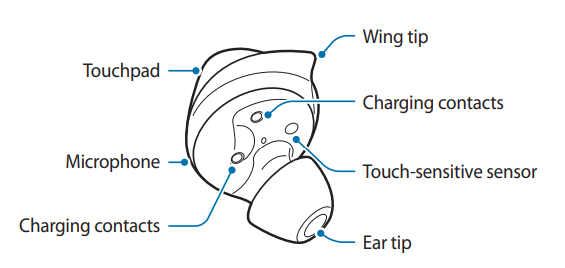
If you use the Galaxy Buds when they are broken, there may be a risk of injury. Use the Galaxy Buds only after they have been repaired at a Samsung Service Centre.
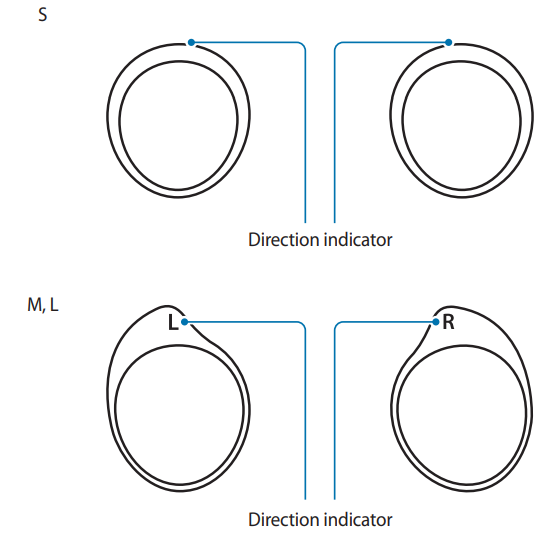
Wing tip
Charging case
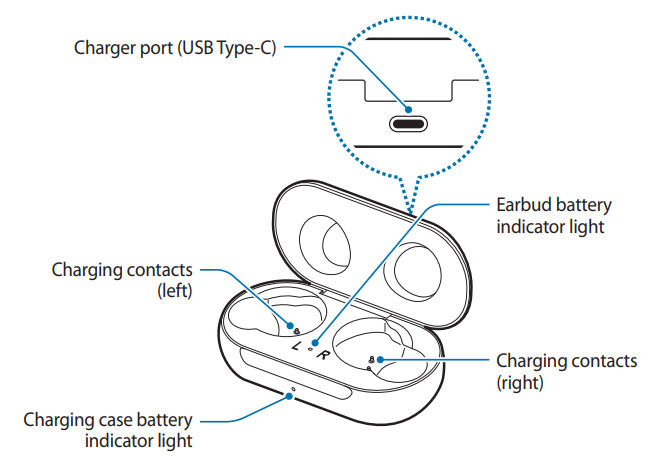
- If there is sweat or liquid on the charging contacts, corrosion may occur on the Galaxy Buds.
- When there is sweat or liquid on the charging contacts or earbuds, clean them before inserting the earbuds in the charging case.
- Close the charging case when you store or charge the earbuds.
Battery
Charging the battery
Fully charge the battery before using the earbuds for the first time or when they have been unused for extended periods. The earbuds will power on while charging. When the battery is completely discharged, it needs at least 10 minutes to start to working.
Check the direction of each earbud, insert them into the corresponding slots, and then connect the charger.
The charging case has a built-in battery that is charged along with the earbuds.
You can charge the earbuds by placing them into the charging case without connecting it to an electric socket.
Use only Samsung-approved chargers and cables. Unapproved chargers or cables can cause the battery to explode or damage the Galaxy Buds.
- Connecting the charger improperly may cause serious damage to the charging case. Any damage caused by misuse is not covered by the warranty.
- Use only the USB Type-C cable supplied with the Galaxy Buds. The charging case may be damaged if you use a Micro USB cable.
- Chargers are sold separately.
- To save energy, unplug the charger when not in use. The charger does not have a power switch, so you must unplug the charger from the electric socket when not in use to avoid wasting power. The charger should remain close to the electric socket and be easily accessible while charging.
- You cannot use your earbuds’ wireless features while charging the battery.
- Close the charging case when you store or charge the earbuds.
- If there is sweat or liquid on the charging contacts, corrosion may occur on the Galaxy Buds. When there is sweat or liquid on the charging contacts or earbuds, clean them before inserting the earbuds in the charging case.
- Do not put the wing tips on the earbuds in the wrong direction. The earbuds will not be charged if they are not properly inserted into the charging case.
Basics
- Open the charging case.
Check the direction of each earbud and correctly insert them into their corresponding slots in the charging case.
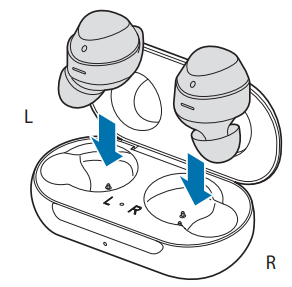
- Close the charging case.
Connect the USB cable to the charger and then plug the USB cable into the charger port.
Connecting the USB cable improperly may cause serious damage to the charging case. Any damage caused by misuse is not covered by the warranty.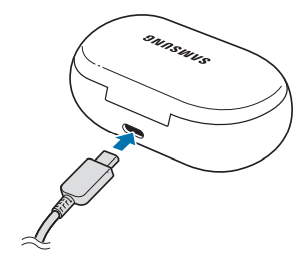
- Plug the charger into an electric socket.
The batteries of the earbuds and the charging case are charged simultaneously. - After fully charging, disconnect the charging case from the charger. First, unplug the USB cable from the charging case,e and then unplug the charger from the electric socket.
Battery charging tips and precautions
- If there is sweat or liquid on the charging contacts, corrosion may occur on the Galaxy Buds. When there is sweat or liquid on the charging contacts or earbuds, clean them before inserting the earbuds in the charging case.
- Using a power source other than the charger, such as a computer, may result in a slower charging speed due to a lower electric current.
- While charging, the earbuds and the charging case may heat up. This is normal and should not affect the earbuds’ lifespan or performance. If the battery gets hotter than usual, the charger may stop charging.
- If the earbuds and charging case are not charging properly, take them with the charger to a Samsung Service Centre.
- Avoid bending the USB cable. Doing so may damage or reduce the lifespan of the USB cable. Never use a damaged USB cable.
Wireless charging
The charging case has a built-in wireless charging coil. You can charge the battery by using a wireless charger or another device that functions as a wireless charger.
Charging the battery with a wireless charger
- Open the charging case.
- Check the direction of each earbud and correctly insert them into their corresponding slots in the charging case.
- Close the charging case.
Place the centre of the charging case at the centre of the wireless charger.
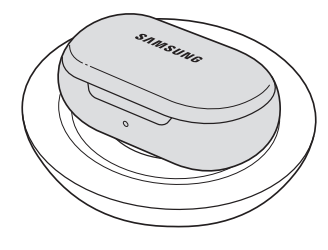
- After fully charging, disconnect the charging case from the wireless charger.
Charging the battery using PowerShare
- Open the charging case.
- Check the direction of each earbud and correctly insert them into their corresponding slots in the charging case.
- Close the charging case.
- Place the centre of the charging case’s back on the device that functions as a wireless charger.
The location of the wireless charging coil may vary by device. Adjust the device and the charging case to make a strong connection.
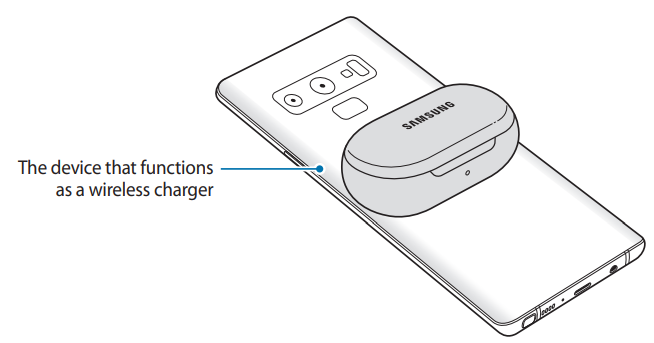
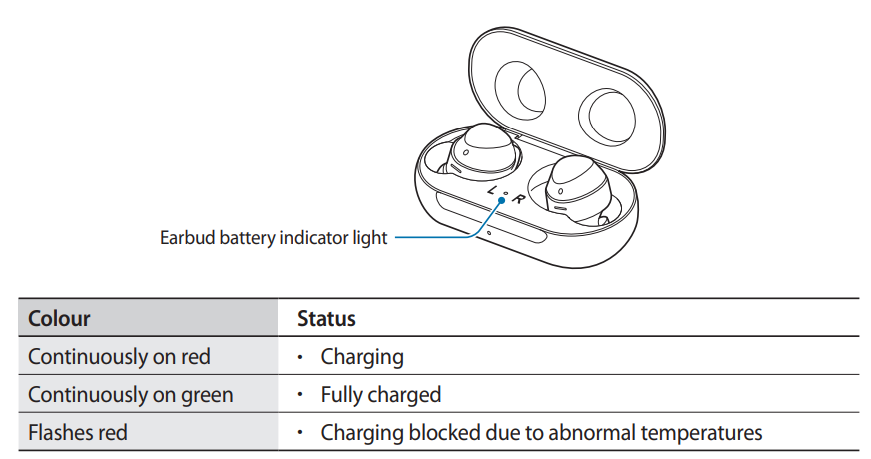
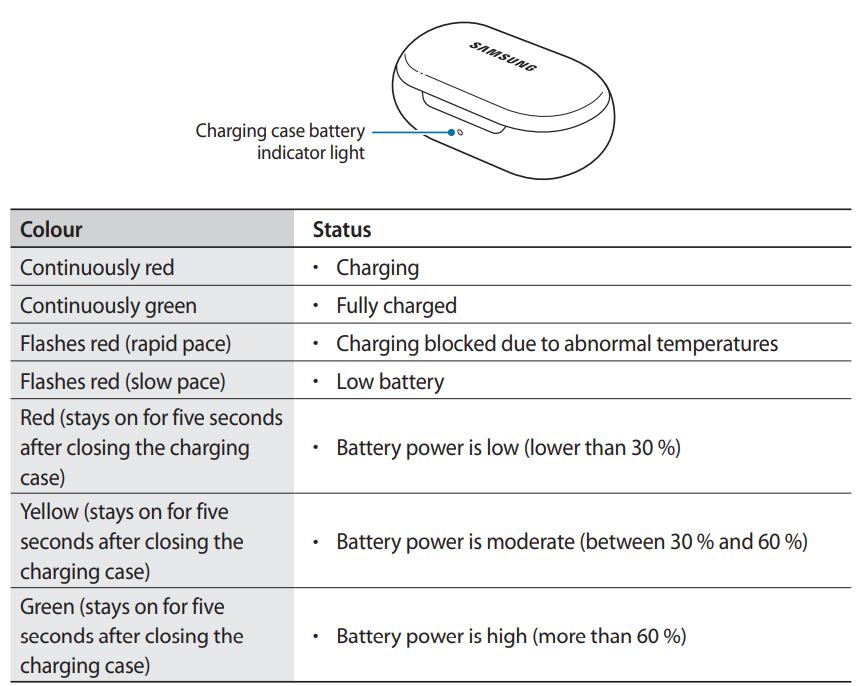
Battery indicator lights identification.
The battery indicator lights inform you of your earbuds and the charging case’s charging status.
The earbud battery indicator light is located inside of the charging case and shows the charging status of the earbuds. The charging case battery indicator light on the front of the charging case indicates the charging status of the case itself.
Earbud battery indicator light
Charging case battery indicator light
Troubleshooting Samsung SM-R170 Galaxy Buds
Before contacting a Samsung Service Centre, please attempt the following solutions. Some situations may not apply to your earbuds.
Your earbuds do not work.
- The battery may be completely discharged. Charge the battery completely before using the earbuds.
- If an earbud’s touch-sensitive sensor does not make contact with your ear, the earbud may not work. If you do not hear a sound informing you that the earbuds are detected, remove the earbuds from your ears and put them in again.
- If the touchpad does not recognize the earbuds or the earbuds do not work, insert the earbuds into their corresponding slots in the charging case and remove them after seven seconds or more. The
Bluetooth device cannot locate your earbuds.
- Close the charging case and reopen it to enter the Bluetooth pairing mode.
- Ensure that your earbuds and the other Bluetooth device are within the Bluetooth connection range (10 m). The distance may vary depending on the environment the devices are used in.
If the tips above do not solve the problem, contact a Samsung Service Centre.
The battery does not charge properly (For Samsung-approved chargers)
- Ensure that the charging contacts of the earbuds and the charging case are in contact with each other.
- Ensure that the charger is connected properly to the charging case.
- If the battery contacts are dirty, the battery may not charge properly. Wipe both gold-coloured contacts with a dry cloth and try charging the battery again.
- Visit a Samsung Service Centre and have the battery replaced.
The battery depletes faster than when first purchased
- When you expose the Galaxy Buds or the battery to very cold or very hot temperatures, the useful charge may be reduced.
- The battery is consumable, and the useful charge will get shorter over time.
A small gap appears around the outside of the Galaxy Buds
- This gap is a necessary manufacturing feature,e and some minor rocking or vibration of parts may occur.
- Over time, friction between parts may cause this gap to expand slightly.
Samsung offers a limited warranty covering manufacturing defects, and customers can access support through Samsung’s official website or authorized service centers. For direct assistance, contact Samsung support via phone or chat available on their website.
Pros & Cons of Samsung SM-R170 Galaxy Buds
Pros
- Excellent battery life: Up to 13 hours, with the charging case supporting extended use without frequent charging.
- Convenient wireless charging: Qi-compatible case allows easy charging without cables.
- Clear call quality: Dual microphones enhance voice pickup and reduce background noise.
- Comfortable fit: Lightweight earbuds designed for long listening sessions.
- Useful features: Ambient sound mode and Bixby voice control add practical usability.
Cons
- Lower water resistance: IPX2 rating means only splash resistance; not suitable for heavy rain or swimming.
- No active noise cancellation: Lacks ANC, which is present in higher-end Galaxy Buds models.
- Simpler design: Compared to Galaxy Buds Live or Pro, the SM-R170 is less advanced in sound customization and noise management.
- Limited app features: Some customization options may be less extensive than other Galaxy Buds variants.
Overall, the Samsung SM-R170 Galaxy Buds offer solid value for money for users seeking reliable wireless earbuds with good battery life, especially for casual use and calls. Alternatives like the Galaxy Buds+ or Galaxy Buds Pro provide more advanced features but at higher price points.
Customer Reviews of Samsung SM-R170 Galaxy Buds
Users frequently praise the Samsung SM-R170 Galaxy Buds for their comfortable fit, solid battery performance, and good sound quality for the price. Many appreciate the convenience of wireless charging and easy Bluetooth connectivity. Typical ratings average around 4 out of 5 stars.
Common positive remarks include clear call quality and responsiveness of touch controls. However, some customers report occasional Bluetooth dropouts or difficulty with the ambient sound mode settings. A few also wish for better water resistance and noise cancellation.
Despite minor complaints, most reviewers recommend the SM-R170 Galaxy Buds as a dependable, mid-range true wireless option suitable for daily use, workouts, and commuting, especially for users invested in the Samsung ecosystem.
Faqs
How do I set up my samsung SM-R170 Galaxy Buds for the first time?
What should I do if my samsung SM-R170 Galaxy Buds are not connecting to my phone?
Can I use samsung SM-R170 Galaxy Buds with non-Samsung Android devices and iPhones?
How can I maximize the battery life of my samsung SM-R170 Galaxy Buds?
What are the key features of samsung SM-R170 Galaxy Buds that improve audio and usability?
How do I properly clean and maintain my samsung SM-R170 Galaxy Buds to ensure longevity?
What should I do if the touch controls on my samsung SM-R170 Galaxy Buds stop responding?
How do I switch my samsung SM-R170 Galaxy Buds connection between multiple devices?
More samsung manuals
- Setup: Samsung Galaxy Book Series NP750TDA User Manual
- Usage: Samsung Galaxy Tab S7|S7+ User Manual
- How to Use: Samsung Series 4 4500 LED TV User Manual
- Usage & Setup: Samsung Galaxy Note20 5G User Manual
- How to Use: Samsung HW-J250 Wireless Audio - Soundbar User Manual
- Setup: Samsung Galaxy S23 Ultra User Manual
Leave a Comment