
Usage: Samsung Galaxy Tab S7|S7+ User Manual
Content
Samsung Galaxy Tab S7|S7+
Introduction
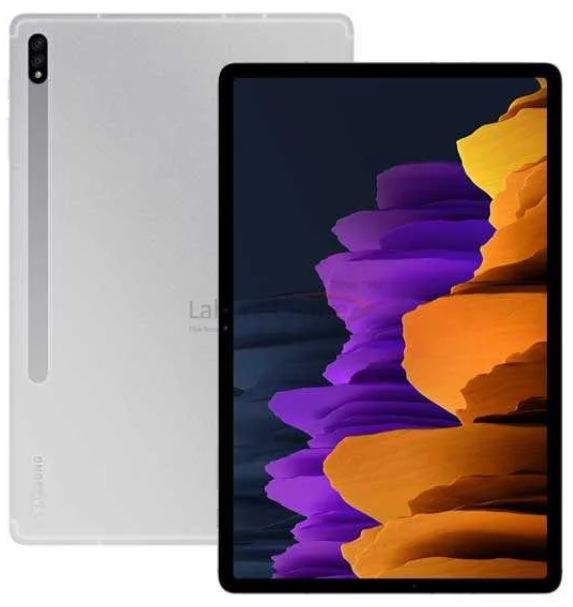
The Samsung Galaxy Tab S7 and Tab S7+ are flagship Android tablets designed for professionals, creatives, and media enthusiasts. With their stunning displays, powerful performance, and versatile S-Pen, these tablets redefine productivity and entertainment on the go. The Tab S7 features an 11-inch LCD screen, while the Tab S7+ boasts a larger 12.4-inch Super AMOLED display, both offering a 120Hz refresh rate for buttery-smooth visuals. Whether you're sketching, multitasking, or streaming, the Samsung Galaxy Tab S7|S7+ delivers a premium experience.
Key benefits include seamless multitasking with DeX mode, immersive audio with Dolby Atmos, and advanced camera capabilities for both work and play. The included S-Pen offers ultra-low latency and Air gestures, making it ideal for note-taking, drawing, and remote control. These tablets are perfect for students, business users, and content creators seeking a powerful, portable device. The Samsung Galaxy Tab S7|S7+ is available in various storage options and typically ranges from $650 to $950, depending on configuration and region.
Detailed Specifications of the Samsung Galaxy Tab S7|S7+
- Display: Tab S7: 11-inch 2560x1600 LCD, 274 PPI; Tab S7+: 12.4-inch 2800x1752 Super AMOLED, 266 PPI, 120Hz refresh rate
- Processor: Qualcomm Snapdragon 865+ (Octa-core, up to 3.09GHz)
- RAM: 6GB or 8GB (model-dependent)
- Storage: 128GB, 256GB, or 512GB (expandable up to 1TB via microSD)
- Battery: Tab S7: 8,000mAh; Tab S7+: 10,090mAh, supports 45W fast charging
- Cameras: Rear: 13MP wide + 5MP ultra-wide; Front: 8MP
- Connectivity: 5G, Wi-Fi 6, Bluetooth 5.0, USB 3.2
- Operating System: Android (upgradable)
- S-Pen: Included, 9ms latency, Air gestures
- Audio: Quad speakers with Dolby Atmos
The Samsung Galaxy Tab S7|S7+ outperforms many competitors in display quality, performance, and versatility, making it a top choice for Android tablet users.
Getting started
Galaxy Tab S7
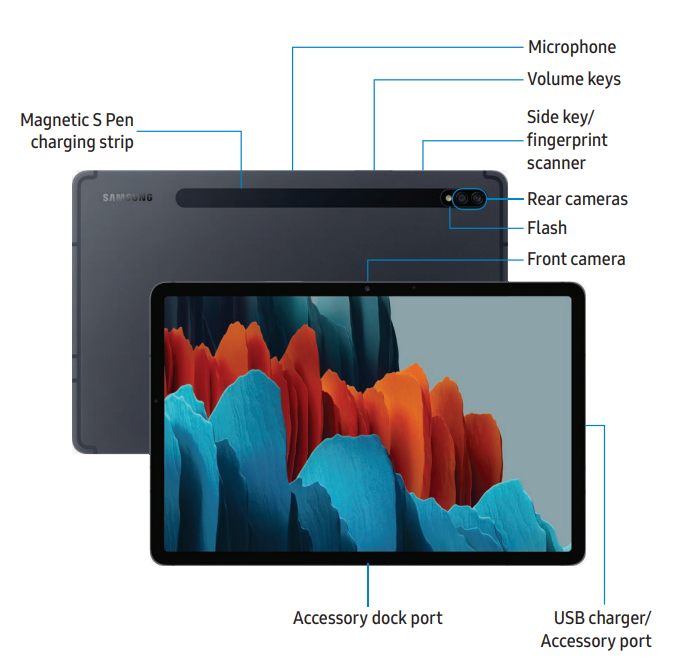
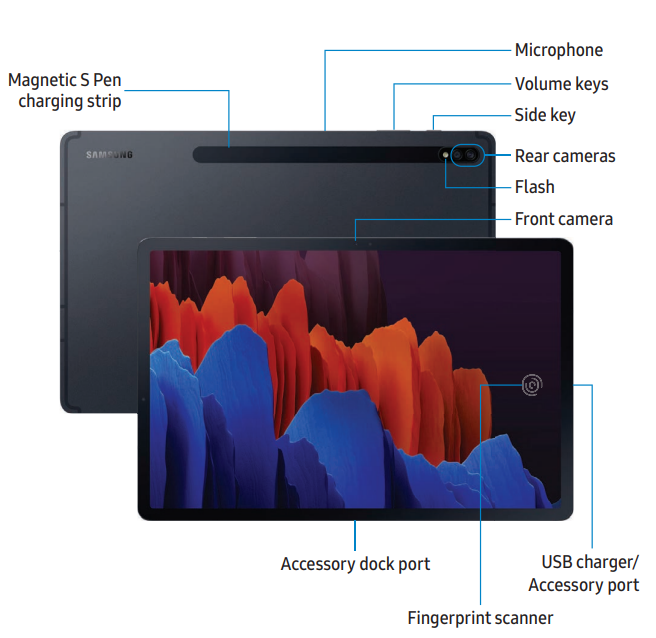
Set up your device
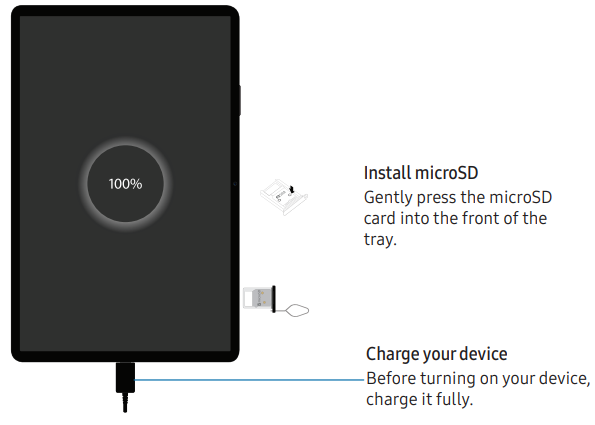
Charge the battery | Accessories
- NOTE: The use of mobile devices on an aircraft or a ship may be subject to federal and local guidelines and restrictions. Check with appropriate authorities and always follow crew instructions regarding when and how you may use your device.
- NOT: E Use only charging devices and batteries (if applicable) that are approved by Samsung. Samsung charging devices and batteries are designed for your device to maximize battery life. Using other charging devices and batteries may void your warranty and may cause damage.
Charge the battery
Your device is powered by a rechargeable battery. A charger (charging head and USB Type-C cable) is included with the device for charging the battery from a power outlet.
- TIP While charging, the device and the charger may become hot and stop charging. This usually does not affect the device’s lifespan or performance and is in the device’s normal range of operation. Disconnect the charger from the device and wait for the device to cool down.
Troubleshooting Common Issues with the Samsung Galaxy Tab S7|S7+
- Device not charging: Check the charger and cable, ensure the port is clean, and try a different outlet.
- Wi-Fi connectivity problems: Restart the device, forget and reconnect to the network, or reset network settings.
- S-Pen not responding: Replace the battery, ensure the pen is paired, and check for firmware updates.
- Slow performance: Close unused apps, clear cache, and ensure the device is updated.
- Screen flickering: Adjust display settings or update the software.
Preventive measures include regular software updates, using genuine accessories, and avoiding extreme temperatures. The Samsung Galaxy Tab S7|S7+ comes with a standard warranty; for support, visit Samsung's official website or contact customer service at 1-800-SAMSUNG.
Pros and Cons of the Samsung Galaxy Tab S7|S7+
- Pros:
- Stunning display with 120Hz refresh rate
- Powerful Snapdragon 865+ processor
- Included S-Pen with advanced features
- Excellent audio with Dolby Atmos
- Expandable storage and 5G connectivity
- Cons:
- Battery life could be better for heavy users
- No headphone jack
- Higher price compared to some competitors
The Samsung Galaxy Tab S7|S7+ offers excellent value for money, especially for those needing a high-performance tablet for work and entertainment.
Customer Reviews of the Samsung Galaxy Tab S7|S7+
Users consistently praise the Samsung Galaxy Tab S7|S7+ for its vibrant display, smooth performance, and versatile S-Pen. Many highlight the 120Hz refresh rate and AMOLED screen as standout features. Common complaints include average battery life and the lack of a headphone jack. The Tab S7|S7+ typically receives 4.5 out of 5 stars, with reviewers recommending it for students, professionals, and media lovers. Frequent mentions include the device's reliability and premium build quality.
Faqs
How do I set up my samsung Galaxy Tab S7|S7+ for the first time?
What should I do if my samsung Galaxy Tab S7|S7+ screen is black but the device is still on?
Why is the battery on my samsung Galaxy Tab S7|S7+ draining quickly and how can I fix it?
How can I resolve touchscreen responsiveness issues on my samsung Galaxy Tab S7|S7+?
Is the samsung Galaxy Tab S7|S7+ compatible with all USB-C accessories, including charging and audio devices?
How do I optimize performance on my samsung Galaxy Tab S7|S7+ for gaming and multitasking?
What steps should I take if my samsung Galaxy Tab S7|S7+ won’t connect to Wi-Fi?
How do I safely clean and maintain my samsung Galaxy Tab S7|S7+ to prolong its lifespan?
More samsung manuals
- Pairing & Setup: Samsung SM-R170 Galaxy Buds User Manual
- Usage & Setup: Samsung Galaxy Note20 5G User Manual
- Setup: Samsung Galaxy Book Series NP750TDA User Manual
- Setup: Samsung Galaxy S23 Ultra User Manual
- How to Use: Samsung Series 4 4500 LED TV User Manual
- Setup: Samsung Galaxy Tab S7 5G | S7+ 5G User Manual
Leave a Comment