
Setup: Samsung Galaxy Tab S7 5G | S7+ 5G User Manual
Content
Samsung Galaxy Tab S7 5G | S7+ 5G
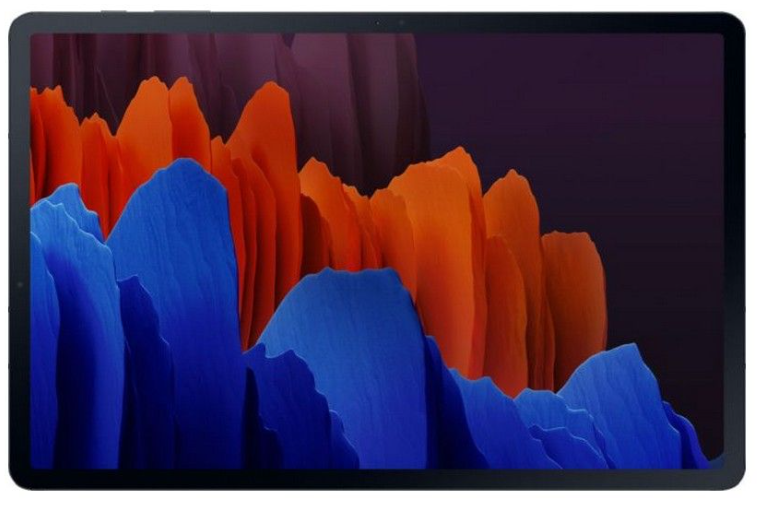
Introduction
The Samsung Galaxy Tab S7 5G | S7+ 5G represents Samsung's flagship tablet series, combining cutting-edge performance with premium design and versatile functionality. Designed to meet the demands of both professionals and entertainment enthusiasts, these tablets offer a powerful mix of speed, stunning displays, and seamless connectivity. With 5G capability, users can enjoy ultra-fast internet speeds, making remote work, streaming, and gaming more fluid than ever.
Key highlights include the S-Pen with low latency for precise drawing and note-taking, expansive high-resolution screens (11-inch LCD for the Tab S7, and 12.4-inch OLED for the Tab S7+), and robust Qualcomm Snapdragon 865+ processors. The tablets are ideal for creative professionals, students, and multitasking users seeking a device that bridges mobility and productivity effortlessly.
Availability generally spans major global markets with price ranges typically starting from approximately $650 for the Tab S7 and $850 for the Tab S7+, depending on storage and connectivity options. Both models support microSD expansion up to 1TB, enhancing their utility for media-heavy users. Whether for work presentations, artistic projects, or immersive media consumption, the Samsung Galaxy Tab S7 5G | S7+ 5G offers impressive versatility and premium features in a sleek, portable form factor.
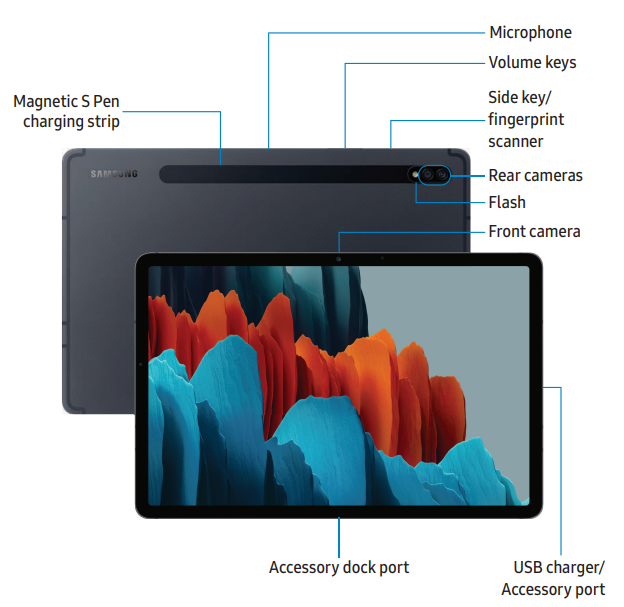
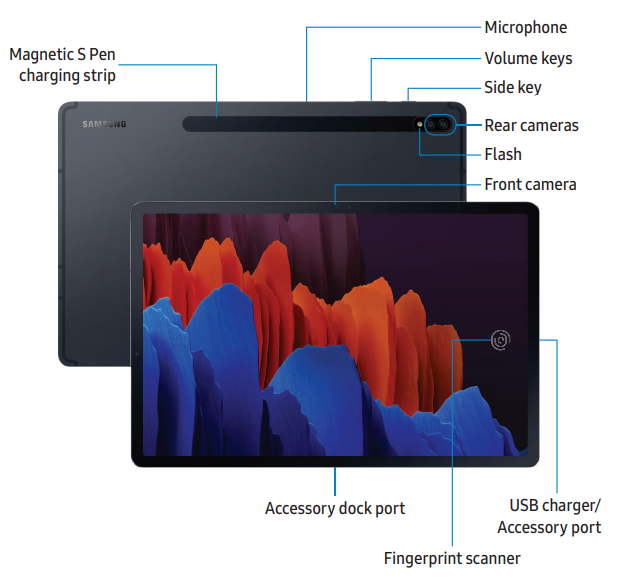
Set up your device
Charge the battery | Accessories
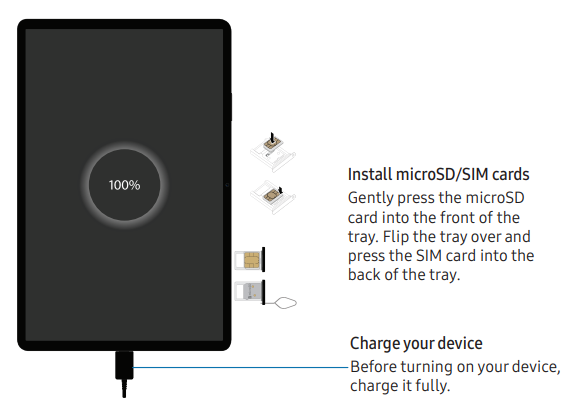
Your device uses a nano-SIM card. A SIM card may be preinstalled, or you may be able to use your previous SIM card. Contact your carrier for more details.
- NOTE: The use of mobile devices on an aircraft or a ship may be subject to federal and local guidelines and restrictions. Check with appropriate authorities and always follow crew instructions regarding when and how you may use your device.
- NOTE: Use only charging devices and batteries (if applicable) that are approved by Samsung. Samsung charging devices and batteries are designed for your device to maximize battery life. Using other charging devices and batteries may void your warranty and may cause damage.
Charge the battery
Your device is powered by a rechargeable battery. A charger (charging head and USB Type-C cable) is included with the device for charging the battery from a power outlet.
TIP While charging, the device and the charger may become hot and stop charging. This usually does not affect the device’s lifespan or performance and is in the device’s normal range of operation. Disconnect the charger from the device and wait for the device to cool down.
Accessories
Supported accessories (sold separately) can be configured through Settings. This option may only appear after you have connected an accessory to your device.
Start using your device..
Turn on your device | Use the Setup Wizard | Transfer data from an old device | Lock or unlock your device | Side key settings | Accounts | Navigation | Navigation bar | Customize your home screen | S Pen | Samsung Daily | Bixby | Digital wellbeing and parental controls | Biometric security | Mobile continuity | Multi window | Edge screen | Enter text
Camera and Gallery
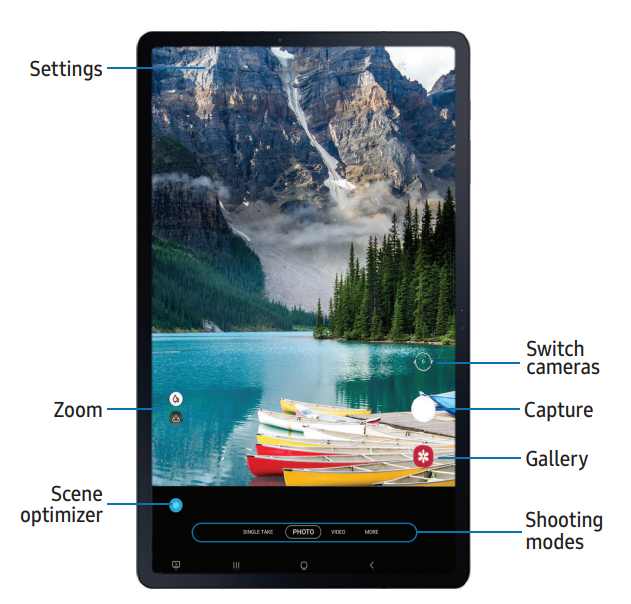
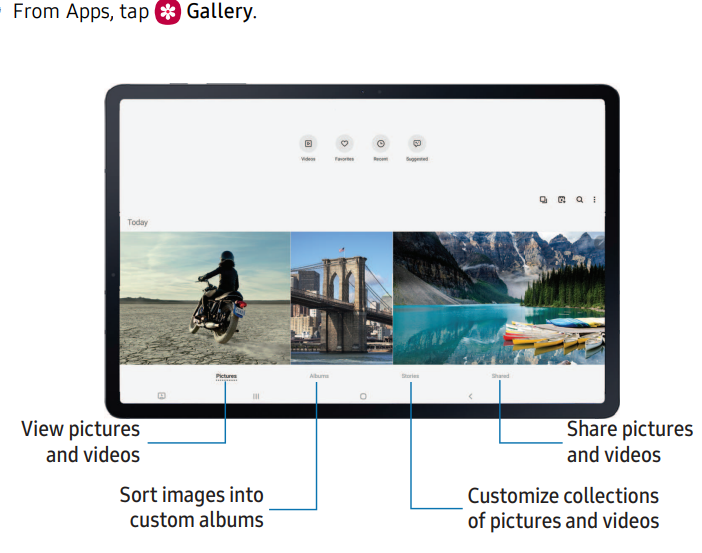
You can capture high-quality pictures and videos using the Camera app. Images and videos are stored in the Gallery, where you can view and edit them. Camera
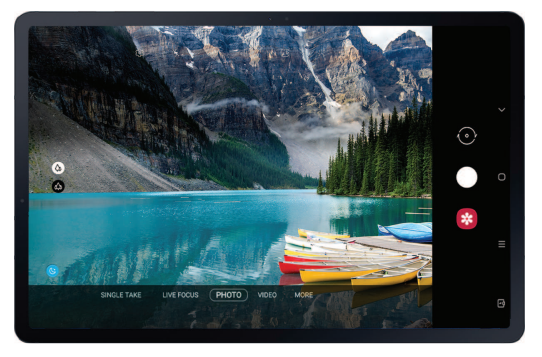
Camera
Navigate the camera screen | Configure shooting mode | AR Zone | Single take | Live focus | Scene optimizer | Record videos | Live focus video | Camera settings
Gallery
View pictures | Edit pictures | Play video | Video enhancer | Edit video | Share pictures and videos | Delete pictures and videos | Group similar images | Create a movie | Take a screenshot | Screen recorder
Apps
Using apps
Download apps | Uninstall or disable apps | Search for apps | Sort apps | Create and use folders | Game Booster | App settings
Download apps
The Apps list displays all preloaded and downloaded apps. Apps can be downloaded from Galaxy Store and the Google Play™ store.
- From a Home screen, swipe the screen upward to access the Apps list.
Uninstall or disable apps
Installed apps can be removed from your device. Some apps that are preloaded (available on your device by default) can only be disabled. Disabled apps are turned off and hidden from the Apps list.
- From Apps, touch and hold an app, and tap Uninstall/Disable.
Search for apps
If you are not sure where to find an app or a setting, you can use the Search feature.
- From Apps, tap Search, and enter a word or words. As you type, matching apps and settings appear as results on the screen.
- Tap a result to go to that app.
TIP You can customize the search settings by tapping More options > Finder settings.
Sort apps
App shortcuts can be listed alphabetically or in your own custom order.
- From Apps, tap More options > Sort for the following sorting options:
- Custom order: Arrange apps manually.
- Alphabetical order: Sort apps alphabetically.
Create and use folders..
You can make folders to organize App shortcuts on the Apps list.
Game Booster
Get optimized performance while playing games based on usage. Block calls or other notifications, and enable features such as Bixby or Dolby Atmos.
App settings
Manage your downloaded and preloaded apps. Options vary by app.
- From Settings, tap Apps.
- Tap More options for the following options:
- Sort by: Sort the apps by size, name, last used, or last updated.
- Default apps: Choose or change apps that are used by default for certain features, like email or browsing the Internet.
- Permission manager: Control which apps have permissions to use certain features of your device.
- Show/Hide system apps: Show or hide system (background) apps.
- Special access: Select which apps can have special access permissions to features on your device.
- Reset app preferences: Reset options that have been changed. Existing app data is not deleted.
- Tap an app to view and update information about the app. The following options may be displayed:
- Usage
- Mobile data: View mobile data usage.
- Battery: View battery usage since the last full charge.
- Storage: Manage the app’s storage usage.
- Memory: View memory usage.
- App settings
- Notifications: Configure notifications from the app.
- Permissions: View permissions granted to the app for access to your device’s information.
- Set as default: Set the app as a default for a certain category of apps.
- Advanced
- Options vary by app.
- App info options
- Open: Launch the app. Not all apps have this option.
- Uninstall/Disable: Uninstall or disable the app. Some preloaded apps can only be disabled, not uninstalled.
- Force stop: Stop an app that is not working correctly.
Samsung apps
The following apps are either preloaded or downloaded over-the-air to your device during setup.
Galaxy Essentials | AR Zone | Bixby | Galaxy Store | Game Launcher | PENUP | Samsung Flow | SmartThings | Tips | Calculator | Calendar | Clock | Contacts | Internet | My Files | Samsung Notes
Google apps
Enjoy these apps from Google.
Chrome | Drive | Duo | Gmail | Google | Maps | Photos | Play Movies & TV | Play Store | YouTube | YT Music
Microsoft apps
Enjoy these apps from Microsoft. Outlook | Office | OneDriveQ
Detailed Specifications of Samsung Galaxy Tab S7 5G | S7+ 5G
- Display: Tab S7 sports an 11.0-inch 2560 x 1600 IPS LCD with a 120Hz refresh rate; Tab S7+ features a larger 12.4-inch 2800 x 1752 Super AMOLED display with 120Hz refresh rate for vibrant visuals and smooth scrolling.
- Processor & Graphics: Both models are powered by the Qualcomm Snapdragon 865+ octa-core chipset (7 nm+ process) and Adreno 650 GPU, ensuring top-tier performance for multitasking and gaming.
- RAM & Storage: Base RAM starts at 6GB, with storage options of 128GB, 256GB, and 512GB. Expandable storage via microSD card supports up to 1TB.
- Battery: Tab S7 includes an 8,000mAh battery; Tab S7+ features a larger 10,090mAh battery, both supporting 45W fast charging for extended usage and quick top-ups.
- Cameras: Dual rear cameras with a 13MP wide (ƒ/2.0) and 5MP ultra-wide (ƒ/2.2) lens; front-facing 8MP camera ideal for video calls and selfies.
- Connectivity: 5G support for blazing-fast mobile internet, Wi-Fi 6, Bluetooth 5.0, GPS, and USB 3.2 Type-C port for seamless data transfer and charging.
- S-Pen: Enhanced with 9ms latency and new Air gestures for natural handwriting and remote control features.
- Operating System: Runs on Android with Samsung's One UI, optimized for tablet experiences.
Compared to similar tablets like the Apple iPad Pro, the Samsung Galaxy Tab S7 5G | S7+ 5G excels in offering expandable storage, integrated S-Pen support, and 5G connectivity options, making it a compelling choice for Android users seeking power and flexibility.
Device maintenance
View the status of your device’s battery, storage, and memory. You can also automatically optimize your device’s system resources.
- Quick optimization | Battery | Storage | Memory | Advanced options | Language and input | Date and time | Troubleshooting
Quick optimization
The quick optimization feature improves device performance through the following actions:
- Identifying apps that use excessive battery power and clearing unneeded items from memory.
- Deleting unnecessary files and closing apps running in the background.
- Scanning for malware.
Battery
View how battery power is used for your various device activities.
- From Settings, tap Device care > Battery for options:
- Battery usage: View power usage by app and service.
- Power mode: Select a power mode to extend battery life.
- App power management: Configure battery usage for apps that are used infrequently.
- Charging: Enable the following options to support fast charging capabilities:
- Fast charging
- Protect battery
Storage
View the device storage and usage. You can also mount, unmount, or format an optional memory card (not included).
Memory card
Once an optional microSD memory card (not included) has been installed in your device, the card memory is displayed in the Storage setting.
For more information, see Set up your device.
Mount a memory card
When you install an optional memory card, it is automatically mounted (connected to the device) and prepared for use. However, should you unmount the card without removing it from the device, you need to mount it before it can be accessed.
Remove a memory card.
To prevent damage to information stored on the memory card, unmount the card before removing it from the device.
Format a memory card
When formatting an SD card, you should back up your music and photo files that are stored on the card because formatting the SD card deletes ALL stored files.
Memory
Check the amount of available memory. You can close background apps and reduce the amount of memory you are using to speed up your device.
Advanced options
Other Device care features are available in the Advanced menu..
Language and input
Configure your device’s language and input settings.
Date and time
By default, your device receives date and time information from the wireless network. Outside of network coverage, you can set the date and time manually.
Troubleshooting Samsung Galaxy Tab S7 5G | S7+ 5G: Common Issues & Solutions
- Issue: Tablet not charging or slow charging.
Solution: Use the original 45W charger and cable; cleathe n the charging port; reboot the device; check for battery-draining apps. - Issue: Wi-Fi or 5G connectivity problems.
Solution: Toggle airplane mode; reset network settings; update to the latest software; verify carrier support for 5G bands. - Issue: S-Pen not responding.
Solution: Replace S-Pen tip if worn; ensure Bluetooth is enabled; restart tablet; check for software updates. - Error codes: Software update errors can sometimes appear; clearing the he cache or performing a factory reset after backing up data.
- Preventive measures: Keep firmware updated, avoid extreme temperatures, use protective cases, and regularly clear app cache.
Samsung offers a warranty covering manufacturing defects typically for 1 year, with options for extended plans. Official support can be accessed via Samsung's customer care website, remote support services, or authorized service centers.
For direct assistance, users can contact Samsung Support via phone, live chat, or visit local service locations.
Pros & Cons of Samsung Galaxy Tab S7 5G | S7+ 5G
- Pros:
- Exceptional display quality with a 120Hz refresh rate enhances viewing and interaction.
- Powerful Snapdragon 865+ chipset delivers smooth multitasking and gaming performance.
- Advanced S-Pen with low latency and Air gestures boosts productivity and creativity.
- Robust 5G connectivity enables fast data speeds on the go.
- Expandable storage up to 1TB is flexible for heavy media users.
- Long battery life with fast charging supports extended use without frequent recharging.
- Cons:
- Base model RAM (6GB) may be limiting for power users compared to competitors offering 8GB or more.
- S-Pen is included only with certain models or markets; an extra purchase may be necessary.
- Premium price point may be a barrier compared to mid-range tablets.
- Android tablet app ecosystem remains less optimized compared to iPadOS alternatives.
This balanced assessment highlights the excellent value of the Samsung Galaxy Tab S7 5G | S7+ 5G for users prioritizing display, performance, and connectivity, though potential buyers should consider RAM options and app compatibility based on their needs.
Customer Reviews & Feedback on Samsung Galaxy Tab S7 5G | S7+ 5G
Users commonly praise the Samsung Galaxy Tab S7 5G | S7+ 5G for its vibrant displays, fast 5G performance, and the natural feel of the S-Pen,e n which is ideal for note-taking and drawing. Many highlight the smooth multitasking capabilities and the versatility offered by Samsung DeX mode for a desktop-like experience.
Common complaints include the relatively high price, occasional software glitches that require updates, and the limited app optimization compared to rival tablets. Battery life generally receives positive feedback, supporting full-day usage under typical workloads.
Overall, customer ratings average around 4.5 out of 5 stars, with strong recommendations for professionals, students, and creatives looking for a premium Android tablet with 5G connectivity.
More samsung manuals
Leave a Comment