
Setup: Samsung Gear S2 R730V User Manual
Content
Samsung Gear S2 R730V
Introduction
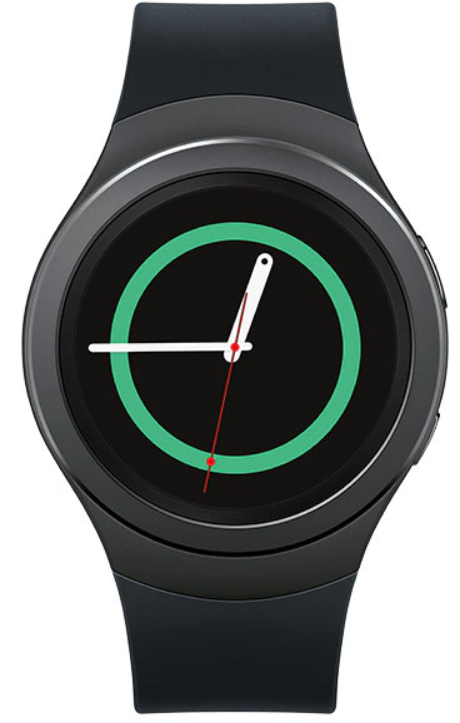
The **Samsung Gear S2 R730V** is a cutting-edge smartwatch designed to blend style with functionality, offering a unique user experience through its rotating bezel interface. This watch is ideal for fitness enthusiasts and those seeking a stylish accessory for daily use. Key benefits include its water-resistant design with an IP68 rating, allowing submersion up to 1.5 meters for 30 minutes, and compatibility with a wide range of Android devices. The Gear S2 supports Bluetooth 4.1, Wi-Fi, and NFC, making it perfect for tracking fitness goals or using Samsung Pay for convenient transactions. Priced in the range of $200 to $300, this smartwatch is available across various retail platforms, including Verizon.
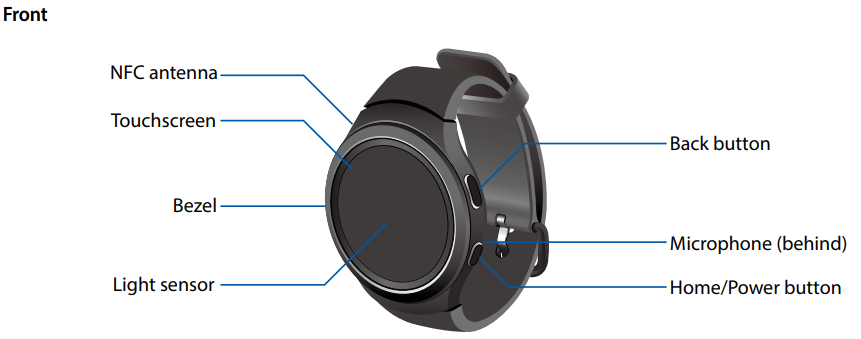
Device layout
Gear S
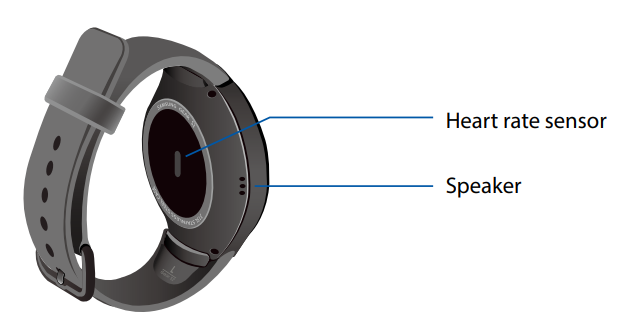
Back
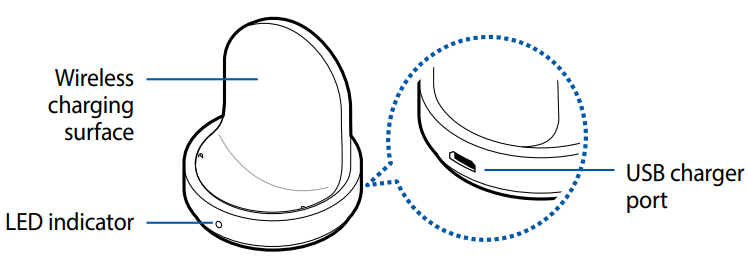
Wireless charger dock
Battery
Charging the battery
Charge the battery before using it for the first time or when it sits unused for extended periods.
Use only Samsung-approved chargers and accessories that arethat are specifically designed for your device.
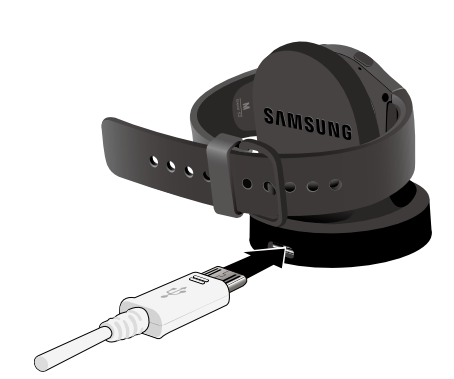
- Connect the USB cable to the USB power adaptor.
Then, connect the other end of the USB cable to the wireless charger dock.
Prevent the USB charger port and the small end of the charger from coming into contact with conductive materials, such as liquids, dust, metal powders, and pencil leads. - Plug the USB power adaptor into an electric socket.
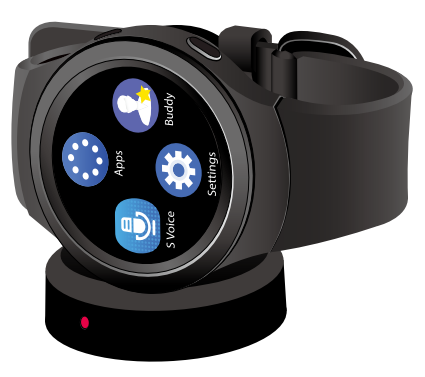
- Place the Gear into the wireless charger dock.
- After fully charging your Gear, disconnect it from the wireless charger dock. Unplug the charger from the wireless charger dock, and then unplug the charger from the electric socket.
Battery charging tips and precautions
- If there are obstructions between the Gear and the wireless charger dock, the Gear may not charge properly.
- Prevent the Gear and the wireless charger from coming into contact with sweat, liquids, or dust.
- If the battery is completely discharged, the Gear cannot be turned on immediately after being connected to the charger.
- Allow a depleted battery to charge for a few minutes before turning on the Gear.
- If you use multiple apps at once, the battery will drain quickly. To avoid losing power during a data transfer, always use these apps after fully charging the battery.
- Using a power source other than the charger, such as a computer, may result in a slower charging speed due to a lower electric current.
- If the Gear is being charged with other devices via a multi-charger, charging may take longer.
- The Gear can be used while it is charging, but it may take longer to fully charge the battery.
- If the Gear receives an unstable power supply while charging, the touchscreen may not function. If this happens, immediately disconnect the Gear from the wireless charger dock and leave the device aside until another power connection can be found.
- While charging, the Gear may heat up. This is normal and should not affect the Gear’s lifespan or performance. If the battery feels hot to the touch during this charging process, remove the Gear from the charger and allow it to cool down before restarting the charging process, or call 1-800-SAMSUNG (726-7864) to receive technical support.
- If the Gear is not charging properly, take the Gear to a Samsung Service Center.
- Avoid using a bent or damaged USB cable.
Wearing the Gear
Putting on the Gear
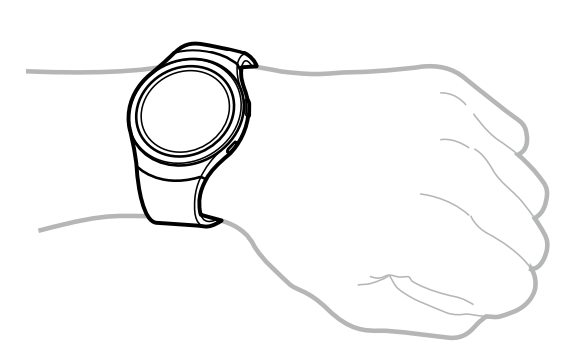
- Open the buckle and place the strap around your wrist.
- Fit the strap to your wrist, insert the pin into an adjustment hole, and then secure the buckle to close it.
- This device, S Health, and related software is not intended for use in the diagnosis of disease or other conditions, or in the cure, mitigation, treatment or prevention of disease.
- If you feel discomfort while using the device, stop using it and remove it from your wrist. If your device becomes hot to the touch, please remove it until it cools.
- To measure your heart rate more accurately with the Gear, wear the Gear firmly around your lower arm just above the wrist. Refer to “Wearing the Gear” on page 11 for details.
Strap tips and precautions
- Be cautious when wearing the Gear. If you have sensitive skin or fasten the Gear too tightly, you may feel some discomfort.
- Some people may experience discomfort when wearing the Gear for prolonged periods.
- Do not expose the straps to very wet conditions. Wet straps can cause skin irritation. Dry the straps first. If you experience skin irritation when wearing the device, stop wearing the device and consult a physician.
- Do not use harsh chemicals, cleaning solvents, or strong detergents to clean the smartphone. Wipe it with a soft cloth slightly dampened in a mild soap-and-water solution. If the smartphone has a retractable camera lens, do not use soap and water to clean the lens. Use a blower or brush or lens cleaning paper dampened in a lens cleaning solution.
- The Gear and the strap have passed the hazardous materials test and meet international safety standards.
Replacing the strap
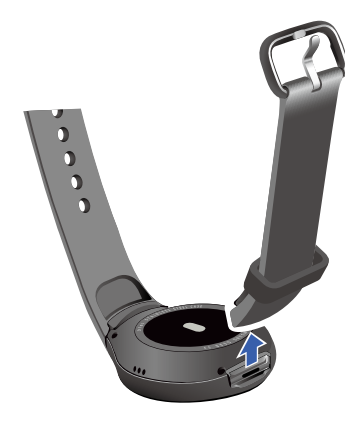
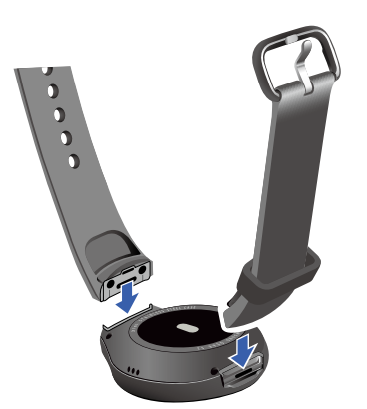
Detach the strap from the Gear to replace it with a new one.
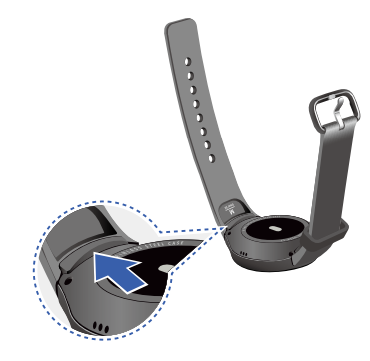
- Push the button where the Gear’s body and strap meet.
- While pushing the button, pull the strap upward and remove it.
- Insert the holder of the new strap into the grooves on the Gear’s body.
- Push the strap into the Gear’s body until it clicks into place.
Turning the Gear on and off
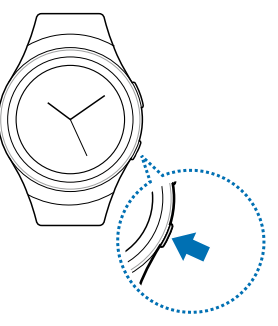
- Press and hold the Power button for a few seconds to turn on the Gear. When you turn on the Gear for the first time or reset it, a pop-up window displays. Follow the prompts to download and install the Samsung Gear app on your smartphone.
- To turn off the Gear, press and hold the Power button, and then tap Power off.
Connecting the Gear to a Smartphone
You should connect your Gear to your smartphone once before using the Gear. To connect your Gear to a smartphone, install the Samsung Gear app on the smartphone. Launch Galaxy Apps or visit apps. Samsung Gear from your smartphone to download it. For non-Samsung devices, download the Samsung Gear app from the Google Play store.
Compatible with Android 4.4 and later with 1.5GB RAM. Some features may not be available. For best compatibility, connect with compatible Samsung Galaxy devices.
- Turn on the Gear.
- On the smartphone Apps screen, tap Samsung Gear.
- If necessary, update the Samsung Gear app to the latest version.
- Tap CONNECT TO GEAR.
- When the Bluetooth pairing request window displays, confirm that the passkeys displayed on your Gear and smartphone match, and then tap OK.
- Follow the prompts to complete the connection.
When the devices are connected, a tutorial displays on the Gear’s screen. Follow the prompts to learn the Gear’s basic controls.
- Connection methods and screenshots may vary depending on your device and software version.
- You cannot install the Samsung Gear app on the smartphones that do not support Gear syncing. Ensure that your smartphone is compatible with a Gear.
- Supported smartphones and features may vary depending on your region, service provider, and device manufacturer. Visit the Samsung website and search for your Gear device’s support page to view a list of compatible smartphones.
Connecting the Gear to a new smartphone
When you connect the Gear to another smartphone, the Gear automatically resets,, and all data is removed from its memory. Make sure you back up any important data stored on your Gear.
- Back up your Gear’s data on your smartphone.
On your smartphone, open the Apps screen and tap Samsung Gear > Settings > Back up and restore > Back up data. - End the connection between your Gear and smartphone. Refer to “Disconnecting the Gear” on page 120 for more information. 3 Connect your Gear to another smartphone. A new Gear device cannot connect to a target smartphone that is already paired with another Gear.
Activating the device
- Once you have connected your Gear to your smartphone, you will need to activate calling on your Gear.
- After pairing, your Gear will attempt to make a call. Follow the prompts to activate your Gear.
- If you experience any difficulty activating your device, contact your Service provider.
Specifications of Samsung Gear S2 R730V
Here are the detailed technical specifications of the Samsung Gear S2 R730V:
- Display: 1.2-inch Super AMOLED with a resolution of 360 x 360 pixels and 302 ppi.
- Processor: Dual-core Exynos 3250 at 1 GHz (for some models) or Dual-core Qualcomm Snapdragon 400 MSM8x26 (for others).
- Memory: 4 GB internal storage with 512 MB RAM.
- Connectivity: Bluetooth 4.1, Wi-Fi 802.11 b/g/n, and NFC.
- Battery: Approximately 250 mAh o, offering up to 2 days of battery life.
- Sensors: Pedometer, heart rate monitor, accelerometer, gyroscope, and ambient light sensor.
- Design: Stainless steel case with Gorilla Glass 3 protection, available in dark gray and silver colors.
- Operating System: Tizen-based wearable platform.
Troubleshooting Common Issues
If you encounter any issues with your Samsung Gear S2 R730V, here are some common problems and solutions:
- Connection Issues: Restart both your watch and smartphone, then try reconnecting.
- Battery Life: Turn off unnecessary features like Bluetooth and Wi-Fi when not in use.
- Error Codes: Refer to the user manual or contact Samsung support for specific error code solutions.
- Warranty and Support: Check your device's warranty status and contact Samsung customer service for assistance.
For further assistance, visit Samsung's official support website or call their customer service.
Pros and Cons of Samsung Gear S2 R730V
Here's a balanced assessment of the Samsung Gear S2 R730V:
Pros
- Unique Design: The rotating bezel offers intuitive navigation.
- Water Resistance: IP68 rating protects against water and dust.
- Health Features: Includes heart rate monitoring and a pedometer for fitness tracking.
- Compatibility: Works with Android devices and supports Samsung Pay.
Cons
- Limited App Ecosystem: Compared to Android Wear or Apple Watch.
- Short Battery Life: May not last more than two days with heavy use.
- Compatibility Issues: Some features may not work well with non-Samsung devices.
Customer Reviews and Feedback
Users of the Samsung Gear S2 R730V generally praise its stylish design and user-friendly interface. However, some users report issues with battery life and compatibility with certain apps. With an average rating of 4 out of 5 stars, this smartwatch is recommended for those seeking a stylish and functional accessory.
Testimonials often highlight the watch's ease of use and the convenience of Samsung Pay. However, some users caution about the limited app selection compared to other smartwatch platforms.
For the best experience, ensure you have a compatible Android device, and consider purchasing additional bands for a personalized look.
Faqs
How do I properly set up and pair my Samsung Gear S2 R730V with my smartphone for the first time?
What should I do if my Samsung Gear S2 R730V won't connect to my smartphone via Bluetooth?
Can I use Samsung Gear S2 R730V with non-Samsung Android phones, and are all features supported?
How do I customize watch faces and widgets on my Samsung Gear S2 R730V to suit my style?
What steps should I take to maximize battery life on my Samsung Gear S2 R730V?
How can I replace the strap on my Samsung Gear S2 R730V, and what types of straps are compatible?
Why am I not receiving notifications on my Samsung Gear S2 R730V, and how do I fix this?
How do I perform a factory reset on my Samsung Gear S2 R730V, and what data will be lost?
More samsung manuals
Leave a Comment