
Setup: Samsung Galaxy J3 V Smartphone User Manual
Content
Samsung Galaxy J3 V Smartphone
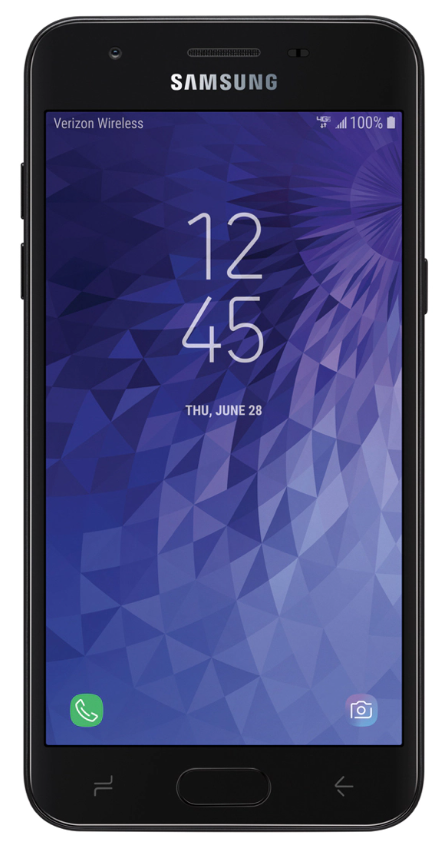
Introduction
The Samsung Galaxy J3 V Smartphone offers a blend of reliable performance and essential smartphone features tailored for everyday users seeking affordability without compromising quality. With its sleek design, vibrant 5.0-inch HD Super AMOLED display, and solid battery life, this device is ideal for those who want a dependable companion for communication, media consumption, and light multitasking. The smartphone comes equipped with an 8MP rear camera and a 5MP front camera, perfect for capturing crisp photos and engaging in video calls.
Designed with budget-conscious consumers and first-time smartphone users in mind, the Galaxy J3 V supports essential apps and connectivity options, making it suitable for students, professionals, and casual users alike. Running on Android 8.0 Oreo with Samsung’s intuitive interface, it ensures smooth navigation and access to a wide app ecosystem. The device is compatible primarily with Verizon’s network, offering a seamless 4G LTE experience.
Available in a price range typically between $100 and $150, the Samsung Galaxy J3 V is widely accessible through major carriers and online retailers. Its balance of features and cost makes it a competitive option in the entry-level smartphone market.
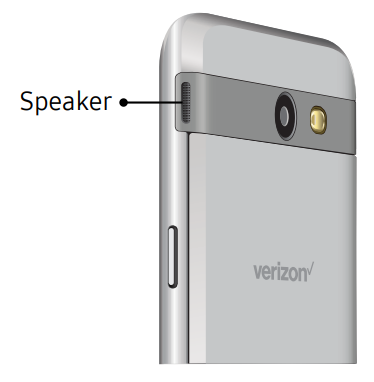
Side Speaker
This device features the speaker on the side of the device.
Set Up Your Device
Learn how to set up your device for the first time.
Assemble Your Device
This section helps you to assemble your device.
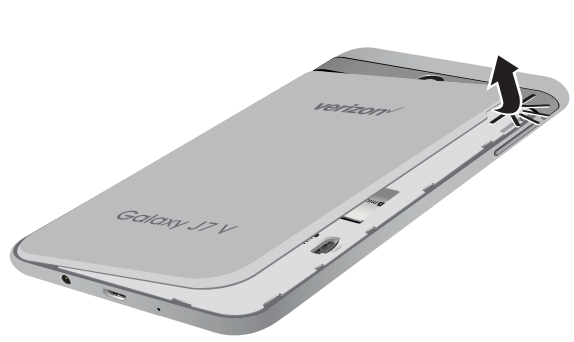
Remove the Back Cover
- Remove the back cover.
- Lift the cover up and to the left of the device.
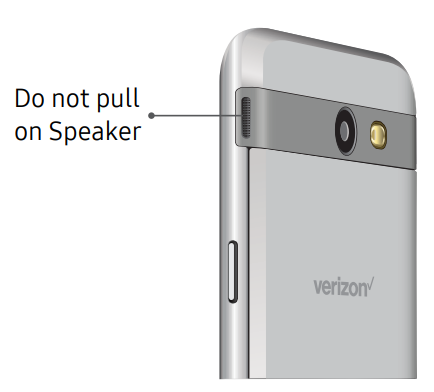
Caution: When removing the back cover, use the slot next to the Volume key to gently lift the cover off. Pulling on the Speaker (located next to the Power button) may cause damage.
Warning: Do not bend or twist the back cover excessively. Using excessive force on the cover during the removal or installation of an internal component can cause the material to break.
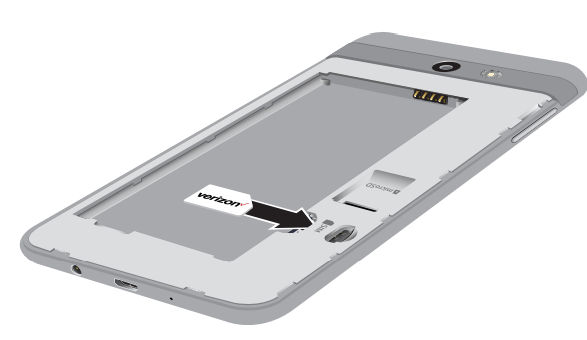
Install the SIM Card
When you subscribe to a cellular network, you are provided with a plug-in SIM card. During activation, your SIM card is loaded with your subscription details, such as your Personal Identification Number (PIN), available optional services, and other features.
Warning: Please be careful when handling the SIM card to avoid damaging it. Keep all SIM cards out of reach of small children.
- Carefully slide the SIM card into the SIM card slot.
- Make sure that the card’s gold contacts face down into the device and that the card is positioned as shown.
Install an Optional Memory Card
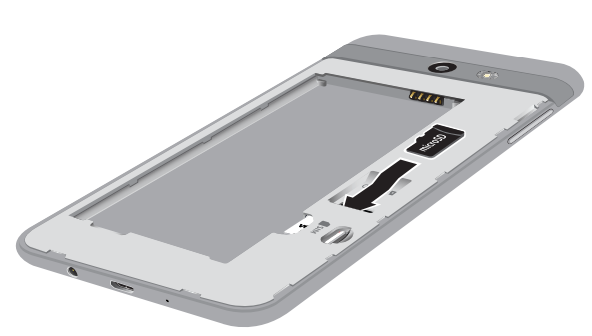
- You can install a microSD™ or microSDHC™ memory card (not included) to add more memory space to your device.
- A memory card can be installed at any time. It is not necessary to install it before using the device.
- Slide the memory card into the slot with the gold contacts facing down.
Install the Battery
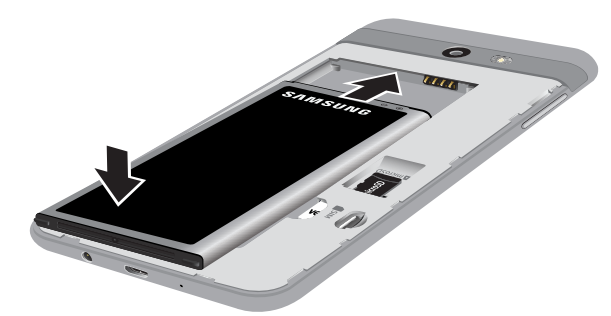
The battery is installed in the back of the device.
- Insert the battery into the opening on the back of the device, making sure the connectors align.
- Gently press down to secure the battery.
Start Using Your Device
Turn Your Device On or Off
The instructions below explain how to turn your device on or off.
To turn the device on:
- Press and hold the Power key until the Device options menu is displayed.
- Tap Power off, and confirm if prompted.
Lock or Unlock Your Device
- Use your device’s screen lock features to secure your device.
- By default, the device locks automatically when the screen times out.
- To lock the device:
- Press the Power key.
- The default Screen lock on your device is Swipe. To choose a more secure screen lock, see
“Set a Screen Lock” on page 152.
- To unlock the device:
- Press the Power key or Home key, and then drag your finger across the screen.
- Restart the Device
If your device stops responding to taps or finger gestures and you are unable to turn it off, you can restart your device.- Press and hold the Power key and the Volume down key at the same time for more than seven seconds.
Learn About Your Device
Learn some of the key features of your mobile device, including the screens and icons, as well as how to navigate the device and enter text using the keyboard.
Front View
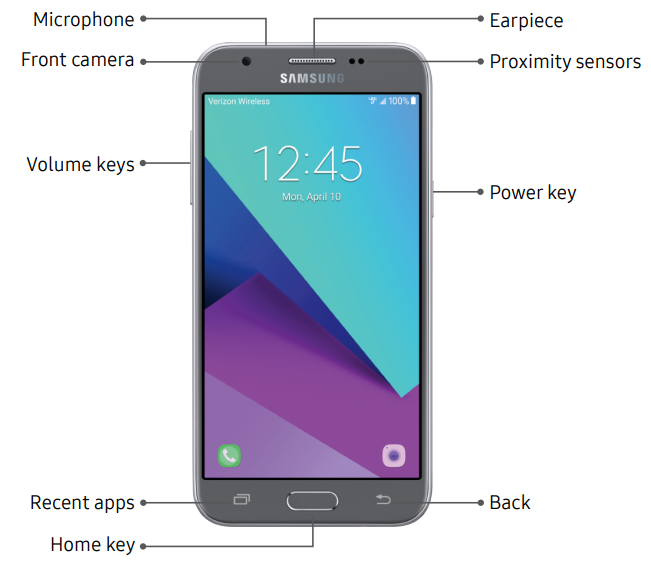
Proximity sensor
- Turns off the screen and disables touch functionality when the device is in close proximity to the human body.
- Turns the screen back on and enables touch functionality when the device is outside a specific range of the human body.
Power key
- Briefly press to turn on or off the screen.
- Press and hold to select a power control option.
Home key
- Press and hold to launch Google.
- Press twice to launch the camera.
Volume keys
- Adjust the volume for ringtones, calls, or notifications.
- In the camera app, press a volume key to take a photo.
Back View
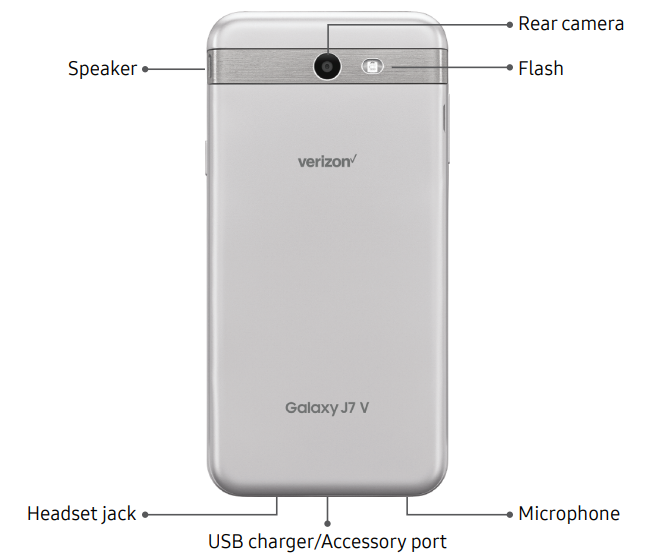
Home Screen
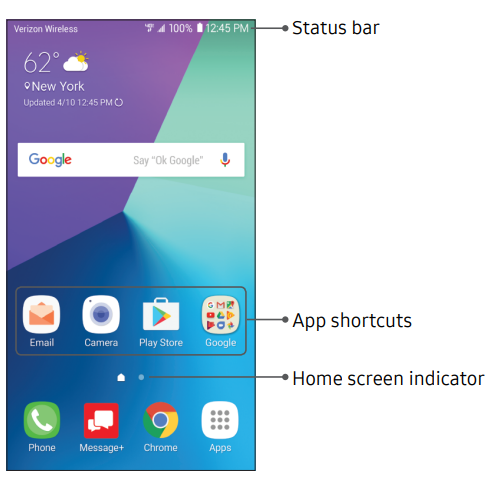
Status Bar
The Status bar at the top of the Home screen provides device information (such as network status, battery charge, and time) on the right side and notification alerts on the left.
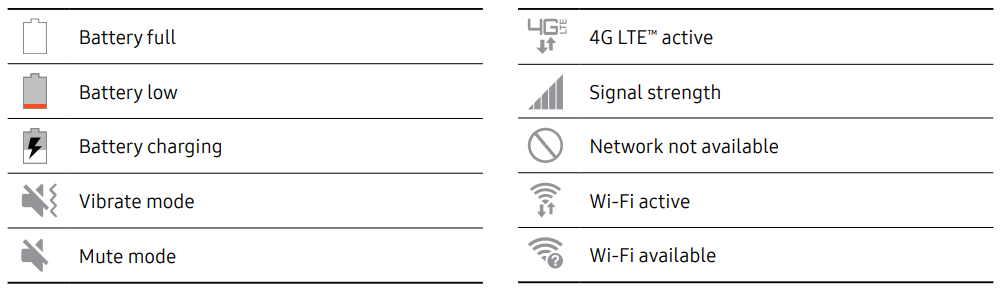
Status Icons
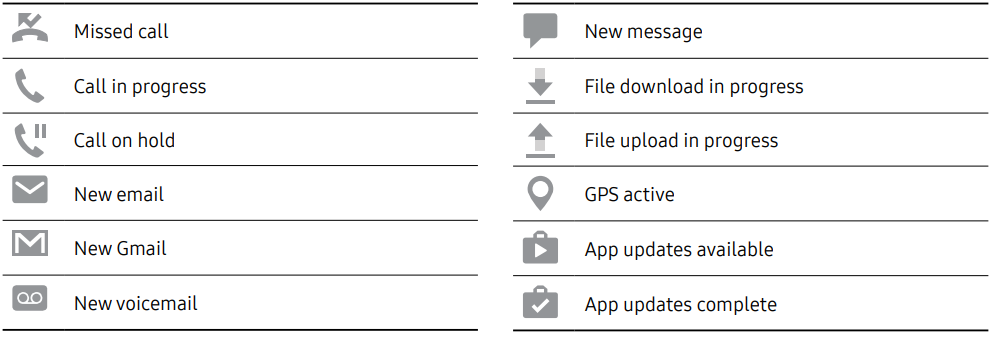
Notification Icons
Technical Specifications and Key Features of Samsung Galaxy J3 V Smartphone
- Display: 5.0-inch HD Super AMOLED, 1280 x 720 resolution, vibrant color reproduction
- Processor: 1.3 GHz quad-core CPU (Exynos 7570 or Snapdragon 410, depending on the model)
- Operating System: Android 8.0 Oreo with Samsung’s TouchWiz interface
- Memory & Storage: 2GB RAM, 16GB internal storage, expandable via microSD up to 400GB
- Cameras: 8MP rear camera with 1080p video recording, 5MP front camera ideal for selfies and video chats
- Battery: 2600mAh removable battery offering up to 15 hours of talk time
- Connectivity: LTE-enabled, Wi-Fi 802.11 a/b/g/n (2.4/5 GHz), Bluetooth 4.2, GPS, and 3.5mm headphone jack
- Other Features: Accelerometer, proximity sensor, and gyroscope for enhanced user experience
Compared to other entry-level smartphones, the Galaxy J3 V stands out with its Super AMOLED display and expandable storage capacity, offering better visuals and more flexibility than some competitors in the same price segment.
Device Maintenance
Device maintenance provides an overview of the status of your device’s battery, storage, and device security. You can also automatically optimize your device’s system resources.
Battery
View how battery power is used for device activities.
- From a Home screen, tap
 Apps > Settings.
 - Tap Battery for options:
- Battery usage: View details of battery usage by item.
- Power saving mode: Extend battery life by selecting a power saving mode level. Choose Off, Mid, or Max. Estimated remaining battery life for each mode is provided.
- App power monitor: Put apps to sleep so that they do not use battery power when not in use. Tap Save power to enable.
- Unmonitored apps: Select apps to exclude from being put to sleep by the App power monitor.
- More options > Advanced settings: Configure advanced battery settings and notifications, such as showing a battery percentage in the Status bar.
Storage
- View the device memory and usage. Mount, unmount, or format an optional memory card (not included).
Device Memory
- View and manage the memory used by the device.
- From a Home screen, tap Apps > Settings.
- Tap Storage.
- Tap Internal storage if an optional SD card is installed. Device storage used out of the total space available is displayed. The amounts of memory used are further divided into:
- Total space: The total amount of memory on your device.
- Available space: The amount of storage space currently available.
- System memory: The minimum amount of storage space required to run the system.
- Apps: The amount of storage space currently being used by apps.
- Pictures, videos: The amount of storage space currently being used by pictures and videos.
- Audio: The amount of storage space currently being used by audio.
- Other: The space used by app data, downloaded files, and Android system files.
- Cached data: The amount of data currently cached.
- Tap Explore to launch My Files to view content stored on your device.
To increase available memory:
- From a Home screen, tap
- Tap Storage.
- Tap Internal storage if an optional SD card is installed.
- Tap Cached data to clear cached data for all apps.
- Tap Clear to confirm.
Memory Card (SD Card)
- Once an optional memory card (not included) has been installed in your device, the card memory is displayed in the Storage setting.
- For more information, see “Install an Optional Memory Card” on page 6.
Mount a Memory Card
- When you install an optional memory card, it is automatically mounted (connected to the device) and prepared for use. However, should you unmount the card without removing it from the device, you need to mount it before it can be accessed.
- From a Home screen, tap
- Tap Storage.
- Under Portable storage, tap your SD card, and then tap Mount.
Remove a Memory Card
- Warning: To prevent damage to information stored on the memory card, unmount the card before removing it from the device.
- From a Home screen, tap
- Tap Storage.
- Under Portable storage, tap your SD card, and then tap Unmount.
- Remove your memory card from the device.
Format a Memory Card
- Warning: When formatting an SD card, you should back up your music and photo files that are stored on the card because formatting the SD card deletes all the stored data.
- From a Home screen, tap
- Tap Storage.
- Under Portable storage, tap your SD card, tap Format, and then follow the prompts.
- From a Home screen, tap
- Tap Language and input > Language.
- Tap Add language, and select a language from the list.
- To change the default language, or remove a language from your list, tap Edit.
Samsung Galaxy J3 V Smartphone Troubleshooting Guide
Common issues with the Samsung Galaxy J3 V Smartphone include sluggish performance, connectivity drops, and camera glitches. Here are practical solutions:
- Sluggish performance: Clear cache from apps, uninstall unused applications, or perform a factory reset if necessary.
- Connectivity problems: Toggle airplane mode on/off, restart the device, or reset network settings.
- Camera not working: Restart the app, clear the camera cache, or update the software for fixes.
- Error codes: For system errors, check for software updates or perform a safe mode reboot to isolate problematic apps.
Preventive measures include regular software updates, avoiding app overload, and maintaining sufficient storage space. The Galaxy J3 V comes with a standard one-year manufacturer warranty, and Verizon provides customer support via phone and online resources for troubleshooting assistance.
For further help, users can contact Samsung support or Verizon customer service through their official websites or helpline numbers.
Pros & Cons of the Samsung Galaxy J3 V Smartphone
- Pros:
- Affordable price point, excellent for budget-conscious buyers
- Bright and clear 5.0-inch Super AMOLED display enhances multimedia experience
- Expandable storage up to 400GB via microSD card
- Decent battery life with a removable 2600mAh battery
- User-friendly Android Oreo with Samsung TouchWiz interface
- Cons:
- Processor speed (1.3 GHz) may struggle with heavy multitasking or demanding apps.
- Limited RAM (2GB) restricts advanced gaming or intensive app use
- Lower resolution cameras compared to mid-range smartphones
- Primarily locked to the Verizon network, limiting carrier options
- The Samsung Galaxy J3 V offers excellent value for everyday tasks like calling, texting, social media, and light media use,, but falls short for power users compared to devices with faster processors and more RAM.
Customer Reviews and Feedback on Samsung Galaxy J3 V Smartphone
Users generally praise the Samsung Galaxy J3 V Smartphone for its vibrant display, ease of use, and affordability, often rating it 4 out of 5 stars. Many appreciate its solid battery life and expandable storage, noting it as ideal for seniors and first-time smartphone users.
Common complaints include occasional lag during heavy app usage and modest camera quality under low light. Some users mention network restrictions due to Verizon exclusivity, which may affect those seeking unlocked versions.
Overall, customers recommend the Galaxy J3 V for users needing a straightforward, budget-friendly Android device with reliable performance for daily essentials and moderate media consumption.
Faqs
How do I set up my samsung Galaxy J3 V Smartphone for the first time?
What should I do if my samsung Galaxy J3 V Smartphone is not charging properly?
How can I expand the storage on my samsung Galaxy J3 V Smartphone?
Is the samsung Galaxy J3 V Smartphone compatible with the latest Android apps and updates?
What are the best tips to optimize the performance of my samsung Galaxy J3 V Smartphone?
How do I take the best photos with the samsung Galaxy J3 V Smartphone camera?
What maintenance practices should I follow to keep my samsung Galaxy J3 V Smartphone in good condition?
Can I use the samsung Galaxy J3 V Smartphone with carriers other than Verizon?
More samsung manuals
Leave a Comment