
Setup: Samsung Magician 8 User Manual
Content
Samsung Magician 8
Introduction
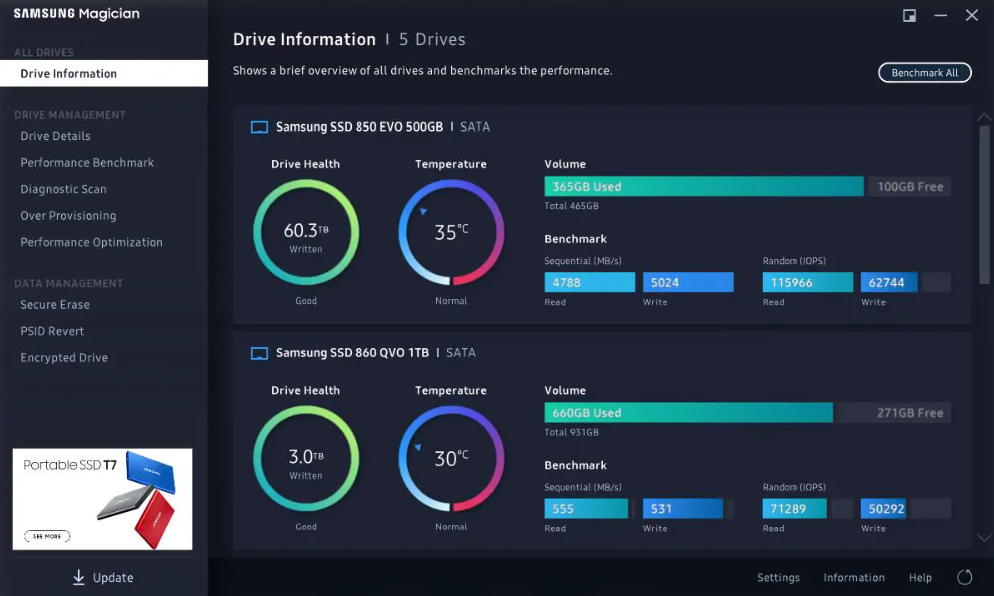
Samsung Magician 8 is the latest iteration of Samsung's advanced SSD management software, designed to optimize and maintain the performance of Samsung solid-state drives. Targeted at PC enthusiasts, gamers, IT professionals, and general users who rely on Samsung SSDs, Magician 8 offers a comprehensive suite of tools to monitor drive health, enhance speed, and secure user data. Its intuitive interface supports a range of Samsung storage products, including internal SSDs, portable SSDs, memory cards, and USB flash drives, making it a versatile solution for managing digital storage.
Key benefits of Samsung Magician 8 include performance benchmarking, secure erase functionality, firmware updates, and data migration capabilities. It also features built-in diagnostic scans for error detection and optimization tools like TRIM and RAPID mode to maintain SSD longevity and speed. The software’s interactive chatbot guides users through tasks such as firmware updates, ensuring ease of use even for beginners.
Samsung Magician 8 is compatible with Windows 10 and newer operating systems and supports a broad range of Samsung SSD models, including popular lines like the 870 EVO and the high-performance 9100 Pro series. It is available as a free download from Samsung’s official website, providing a cost-effective way to maximize your Samsung SSD investment. While the software itself is free, the drives it manages range in price depending on capacity and performance, generally from $50 for entry-level models up to several hundred dollars for high-capacity, high-speed NVMe drives.
Specifications and Features of Samsung Magician 8
- Compatibility: Supports all Samsung internal SSDs, portable SSDs, SD/microSD cards, and USB flash drives
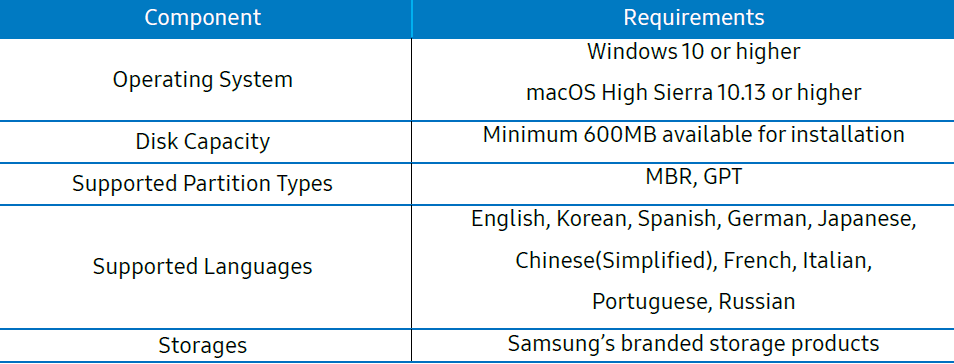
- Operating System: Windows 10 or higher required
- Key Features: Drive health monitoring, performance benchmarking, secure erase, firmware updates, data migration, over provisioning, TRIM, and RAPID mode optimization
- User Interface: Clean dashboard with drive details, history tracking, and an integrated chatbot for guided assistance
- Performance Metrics: Regular benchmarking tracks sequential read/write speeds, IOPS, and drive health over time
- Diagnostic Tools: Full and partial diagnostic scans for error detection and correction to maintain drive integrity
- Security: Supports encrypted drives and PSID revert for secure data erasure
- Firmware Management: Automatic detection and installation of the latest firmware to ensure optimal drive performance
- Drive Support Example: Compatible with Samsung 870 EVO, 860 EVO, 950 PRO, 970 EVO, 980 PRO, and 9100 Pro series
- Free Disk Space Required: Minimum 50MB for installation
Compared to other SSD management software, Samsung Magician 8 stands out with its dedicated support for Samsung SSDs, advanced performance optimization features, and a user-friendly interface equipped with a chatbot assistant. Its ongoing updates and broad support make it an ideal choice for Samsung drive users seeking to maximize SSD performance and lifespan.
New Samsung Magician 8
Experience the new user-friendly GUI of Samsung Magician. Try our new features and enhanced functions for a better user experience. Samsung Magician provides an integrated, convenient solution for SSDs with advanced capabilities.
Samsung Magician software is developed and distributed exclusively for users of Samsung-branded storage.
New Features
New Samsung Magician features a number of improvements over the previous versions.
New features include:
- Expanded OS Support
Magician is available not only for Windows but also for macOS and Android. Feature availability may vary depending on the operating system and connected devices. For more details, please visit the Magician page. - Expanded Product Support
Magician now supports all of Samsung’s branded memory storage products, including internal SSDs, portable SSDs, SD cards, and USB flash drives. - System Details
Users can find information about their available memory and PCIe slots and their corresponding interfaces. - Newsroom and Notice Board
Newsroom and Notice provide up-to-date information regarding new product releases and firmware updates. - Skin Theme
Users can choose between a dark or light skin theme from the settings menu. - Genuine Authentication
The visibility of genuine product authentication is enhanced with Magician 8.0
Requirements and Support
System Requirements
Supported Features by model
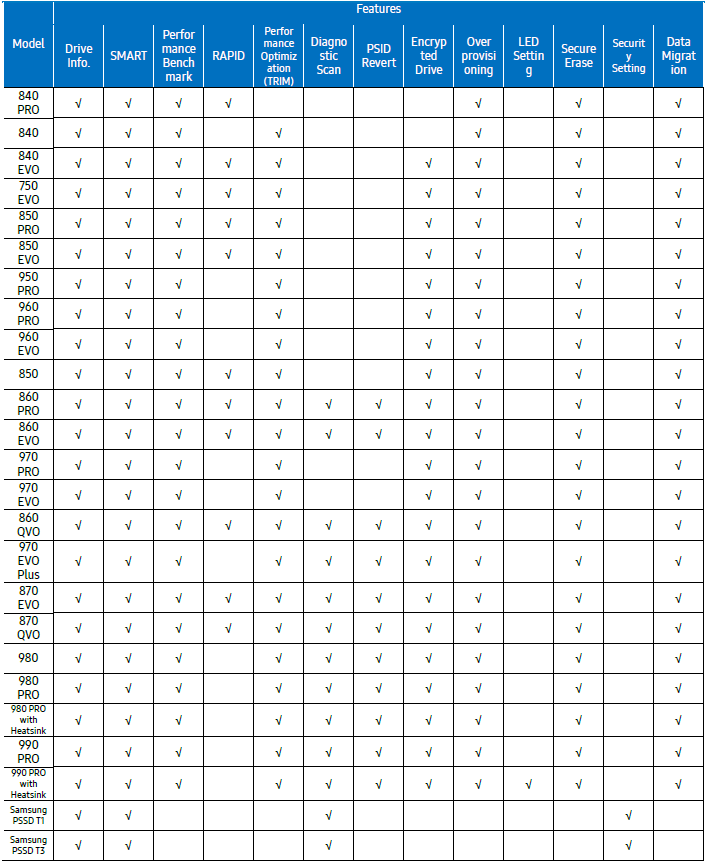
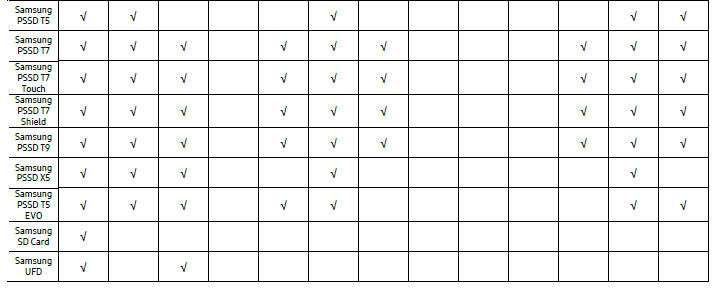
There are some limitations that exist depending on the type of storage and model.
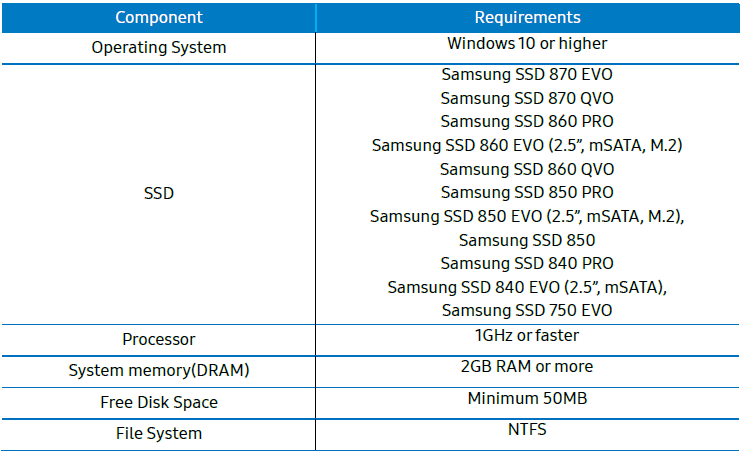
RAPID mode Requirements
Driver Support
SATA
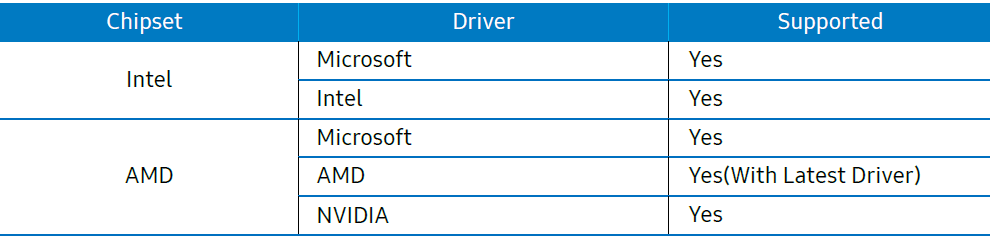
NVMe

- Samsung Magician does not require an internet connection to run. However, the internet connection is required to get updates for the latest Firmware, Feature modules, or applications,s and to authenticate the SSDs.
- If you delete some files of New Samsung Magician without an internet connection, some features like certification or configuration may not work properly and cause limitations in the use of New Samsung Magician.
- The SSD should not be disconnected from the system while FW Update, Benchmarking, Secure Erase, Over Provisioning, Encrypted Drive, PSID Revert, Diagnostic scan, Performance Optimization, Data Migration, or RAPID features are in progress. Doing so could result in data corruption.
- All parallel operations should be terminated before executing Diagnostic scan, Performance Optimization, Data Migration, or Benchmarking features.
- Data corruption may result if the user terminates the Magician application abnormally while Benchmarking, FW Update, Secure Erase, Diagnostic scan, Over Provisioning, Encrypted Drive, PSID Revert, Data Migration, or RAPID features are in progress.
- There is always the risk of data loss when updating SSD firmware. It is imperative that the user back up any important data before performing a firmware update.
- If there are some system issues for Magician to perform functions, System Compatibility in the Drive Details tab will provide a guide to fix the issues.
- If Samsung Magician is under a proxy network environment, it may not provide the full functionality, such as firmware update.
- In order for Samsung Magician to function properly, the time on the PC needs to be correctly set.
General Limitations
Overall
- A magician does not work with SSDs connected via the SCSI controller interface.
- Only MBR and GPT partition types are supported. Magician may not work with other partition types.
- The magician shows only volumes mounted with a letter.
- Magician will not work on SSDs that are locked with a user password.
- The user may need to manually refresh for Magician to accurately reflect all connected/removed disks.
- RAID on mode in SATA configuration is not supported by Samsung Magician and the USB bootable solution.
- If you are using any custom storage driver, then Magician may not work properly. Please always use the latest storage driver or Microsoft driver.
- In the case of the function where the progress time is displayed – Performance benchmark, Diagnostic scan, Data Migration, and Performance optimization, changing the system time during the function execution may cause the elapsed time not to appear normally.
- Depending on the resolution or ratio setting of your display, the bottom and right sides of Samsung Magician may be out of the screen.
- For the performance benchmark record that was performed in the previous version of Magician 7.0, some values may be marked as Unknown.
- A magician might have compatibility issues with a certain IRST Driver.
- When RAPID is activated, the restore point warning message is only available in English.
- If Magician gets connected to or disconnected from the PSSD while performing some feature, Magician may not work properly.
- If you try changing the name of a security-enabled PSSD T1 / T3, the name won’t be changed without additional guidance when the wrong password is entered.
- The magician icon may appear unchanged until the icon is updated by the system.
- It may take up to a few seconds for to installer to start.
- It may take time to move from one screen to the next screen in the installer.
- Connecting through remote connection will dismiss the forcefully magician notification window in Windows 11.
- Upon abnormal termination of data migration, it may take time to restore the migration function.
- When the Magician fails to install due to insufficient disc space, macOS may only tell you that the installation failed.
- In macOS Mojave (10.14) and High Sierra (10.13), the desktop shortcut icon for Samsung Magician may not always render properly.
- In macOS Mojave (10.14) and High Sierra (10.13), installation may take longer than in other macOS versions.
- For OS versions 11 (Bigsur onwards) in macOS M1, if Magician is installed on an OS booted from external disks for OS versions Installer may not prompt system extension approval once installation is complete. As a result, third-party kernel extensions may not be loaded, and PSSD may not be detected in the application.
- The installer will prompt system extension approval, and once the approval is complete, the system will restart when Samsung Magician is installed on an OS booted from external disks. However, there may be a kernel panic, and the system does not boot for macOS versions 11 (Bigsur) onwards. PSSD-related kernel extensions will be loaded, and the application will detect PSSD(s) successfully in case of these OS versions: 10.13 (High Sierra), 10.14 (Mojave), 10.15 (Catalina).
- Under a certain high-DPI configuration, the text may not appear correctly in the Magician Installer. In order to fix, please change High DPI settings to Override High DPI Scaling behavior by right-clicking the Magician installer, selecting Properties, Compatibility, then Change High DPI Settings.
- During firmware update, please do not hibernate/sleep/power off the host. This may lead to a system error or a firmware update failure.
Performance Benchmark
- Benchmarking may not work with some removable storage devices.
- Performance Benchmark may get timed out on ASMedia controllers if the driver does not handle multi-thread operations (IOs)
Performance Optimization
- Performance Optimization supports only the NTFS file system.
- Magician does not support TRIM operation for Standard Performance Optimization on Windows 10 and above, as it supports native TRIM.
Diagnostic Scan
- Short scan supports only the NTFS file system.
- If the device is locked, neither short scan nor full scan is supported.
- When performing a Short scan, secure sufficient space of 5GB or more.
- Samsung NVMe driver v3.3 is required to use SMART Self-test in 970 EVO Plus.
NVMe Driver is not required for later released models. (980, 980 PRO Series, 990 Series, etc.)
PSID Revert
- SSD supporting PSID Revert is 860 EVO 860 EVO M.2, 860 EVO MSATA, 860 PRO, 860 QVO, 970 EVO Plus, 870 QVO, 870 EVO, 980, 980 PRO, 980 PRO with Heatsink, PSSD T7, PSSD T7 Touch, PSSD T7 Shield, PSSD T9.
- The PSID Revert function can release the encrypted drive using the PSID of the label. After performing PSID Revert, all data on the drive is deleted.
Secure Erase & Linux Bootable Solution
- While making a bootable solution for Secure Erase, please make sure the Device Manager window is closed.
- In some of the PCs, Bootable Solution may not work properly as expected because of a compatibility issue.
- The Bootable solution is not compatible with pure SCSI or SATA NVIDIA/LSI/AMD chipset drivers.
- AHCI or ATA mode must be enabled in the BIOS during PC boot-up.
- The Bootable solution may hang if the SSD is removed on PCs that do not support the hot plug feature (e.g., ICH5/6 chipsets).
- The Bootable solution will not work with devices attached via SATA 6Gbps (SATA III) operating in IDE mode.
- Secure Erase may not work on systems where SECURITY FREEZE LOCK is issued by the BIOS.
Encrypted Drive
- Class 0, TCG Opal, and Encrypted Drive cannot be enabled simultaneously. Only one mode can be enabled at a time, and all other modes must be disabled.\
- Security mode (Class 0, TCG/Opal or Encrypted Drive) must be disabled (unlocked) before removing and installing onto another PC.
Over Provisioning
- Over-provisioning only supports NTFS and raw (Unformatted) partitions.
- Over-provisioning does not support dynamic disks or disks that require ‘Chkdsk’ operation.
- Magician cannot guarantee that Over Provisioning scans the disk’s partition layout properly, if partition information has been changed during scanning.
- Over-provisioning may fail, even though enough free space is available, if your system suffers from cluster misalignment.
- If the user cannot span or shrink volume size through the disk management of the OS administration tool, dynamic over-provisioning may have been properly done.
- Windows ‘Disk Partition Service’ and ‘Virtual Disk Service’ should not be disabled to perform over-provisioning.
- Over-provisioning can only be performed on the last accessible partition (NTFS or raw)
- If a device with more than 4TB applied for the MBR partition is used, the function may not operate normally.
Encrypted Drive
- Class 0, TCG Opal,, and Encrypted Drive cannot be enabled simultaneously. Only one mode can be enabled at a time,, and all other modes must be disabled.
- Security mode (Class 0, TCG/Opal or Encrypted Drive) must be disabled (unlocked) before removing and installing onto another PC.
Over Provisioning
- Over-provisioning only supports NTFS and raw (Unformatted) partitions.
- Over-provisioning does not support dynamic disks or disks that require ‘Chkdsk’ operation.
- Magician cannot guarantee that Over Provisioning scans the disk’s partition layout properly, if partition information has been changed during scanning.
- Over-provisioning may fail, even though enough free space is available, if your system suffers from cluster misalignment.
- If the user cannot span or shrink volume size through the disk management of OtherOther S administration tool, dynamic over-provisioning may have been properly done.
- Windows ‘Disk Partition Service’ and ‘Virtual Disk Service’ should not be disabled to perform over-provisioning.
- Over-provisioning can only be performed on the last accessible partition (NTFS or raw)
- If a device with more than 4TB applied for the MBR partition is used, the function may not operate normally.
LED Setting
- Depending on the status of the SSD, the LED setting may not be possible.
Security Setting
- Finding my password is unavailable on Samsung Magician.
- Up to four fingerprints can be registered on Samsung Magician
Data Migration
- Data Migration supports the Windows operating systems listed in the System Requirements only.
- Data Migration supports the Samsung SSDs listed in the System Requirements only. OEM storage devices provided through a computer manufacturer or supplied through another channel are not supported.
- Data Migration can only clone a Source Drive on which an operating system has been installed. It cannot clone a drive without an operating system installed on it.
- When the Source Drive has two or more volumes (e.g. volumes to which drive letters, such as C:, D:, or E:, are assigned), Data Migration can clone the C: volume on which an operating system is installed and two more volumes. The System Reserved Partition, which is created automatically during Windows installation, is cloned automatically.
- The OEM Partition, which is created by the computer manufacturer when shipped from the factory, is not cloned. However, it will be automatically cloned if the computer manufacturer is Samsung and SRS (Samsung Recovery Solution) 5, SRS 6, or SRS 7 has been installed. (Versions lower than SRS 5 are not supported.)
- After cloning the Source Drive to the Target Drive, their data sizes may differ by a few gigabytes. This is normal. During cloning, Data Migration does not copy virtual memory (page files, hibernation files, etc.) automatically created and managed by the operating system.
- Data Migration cannot clone encrypted drives. In order to clone an encrypted drive, you must remove its password first.
- If the motherboard chipset drivers are not up to date when cloning, Data Migration may not function properly.
- If you have multiple operating systems installed on your computer (e.g., Windows 7 installed on the C: volume and Windows 8 installed on the D: volume), then the cloned drive may not function properly in some cases.
- If the Source Drive is damaged (e.g,,. it has bad sectors), then the cloned drive may not function properly.
- Before attempting to clone a drive using Data Migration, it is recommended that you close all open programs and allocate sufficient memory first.
- If you have instant recovery software installed on your computer, then Data Migration may not function properly.
- If the Source Drive has been converted to a dynamic disk, then Data Migration may not function properly.
- If a portable device (e,,.g. an external USB device) is connected to the Target Drive for cloning, then Data Migration may not function properly because of the USB adapter.
- If the OS version installed in the original drive does not support the GPT partition,, and when it is duplicated in a drive exceeding 2TB, the MBR partition type will be applied to the duplicated drive. As MBR does not support large drives, the space exceeding 2TB will remain unallocated.
- In order to use Data Migration on a non-Samsung Portable SSD, Security Mode should be disabled.
- Portable SSDs support Data Migration only on systems with Windows 10 or higher versions.
Firmware Update
- PC will be shut down automatically after the firmware update (Magician counts down 20 seconds before shutdown).
- Firmware Update may fail on Samsung brand SSDs connected to TheMD Cothe nthe troller. Please retry using the default SATA AHCI controller (Microsoft drivers).
Settings
- When booting the PC, users can decide whether to auto-run Samsung Magician. If auto-run is turned off, updates cannot be received in real time.
- The device scan proceeds immediately after the language is changed.
- The scaling size varies depending on the resolution.
RAPID mode Limitations
- RAPID mode accelerates only one SSD even though the user has several Samsung SSDs (870 QVO, 870 EVO, 860 QVO, 860 EVO, 860 PRO, 850 PRO, 850 EVO, 850, 750 EVO, 840 EVO, and 840 PRO,, regardless of form factor).
- If there are two identical SSDs connected, RAPID mode may accelerate the incorrect SSD.
- RAID Mode is not supported as an accelerated drive.
- After uninstalling RAPID mode, if the system is restored to a prior state in which RAPID mode was installed, RAPID mode will be started in a disabled state.
- NVIDIA Storage controller is not supported.
- During RAPID mode,, Enable/Disable operation: Do not disconnect the target SSD, do not kill the application.
- If fast startup is enabled on Windows 10 or higher machines, RAPID mode enable/disable requires a system restart. A shutdown followed by turning on the power will not activate RAPID mode enable/disable. By default,, fast startup is enabled.
- A flush command of the operating system and/or application may cause variation in performance when RAPID mode is enabled.
- Sometimes, on an AMD PC with AMD and ASMedia storage controllers, it was found that the IOs take a long time to complete. In such cases i,, if Rapid was enabled, it may get automatically disabled due to such IO errors. It may display "Rapid is in inactive state". The user has to reboot the PC to enable the Rapid Back.
- If multiple iterations of Read and Write are performed, RAPID mode may become inactive due to system internal errors on some of the AMD / ASMedia Controller or Driver.
- RAPID mode can't be guaranteed on the target SSD with a non-NTFS file system.
- If the user deletes some files in the the RAPID folder, RAPID may not be uninstalled properly.
- If the msiexec.exe is either unstable or corrupted, RAPID mode enable fails with the error message “The Windows Installer service failed to start. Start the Windows Installer service manually, upgrade the Windows Installer service, and check if the last updated or installed program in Windows was successful. If the problem persists, contact the A/S center.”
The issue can be fixed by:
Unregister and reregister the Windows Installer service / MSI service.
- On the Start menu, click Run.
- In the Open box, type “msiexec /unreg”. And then press ENTER. On the Start menu, click Run..
- In the Open box, type “msiexec /regserver”. And then press ENTER. Try enabling RAPID mode again.
If RAPID modises are not enabled, follow the steps below.
Updating Windows Installer
- If your Windows Installer is not the latest version, corrupted,, or msiexec is missing, please install the latest version of Windows Installer, then try enabling RAPID mode again.
- If none of the above procedures work, we recommend reinstalling Windows.
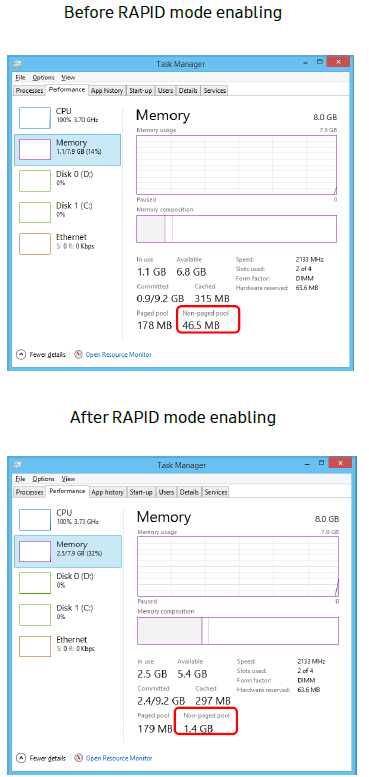
Operational Check of RAPID mode
RAPID mode starts its operation 45 seconds after the OS boots. Please make sure the increased size of the non-paged pool using “task manager → performance → memory tab” to ensure it is fully operational.
Troubleshooting Samsung Magician 8: Common Issues and Solutions
- Issue: Samsung Magician 8 does not detect the SSD
Solution: Ensure the SSD is properly connected and recognized by the operating system. Update to the latest Samsung storage drivers and verify that your SSD model is supported by Magician 8. - Issue: Firmware update fails
Solution: Check that the system has a stable internet connection and sufficient power supply. Temporarily disable antivirus software and run Magician as an administrator. - Issue: Performance benchmark shows degraded speeds
Solution: Run the TRIM function and enable RAPID mode if supported. Perform a diagnostic scan to detect errors and consider over-provisioning the SSD. - Error Codes: Magician may display specific error codes during diagnostics; consult the Samsung Magician user guide or official support for code interpretations and fixes.
- Preventive Measures: Regularly update firmware, run diagnostic scans, and avoid filling the SSD beyond 90% capacity to maintain optimal performance.
Samsung offers warranty and support options for SSDs covered by Samsung Magician 8. For assistance, users can contact Samsung customer support via their official website or use the in-app chatbot for guided help and troubleshooting tips.
Pros and Cons of Samsung Magician 8
- Pros:
- Comprehensive SSD management with performance benchmarking and health monitoring
- User-friendly interface with chatbot support for easy navigation and troubleshooting
- Supports a broad range of Samsung SSDs, including high-end NVMe drives
- Automatic firmware updates keep SSDs running optimally
- Advanced features like secure erase and over provisioning enhance data security and drive lifespan
- Cons:
- Exclusively supports Samsung storage products, limiting use with other brands..
- Only available for Windows 10 and newer; no official support for macOS or Linux
- Some advanced features like RAPID mode,, require a compatible Samsung SSD mode.ls
- Initial setup and feature understanding may require a learning curve for novice users..
- In comparison to alternatives like Crucial Storage Executive or Intel SSD Toolbox, Samsung Magician 8 excels in Samsung SSD-specific optimization but lacks cross-brand compatibility. It is a strong value proposition for Samsung users seeking dedicated software that maximizes drive performance and reliability.
Customer Reviews and Feedback on Samsung Magician 8
Users generally praise Samsung Magician 8 for its straightforward interface and useful performance tools, often highlighting the convenience of automatic firmware updates and health monitoring. Many appreciate the integrated chatbot, which simplifies complex tasks such as firmware upgrades and troubleshooting.
Common complaints include occasional detection issues with non-Samsung drives and limitations to the Windows OS only. Some users report that certain features,uaslike RAPID, , are only available on specific SSD models, which can be confusing. The software holds a 4.5-star average rating from users, recommended for Samsung SSD owners looking to maintain and optimize their storage solutions efficiently. Frequent buyers advise keeping the software updated and running regular diagnostics for the best results.
Faqs
How do I set up Samsung Magician 8 for the first time on my Windows PC?
What should I do if Samsung Magician 8 is not recognizing my Samsung SSD?
Can Samsung Magician 8 be used with macOS and how does its feature availability differ?
What are the key performance optimization features in Samsung Magician 8?
How can I securely erase data using Samsung Magician 8 to prepare an SSD for resale?
What system requirements and compatibility should I check before installing Samsung Magician 8?
How often should I use Samsung Magician 8 for SSD maintenance and firmware updates?
What common problems occur with Samsung Magician 8 and how can I solve them?
More samsung manuals
Leave a Comment